Twitter has become an integral part of our daily digital lives, but like any app, it can sometimes slow down or behave erratically. One of the most effective ways to address these issues is by clearing your Twitter cache. In this comprehensive guide, we’ll explore everything you need to know about Twitter cache, why it’s important to clear it, and step-by-step instructions for various devices.
#What is Twitter Cache and Why Does it Matter?
Before diving into the how-to, let’s understand what cache is and why it’s crucial for Twitter users:
- Cache defined: Cache is temporary data stored on your device to help apps load faster and work more efficiently.
- Twitter’s cache: This includes images, videos, and other content you’ve viewed on the platform.
- The downside: Over time, this cache can accumulate, leading to sluggish performance and outdated content.
Clearing your Twitter cache offers several benefits:
- Improved app performance
- Reduced storage usage
- Up-to-date content display
- Enhanced privacy protection
#Signs You Need to Clear Your Twitter Cache
How do you know when it’s time to clear your cache? Look out for these telltale signs:
- Slow loading times for tweets and media
- Unexplained app crashes or freezes
- Outdated information appearing in your feed
- Significant storage space being used by the Twitter app
- General sluggishness when navigating the app
- Videos not playing properly
If you’re experiencing any of these issues, it’s probably time for a cache clear-out.
#How to Clear Twitter Cache on iPhone
iOS users can clear their Twitter cache by following these steps:
- Open the Twitter app on your iPhone.
- Tap your profile icon in the top-left corner.
- Go to “Settings and privacy” > “Privacy and safety“.
- Tap on “Data usage“.
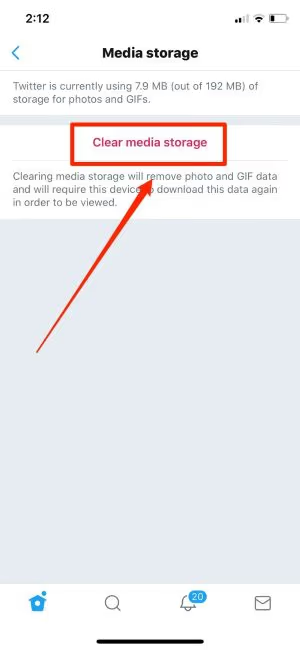
- Under the “Storage” section, tap on “Media storage” and “Web storage“.
- Tap “Clear media storage” and “Clear web storage” respectively.
Pro Tip: For a more thorough cleanup, you can delete and reinstall the Twitter app. This will clear all local data, including the cache.
#Clearing Twitter Cache on Android Devices
Android users have a slightly different process:
- Go to your device’s Settings.
- Tap on “Apps” or “Application Manager“.
- Find and tap on “Twitter“.
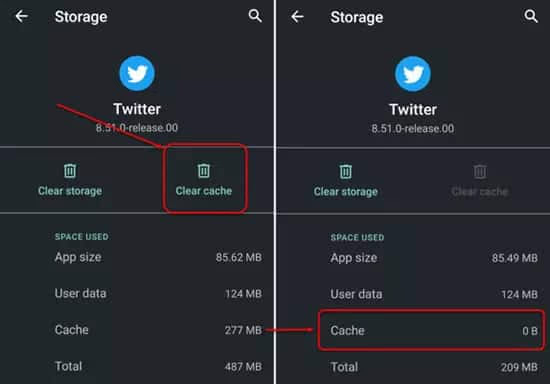
- Tap on “Storage“.
- Hit “Clear Cache” and then “Clear Data“.
For Samsung users:
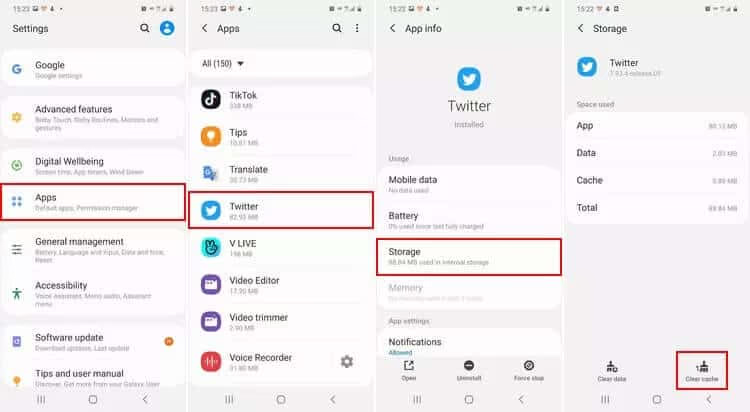
- Go to “Settings” > “Apps” and locate “Twitter“.
- Tap on “Storage“.
- Tap the “Clear Cache” button.
#Clearing Twitter Cache on Desktop Browsers
If you primarily use Twitter on your computer, here’s how to clear the cache:
For Chrome:
- Click the three dots in the top-right corner.
- Go to “More tools” > “Clear browsing data“.
- Select “Cached images and files” and choose your time range.
- Click “Clear data“.
For Firefox:
- Click the menu button and select “Options“.
- Go to “Privacy & Security“.
- In the “Cookies and Site Data” section, click “Clear Data“.
- Ensure “Cached Web Content” is checked and click “Clear“.
For Safari:
- Click “Safari” in the menu bar and select “Preferences“.
- Go to the “Advanced” tab.
- Check “Show Develop menu in menu bar“.
- Click “Develop” in the menu bar and select “Empty Caches“.
#Advanced Twitter Cache Management
For power users, there are more advanced options for managing Twitter cache:
- Third-party tools: Apps like CCleaner or CleanMyMac can help manage cache across multiple apps, including Twitter.
- Automation: On Android, you can use apps like SD Maid to schedule regular cache clearing.
#Best Practices for Maintaining Twitter Performance
To keep your Twitter experience smooth:
- Clear cache regularly (monthly is a good rule of thumb).
- Keep the Twitter app updated to the latest version.
- Manage your follows and mutes to reduce content load.
- Use Twitter’s data saver mode if available on your device.
- Hide likes on Twitter to improve privacy and reduce data load.
#Troubleshooting Common Twitter Cache Issues
If clearing the cache doesn’t solve your issues:
- Check your internet connection.
- Restart the Twitter app or your device.
- Update the Twitter app or your device’s operating system.
- As a last resort, uninstall and reinstall the Twitter app.
#Privacy and Security Considerations
Remember that clearing your cache can log you out of Twitter and remove some locally stored data. This can be beneficial for privacy, especially if you’re using a shared device. However, it won’t affect your tweets, followers, or account settings stored on Twitter’s servers.
For additional privacy measures, you might want to:
- Check who visited your Twitter profile
- Find out who blocked you on Twitter
- Consider using tools like UnfollowSpy to manage your followers
#Recovering Deleted Content
While clearing cache can help with performance, it’s important to note that it doesn’t affect your actual tweets. If you’re looking to recover deleted tweets, there are methods to see deleted tweets that don’t involve cache manipulation.
#Conclusion: Keeping Your Twitter Experience Smooth and Efficient
Regularly clearing your Twitter cache is a simple yet effective way to maintain optimal app performance and protect your privacy. By following the steps outlined in this guide, you can ensure a smoother, faster, and more enjoyable Twitter experience across all your devices.
#FAQs About Clearing Twitter Cache
- How often should I clear my Twitter cache? It’s recommended to clear your cache monthly, or more frequently if you’re a heavy user.
- Will clearing the cache delete my tweets or followers? No, clearing the cache only removes local data and doesn’t affect your account information stored on Twitter’s servers.
- Can clearing the cache help if Twitter is crashing? Yes, it often resolves issues related to app crashes and freezes.
- Do I need to clear cache on all my devices? Yes, cache is device-specific, so clear it on each device you use Twitter on for best results.
- Is there a way to automatically clear Twitter cache? Some Android devices and third-party apps offer automated cache clearing, but it’s not a built-in feature of Twitter itself.
By keeping your Twitter cache clean, you’re not just optimizing your app performance—you’re ensuring a more secure and private social media experience. Happy tweeting!