WhatsApp has become an integral part of our daily communication, often containing important conversations, cherished memories, and crucial information. Knowing how to export these chats can be invaluable for backing up data, preserving important discussions, or transferring conversations to a new device. This comprehensive guide will walk you through the process of exporting WhatsApp chats, covering everything from basic exports to advanced techniques and important privacy considerations.
#1. Introduction to Exporting WhatsApp Chats
#What Does Exporting WhatsApp Chats Mean?
Exporting WhatsApp chats refers to the process of creating a copy of your conversations that can be saved outside of the WhatsApp application. This exported file can include text messages, images, videos, and other media shared within the chat.

#Why Export WhatsApp Conversations?
There are several compelling reasons to export your WhatsApp chats:
- Backup: Preserve important conversations in case of data loss or device change.
- Documentation: Keep records of business communications or personal agreements.
- Archiving: Save memorable conversations for sentimental reasons.
- Legal purposes: Maintain chat records that may be needed for legal proceedings.
- Device Transfer: When transferring WhatsApp from Android to iPhone or between other devices.
#Use Cases for Exporting Chats
- Business owners archiving client communications
- Students saving important study group discussions
- Families preserving cherished conversations with loved ones
- Individuals moving to a new device and wanting to transfer chat history
#2. Step-by-Step Guide to Export WhatsApp Chats
#Exporting on Android Devices
- Open WhatsApp and select the chat you want to export.
- Tap the three-dot menu icon in the top-right corner.
- Select “More” and then “Export chat“.
- Choose whether to include media files or not.
- Select your preferred sharing method (email, cloud storage, etc.).
#Exporting on iOS Devices
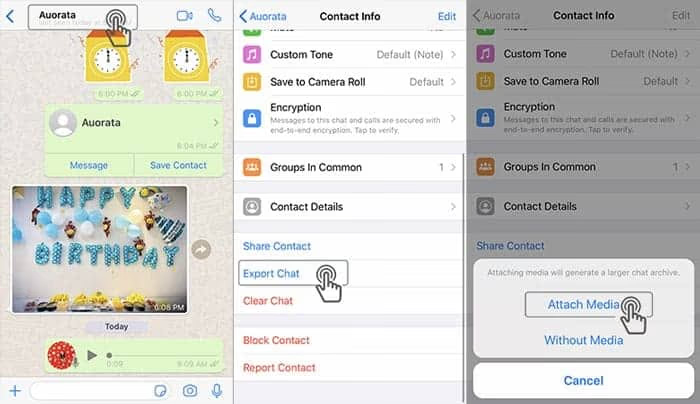
- Open WhatsApp and go to the desired conversation.
- Tap the contact or group name at the top to open the info screen.
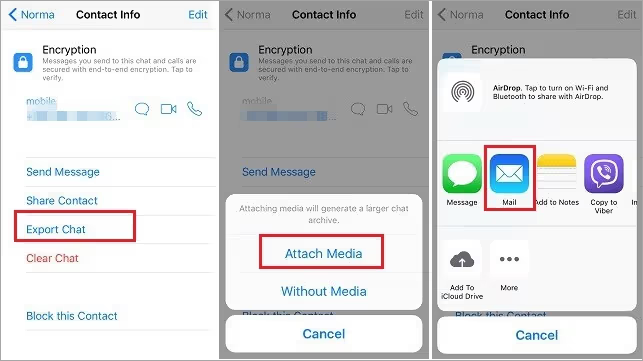
- Scroll down and select “Export Chat“.
- Choose “Attach Media” or “Without Media“.
- Select your preferred sharing method from the iOS share menu.
#Choosing Between Exporting With or Without Media
When exporting, you’ll have the option to include or exclude media files:
- With Media: Includes all shared photos, videos, and documents. This option creates a larger file size but provides a complete chat history.
- Without Media: Exports only text messages, resulting in a smaller file size. This is useful for quick transfers or when storage space is limited.
Note: WhatsApp limits exports to 40,000 messages without media or 10,000 messages with media due to email size restrictions.
#3. Advanced Export Options
#Exporting Chats to PDF
For a more versatile format, you can convert your exported chat to PDF:
- Export the chat as a text file from WhatsApp.
- Open the text file in a word processing application like Microsoft Word or Google Docs.
- Format the document as desired.
- Save or export the document as a PDF file.
This method allows for easier reading and sharing of chat histories.
#Using Email to Export Chats
Email is one of the most straightforward methods for exporting chats:
- Follow the export steps for your device (Android or iOS).
- Choose “Mail” as your sharing option.
- Enter your email address and send the email to yourself.
- Access the exported chat from your email on any device.
#Transferring Chats to PC
To save chats directly to your computer:
- Connect your smartphone to your PC via USB.
- Export the chat on your phone and choose to save it to your device’s storage.
- Use your computer’s file explorer to navigate to the WhatsApp folder on your phone.
- Copy the exported chat file to your desired location on your PC.
#4. Third-Party Tools for Exporting WhatsApp Chats
While WhatsApp’s built-in export feature is sufficient for most users, third-party tools can offer additional functionality:

#Popular Third-Party Export Tools
- Dr.Fone – WhatsApp Transfer: Allows for selective transfer of WhatsApp data between devices.
- iMazing: Offers comprehensive iOS device management, including WhatsApp chat exports.
- MobileTrans: Supports cross-platform WhatsApp transfers and backups.
These tools can be particularly useful when transferring WhatsApp from Samsung to Huawei or between other brands.
#Benefits and Features of Third-Party Options
- More flexible export formats (HTML, PDF, CSV)
- Ability to export entire chat history without limitations
- Advanced search and filter options for exported chats
- Direct transfer between devices of different operating systems
#Potential Risks and Privacy Concerns
While third-party tools can be powerful, they also come with risks:
- Data privacy: Ensure the tool has a clear privacy policy and doesn’t store your data.
- Security: Only use reputable tools to avoid potential malware or data breaches.
- Compatibility: Check if the tool is compatible with your device and WhatsApp version.
#5. Managing Exported Chat Files
#Best Practices for Storing Exported Chats
- Use secure cloud storage services for backups.
- Encrypt sensitive chat exports before storing them.
- Regularly update and organize your exported chat files.
- Backup WhatsApp contacts separately to ensure you don’t lose important information.
#Converting Between File Formats
Depending on your needs, you may want to convert your exported chats:
- Text to PDF: Use online converters or word processing software.
- PDF to searchable text: Utilize OCR (Optical Character Recognition) tools.
- Creating visual chat logs: Some tools can convert chats into image-based timelines.
#Organizing Large Chat Exports
For users with extensive chat histories:
- Create a logical folder structure (e.g., by year, contact, or topic).
- Use descriptive file names including dates and participants.
- Consider using document management software for large collections.
#6. Privacy and Security Considerations
#Understanding WhatsApp’s Export Privacy Policies
- Exported chats are no longer protected by WhatsApp’s end-to-end encryption.
- WhatsApp does not notify the other party when you export a chat.
#Protecting Sensitive Information in Exports
- Review chats before exporting to ensure you’re comfortable with the content being saved externally.
- Redact or remove sensitive information like phone numbers or addresses if necessary.
- Be cautious when finding someone on WhatsApp and exporting chats with new contacts.
#Encrypting Exported Chat Files
For added security:
- Use file encryption software to password-protect your exported chats.
- Consider using encrypted cloud storage services.
- Regularly update passwords and security measures for stored chat exports.
#7. Troubleshooting Common Export Issues
#Dealing with Large File Sizes
- Export chats in smaller segments if they exceed size limits.
- Use file compression tools to reduce the size of media-heavy exports.
- Consider cloud storage options that support large file uploads.
#Fixing Formatting Errors in Exports
- If emojis or special characters appear garbled, try opening the file with a different text editor.
- For PDF exports, ensure you’re using a PDF reader that supports all fonts and characters.
#Resolving Incomplete Exports
- Check that your WhatsApp app is up to date.
- Ensure your device has enough storage space for the export.
- Try exporting without media first, then export media separately if needed.
- If WhatsApp is not detecting local backup, troubleshoot this issue before attempting to export.
#8. Key Takeaways
- Exporting WhatsApp chats is a valuable way to backup, archive, and transfer your conversations.
- Choose between exporting with or without media based on your needs and storage constraints.
- Consider using third-party tools for more advanced export options, but be mindful of privacy concerns.
- Always handle exported chats with care, as they are no longer protected by WhatsApp’s encryption.
- Regularly organize and secure your exported chat files to maintain privacy and accessibility.
#9. FAQs
- Can I export WhatsApp chats without media files? Yes, when exporting, you’ll be given the option to include or exclude media files.
- How can I export WhatsApp chats on an iPhone? On iPhone, open the chat, tap the contact name, scroll down, and select “Export Chat.”
- Is it possible to export WhatsApp chats on a computer? While not directly, you can export chats on your phone and then transfer them to your computer.
- Can I export WhatsApp chats with timestamps? Yes, exported chats include timestamps for each message.
- What should I do if WhatsApp backup is not working? If you’re experiencing issues with WhatsApp backup not working, try troubleshooting steps like checking your internet connection or clearing app cache before attempting to export.
By following this guide, you’ll be well-equipped to export your WhatsApp chats efficiently and securely, ensuring that your important conversations are preserved and accessible whenever you need them. Remember to regularly check your WhatsApp notifications to stay up-to-date with any changes or updates that might affect the export process.