Forgetting the password to a protected Excel sheet can be incredibly frustrating, especially when you need to access important data quickly. This comprehensive guide will walk you through 5 effective methods to unprotect Excel sheets without a password, as well as best practices for sheet protection and troubleshooting tips.
#Introduction
Microsoft Excel’s password protection feature allows users to secure sensitive data and prevent unauthorized changes. However, situations may arise where you need to access a protected sheet without the original password. This could be due to:

- Forgetting your own password
- A colleague leaving the company without sharing the password
- Inheriting old files with unknown passwords
- Needing to recover data from legacy documents
While there are several methods to unprotect Excel sheets without a password, it’s crucial to approach this process ethically and responsibly. Only attempt to unprotect sheets that you have the right to access and modify.
#Method 1: Changing File Extension
This method involves manipulating the Excel file structure to remove the password protection.
#Step-by-Step Process:
- Make a copy of your Excel file for safety.
- Change the file extension from .xlsx to .zip.
- Open the ZIP file using a program like 7-Zip or WinRAR.
- Navigate to the xl/worksheets/ directory within the ZIP file.
- Find the XML file corresponding to your protected sheet (usually sheet1.xml, sheet2.xml, etc.).
- Open the XML file with a text editor like Notepad++.
- Locate and delete the entire tag.
- Save the changes to the XML file.
- Update the modified XML file in the ZIP archive.
- Change the file extension back to .xlsx.
#Method 2: Using VBA Code
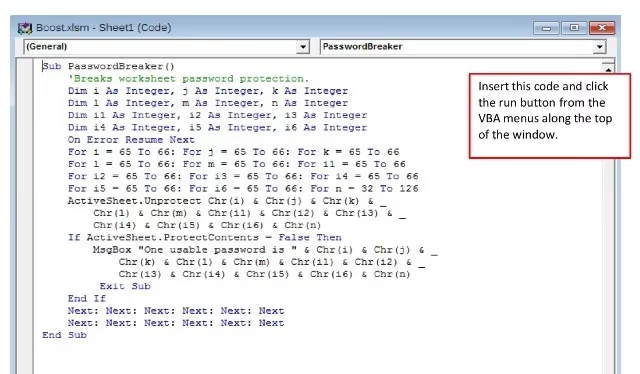
For older versions of Excel (2010 and earlier), you can use a VBA macro to attempt to crack the sheet protection.
#Step-by-Step Instructions:
- Open the protected Excel file.
- Press Alt + F11 to open the Visual Basic Editor.
- Insert a new module (Insert > Module).
- Copy and paste the VBA code (provided in the original article).
- Press F5 or click “Run” to execute the macro.
- Wait for the macro to finish running. It will display the password if successful.
- Use the revealed password to unprotect the sheet normally.
Sub PasswordBreaker()

'Breaks worksheet password protection.

Dim i As Integer, j As Integer, k As Integer
Dim l As Integer, m As Integer, n As Integer
Dim i1 As Integer, i2 As Integer, i3 As Integer
Dim i4 As Integer, i5 As Integer, i6 As Integer
On Error Resume Next
For i = 65 To 66: For j = 65 To 66: For k = 65 To 66
For l = 65 To 66: For m = 65 To 66: For i1 = 65 To 66
For i2 = 65 To 66: For i3 = 65 To 66: For i4 = 65 To 66
For i5 = 65 To 66: For i6 = 65 To 66: For n = 32 To 126
ActiveSheet.Unprotect Chr(i) & Chr(j) & Chr(k) & _
Chr(l) & Chr(m) & Chr(i1) & Chr(i2) & Chr(i3) & _
Chr(i4) & Chr(i5) & Chr(i6) & Chr(n)
If ActiveSheet.ProtectContents = False Then
MsgBox "One usable password is " & Chr(i) & Chr(j) & _
Chr(k) & Chr(l) & Chr(m) & Chr(i1) & Chr(i2) & _
Chr(i3) & Chr(i4) & Chr(i5) & Chr(i6) & Chr(n)
Exit Sub
End If
Next: Next: Next: Next: Next: Next
Next: Next: Next: Next: Next: Next
End Sub#Method 3: Online Unprotection Tools
Several online services offer Excel unprotection capabilities. These can be convenient options if you’re uncomfortable with file manipulation or VBA.
#Top Recommended Tools:
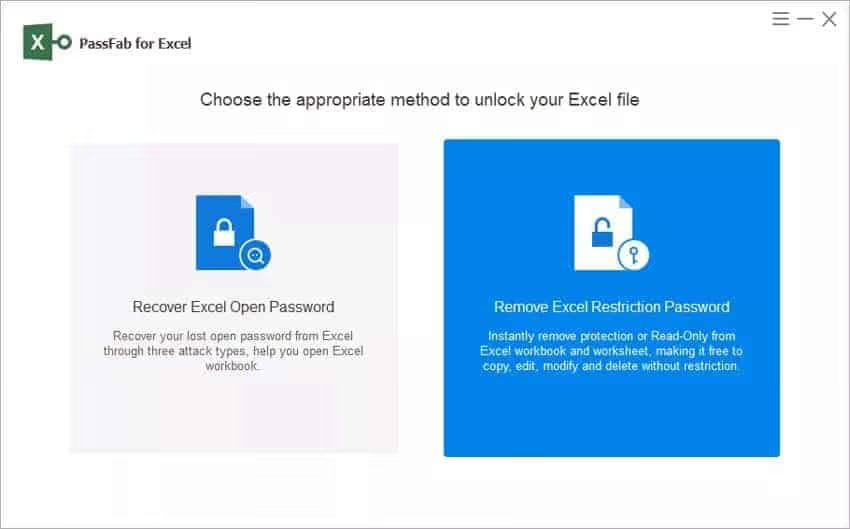
For those who prefer offline solutions, there are also dedicated Excel password breakers that can be installed on your computer.
#Method 4: Password Cracker Software
Dedicated password cracking software can be a powerful option for recovering Excel passwords.
#Popular Password Cracking Tools:
#Method 5: Google Sheets Workaround
This method takes advantage of Google Sheets’ inability to read Excel password protection.
#Step-by-Step Process:
- Upload your protected Excel file to Google Drive.
- Open the file with Google Sheets.
- Google Sheets will automatically remove the protection.
- Make any necessary edits in Google Sheets.
- Download the file back to your computer as an Excel file.
- Open the downloaded file in Excel – it should now be unprotected.
While working in Google Sheets, you might find it helpful to know how to highlight duplicates in Google Sheets for data cleaning purposes.
#Best Practices for Excel Sheet Protection
To avoid future password issues, consider these best practices:
- Use strong but memorable passwords
- Implement multi-factor authentication for sensitive files
- Utilize Excel’s built-in Information Rights Management (IRM) features
- Keep unprotected backups of important files in a secure location
- Use password management software to securely store and organize passwords
#Troubleshooting Common Issues
If you encounter problems with these methods, try the following:
- Ensure you’re using the correct version of Excel for the chosen method
- Check for any additional workbook or VBA protection
- Try multiple methods, as some may work better for specific file types
- For partially protected sheets, identify which cells or ranges are locked
- If dealing with an encrypted workbook, you may need specialized recovery software
Sometimes, Excel files can become unresponsive due to various reasons. If you’re facing this issue, check out our guide on what to do when Excel is not responding.
#Additional Excel Tips
While working with Excel, you may encounter other common issues. Here are some helpful tips:
- How to break links in Excel: Breaking links can help reduce file size and prevent unwanted data updates.
- If you frequently work with large Excel files or complex data analysis, consider investing in a laptop optimized for Excel to improve your productivity.
#Conclusion
While there are several methods to unprotect Excel sheets without a password, it’s crucial to use these techniques responsibly and ethically. Always ensure you have the right to access and modify the protected content.
For personal files, the file extension change method or Google Sheets workaround may be the simplest solutions. For more complex situations or enterprise environments, password cracking software or professional data recovery services might be necessary.
Remember, the best approach to Excel security is to implement strong protection measures while maintaining secure access to passwords or unprotected backups. By following best practices and choosing the right unprotection method when necessary, you can balance data security with accessibility in your Excel workflows.