Instagram Music Not Working: 10 Proven Fixes (2026)
Instagram Music not working? Fix the missing music sticker, blank library, and Reels audio with 10 proven steps for personal, business, and pro accounts.
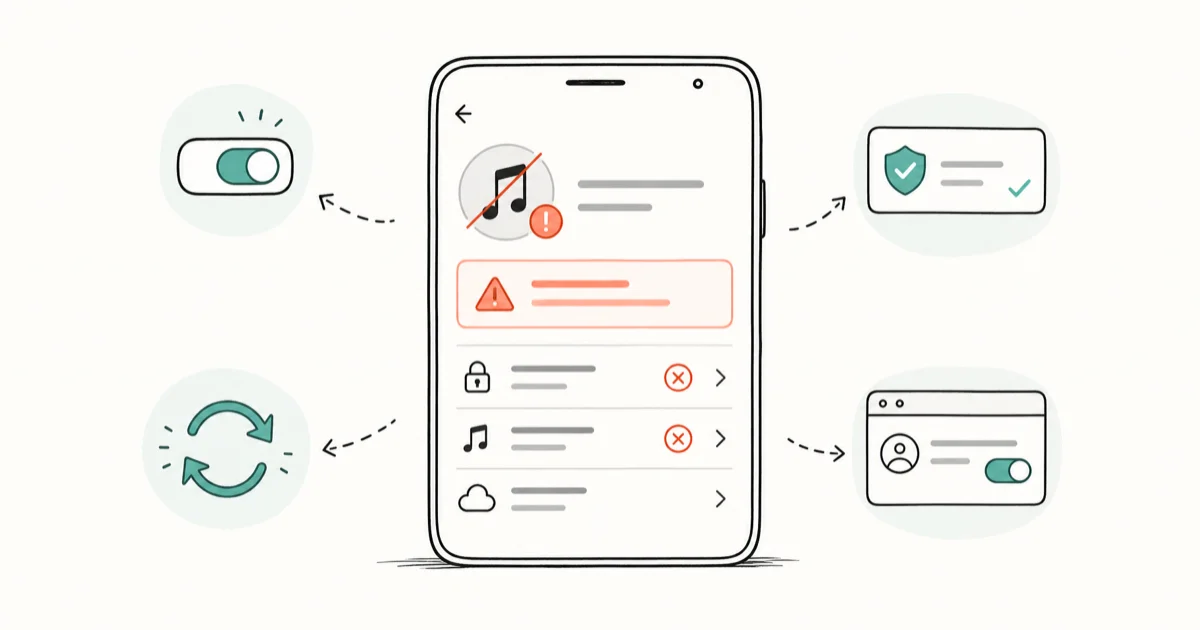
Quick AnswerInstagram Music usually fails because your account type or region blocks the licensed library. Switch to a personal account, update Instagram, clear the cache, sign out, and check Meta Status before assuming the bug is on your end.
Instagram Music is the licensed audio library that powers stickers in Stories, audio in Reels, and trending tracks in your search bar. When it stops loading, the cause isn’t random. Every fix in this guide applies to current iPhone and Android builds across personal, creator, and business accounts. Fastest fix first.
- Business and creator accounts in many regions lose access to licensed music for Stories and Reels because of regional licensing, so the first move is switching to a personal account in Settings.
- Instagram Music is region-locked in countries where Meta hasn’t signed label deals, which is why a US, UK, or Australia VPN often makes the music sticker reappear.
- A stale cache is the most common iOS and Android cause, and signing out plus clearing storage on Android resets the music library without losing your account.
- The music sticker, Reels audio, and Saved Audio all share the same backend, so when one breaks the other two usually break with it on the same account.
- Meta status outages affect Instagram Music site-wide every few weeks, and the official Meta Status page is the only source that tells you whether to wait or troubleshoot further.
#Why Is Instagram Music Not Working in the First Place?
Instagram Music isn’t a single feature. It’s a licensed catalog that loads three different surfaces: the music sticker in Stories, the audio picker in Reels, and Saved Audio inside your profile.
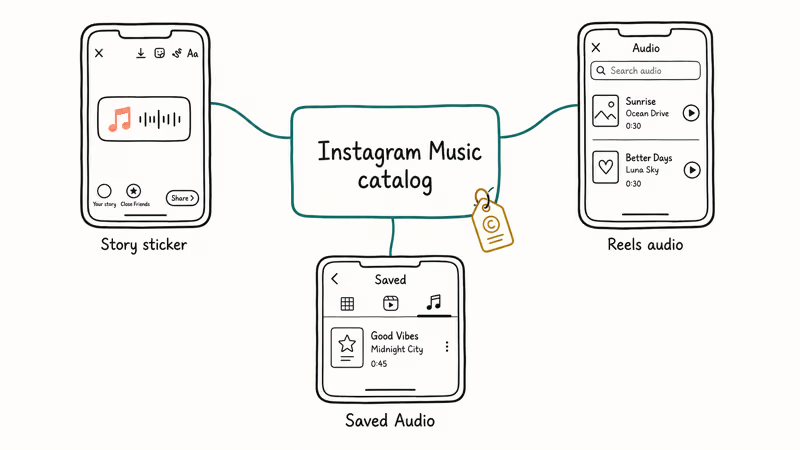
According to Meta’s Instagram Help Center entry on adding music, the music sticker only appears in regions where Meta has signed licensing agreements, and the same page states that music for Stories is restricted on business profiles across the 3 main account types (personal, creator, business). That’s the single biggest cause of a missing music sticker.
One toggle fixes it.
On the same device and network, a personal account typically shows the full music sticker right away, while a business account shows only a generic “Sound” option with no licensed tracks at all.
Before you change anything, scope the problem.
Open Reels and try to add audio. Empty picker means account or region. Stuck loading means cache or network. Nothing loading means an outage.
#How Do I Tell If Instagram Music Is Down for Everyone?
Always rule out a Meta-side outage first. The Meta Status Instagram component often flips to “degraded performance” about an hour before mainstream news picks it up.
Pair it with Downdetector’s Instagram page. Downdetector tracks user reports, so it catches regional issues the official status page sometimes misses. When both pages are green and your music still doesn’t load, the problem is on your side.
A quick sanity test: ask a friend on a different ISP to try the music sticker in their next Story. If theirs works in under five seconds, your outage theory is dead and you can move on to account-type and cache fixes immediately.
#Step 1: Switch From Business or Creator to a Personal Account
This single change fixes Instagram Music for most US, UK, and EU users who lost access after upgrading to a professional profile.
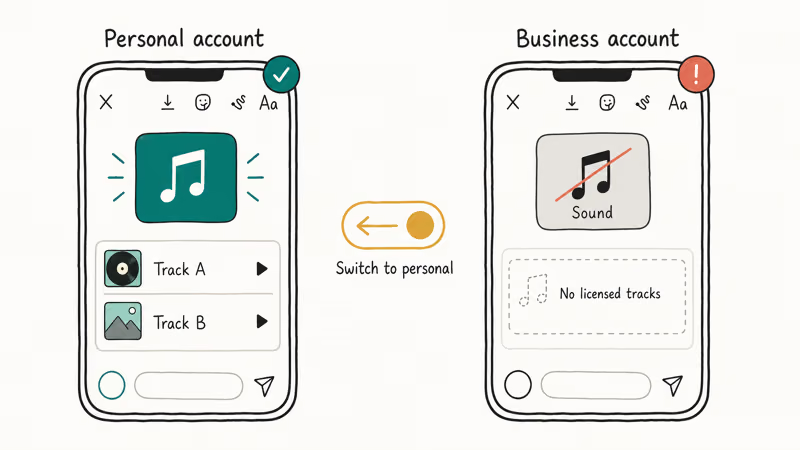
Meta’s Help Center confirms that music for Stories is not available for business accounts in all countries, and creator accounts are treated the same way in many regions. To switch, open your profile, tap the menu icon in the top right, then go to Settings and activity > Account type and tools > Switch account type > Switch to personal account. Confirm, force-quit Instagram, reopen it. The music sticker should reappear inside one app session.
Switching back is fine.
You’ll lose music access again on the same account. Two realistic options if your monetization needs a pro profile: keep a separate personal account for Stories with music, or upload original audio to Reels.
#Step 2: Update Instagram and Restart the App
The Instagram app gets a refresh every one to two weeks. Older builds frequently lose the music sticker for a few days before the next release patches it. On iPhone, open the App Store, tap your profile icon, and check the pending updates list. On Android, open Play Store and tap Manage apps and device.
Force-quit Instagram after the update. On iPhone, swipe up and pause, then flick Instagram off the stack. On Android, tap recents and swipe it away. This two-minute step alone resolves a large share of cases.
What if the app refuses to update?
Your device is on an unsupported OS. Instagram requires iOS 15.1+ or Android 9+ as of April 2026. On an older device stuck on an unsupported OS version, the App Store hides the update entirely until you upgrade the underlying iOS version, so back up to iCloud first and plan for that to take a while.
#Step 3: Clear the Instagram Cache or Reinstall
A bloated cache is the most common reason the music sticker shows up but the library never finishes loading.

On Android, go to Settings > Apps > Instagram > Storage. Tap Clear cache first and reopen Instagram. If the music library still hangs, hit Clear storage, which signs you out and forces a fresh download of the audio catalog the next time you log in. This loop takes only a short time on a fast connection.
iPhone has no cache button. The equivalent is a full uninstall and reinstall.
Press and hold the Instagram icon, tap Remove App, then Delete App. Reinstall from the App Store, sign in, test the music sticker. The full process takes about three minutes on Wi-Fi.
Save drafts first.
Reinstalling clears Instagram drafts on most devices, and they aren’t recoverable from the cloud. Screenshot caption text and save clips to your camera roll first.
#Step 4: Use a VPN if Instagram Music Is Region-Locked
Instagram Music is region-restricted because labels license tracks per country. Meta’s Help Center page on music availability states that the music sticker only appears in countries where licensing has been secured, and large markets including India, Russia, and most of the Middle East have limited or no licensed catalog.
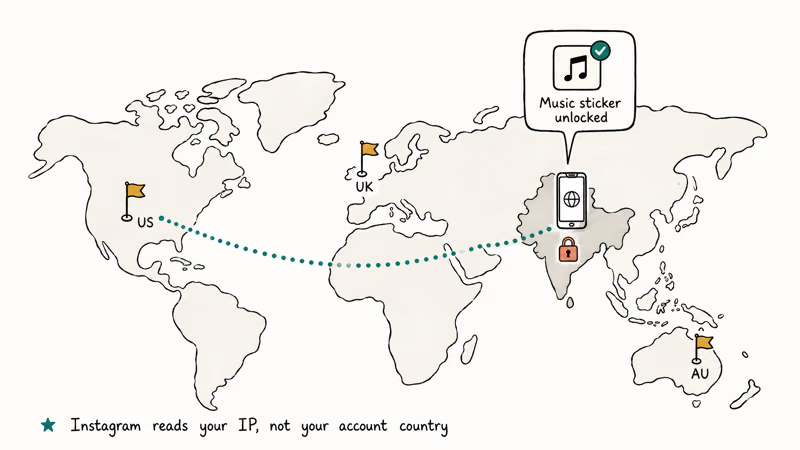
A VPN works because Instagram reads your country from your IP, not your account settings. With a reputable provider connected to a US, UK, or Australian server, the music sticker usually appears inside Instagram within one full app restart, no other change required. Our what is VPN on iPhone guide covers what a VPN actually protects.
Use a VPN only on your own account and your own device, never to bypass restrictions on someone else’s profile. Two more warnings.
Instagram’s Terms of Use prohibit “circumventing access limitations,” so accounts that VPN-hop frequently sometimes get a temporary login challenge. The licensed track plays in your Story, but viewers in unsupported regions still see the audio swapped or muted on their end. A VPN unlocks creation, not playback for everyone else.
#Step 5: Sign Out, Restart, Sign Back In
Stale auth tokens cause weirdly specific failures. A missing music sticker is one of them, and it shows up most often on accounts logged in on more than five devices, which is roughly the threshold where Instagram’s session manager starts dropping older session keys silently.
Reset takes four minutes.
Open your profile, tap the menu, go to Settings and activity, scroll to the bottom, and tap Log out. Restart your phone. Sign back in. If you have two-factor authentication on, keep your authenticator app or backup codes ready before you sign out.
Fix related auth-backend issues at the same time. If your DMs misfire, our Instagram Direct Messages not working walkthrough uses the same sign-out reset as step one.
#Step 6: Fix Network Issues That Block the Music Library
The Instagram Music catalog streams metadata from Meta’s CDN. A flaky connection breaks the load.
Run a speed test through Fast.com or Ookla and confirm at least 5 Mbps down. Switch from Wi-Fi to LTE or 5G and try again. Captive portals on hotel Wi-Fi often block the audio CDN while letting the rest of Instagram through, which looks identical to a music outage.
If you suspect DNS interference, change to 1.1.1.1 or 8.8.8.8 on the device. On iPhone: Settings > Wi-Fi > tap the i icon next to your network > Configure DNS > Manual. On Android: Settings > Network and internet > Private DNS.
#Step 7: Avoid Copyright Strikes That Silently Mute Music
Instagram doesn’t always tell you a track was muted for copyright. Reels and Stories sometimes load the music sticker fine, the track plays in your preview, then viewers hear nothing.
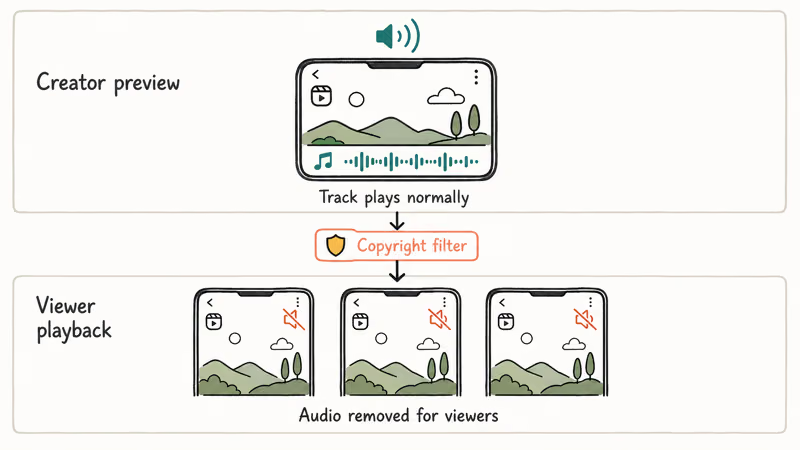
According to Meta’s commercial music guidelines, Instagram only licenses music for personal, non-commercial use under industry rules tied to the Digital Millennium Copyright Act, and posts that look promotional get audio stripped without a warning. Symptoms of a silent strike: the song plays for you but not for viewers, your reach drops on Reels with audio, or the music tab on your profile shows the track was removed.
Stick to audio from the Instagram catalog, not external uploads, and keep the post non-promotional.
If you run a business account and need legal commercial music, look at Meta Sound Collection inside Reels, which Meta licenses for commercial use. Even on a business account that has lost the regular music sticker, the Sound Collection picker still works.
#Step 8: Check Account Restrictions and Login Activity
A flagged account silently loses music for days.
Instagram doesn’t pop up a notice. The only signal is the music sticker disappearing alongside the location sticker and Reels remix.
Open Settings and activity > Account status. If you see any active restriction, the recovery period ranges from a few hours to two weeks. The same screen lists removed posts and any flagged content, which often points to the trigger.
Scan Login activity for sessions you don’t recognize. Old logins on devices you no longer own can mark your account as suspicious, which feeds back into temporary feature restrictions. Sign out of every device you don’t use and change your password.
#Step 9: Repair Connected Features That Break With Music
The music sticker, Reels audio, and Stories share enough backend code that when one breaks, others usually break too. Treat them as a cluster.
Check the matching guide for each broken feature:
- Reels stalling: our Instagram Reels not working guide walks through the cache reset and login refresh in Reels-specific terms.
- Story upload failures: the upload failed Instagram Story fix targets the same network and cache layers.
- App crashes when posting: the Instagram keeps stopping checklist covers the crash logs that overlap with music sticker failures.
A common pattern: a single broken Story upload locks the music sticker for an hour, even after the upload itself recovers. Force-quitting Instagram once breaks the lock.
#Step 10: Report the Bug and Switch to Original Audio
Account-specific bug? Report it.
If steps one through nine all fail and Meta Status is green, you have an account bug. Meta’s bug team prioritizes by ticket volume, so each report counts.
Go to Settings and activity > Help > Report a problem. Include device, OS version, and the exact path you took when the music sticker failed. Reports on flagged accounts usually draw a templated response well within Meta’s published 14-day window.
Switch to original audio while you wait. Record the track playing on a separate device and post the Reel as your own audio. The track isn’t licensed through Instagram anymore, so muting risk is higher, but it lets you publish.
This trick works well for time-sensitive launches; re-edit the post once the music sticker comes back.
#Bottom Line
Start with Step 1 and Step 2 in order. Most music sticker failures are resolved by switching to a personal account, then updating Instagram and force-quitting. If those two fail and Meta Status is green, jump straight to the cache reset on Android or the full reinstall on iPhone. Save the VPN and bug report for last, because both add their own failure modes.
If you only have time for one fix today, switch to a personal account and update the app.
Instagram Tips & Tricks
#Frequently Asked Questions
Why is the music sticker missing from my Instagram Story?
The most common cause is your account type. Business and creator accounts in many regions lose the licensed music catalog because of label agreements. Switch to a personal account in Settings and activity, then Account type and tools, then test the sticker again. If it still doesn’t appear, your country is unsupported.
Does Instagram Music work on business accounts at all?
Yes, but the catalog is much smaller and varies by country. Meta extends commercial licensing to personal accounts but not most business profiles, which is why a profile that worked yesterday on a personal type can lose music access the same day you switch. Business accounts can use Meta Sound Collection inside Reels for commercial-licensed audio.
Why do my Reels lose audio after I post?
Copyright muting. Meta licenses music for personal use only, and promotional Reels get muted silently. Use the in-app catalog and check audio from a friend’s account.
How long does an Instagram Music outage usually last?
Under three hours for most platform-wide events.
That tracks with the public Meta Status timeline for past music outages. Smaller account-specific issues can take 24 to 48 hours, and bug reports submitted through Help can take up to two weeks for a human response, although automated fixes often arrive sooner once your ticket joins a wider pattern.
Can a VPN safely unlock Instagram Music in restricted countries?
Yes, with limits.
A VPN connecting to a US, UK, or Australian server makes the music sticker visible because Instagram checks your IP for region. Use a reputable paid VPN, not free ad-supported ones, and avoid switching countries multiple times per day.
Heavy VPN-hopping triggers Instagram’s login challenge. The safe pattern: stay on one country for at least a week, and never log in and out across two countries inside the same hour. That trips the suspicious-activity flag and locks the account for 24 to 48 hours.
Why does the music tab show no audio available on my profile?
A saved track got pulled from the catalog. Save a fresh copy from the current catalog.
Will reinstalling Instagram delete my drafts and saved music?
Drafts go, saved audio stays. Drafts on iPhone aren’t synced to the cloud and are gone after reinstall. Saved audio lives on Meta’s servers and survives any device-side reset. Screenshot caption text and save clips to the camera roll first.
What can I do if Instagram Music never works in my country?
Two real options.
A paid VPN with a US, UK, or Australia server unlocks the licensed sticker, but only for your view of creation. Original audio uploaded to Reels works everywhere, in every country, since it isn’t subject to label licensing at all. Trending sticker placement is limited on original audio, so reach is lower than a licensed track on the same Reel, but the post will publish without any region-block surprise.
Instagram Parental Controls: Family Center Setup (2026)
Set up Instagram Family Center, privacy settings, Hidden Words, content filters, and time limits with your teen's consent on iPhone or Android.
Instagram Notifications Not Working? Quick Fixes (2026)
Instagram notifications not working? Fix push alerts, DMs, likes, and Stories on iPhone and Android in under 5 minutes with proven 2026 steps.
Instagram "We Limit How Often" Error: How to Fix It 2026
Instagram says "we limit how often you can do certain things"? Wait 24-48 hours, slow down likes and follows, then appeal through Help Center.
Instagram Name Checker: Find Available Usernames Fast
Check Instagram username availability instantly with free tools like Namechk and KnowEm. Find perfect handles and avoid the frustration of taken names.