Instagram notifications are crucial for staying engaged on the platform, alerting you to new likes, comments, messages, and other interactions. When these notifications stop working, it can disrupt your social media experience and cause you to miss important updates. This comprehensive guide will walk you through troubleshooting steps to get your Instagram notifications back on track.
#Check Device Notification Settings
The first step in resolving Instagram notification issues is to verify your device’s settings:
#iOS Notification Settings
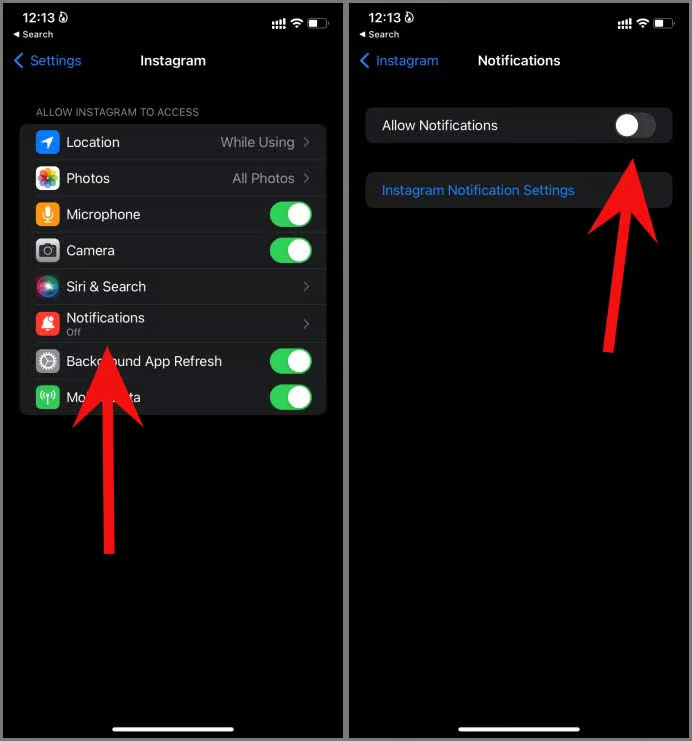
- Open the Settings app on your iPhone or iPad
- Scroll down and tap on “Instagram“
- Tap “Notifications“
- Ensure “Allow Notifications” is toggled on
- Customize notification style (banners, sounds, etc.) as desired
If you’re experiencing issues specifically with Snapchat notifications on your iPhone, you can follow a similar process. Learn more about fixing Snapchat notifications not working on iPhone.
#Android Notification Settings
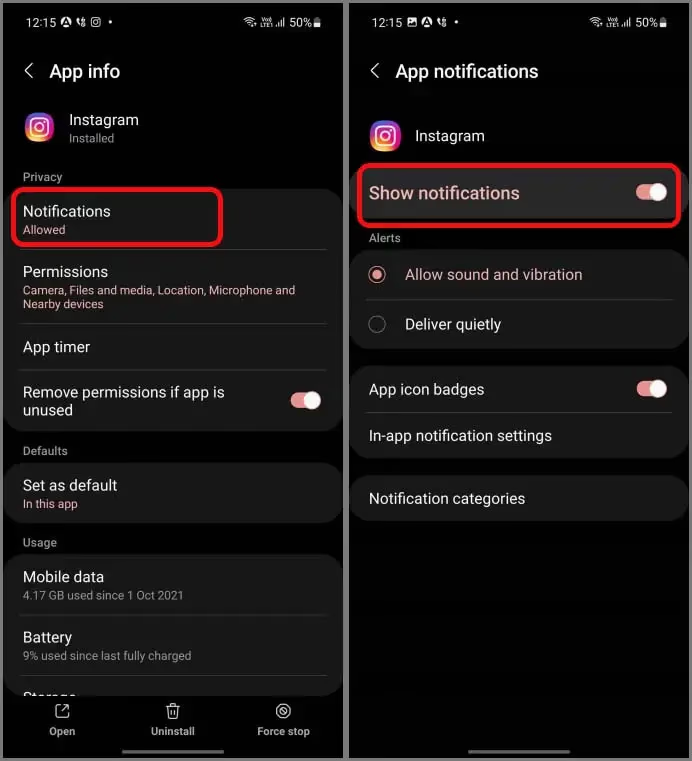
- Open Settings on your Android device
- Tap “Apps & notifications“
- Find and select “Instagram“
- Tap “Notifications“
- Make sure “Show notifications” is enabled
#Do Not Disturb Mode
Check if Do Not Disturb mode is active on your device, as this can silence Instagram notifications:
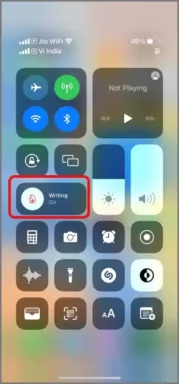
- On iOS: Swipe down from the top-right corner to access Control Center and check if the crescent moon icon is highlighted
- On Android: Swipe down from the top of the screen to view Quick Settings and look for the Do Not Disturb icon
#Verify Instagram App Settings
Next, ensure your in-app Instagram settings are configured correctly:
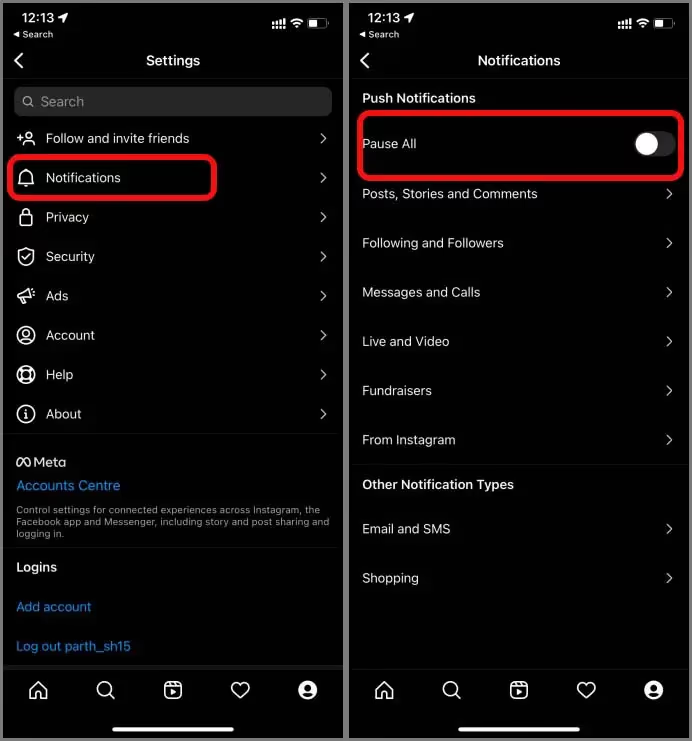
- Open the Instagram app
- Tap your profile picture in the bottom-right corner
- Tap the three lines (hamburger menu) in the top-right corner
- Select “Settings“
- Tap “Notifications“
Here you can:
- Ensure notifications aren’t paused
- Customize which types of notifications you receive (likes, comments, direct messages, etc.)
- Set notification frequency for certain activities
If you find that notifications are paused, make sure to unpause them to start receiving alerts again.
If you’re having trouble with Instagram Direct Messages, check out our guide on fixing Instagram Direct Messages not working.
#Troubleshoot Technical Issues
If your device and app settings appear correct, try these technical fixes:
#Clear App Cache and Data
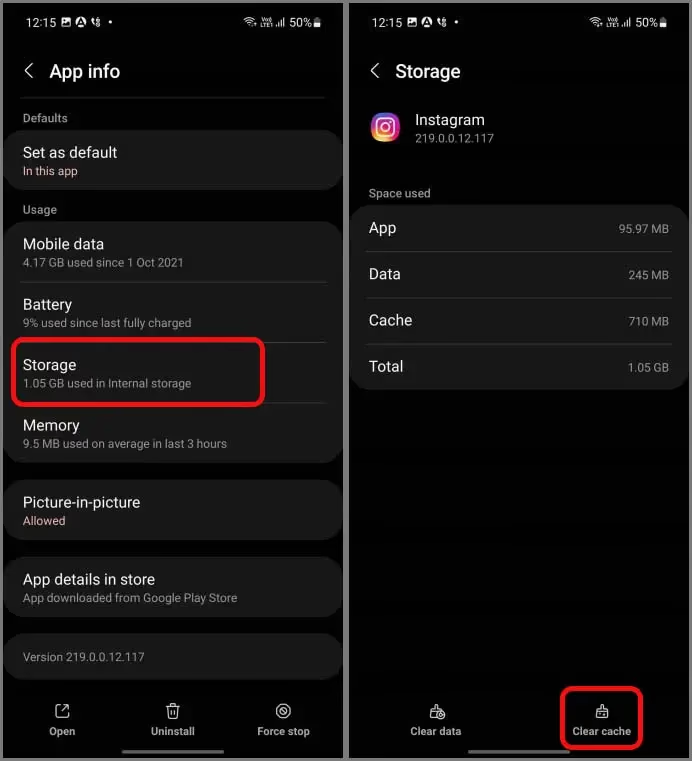
Clearing the Instagram app’s cache can resolve issues caused by corrupted data:
On Android:
- Go to Settings > Apps > Instagram
- Tap “Storage“
- Select “Clear Cache” and “Clear Data“
On iOS:
- Offload the app: Settings > General > iPhone Storage > Instagram > Offload App
- Reinstall Instagram from the App Store
#Update or Reinstall Instagram
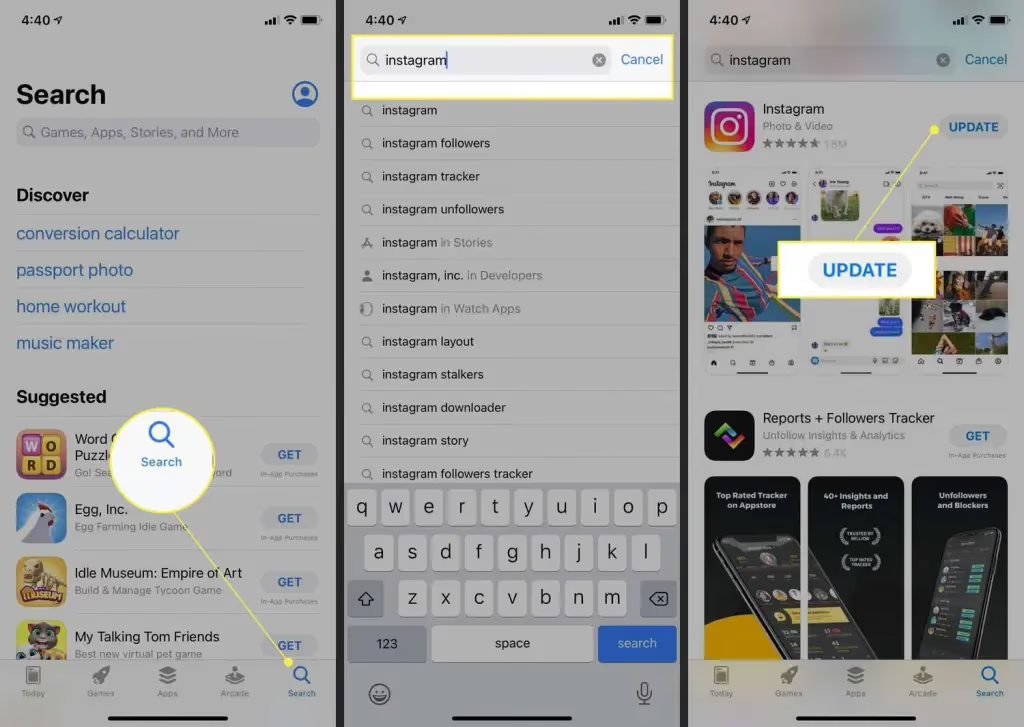
Outdated app versions can cause notification problems. To update:
- Open your device’s app store (Google Play or App Store)
- Search for “Instagram“
- If an update is available, tap “Update“
If updating doesn’t help, try uninstalling and reinstalling the app:
- Delete the Instagram app from your device
- Restart your device
- Reinstall Instagram from your app store
If you’re considering a fresh start, you might want to know how to delete your Instagram account on iPhone completely.
#Check Internet Connection
A stable internet connection is crucial for receiving timely notifications:
- Test your Wi-Fi or cellular data connection
- Try switching between Wi-Fi and mobile data to see if it resolves the issue
- Reset your router if you’re on Wi-Fi
#Additional Fixes
If you’re still experiencing issues, try these additional troubleshooting steps:
#Restart Your Device
A simple restart can often resolve temporary glitches:
- On iOS: Press and hold the power button, then slide to power off. Wait 30 seconds before turning it back on.
- On Android: Press and hold the power button, then tap “Restart” or power off and on manually.
#Log Out and Log Back In
Refreshing your Instagram session can help:
- Go to your profile in the Instagram app
- Tap the three lines (hamburger menu) in the top-right corner
- Scroll down and tap “Log Out“
- Close the app completely
- Reopen Instagram and log back in
#Contact Instagram Support
If none of the above solutions work, reach out to Instagram’s support team:
- Go to your profile and tap the three lines (hamburger menu)
- Select “Settings” > “Help” > “Report a Problem“
- Choose “Something isn’t working” and describe your notification issue
#Prevent Future Notification Problems
To minimize notification issues in the future:
- Keep Instagram updated to the latest version
- Regularly check your device’s notification settings
- Be aware of system updates that might affect app permissions
- Understand how different notification types behave on your device
If you’re having trouble with specific Instagram features, check out our guides on fixing Instagram Reels not working and resolving Instagram Music issues.
#Key Takeaways
- Verify both device and in-app notification settings
- Clear app cache and data regularly
- Keep Instagram updated to the latest version
- Check your internet connection
- Restart your device and log out/in of Instagram as needed
#FAQ
Q: Why did my Instagram notifications suddenly stop working? A: This can be due to various reasons, including changes in device settings, app updates, or temporary glitches. Follow the troubleshooting steps in this guide to identify and resolve the issue.
Q: Can silent mode affect Instagram notifications? A: Yes, if your device is in silent mode, you may not hear notification sounds. However, you should still see visual notifications unless Do Not Disturb mode is also enabled.
Q: How often should I update the Instagram app? A: It’s best to enable automatic updates or check for updates weekly to ensure you have the latest features and bug fixes.
Q: Will reinstalling Instagram delete my data? A: Your profile, posts, and messages are stored on Instagram’s servers, so reinstalling the app won’t delete this data. However, you may need to re-login and reconfigure your app settings.
Q: Can battery optimization settings affect Instagram notifications? A: Yes, aggressive battery optimization can delay or prevent notifications. Check your device’s battery settings and ensure Instagram is not being restricted.
Q: How can I view private Instagram accounts? A: While it’s important to respect user privacy, there are some methods to view private Instagram accounts that comply with Instagram’s terms of service.
Q: Can I set a custom location for my Instagram posts? A: Yes, Instagram allows you to set custom locations for your posts. Learn how to use custom locations on Instagram to make your content more unique and discoverable.
By following these steps and understanding how Instagram notifications work, you can ensure you stay connected and never miss an important update or interaction on the platform.