Apple Maps is an essential tool for iPhone users, providing navigation and location services. However, encountering issues with the app can be frustrating, especially when you’re relying on it for directions. This comprehensive guide will walk you through various solutions to fix your iPhone Maps when it’s not working properly.
#Basic Troubleshooting Steps
Before diving into more complex solutions, start with these basic troubleshooting steps:
#1. Check Internet Connection
Apple Maps requires a stable internet connection to function properly. Ensure you have a strong Wi-Fi or cellular signal:
- If on Wi-Fi, try moving closer to your router
- For cellular data, move to an area with better reception
- Toggle Airplane mode on and off to refresh your connection
#2. Enable Location Services
Proper location settings are crucial for Maps to work correctly:
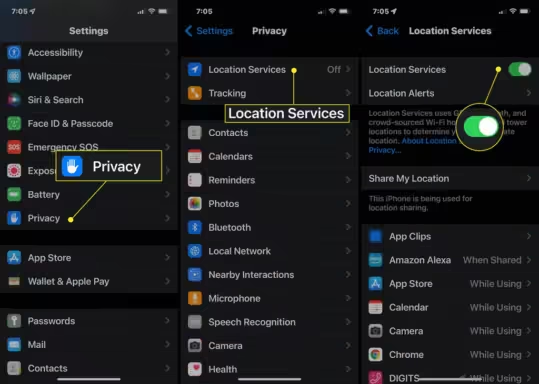
- Go to Settings > Privacy & Security > Location Services
- Ensure Location Services is toggled on
- Scroll down and tap Maps
- Select “While Using the App” or “While Using the App or Widgets“
- Enable “Precise Location” for accurate results
If you’re experiencing GPS issues specifically on an iPhone 6, check out our guide on fixing iPhone GPS problems.
#3. Restart the Maps App
Often, a simple app restart can resolve minor glitches:
- Swipe up from the bottom of the screen to open the App Switcher
- Swipe up on the Maps app to close it
- Reopen Maps from your home screen
#4. Update iOS and Maps App
Keeping your software up-to-date is crucial for optimal performance:
- Go to Settings > General > Software Update to check for iOS updates
- Open the App Store, search for “Apple Maps,” and update if available
#Advanced Troubleshooting Methods
If basic steps don’t resolve the issue, try these more advanced solutions:

#1. Reset Network Settings
This can fix connectivity-related problems:
- Go to Settings > General > Transfer or Reset iPhone > Reset
- Tap “Reset Network Settings“
- Enter your passcode and confirm
Note: This will erase saved Wi-Fi passwords and other network settings.
#2. Calibrate Compass
An uncalibrated compass can affect Maps accuracy:
- Go to Settings > Privacy & Security > Location Services > System Services
- Ensure “Compass Calibration” is enabled
- Open the Compass app and follow on-screen instructions to calibrate
#3. Check for System Outages
Sometimes the problem may be on Apple’s end:
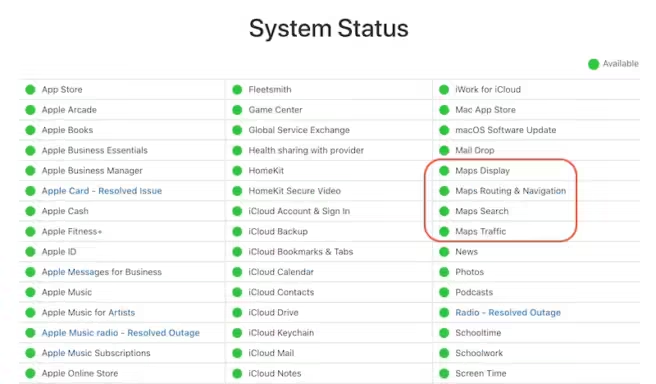
- Visit Apple’s System Status page
- Check if there are any reported issues with Maps services
#4. Refresh Location Services
Toggling Location Services can sometimes resolve persistent issues:
- Go to Settings > Privacy & Security > Location Services
- Turn off Location Services, wait a few seconds, then turn it back on
#5. Reset Location & Privacy Settings
As a last resort, you can reset all location and privacy settings:
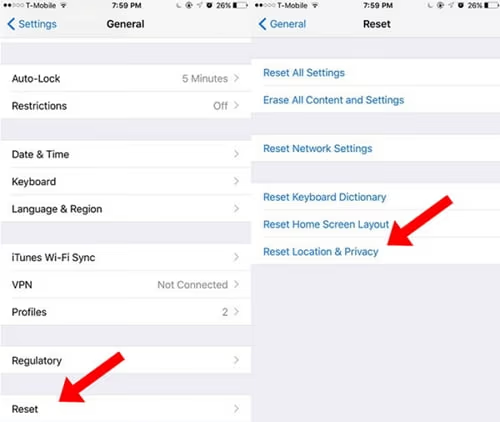
- Go to Settings > General > Transfer or Reset iPhone > Reset
- Tap “Reset Location & Privacy“
- Enter your passcode and confirm
#Fixing Specific Issues
#Maps Not Loading or Blank Screen
- Check your internet connection

- Clear app cache: Go to Settings > General > iPhone Storage > Maps > Offload App, then reinstall
- Ensure you’re signed in to your Apple ID: Settings > [Your Name] > iCloud > Maps
#Voice Navigation Not Working
- Adjust volume settings in the Maps app
- Check if your device is connected to any Bluetooth devices
- Ensure Siri is enabled: Settings > Siri & Search
If you’re having issues with Siri, our Hey Siri not working guide might help.
#Inaccurate Location or Directions
- Enable “Precise Location” in Maps settings
- Calibrate your compass
- Try moving to an open area with a clear view of the sky
If you’re experiencing similar issues with other location-based apps, check our guide on fixing Adventure Sync not working.
#App Crashing or Freezing
- Force restart your iPhone
- Update to the latest iOS version
- Free up storage space on your device
#When All Else Fails
If you’ve tried all the above solutions and Maps still isn’t working:
#Uninstall and Reinstall Maps
- Press and hold the Maps app icon
- Tap “Remove App” > “Delete App“
- Reinstall from the App Store
#Contact Apple Support
If problems persist, reach out to Apple Support for personalized assistance.
#Consider Alternative Map Apps
While troubleshooting, you might want to try alternatives like Google Maps. If you’re having issues with Google Maps as well, check our Google Maps not working guide.
#Preventing Future Issues
To minimize future problems with Apple Maps:
- Keep your iOS and Maps app updated
- Regularly check and adjust your location and privacy settings
- Maintain good network connectivity when using the app
#Conclusion
While it can be frustrating when iPhone Maps isn’t working, most issues can be resolved with the steps outlined in this guide. Remember to start with basic troubleshooting before moving on to more advanced methods. By following these tips and maintaining your device, you can ensure a smoother navigation experience with Apple Maps.
#FAQs
- Why is my iPhone Maps not showing my location? Check if Location Services is enabled for Maps and ensure you have a stable internet connection.
- How do I fix Apple Maps when it’s not giving voice directions? Verify that the volume is turned up, no Bluetooth devices are interfering, and that Siri is enabled.
- Can I use Apple Maps offline? While full functionality requires an internet connection, you can download areas for offline use by selecting a region and tapping “Download.”
- Why does my Maps app keep crashing? Try updating the app and iOS, clearing the app cache, or reinstalling Maps if crashes persist.
- How often does Apple update its Maps data? Apple continuously updates its Maps data, but the frequency can vary by region. Major updates are typically announced with iOS releases.