Is your iPhone struggling to connect to WiFi networks? You’re not alone. Many iPhone users encounter WiFi connectivity issues, which can be frustrating when you need reliable internet access. This comprehensive guide will walk you through various troubleshooting steps to get your iPhone reconnected, from basic fixes to advanced solutions.
#Common Causes of iPhone WiFi Connection Problems
Before diving into solutions, it’s helpful to understand what might be causing your iPhone’s WiFi woes:
- Software glitches or bugs in iOS
- Incorrect network settings on your iPhone
- Issues with your WiFi router or modem
- Physical obstructions or interference from other devices
- Outdated iOS version
Identifying the root cause can help you apply the most effective fix quickly.
#Basic Troubleshooting Steps
Start with these simple solutions that often resolve common WiFi issues:
#1. Restart Your iPhone and Router
A simple restart can clear temporary glitches:
- Restart your iPhone by holding the power button and sliding to power off
- Unplug your router for 30 seconds, then plug it back in
- Turn your iPhone back on and try reconnecting
If your iPhone is stuck on the Apple logo during restart, follow these steps to fix it.
#2. Check WiFi Settings and Password
Ensure your WiFi is turned on and you’re connecting to the correct network:
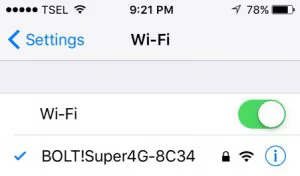
- Go to Settings > WiFi
- Verify WiFi is enabled
- Select your network and enter the correct password
If you need to view saved WiFi passwords, here’s how to show WiFi passwords on your iPhone.
#3. Toggle Airplane Mode
Switching Airplane Mode on and off can reset your iPhone’s wireless connections:
- Swipe down to access Control Center
- Tap the airplane icon to enable, wait 30 seconds, then disable it
#4. Forget and Rejoin Network
Removing and re-adding your WiFi network can resolve authentication issues:
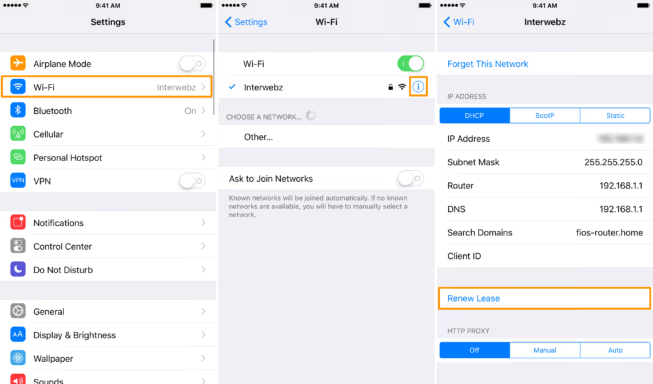
- Go to Settings > WiFi
- Tap the (i) icon next to your network
- Select “Forget This Network“
- Rejoin the network by selecting it and entering the password
#Advanced Troubleshooting Methods
If basic steps don’t work, try these more advanced solutions:
#1. Reset Network Settings
This will erase all saved WiFi passwords and settings:
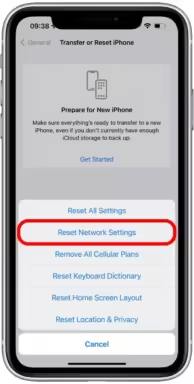
- Go to Settings > General > Reset
- Tap “Reset Network Settings“
- Enter your passcode and confirm
- Reconnect to your WiFi network
#2. Update iOS Software
Outdated software can cause connectivity issues:
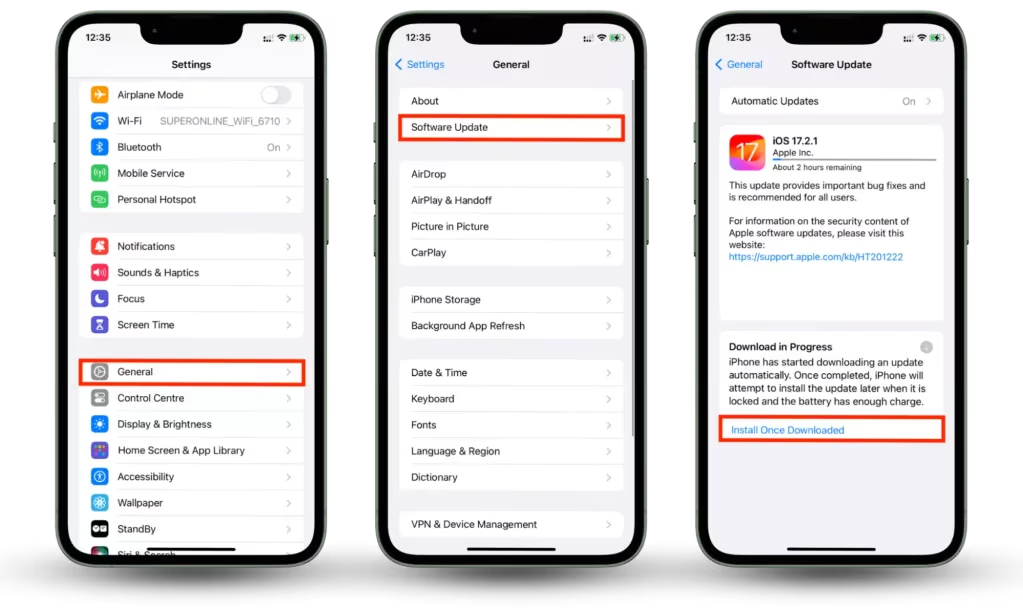
- Go to Settings > General > Software Update
- If an update is available, download and install it
- Ensure your iPhone is charged and connected to power during the update
#3. Check for Router Firmware Updates
An outdated router can cause problems:
- Access your router’s admin panel (consult your router’s manual for instructions)
- Look for a firmware update option
- If available, download and install the latest firmware
#4. Disable VPN and Security Apps
Sometimes VPNs or security apps can interfere with WiFi connections:
- Go to Settings > General > VPN & Device Management
- Toggle off any active VPNs
- Disable any third-party security or antivirus apps temporarily
#Addressing Router and Network Issues
Your WiFi router plays a crucial role in your iPhone’s connectivity:
#1. Verify Router Connection and Placement
- Ensure all cables are securely connected
- Place your router in a central, elevated location away from obstructions
- Keep the router away from metal objects and appliances that might interfere with the signal
#2. Check for Service Outages
Contact your internet service provider or check their website for any reported outages in your area.
#3. Reduce Interference from Other Devices
- Move devices that might interfere with WiFi signals (like cordless phones or microwaves) away from your router
- Consider changing your router’s channel to reduce interference from neighboring networks
#When to Contact Apple Support
If you’ve tried all the above steps and your iPhone still won’t connect to WiFi, it’s time to seek professional help:
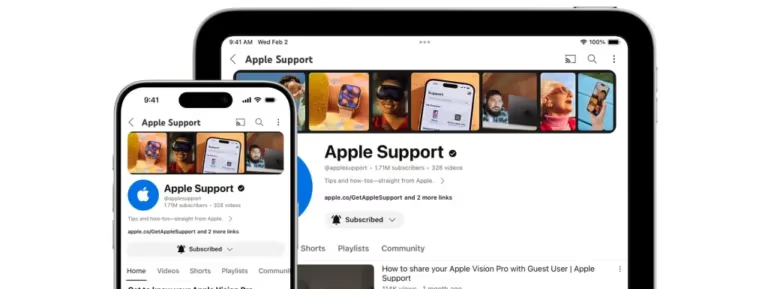
- Contact Apple Support online or by phone for further assistance
- Make an appointment at an Apple Store Genius Bar for in-person diagnostics
- If your iPhone is under warranty, repairs for hardware issues may be covered
#Additional iPhone Troubleshooting
While addressing WiFi issues, you might encounter other iPhone problems. Here are some quick fixes for common issues:
- If your text messages are out of order, try resetting your network settings or updating iOS.
- For disappeared emails, check your mail settings and ensure your accounts are properly synced.
- If Apple Pay isn’t working, verify your card information and try re-adding your payment method.
- For Bluetooth connectivity issues, forget and re-pair your Bluetooth devices or reset network settings.
#Conclusion
WiFi connectivity issues on iPhones can often be resolved with these troubleshooting steps. By methodically working through these solutions, from basic restarts to more advanced settings adjustments, you can often get your iPhone reconnected without the need for professional repair. Remember to keep your devices updated and well-maintained to minimize future connectivity problems.
#FAQs
Could my iPhone’s WiFi issues be due to hardware problems? While most WiFi issues are software-related, persistent problems could indicate a hardware fault. In this case, contact Apple Support for diagnostics.
Why does my iPhone keep disconnecting from WiFi? This can be due to weak signal strength, network congestion, or software glitches. Try moving closer to your router or resetting network settings.
Can a case interfere with my iPhone’s WiFi connection? While rare, some thick or metal cases can potentially interfere with WiFi signals. Try removing the case to see if it improves connectivity.
How often should I update my router’s firmware? Check for router firmware updates every few months or whenever you experience persistent connectivity issues.
Is it safe to reset network settings on my iPhone? Yes, it’s safe but remember that you’ll need to re-enter WiFi passwords for all saved networks afterward.