Have you ever wondered what your favorite YouTube video would look like in reverse? Playing YouTube videos backwards can create intriguing visual effects, add humor to content, or even reveal hidden messages. While YouTube doesn’t offer a native reverse playback feature, there are several methods to achieve this effect. This guide will walk you through various tools and techniques to play YouTube videos backwards, whether you’re using a computer, smartphone, or tablet.
#Introduction
Playing a YouTube video backwards involves reversing the order of frames in the video, creating a unique visual experience. This technique can be used for various purposes:
- Creating artistic effects in music videos or short films
- Adding humor to comedy sketches or vlogs
- Analyzing motion in sports or dance videos
- Revealing hidden messages or Easter eggs in content
Unfortunately, YouTube’s native player doesn’t support backward playback due to technical limitations. However, numerous third-party tools and software applications have been developed to fill this gap.
Before we dive into reversing videos, it’s worth noting that you might need to download the YouTube video first. There are various options for this, such as converting YouTube to WebM, or even YouTube to AVI. If you only need the audio, you can also convert YouTube to MP3.
#Online Tools for Reversing YouTube Videos
Online tools offer a convenient way to reverse YouTube videos without installing any software. Here are some popular options:
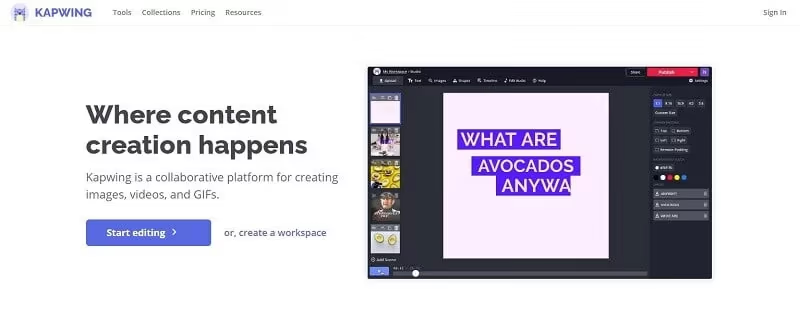
#1. Kapwing
Kapwing is a versatile online video editor that includes a reverse video feature. It’s user-friendly and doesn’t require registration for basic use.
Pros:
- Supports direct YouTube URL input
- No watermark on exported videos (up to 720p)
- Additional editing features available
Cons:
- Free version limits video length to 7 minutes
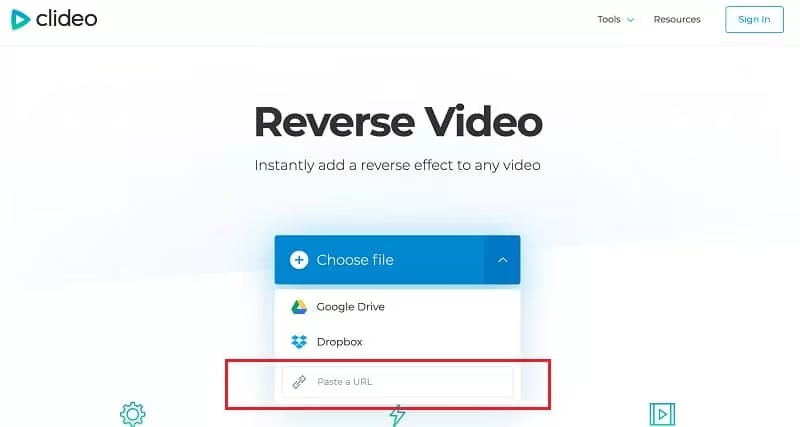
#2. Clideo
Clideo is another powerful online tool for reversing YouTube videos. It offers a clean interface and supports multiple video formats.
Pros:
- Can import videos from Google Drive or Dropbox
- Supports files up to 500MB
- Options to adjust playback speed
Cons:
- Free version adds a watermark
#3. Ezgif
Ezgif is a straightforward online tool that supports reversing YouTube videos along with other video editing functions.
Pros:
- Simple, ad-free interface
- Supports most common video formats
- No registration required
Cons:
- 100MB file size limit
While online tools are convenient, they may have limitations in terms of video quality, file size, and advanced editing features.
#Desktop Software Solutions
For more control and advanced features, consider using desktop software to reverse YouTube videos. These tools often fall under the category of best video editing software.

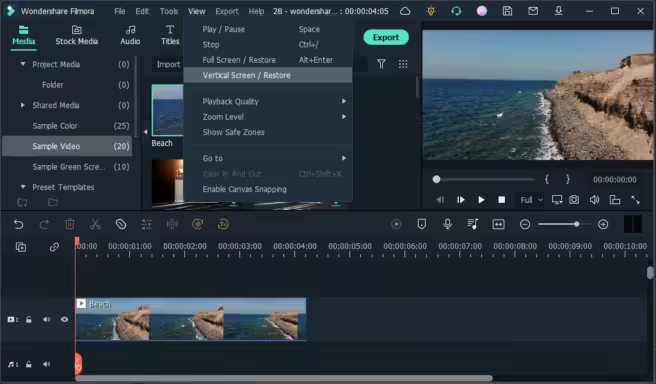
#1. Wondershare Filmora
Wondershare Filmora is a powerful video editing software available for both Windows and Mac. It offers a user-friendly interface and a wide range of editing tools, including video reversal.
Pros:
- Professional-grade editing features
- High-quality output
- No file size limitations
Cons:
- Paid software (free trial available)
- Steeper learning curve than online tools
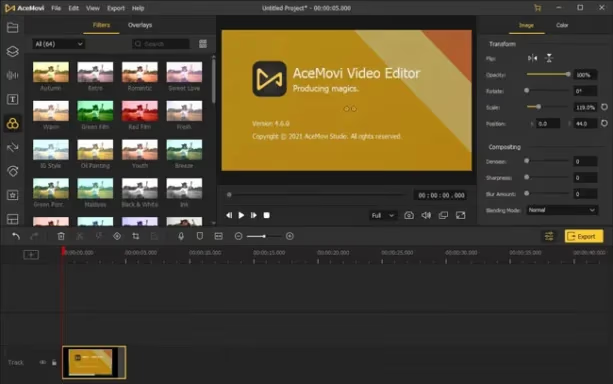
#2. TunesKit AceMovi
TunesKit AceMovi is another excellent desktop option for reversing YouTube videos. It offers an intuitive interface and a built-in stock library.
Pros:
- Easy-to-use interface
- Supports both Mac and Windows
- Additional editing features like filters and transitions
Cons:
- Paid software
Desktop software solutions offer more flexibility and higher quality output, making them ideal for users who frequently work with video editing.
#Mobile Apps for Reversing Videos
For on-the-go video reversal, several mobile apps can get the job done.
#FilmoraGo
FilmoraGo, available on both iOS and Android, is a popular mobile video editing app that includes a reverse video feature.
Pros:
- User-friendly interface
- Additional editing features like filters and effects
- Free to use (with in-app purchases)
Cons:
- May have limitations on video length or quality in the free version
Other mobile options include Reverse Movie FX, InShot, and KineMaster. These apps offer varying features and ease of use, so it’s worth exploring to find the one that best suits your needs.
#Step-by-Step Guide to Reversing YouTube Videos
Let’s walk through the process of reversing a YouTube video using both an online tool (Kapwing) and desktop software (Filmora).
#Using Kapwing (Online Tool):
- Go to the Kapwing website and click on “Start Editing“
- Paste the YouTube video URL into the “Paste a URL” field
- Once the video loads, click on “Edit” in the top menu
- Select “Adjust” from the side menu, then click on “Reverse“
- Preview your reversed video and make any additional edits
- Click “Export” to download your reversed video
#Using Filmora (Desktop Software):
- Launch Filmora and create a new project
- Import your YouTube video (you’ll need to download it first)
- Drag the video onto the timeline
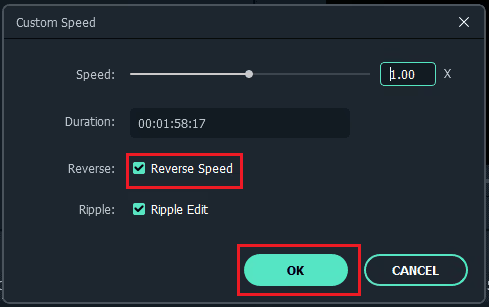
- Right-click on the video clip and select “Speed and Duration“
- Check the “Reverse” box and click “OK“
- Preview your reversed video and make any additional edits
- Click “Export” to save your reversed video
#Creative Uses for Reversed YouTube Videos
Reversed videos can be used creatively in various ways:

- Music videos: Create surreal or dreamlike sequences
- Comedy sketches: Amplify humorous situations or movements
- Sports analysis: Study motion and technique in detail
- Educational content: Demonstrate cause and effect relationships
- Magic tricks: Create illusions or reveal the mechanics behind tricks
#Tips for Best Results
To get the best results when reversing YouTube videos:
- Choose high-quality source videos for clearer reversed footage
- Consider the audio: Reversed audio can be jarring, so you may want to mute it or add a new soundtrack
- Experiment with playback speed: Some tools allow you to adjust the speed of the reversed video for different effects
- Use additional effects: Combine reversal with other effects like slow motion or color grading for unique results
If you’re experiencing issues with YouTube videos pausing unexpectedly, check out our guide on why YouTube keeps pausing to ensure smooth playback before reversing your videos.
#Legal and Ethical Considerations
When reversing YouTube videos, be mindful of copyright issues. While reversing a video for personal use generally falls under fair use, publishing or monetizing reversed content created by others may infringe on copyrights. Always seek permission or use royalty-free content when creating reversed videos for public consumption.
#Conclusion
Playing YouTube videos backwards can be a fun and creative way to explore content from a new perspective. While YouTube itself doesn’t offer this feature, numerous tools and software options make it possible. Whether you choose an online tool for quick edits or desktop software for more advanced projects, reversing videos can add a unique touch to your content creation or viewing experience.
#FAQs
- Can I play YouTube videos backwards directly on YouTube? No, YouTube doesn’t have a built-in feature to play videos backwards.
- Is it legal to reverse YouTube videos? Reversing videos for personal use is generally fine, but publishing reversed content created by others may infringe on copyrights.
- Will reversing a video affect its quality? The quality of the reversed video depends on the original video quality and the tool used. High-quality source videos and professional software typically yield better results.
- Can I reverse only a portion of a YouTube video? Yes, many tools allow you to select a specific portion of a video to reverse.
- Does reversing a video also reverse the audio? Most tools reverse both video and audio by default, but often provide options to mute or keep the original audio.