I’ve encountered numerous cases of Samsung Galaxy devices refusing to charge. This issue can be frustrating, but fear not – in this comprehensive guide, I’ll walk you through various troubleshooting steps to get your Galaxy charging again.
#Understanding the Problem
Before we dive into solutions, it’s crucial to understand that charging issues can stem from various sources:
- Faulty cables, chargers, or adapters
- Debris in the charging port
- Software glitches
- Moisture detection
- Hardware damage
Let’s explore each potential cause and its solution in detail.
#1. Initial Checks and Troubleshooting
#Inspect Your Charger and Cable
The first step is to ensure you’re using a Samsung-authorized charger and cable. In my experience, using non-official accessories is a common cause of charging issues.
- Check for visible damage on both the cable and adapter.
- Ensure the cable is firmly connected to both the phone and power adapter.
- Try a different cable or adapter if available.
#Examine the Power Source
Sometimes, the issue lies not with your device but with the power outlet.
- Try charging from a different wall outlet.
- Avoid charging from a PC or notebook USB port, as these may not provide sufficient power.
If your device shows it’s charging but the battery level isn’t increasing, you might be experiencing a similar issue to what some iPhone users face. In such cases, software issues are often the culprit.
#2. Cleaning the Charging Port
A dirty charging port can prevent proper connection. Here’s how to safely clean it:
- Power off your device.
- Use a flashlight to inspect the port for debris.
- Gently blow into the port or use compressed air to remove any visible particles.
- If debris persists, consider seeking professional help to avoid damaging the port.
Warning: Never insert metal objects into the charging port, as this can cause severe damage.
#3. Software Solutions
Software glitches can sometimes interfere with charging. Try these steps:
#Restart Your Device
A simple restart can often resolve minor software issues:
- Press and hold the power button and volume down button simultaneously.
- Wait for the device to restart and try charging again.
#Use Samsung Members App
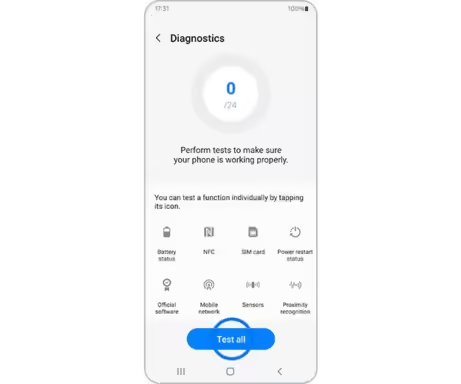
The Samsung Members app offers built-in diagnostics:
- Open the app and navigate to the ‘Support‘ section.
- Run the battery and charging port diagnostics.
- Follow any recommendations provided by the app.
#Update Your Software
Ensure your device is running the latest software version:
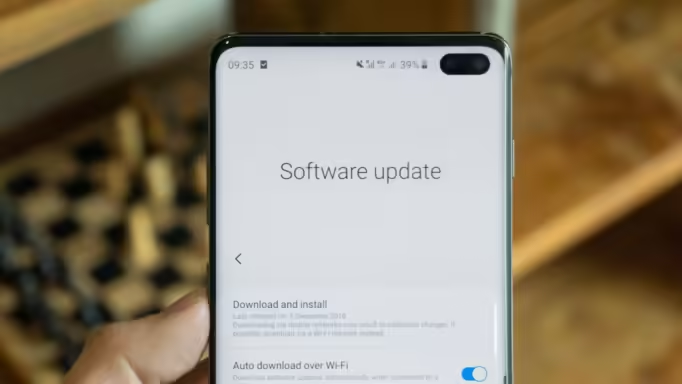
- Go to Settings > Software update.
- Download and install any available updates.
#Boot into Safe Mode
This can help identify if a third-party app is causing the issue:
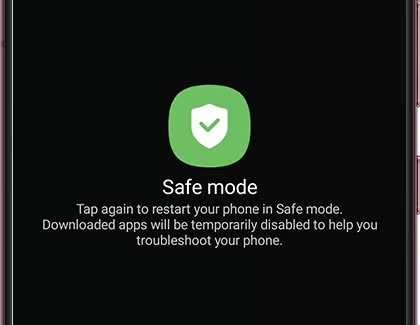
- Press and hold the power button until the power off icon appears.
- Tap and hold the power off icon until “Safe mode” appears.
- Tap “Safe mode” to reboot.
If your device charges in safe mode, a third-party app may be the culprit.
#4. Alternative Charging Methods
If traditional charging methods fail, try these alternatives:
#Wireless Charging
If your Galaxy supports wireless charging, this can bypass issues with the charging port:
- Place your device on a compatible wireless charger.
- Ensure it’s properly aligned for optimal charging.
If you’re experiencing issues with Samsung Pay alongside charging problems, it might indicate a more systemic issue. Check out our guide on fixing Samsung Pay issues for more information.
#Addressing Moisture Detection
If your device detects moisture:
- Dry the charging port thoroughly using a soft cloth or fan.
- Wait until the moisture warning disappears before attempting to charge.
#5. Advanced Troubleshooting
For persistent issues, try these advanced steps:
#Enable Fast Charging
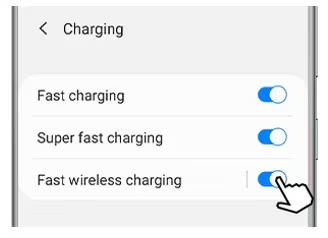
- Go to Settings > Device Care > Battery.
- Ensure “Fast charging” is enabled.
#Clear USB Cache
- Navigate to Settings > Apps.
- Find and select “USB settings.”
- Tap “Storage” and then “Clear cache.”
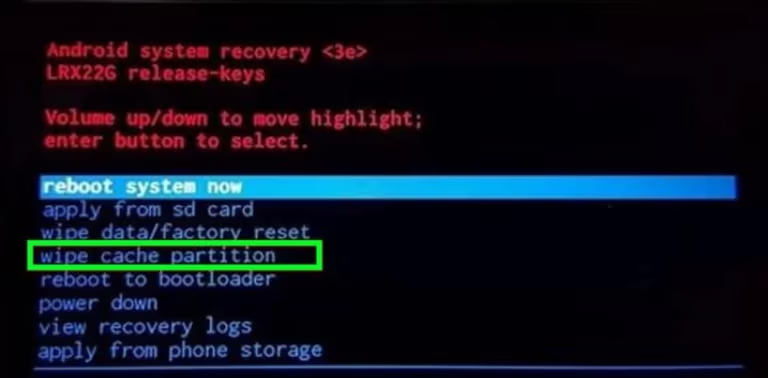
#Wipe Cache Partition
This can resolve system-level issues:
- Turn off your device.
- Press and hold the Volume Up and Power buttons simultaneously.
- When the Android logo appears, release the buttons.
- Use volume buttons to navigate to “Wipe cache partition” and select it with the power button.
If you’re experiencing touch input issues alongside charging problems, it might be related to a software glitch. Our guide on fixing touch input blocked errors might provide additional insights.
#6. When to Seek Professional Help
If none of the above solutions work, it’s time to consider professional repair:
- Check your warranty status on Samsung’s website.
- Schedule an appointment at a Samsung authorized service center.
- Consider Samsung’s “We Come to You” service for added convenience.
Remember, attempting complex repairs yourself can void your warranty and potentially cause more damage. If your device won’t turn on at all, you might want to refer to our guide on what to do when your Samsung Galaxy S10 won’t turn on.
#Preventive Measures
To avoid future charging issues:
- Use only Samsung-authorized charging accessories.
- Keep your charging port clean and free from debris.
- Avoid exposing your device to extreme temperatures or moisture.
- Update your device regularly to ensure optimal performance.
#Conclusion
Charging issues with Samsung Galaxy devices can be frustrating, but they’re often resolvable with the right approach. By following this comprehensive guide, you should be able to diagnose and fix most charging problems. Remember, if you’re unsure at any point, it’s always best to consult with a professional to avoid potential damage to your device.
If you’re facing other Samsung-related issues, such as FRP bypass on the A20 or unlocking the S20, check out our guides on Samsung FRP bypass and unlocking Samsung phones for more specific solutions.
#FAQs
Q1: Why is my Samsung Galaxy not charging at all? A1: This could be due to a faulty charger, damaged port, or software issue. Try the troubleshooting steps outlined in this guide, starting with checking your charger and cable.
Q2: Can I use a non-Samsung charger for my Galaxy device? A2: While it’s possible, I strongly recommend using Samsung-authorized chargers to ensure optimal charging and device safety.
Q3: How long does it typically take to fully charge a Samsung Galaxy? A3: With fast charging enabled, most Galaxy devices can fully charge in about 1-2 hours. However, this can vary depending on the model and battery capacity.
Q4: Is it safe to use my Samsung Galaxy while it’s charging? A4: Yes, it’s generally safe. However, to optimize charging speed and battery health, it’s best to avoid intensive tasks while charging.
Q5: How often should I replace my charging cable? A5: There’s no set timeframe, but inspect your cable regularly for signs of wear or damage. Replace it immediately if you notice any fraying or exposed wires.