Transfer iPhone Data to Android on Windows: Full Guide
Move contacts, photos, and messages from iPhone to Android on Windows using MobileTrans or dr.fone. Step-by-step guide. Works on Android 10+ and iOS 15+.
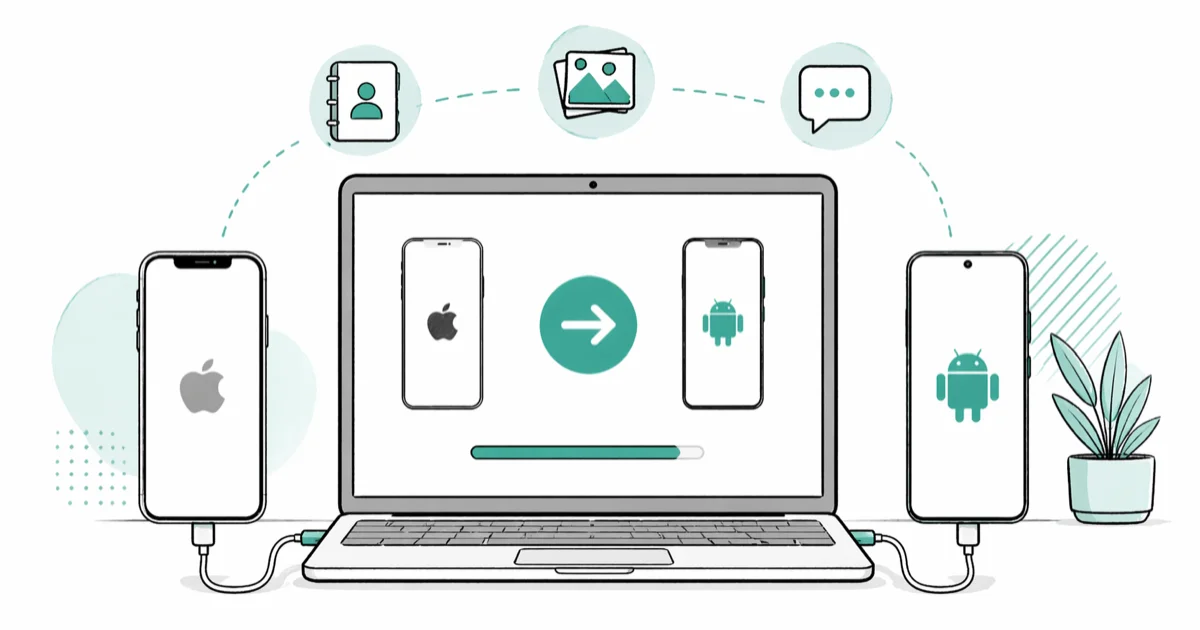
Quick AnswerUse MobileTrans or dr.fone on your Windows PC to move contacts, photos, and messages from iPhone to Android in one step. Connect both phones with USB cables, pick what you want to transfer, and the process takes under 10 minutes.
Switching from iPhone to Android doesn’t mean losing your data. MobileTrans and dr.fone both support Windows-based phone transfer workflows for contacts, photos, and messages.
- MobileTrans and dr.fone both work on Windows 10 and Windows 11 with USB cables
- iMessages can’t transfer to Android directly, so switch to WhatsApp or Telegram beforehand
- Back up your iPhone to iCloud before starting, so you have a safety net
- App-specific data (game progress, app settings) won’t transfer, only standard content types
- Large photo and video libraries take longer, so keep both phones connected until the app finishes
#What Can You Actually Transfer from iPhone to Android?
Not everything moves cleanly. Here’s what works and what doesn’t.
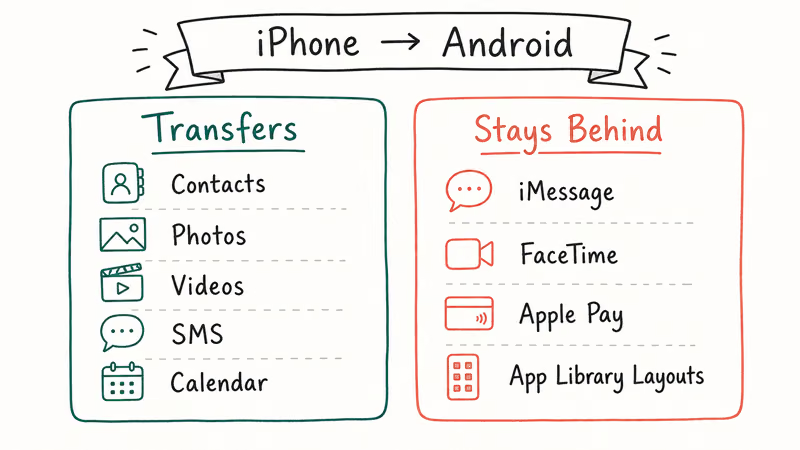
Standard content types that transfer with MobileTrans or dr.fone: contacts, photos, videos, music, calendar events, and SMS messages. These move reliably between iOS and Android.
iMessages are Apple-only and won’t move. Before you switch, turn off iMessage on your iPhone at Settings > Messages and toggle off iMessage. This forces new messages to SMS, which can transfer. According to Apple’s support documentation, deregistering iMessage prevents the missing message problem where texts to your old number disappear.
App-specific data varies. Social media apps like Instagram and Snapchat are cloud-based, so signing in on Android restores your account. Games that use cloud saves (most do) carry over. Local-only game data won’t.
Move your SIM card from iPhone to Android too, if you’re keeping the same number.
#How to Use MobileTrans on Windows
MobileTrans is the simpler option for most people because the transfer runs from one screen.
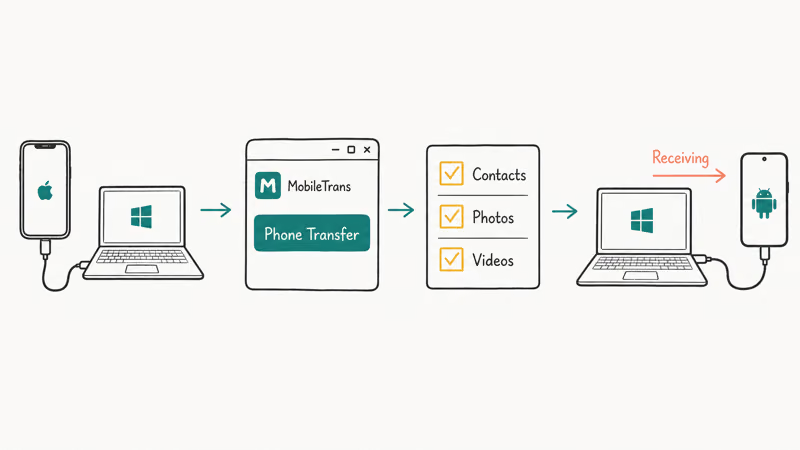
Step 1: Download and install
Some links on this page are affiliate links, which means fone.tips may earn a commission at no extra cost to you.
Download MobileTrans from the official Wondershare site and install it on your Windows PC.
Step 2: Connect both phones via USB
Connect your iPhone and Android device to the PC using their original cables. When your iPhone prompts “Trust This Computer,” tap Trust. Both devices should appear in MobileTrans after drivers and trust prompts are accepted.
Step 3: Select Phone Transfer and flip if needed
Click Phone Transfer. The app shows a Source and Destination slot. iPhone goes in Source, Android in Destination. If they’re reversed, hit Flip.
Step 4: Pick content types and run
Check contacts, photos, messages, and any other data types you want. Click Start Transfer. Keep both devices connected until the app reports the transfer is complete. Nothing gets removed from the iPhone; it copies, not moves.
If you hit USB detection issues, our guide on fixing Android file transfer not working walks through the driver fix.
#How to Use dr.fone on Windows
dr.fone does the same job as MobileTrans and also includes a file manager for browsing your iPhone’s content on the PC after transfer. It’s a good pick if you want to preview and selectively export files beyond the basic transfer.
Step 1: Download and install
Get dr.fone from Wondershare’s official site.
Step 2: Connect both phones and select Phone Transfer
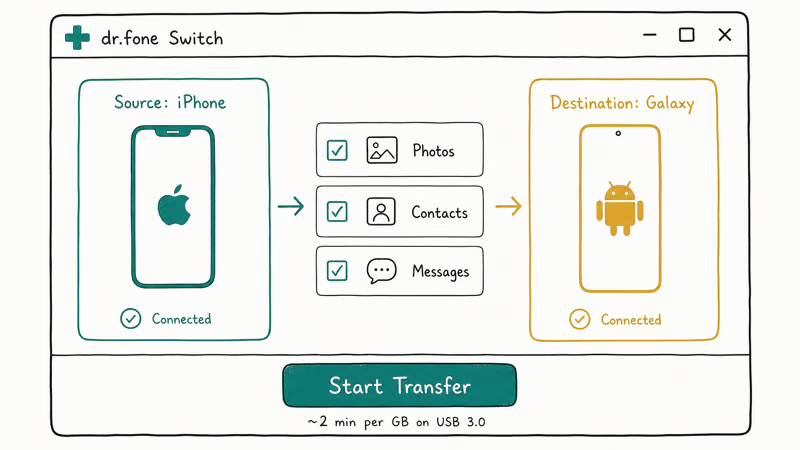
Launch dr.fone, click Phone Transfer, then connect both phones via USB. The app should detect both phones after the trust prompts and drivers are ready.
Step 3: Set source and destination, then run
iPhone in Source, Android in Destination. Select your data types. Click Start Transfer. According to Wondershare’s official dr.fone tech specs, Windows 10 and 11 both work, and the page states that the tool supports iOS 5.0 or later and Android 5.0 or later.
Once done, spot-check a few contacts and photos on your Android. Also handle transferring your WhatsApp messages separately since that app has its own cross-platform transfer process with separate steps.
#Why Is the Transfer Not Working?
Here are the three most common failures and how to fix them.
USB not recognized. Windows sometimes needs a driver update for newer iPhones. Go to Device Manager, find the Apple iPhone entry under Portable Devices, right-click, and update the driver. Installing the latest iTunes from the Microsoft Store also works, since it bundles the Apple Mobile Device USB Driver. If Windows still doesn’t detect the iPhone after the driver update, reinstall iTunes and reconnect the phone before restarting the transfer.
Not enough storage. Check that your Android has at least 10GB free before starting. You can delete photos from your iPhone permanently after confirming they’ve backed up to Google Photos, then restart the transfer with space cleared.
iMessages not transferring. This is expected. iMessages are Apple-only.
Set up your contacts and other data on a new iPhone if you switch back. The process works in both directions.
#Transferring WhatsApp from iPhone to Android
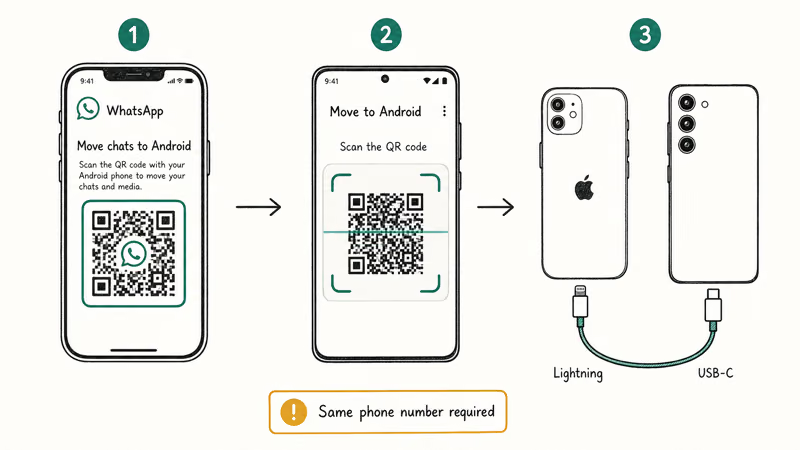
WhatsApp requires its own separate process. You need an active subscription, both phones nearby, and you run it from within WhatsApp itself using the “Move to Android” option in the Chat Backup settings. For the full flow, see transferring WhatsApp Business from iPhone to Android.
#Transferring Notes from iPhone to Android
Apple Notes are iCloud-only.
Export any important notes to PDF before your switch, or email them to yourself. The dedicated guide on transferring notes from iPhone to Android covers the manual workarounds in detail, including Google Keep as a replacement app.
#Bottom Line
Start with MobileTrans for contacts, photos, and SMS in one shot. Handle WhatsApp and Notes separately after. Turn off iMessage before you start so incoming texts don’t go missing during the switch.
#Frequently Asked Questions
Can you transfer iMessages to Android?
iMessages can’t move to Android directly. They’re tied to Apple’s servers and only work on Apple devices. Before switching, turn off iMessage at Settings > Messages so your texts arrive as SMS instead. Back up important iMessage threads using iMazing’s export tool before you complete the switch.
Does the transfer delete anything from my iPhone?
No. Both tools copy rather than move. Your iPhone stays untouched.
Can you transfer apps from iPhone to Android?
Apps don’t transfer. iOS apps run in the Apple App Store ecosystem and Android apps run in the Google Play ecosystem — the two formats are incompatible, and there’s no conversion tool that bridges them. You’ll need to find Android equivalents for each app. Most major apps (Instagram, Spotify, WhatsApp, Netflix, YouTube) are on both platforms, so you’ll just download them fresh and log in to restore your account data.
How long does the iPhone to Android transfer take?
Contacts usually move faster than photo and video libraries. Larger libraries take longer, but the process runs on its own once started so you don’t need to watch it.
Do you need iTunes installed for the transfer?
You don’t need iTunes open. But having it installed is helpful because it puts the Apple USB drivers on your PC, which Windows needs to detect your iPhone. If Windows can’t see the iPhone, install iTunes from the Microsoft Store first.
What data types can’t transfer to Android?
iMessages, FaceTime history, Apple Pay cards, and Apple Watch pairing don’t transfer. Neither does app data stored locally on the device.
Is it safe to use third-party transfer tools?
Yes, for both MobileTrans and dr.fone. Wondershare has been making iPhone and Android management software since 2003. Both tools transfer data directly between devices through your PC without uploading anything to outside servers. Download from the official Wondershare site to avoid modified versions.
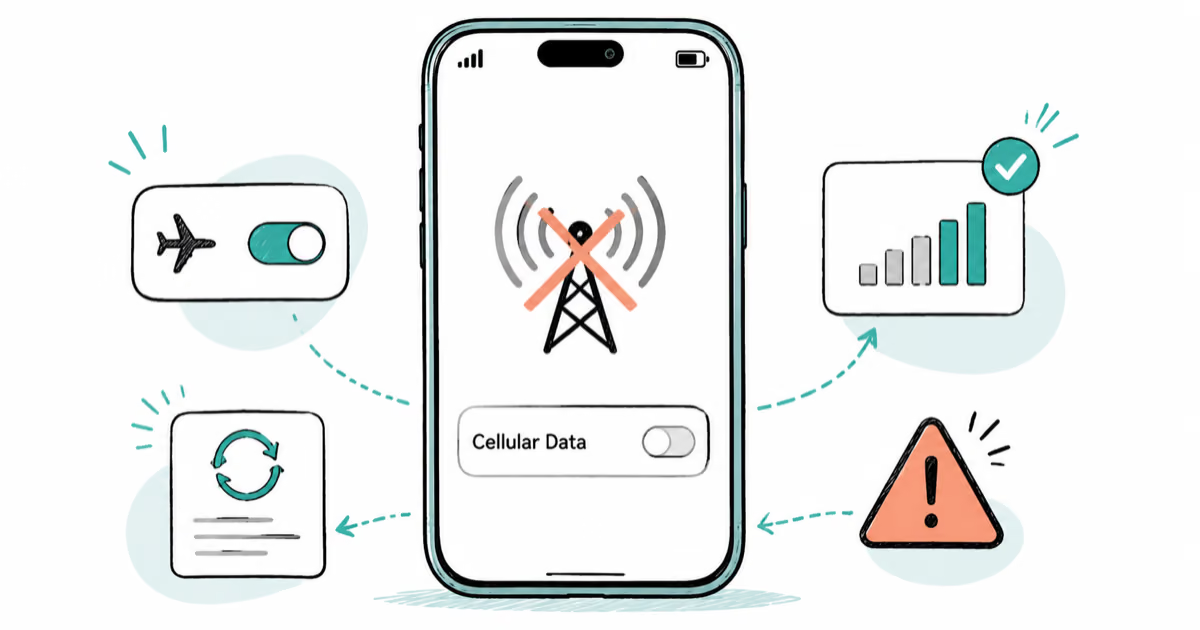
iPhone 17 Cellular Data Not Working on iOS 26? 9 Fixes
iPhone 17 cellular data still dropping on iOS 26? Apple fixed the launch bug in iOS 26.0.1, but recovery failures persist. Here's the fix ladder.
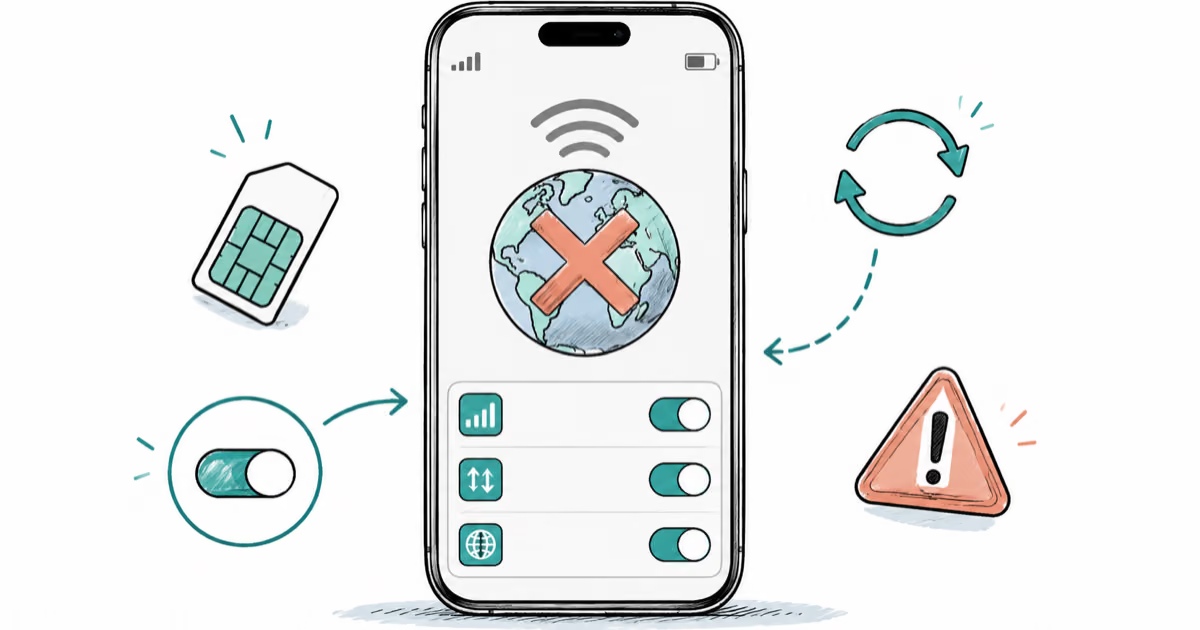
iPhone Cellular Data Not Working Abroad? eSIM Fixes
Travel eSIM showing no data abroad? Fix iPhone roaming with the data-line check, Data Roaming toggle, APN settings, and network selection steps.
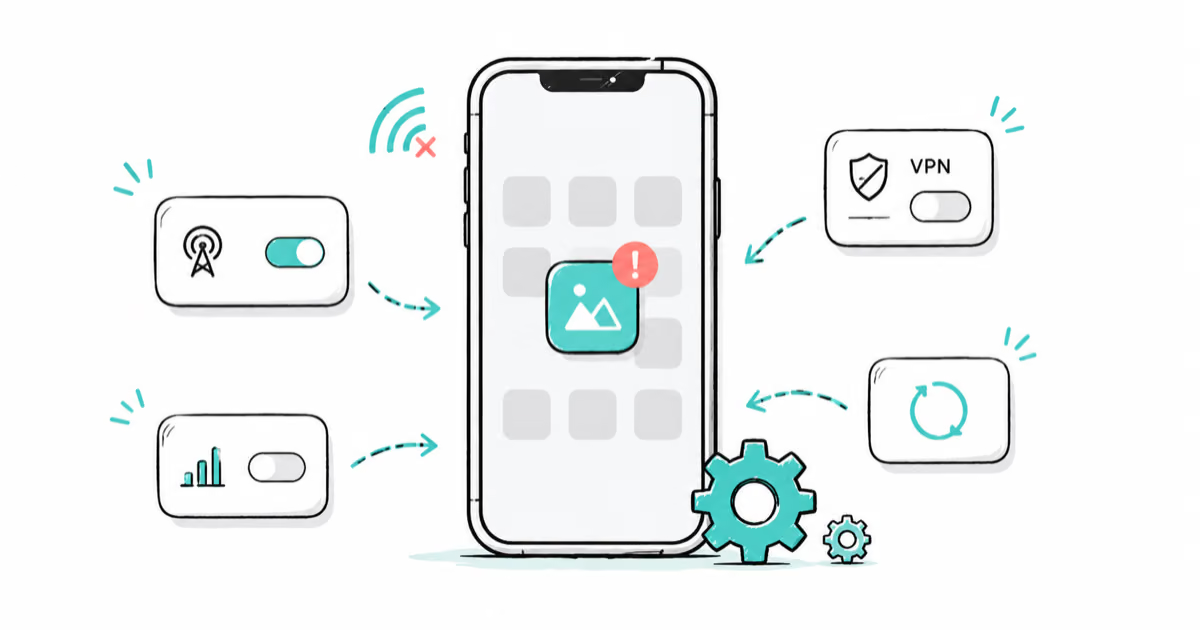
iPhone Cellular Data Not Working for Some Apps? 8 Fixes
Some iPhone apps refuse to load on cellular while others work fine. Check the per-app cellular toggle, Low Data Mode, VPN profiles, and Screen Time.
iPhone Stuck on EDGE? How to Get 5G or LTE Back (2026)
iPhone stuck on EDGE with crawling data? Here's why the E icon appears, which settings force 5G or LTE back, and when the problem is your carrier.