Fix Windows Update Error 0x80071a91: FSRM and SFC Guide
Fix Windows 10 update error 0x80071a91 by resetting the FSRM service, running SFC/DISM scans, and clearing update cache. Step-by-step with screenshots.
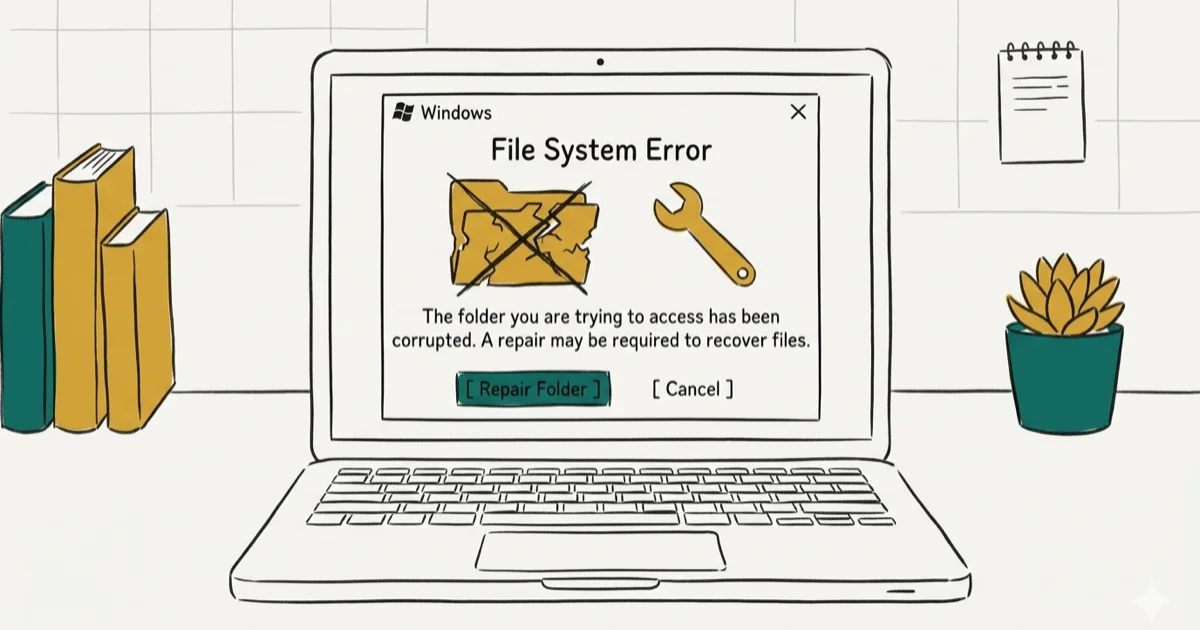
Quick AnswerError 0x80071a91 blocks Windows 10 updates due to FSRM service issues or corrupted system files. Fix it by running 'fsutil resource setautoreset true C:' in an admin Command Prompt, then restarting your PC.
Error 0x80071a91 blocks Windows 10 from installing updates, usually because the File System Resource Manager (FSRM) service has failed or system files are corrupted. The FSRM reset command is the first fix to try because it directly resets the affected resource manager.
- Error 0x80071a91 blocks Windows 10 updates and is most often caused by an FSRM service failure or corrupted files
- The fastest fix is running “fsutil resource setautoreset true C:” in an admin Command Prompt, then restarting
- The Windows Update Troubleshooter (
Settings>System>Troubleshoot) can detect and repair update issues automatically - Running “sfc /scannow” in an admin Command Prompt repairs corrupted system files blocking the update process
- Insufficient disk space and third-party software interference are additional triggers to rule out
#What Causes Error 0x80071a91?
This error occurs during the Windows Update process when the FSRM transactional resource manager enters an inconsistent state. According to Microsoft Support, transactional resource failures are a known cause of update errors on Windows 10.
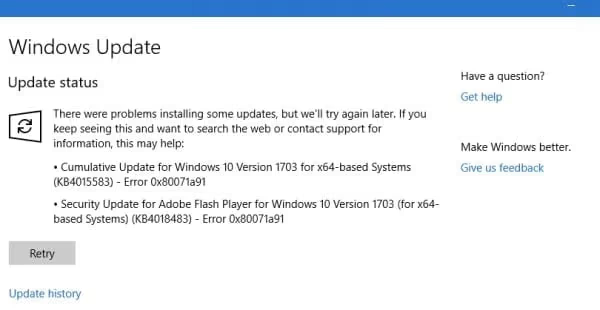
The main triggers include:
- FSRM service interruptions that leave the resource manager in a bad state
- Corrupted system files that Windows needs to process updates
- Less than 10 GB free on the system drive
- Third-party antivirus blocking update processes
- A corrupted Windows Update database from interrupted previous updates
Error 0x80071a91 is related to other update errors like 0x800703f1 and 0x80070426, but its FSRM resource-manager path makes the first troubleshooting step more specific than a general Windows Update reset.
#How Do You Reset the FSRM Service?
The FSRM reset is the fastest first fix because it targets the resource manager behind the error, and it doesn’t delete personal files, apps, or Windows Update history.
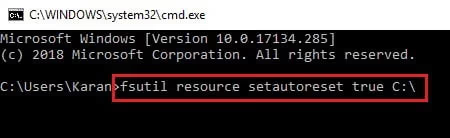
- Press Windows key + R to open the Run dialog
- Type
cmdand press Ctrl + Shift + Enter to open Command Prompt as admin - Type
fsutil resource setautoreset true C:and press Enter - Restart your PC
After the restart, try Windows Update again. If the FSRM state was the blocker, updates should download and install normally.
#Run the Windows Update Troubleshooter
If the FSRM reset doesn’t work, try the built-in troubleshooter. It automatically detects common update problems, restarts related services, and applies standard Windows Update repairs.
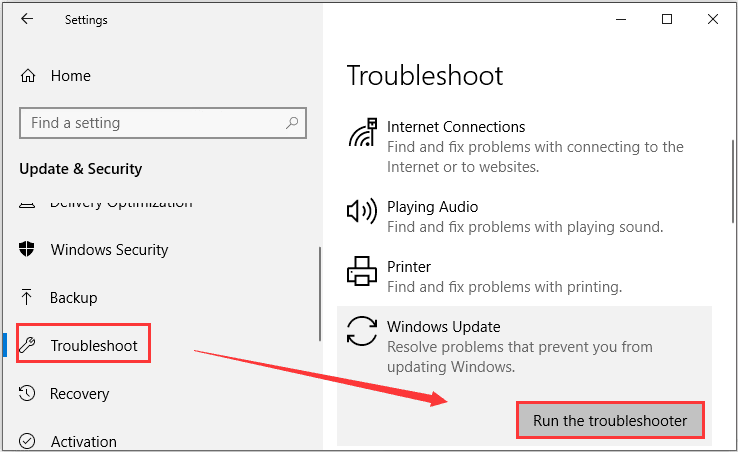
- Open Settings (Windows key + I)
- Go to
System>Troubleshoot - Click Additional troubleshooters
- Select Windows Update and click Run the troubleshooter
The troubleshooter can identify stopped Windows Update services and restart them automatically. This method also works for 0x80080008.
#Use SFC to Repair Corrupted System Files
Corrupted Windows files can trigger error 0x80071a91 even when FSRM itself is fine. SFC scans and repairs these files.
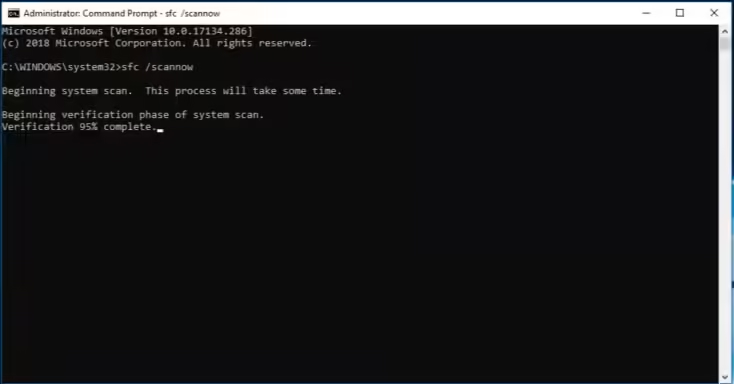
- Open Command Prompt as administrator
- Run
DISM /Online /Cleanup-Image /RestoreHealthfirst (5-10 minutes) - Then run
sfc /scannow(10-15 minutes) - Restart your PC
According to Microsoft’s SFC documentation, System File Checker scans protected system files and replaces corrupted copies. This fix also resolves 0x80070570.
#Clear CLFS Transaction Logs
Common Log File System (CLFS) logs can become corrupted and block updates. Clearing them forces Windows to create fresh logs.
- Open Command Prompt as administrator
- Run these commands one at a time:
cd /d %SystemRoot%\System32\SMI\Store\Machine
attrib -s -h *
del *.blf
del *.regtrans-ms- Restart your PC
Only use this method if the FSRM reset and SFC don’t work, since deleting log files removes your rollback history. After clearing the logs, restart and try Windows Update again.
#Additional Troubleshooting Steps
If the main methods above don’t resolve error 0x80071a91, try these:
Reset Windows Update components by stopping services, renaming the SoftwareDistribution folder, and restarting services (same process as 0x80070652).
Check disk space. You need at least 10 GB free on your system drive. Use Disk Cleanup to remove temporary files. Insufficient space causes 0x80070070 and can also trigger 0x80071a91.
Disable antivirus temporarily. Third-party security software can block update processes. Disable it, retry the update, and re-enable it afterward.
Install updates manually. According to the Microsoft Update Catalog, you can download a specific update by KB number. This bypasses the automatic update system entirely.
#Bottom Line
Run fsutil resource setautoreset true C: in an admin Command Prompt and restart. That’s the fastest fix for error 0x80071a91 and works in most cases. If it doesn’t help, follow up with SFC/DISM to repair corrupted files, then clear CLFS logs as a last resort.
#Frequently Asked Questions
Is it safe to delete CLFS transaction logs?
Yes, when done correctly. Deleting .blf and .regtrans-ms files from the SMI\Store\Machine folder is safe. Windows recreates these logs automatically. Just make sure you’re using an admin Command Prompt and following the exact commands.
Can error 0x80071a91 cause data loss?
No. This error only blocks Windows Update. Your personal files, applications, and settings aren’t affected. The only risk is that your system misses security patches while the error remains unfixed.
How long does an SFC scan take?
SFC typically takes 10-15 minutes on a modern SSD. On older HDDs, it can run 20-30 minutes. If you run DISM first (recommended), add another 5-10 minutes to the total.
Will resetting Windows Update components delete my personal files?
No. Resetting components only renames the SoftwareDistribution and catroot2 folders, which store temporary update data. Your documents, photos, and installed programs aren’t touched.
Can I skip Windows updates if this error keeps appearing?
Don’t skip updates long-term. They contain security patches that protect against vulnerabilities. Fix the root cause instead. If the FSRM reset and SFC don’t work, try a manual install from the Microsoft Update Catalog.
Why does error 0x80071a91 only affect Windows 10?
The FSRM transactional resource manager implementation in Windows 10 has a known issue where the resource state can become inconsistent after interrupted updates. Windows 11 handles this differently, which is why the error is rare on Windows 11.

Best Laptop for Running LLMs in 2026: Memory Comes First
The best laptop for running LLMs is a memory purchase first. Compare MacBook unified memory against NVIDIA laptop VRAM, and see what each tier really runs.

How to Run a Local LLM on Windows: A 2026 Setup Guide
Run a local LLM on Windows with LM Studio or Ollama. Pick a model that fits your GPU memory, keep every prompt offline, and skip the monthly bill.

Bluetooth Not Working on Snapdragon X? Fixes for 2026
Bluetooth not working on your Snapdragon X Copilot+ PC? Generic audio, mice, and keyboards work, but vendor apps often lack an ARM build. Fixes inside.

Docker Desktop and WSL2 Not Working on Snapdragon X? Fix It
WSL2 runs fine on Snapdragon X, but Docker Desktop ARM is Early Access and throws WSL errors. Use WSL2 plus native ARM64 Ubuntu and Docker Engine.