Windows updates are crucial for maintaining system security, stability, and performance. However, users sometimes encounter errors during the update process, such as the frustrating Windows Update error 0x80080008. This comprehensive guide will help you understand the causes of this error and provide step-by-step solutions to resolve it.
#What is Windows Update Error 0x80080008?
Error 0x80080008 is a common Windows Update issue that prevents users from downloading and installing important system updates. This error typically occurs when the Windows Update service is not functioning correctly due to various factors such as corrupted system files, issues with update components, or interference from third-party software.
#Common Causes of Error 0x80080008
Several factors can lead to the occurrence of error 0x80080008:
- Corrupted system files
- Issues with Windows Update components
- Antivirus software interference
- Stuck update processes
- Insufficient disk space
- Outdated Windows Update Agent
Understanding these potential causes can help you target your troubleshooting efforts more effectively. It’s worth noting that similar issues can occur with other error codes, such as 0x80004004 or 0x800703f1, which may require similar troubleshooting steps.
#Initial Troubleshooting Steps
Before diving into more advanced solutions, try these initial troubleshooting steps:
#1. Run Windows Update Troubleshooter
Windows has a built-in troubleshooter that can automatically detect and fix common update issues:
- Open Settings > Update & Security > Troubleshoot
- Select “Additional troubleshooters“
- Click on “Windows Update” and run the troubleshooter
#2. Check for Adequate Disk Space
Ensure you have at least 20GB of free space on your system drive for updates to download and install properly. Insufficient disk space can lead to errors like 0x80246007, which is related to update failures.
#3. Temporarily Disable Antivirus Software
Some antivirus programs can interfere with the update process. Temporarily disable your antivirus software and try updating again. Remember to re-enable it after testing.
#Advanced Fixes for Error 0x80080008
If the initial steps don’t resolve the issue, try these more advanced solutions:
#1. Run SFC and DISM Scans
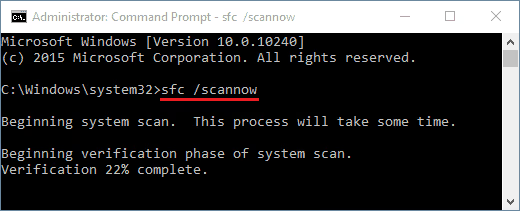
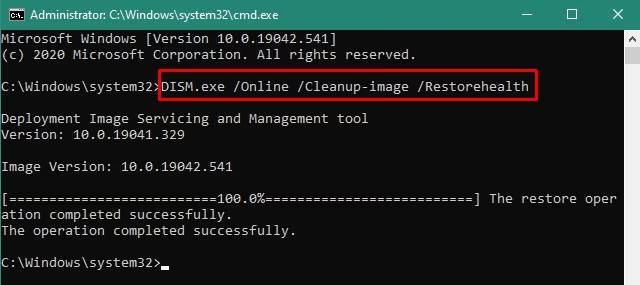
System File Checker (SFC) and Deployment Image Servicing and Management (DISM) tools can help repair corrupted system files:
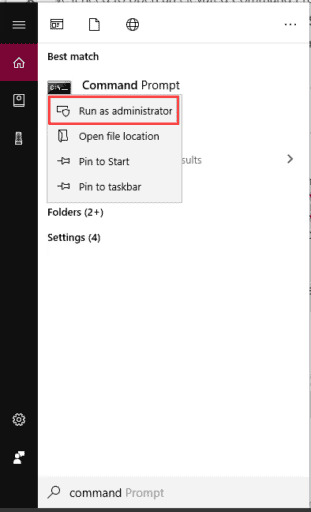
- Open Command Prompt as administrator
- Run
sfc /scannowand wait for it to complete - If issues persist, run
DISM /Online /Cleanup-Image /RestoreHealth
These scans can also help resolve other Windows issues, such as when Windows 7 is stuck on the welcome screen.
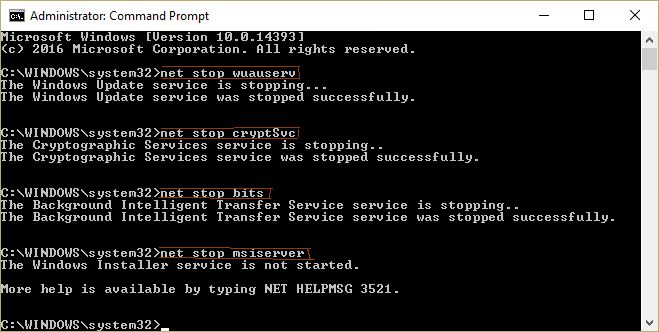
#2. Restart Windows Update Components
Restarting key services can often resolve update issues:
- Open Command Prompt as administrator
- Run the following commands:
net stop wuauserv
net stop cryptSvc
net stop bits
net stop msiserver
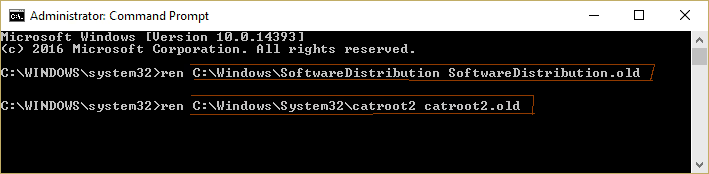
ren C:\Windows\SoftwareDistribution SoftwareDistribution.old
ren C:\Windows\System32\catroot2 catroot2.old
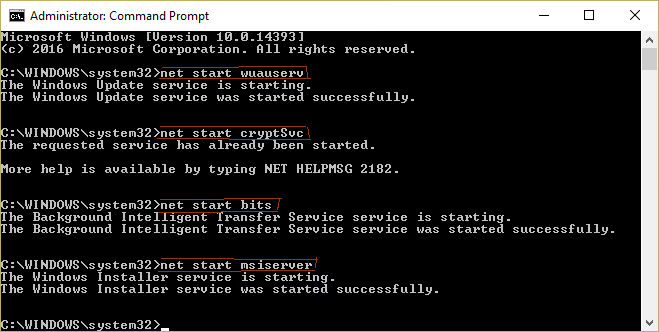
net start wuauserv
net start cryptSvc
net start bits
net start msiserver- Restart your computer and try updating again
#3. Re-register Wups2.dll File
The Wups2.dll file is crucial for Windows Update. Re-registering it can often fix update errors:
- Open Command Prompt as administrator
- Run the following command:
regsvr32 %windir%\system32\wups2.dll- Restart your computer and attempt the update again
This step can also help resolve other Windows Update errors, such as 0x80048002.
#4. Manually Download and Install the Update
If automatic updates fail, you can try downloading and installing the update manually:
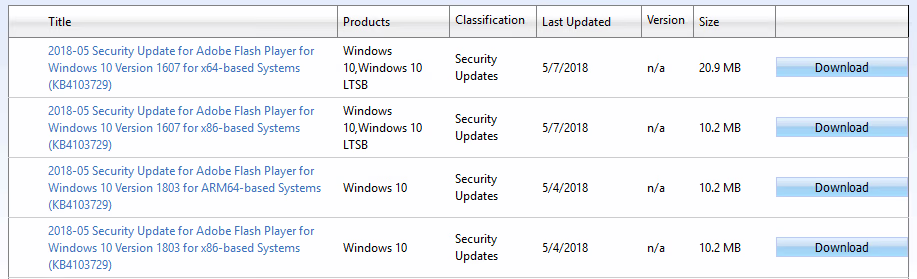
- Visit the Microsoft Update Catalog
- Search for the specific KB number of the update you need
- Download and install the update manually
#Additional Solutions
If the above methods don’t work, consider these additional solutions:
#1. Restart BITS Service
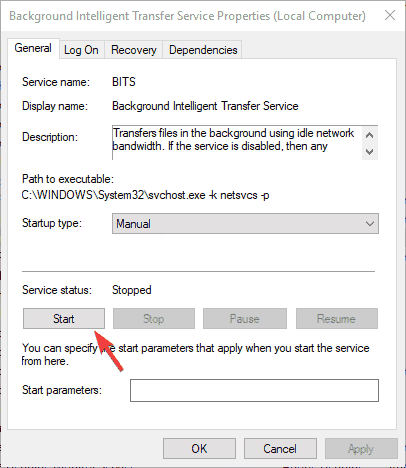
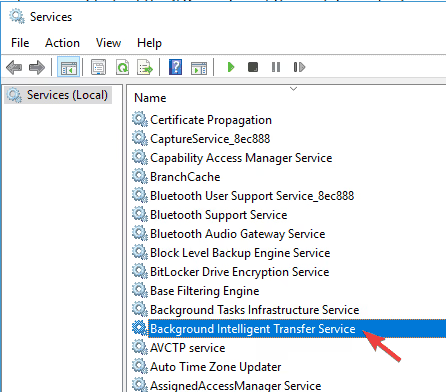
The Background Intelligent Transfer Service (BITS) is crucial for Windows Update:
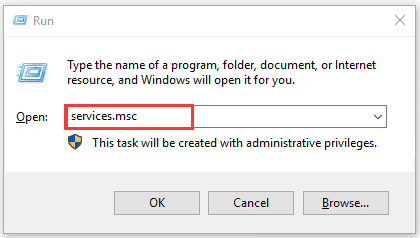
- Press Win + R, type
services.msc, and press Enter - Find “Background Intelligent Transfer Service“
- Right-click and select “Restart“
#2. Boot in Safe Mode
Booting in Safe Mode can help isolate update issues:
- Restart your PC and press F8 before Windows loads
- Select “Safe Mode with Networking“
- Try running Windows Update in Safe Mode
#3. Perform an In-Place Upgrade
An in-place upgrade can resolve persistent update issues while keeping your files and apps intact:
- Download the Media Creation Tool
- Run the tool and select “Upgrade this PC now“
- Follow the on-screen instructions to perform an in-place upgrade
If you’re experiencing severe system issues, you might need to repair Windows 10 without a CD, which can help resolve update-related problems as well.
#Preventing Future Update Errors
To minimize the risk of encountering update errors in the future:
- Keep your antivirus software up-to-date
- Regularly clear temporary files and free up disk space
- Schedule automated updates for convenient times
#When to Seek Professional Help
If you’ve tried all the solutions above and still encounter error 0x80080008, or if you suspect hardware-related issues are preventing updates, it may be time to seek professional assistance. A qualified technician can perform a more in-depth diagnosis and resolve complex system issues.
#Conclusion
Windows Update error 0x80080008 can be frustrating, but with the right approach, it’s often resolvable. By following the steps outlined in this guide, you can troubleshoot and fix this error, ensuring your system stays up-to-date with the latest security patches and feature improvements. Remember, keeping Windows updated is crucial for maintaining the security and performance of your computer.
#FAQs About Windows Update Error 0x80080008
- Q: How long should I wait for Windows updates to install? A: Most updates take between 10 to 20 minutes to install. However, major updates can take up to an hour or more.
- Q: Can I stop a Windows update in progress? A: It’s not recommended to stop an update in progress as it can lead to system instability. If necessary, you can try rolling back an update after it’s completed.
- Q: Will I lose my files if I perform an in-place upgrade? A: An in-place upgrade is designed to keep your files and apps intact. However, it’s always wise to backup important data before any major system changes.
- Q: How often should I update Windows? A: It’s best to allow Windows to install updates automatically. Microsoft typically releases security updates on the second Tuesday of each month, known as “Patch Tuesday.”
- Q: Can outdated drivers cause Windows Update errors? A: Yes, outdated drivers can sometimes interfere with the update process. Keeping your device drivers up-to-date can help prevent update errors.
By following this guide, you should be able to resolve the Windows Update error 0x80080008 and keep your system running smoothly and securely.