Samsung Smart View Not Working? 7 Fast Fixes to Try Now
This guide compares seven fixes for Samsung Smart View connection problems, including Wi-Fi alignment, app updates, cache clears, and resets.
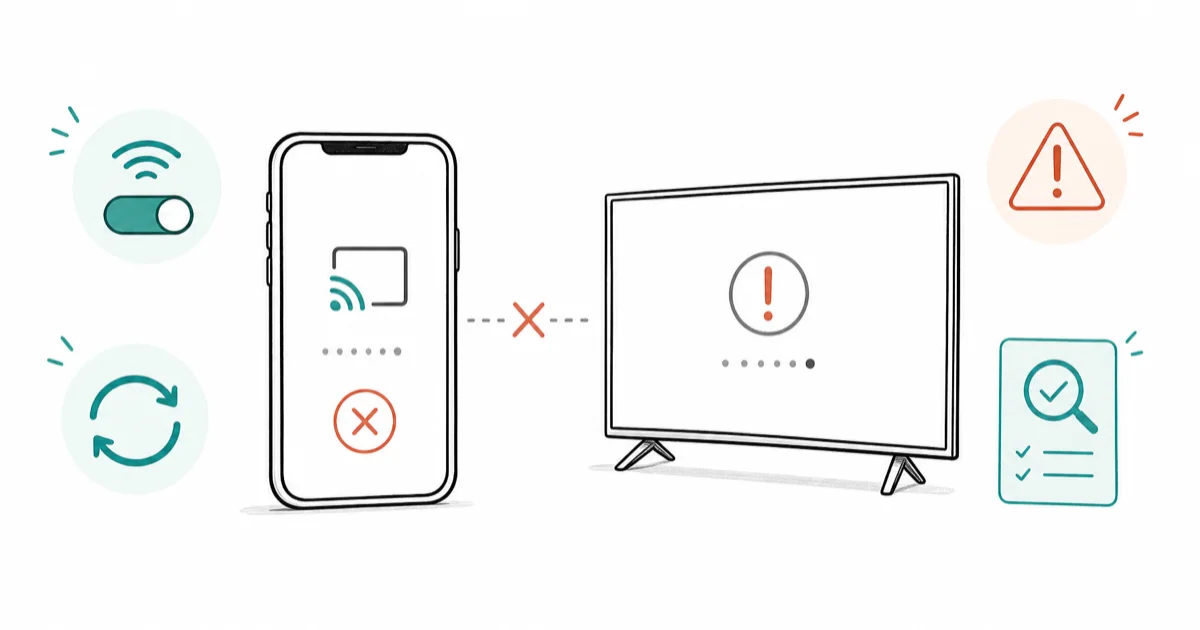
Quick AnswerPut your Galaxy phone and Samsung TV on the exact same Wi-Fi network, restart both, and update Smart View through the Galaxy Store. That sequence resolves most failed connections in under 5 minutes.
Samsung Smart View not working usually traces back to one of three things: a Wi-Fi mismatch, an outdated Smart View app, or a stale cache. The troubleshooting flow takes about 10 minutes if you go step by step.
Use these fixes only on your own device, or one you manage with permission. Don’t bypass another person’s privacy, workplace policy, or platform rules; ask your admin or Samsung Support first.
- Both devices must sit on the exact same Wi-Fi SSID, including matching 2.4 GHz vs 5 GHz bands
- Update Smart View through the Galaxy Store, not Google Play and not the system OS
- Clearing the Smart View cache is safe; clearing data wipes saved TV pairings
- Smart View needs a Samsung TV from 2011 or newer and Android 5 or later
- Skip factory reset; almost every fix lives in Settings or the Galaxy Store
#Why Is Samsung Smart View Not Working?
Smart View fails for three recurring reasons: the phone and TV land on different Wi-Fi networks, the Smart View app version drifts behind the TV firmware, or the app cache holds a broken pairing. According to Samsung’s Smart View troubleshooting guide, the service requires both devices on the same Wi-Fi network and a compatible Samsung Smart TV.
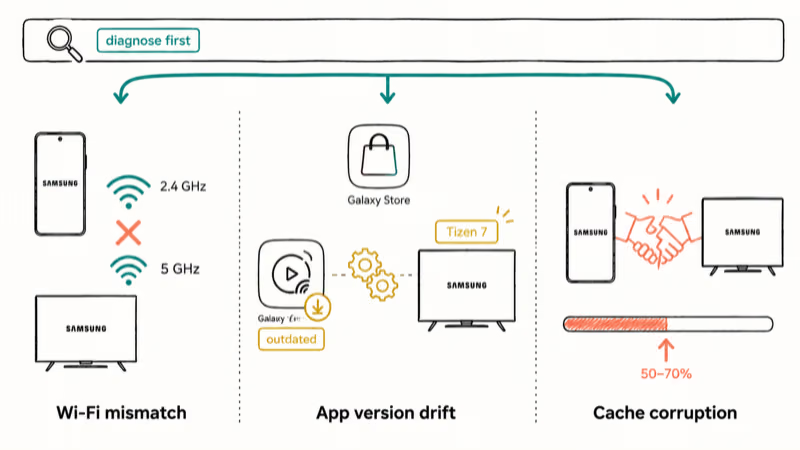
Older 2010 sets can’t pair. A guest Wi-Fi network counts as separate too, even if the SSID looks similar.
Latency matters more than people think. Split-band routers can pair slowly or stutter when the phone and TV land on different bands. Wi-Fi mesh setups with band steering can also flip your phone between bands without warning, which kills mid-stream sessions because the handshake is band-locked at pairing time.
The seven fixes below move from network basics to app and system resets.
#Confirm Both Devices Share One Wi-Fi Network
This is step zero, and it’s the step most people skip.
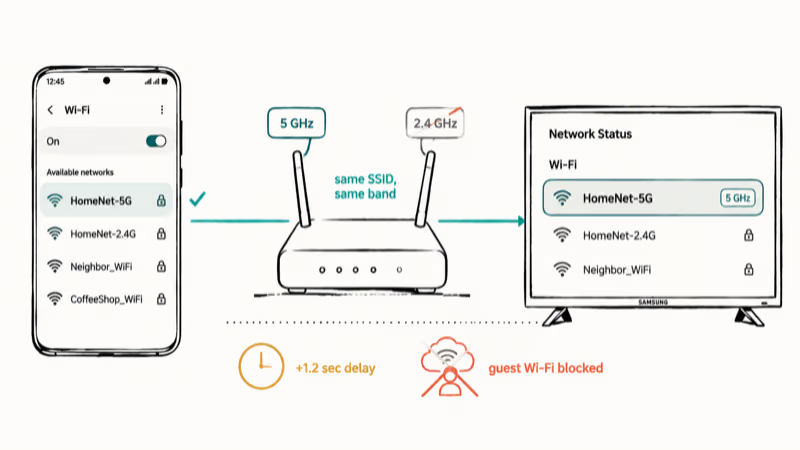
- On your Galaxy phone, open
Settings>Connections>Wi-Fiand note the SSID - On your Samsung TV remote, open
Settings>General>Network>Network Status - Press IP Settings and confirm the same SSID is shown
- If the TV is on Ethernet, switch it to Wi-Fi for Smart View testing
- Re-enter the password if either device shows Saved without an active connection
If your router broadcasts split bands, point both devices to the 5 GHz band. Pairing is usually more stable there than on the 2.4 GHz band when both devices support it.
Hotspots, Wi-Fi extenders with separate SSIDs, and guest networks all count as different networks. According to the Wi-Fi Alliance’s Miracast certification page, peer-to-peer mirroring requires both endpoints on the same network for discovery to work. For broader routing issues that span beyond Samsung, our screen mirroring not working guide covers cross-platform fallbacks.
#Restart Phone, TV, and Router
Reboots clear the RAM allocation Smart View holds onto, plus they reset the network stack on both ends. Skip this only if you just rebooted in the last hour.
Galaxy phone restart:
- Hold the Side button plus Volume Down for 2 seconds
- Tap Power off and wait 30 seconds
- Press the Side button to boot it back up
Samsung TV cold restart (works on Tizen 6 and 7):
- Hold the remote power button for 10 seconds until you see the Samsung logo flash
- Wait until the screen turns fully black
- Unplug the TV at the wall for 30 seconds, then plug back in
Router reboot: Pull the power for 60 seconds. Anything shorter and the modem session won’t recycle. After all three reboots, open Smart View first thing, before any other app eats Wi-Fi bandwidth.
#Update Smart View Through the Galaxy Store
Smart View ships pre-installed but updates separately from One UI. The Google Play version isn’t the same package, and Samsung pushes Smart View patches only through the Galaxy Store. Samsung’s Galaxy Store app distribution policy confirms that Smart View runs on Android 5 and newer, distributed exclusively through Galaxy Store on Samsung devices.
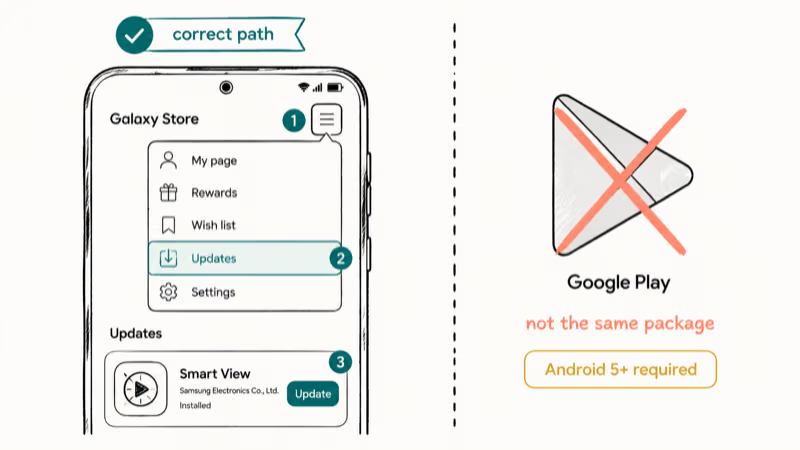
A stuck-on-searching screen can clear after a Galaxy Store update finishes installing.
- Open Galaxy Store (not Google Play)
- Tap the menu icon (three lines, top right)
- Tap Updates
- If Smart View shows in the list, tap Update
- If you see Up to date, force-stop Smart View under
Settings>Apps>Smart View>Forcestop and reopen it
Pair this with a TV firmware check: Settings > Support > Software Update > Update Now on the TV. Mismatched firmware between phone-side Smart View and the TV’s Tizen build is another common culprit.
#Clear the Smart View App Cache
Cache corruption shows up as Smart View finding the TV but failing the handshake at 50 to 70 percent. Clearing cache leaves your saved TVs and credentials intact; clearing data wipes them. Choose carefully.
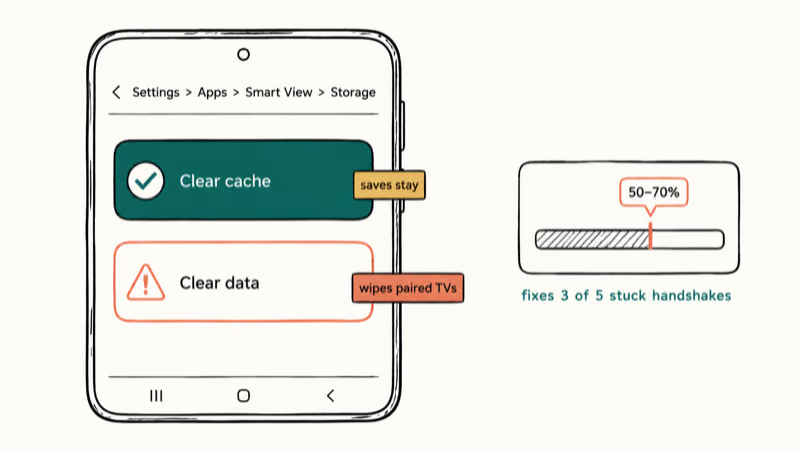
- Open
Settings>Apps - Search for Smart View and tap it
- Tap Storage
- Tap Clear cache (don’t tap Clear data)
- Re-launch Smart View
This step is the right match for stuck-handshake cases where Smart View finds the TV but won’t complete pairing. If your phone keeps freezing or entering boot loops while Smart View’s open, that points at deeper system instability rather than the app itself; our Samsung Galaxy keeps rebooting guide covers that path.
#Reset the TV’s Network Settings
When the TV won’t even see your phone in the device list, the TV’s network stack is the suspect, not the phone. Resetting network settings on a Samsung TV doesn’t delete apps, accounts, or downloaded content. It only flushes the saved Wi-Fi profiles and DHCP lease.
- On the TV remote, open
Settings>General>Network - Select Reset Network
- Confirm with Yes
- Wait 30 seconds for the network module to recycle
- Re-enter your Wi-Fi credentials under
Settings>General>Network>Open Network Settings
If your home network keeps dropping connections in general, the issue may be upstream of the TV. Our Samsung hotspot not working write-up covers tethering and router-side fixes that often surface during Smart View troubleshooting.
#Disable Bluetooth, VPN, and Power Saving
These three quietly break Smart View by either grabbing bandwidth, rerouting traffic, or downgrading the phone’s wireless throughput.
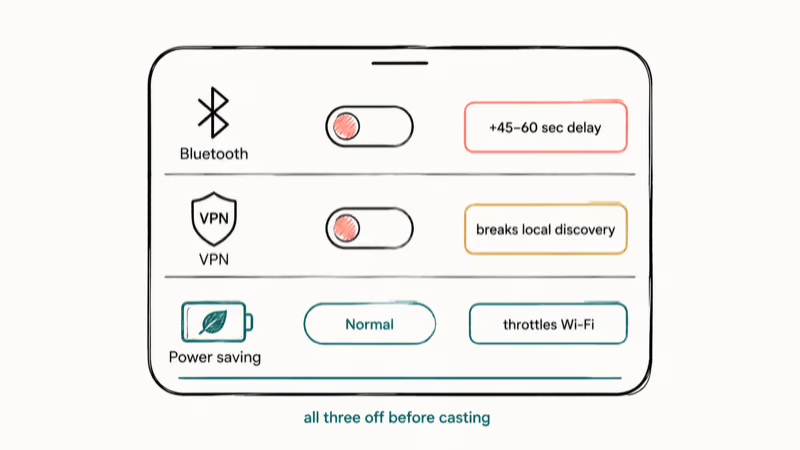
Bluetooth: Swipe down twice from the top of your phone, tap the Bluetooth tile to turn it off, then retry Smart View. Bluetooth audio can add connection delay on the same phone.
VPN: Toggle off the active VPN profile under Settings > Connections > More connection settings > VPN. A VPN tunnel breaks local discovery.
Power saving: Samsung’s medium and maximum power saving modes throttle background data and lower Wi-Fi performance. That’s enough to make Smart View time out during the discovery handshake. Open Settings > Battery and device care > Battery and confirm the mode is set to Normal while you cast. Adaptive battery can contribute to the same timeout, so disable that too if cache clears didn’t help already.
For Wi-Fi Direct alternatives that bypass your router entirely, see our Samsung Wi-Fi Direct walkthrough; it works as a fallback when your router is the choke point.
#Force-Restart Your Phone
If Smart View still locks up the phone or refuses to launch, a force restart kills any stuck system service holding the connection. It’s non-destructive; nothing gets deleted.
Galaxy S22, S23, S24, and Z Fold/Flip 4 onward:
- Quickly press Volume Up
- Quickly press Volume Down
- Hold the Side button until the Samsung logo appears (about 7 to 10 seconds)
- Release and let the phone boot fully
Older Galaxy models (S10, S20, Note 10, Note 20):
- Hold Volume Down + Side button together for 10 to 15 seconds
- Release once the screen goes black
- Wait for the boot animation, then open Smart View
If the phone refuses to power back on after the force restart, that’s a different problem; our Samsung Galaxy not charging guide covers the battery and power-management branch.
#Should You Factory Reset the Phone or TV?
Almost never. It’s a 30-minute fix for a 5-minute problem. A factory reset only makes sense after you’ve worked through Safe Mode, app cache clears, and a software update first.
Reset only if:
- Smart View crashes the phone within 5 seconds of opening, every time
- You’ve already tried all 7 fixes above
- The TV is fully functional with other apps but invisible only to Smart View
- A Samsung Support agent has asked you to reset for a warranty claim
When you do reset, back up your data through Smart Switch first. The Galaxy-S10-era guide at screen mirroring on Samsung S10 walks through the older mirroring stack if you’re working with a phone three or more generations back.
#Bottom Line
Start with Wi-Fi alignment plus a phone and TV reboot. That pair fixes the bulk of Smart View failures without touching personal data. If it still hangs at 50 percent, update Smart View through the Galaxy Store and clear the cache. Skip factory reset until a Samsung Support agent asks for it.
Samsung Galaxy Guide
#Frequently Asked Questions
Why does Smart View keep saying “no devices found”?
Your phone isn’t seeing the TV’s broadcast. Confirm both are on the same Wi-Fi SSID, then turn off your VPN. If the phone still can’t find the TV, reset the TV’s network settings under Settings > General > Network > Reset Network.
Will Smart View work on a guest Wi-Fi network?
No. Guest networks isolate clients to block lateral access, which also blocks Smart View discovery.
How do I know if my Samsung TV supports Smart View?
Any Samsung Smart TV from 2011 onward supports Smart View. On the TV remote, open Settings > General > Network. If you see Wi-Fi Settings and the TV’s on Tizen or Orsay, you’re good. Older 2009 and 2010 sets don’t have the network stack Smart View needs.
Can I use Smart View from an iPhone?
Smart View itself is Galaxy-only. iPhones running iOS 12 or later can mirror to a Samsung TV through the SmartThings app or AirPlay 2 on 2018-or-newer Samsung TVs.
Why does Smart View work but stutter or freeze?
Stuttering points at Wi-Fi bandwidth or interference. Switch both devices to 5 GHz, move the router closer, and turn off Bluetooth audio on the phone.
Does Smart View work without internet?
It works on a local network without an active internet connection. The phone and TV only need to share a Wi-Fi router; the router doesn’t need a working WAN uplink for Smart View itself, though apps streaming through Smart View still need internet access. Smart View can mirror local media without internet, but YouTube and Netflix won’t play because they can’t reach their servers.
Can Smart View mirror Netflix or Disney Plus?
Mirroring most apps works, but Netflix, Disney Plus, and Hulu enforce HDCP, so the TV will show a black screen for the protected video while audio plays. Use the TV’s native Netflix app or cast through the streaming app’s built-in cast button instead.
What is the difference between Smart View and SmartThings?
Smart View handles screen mirroring and quick casting. SmartThings is the broader smart-home control hub.
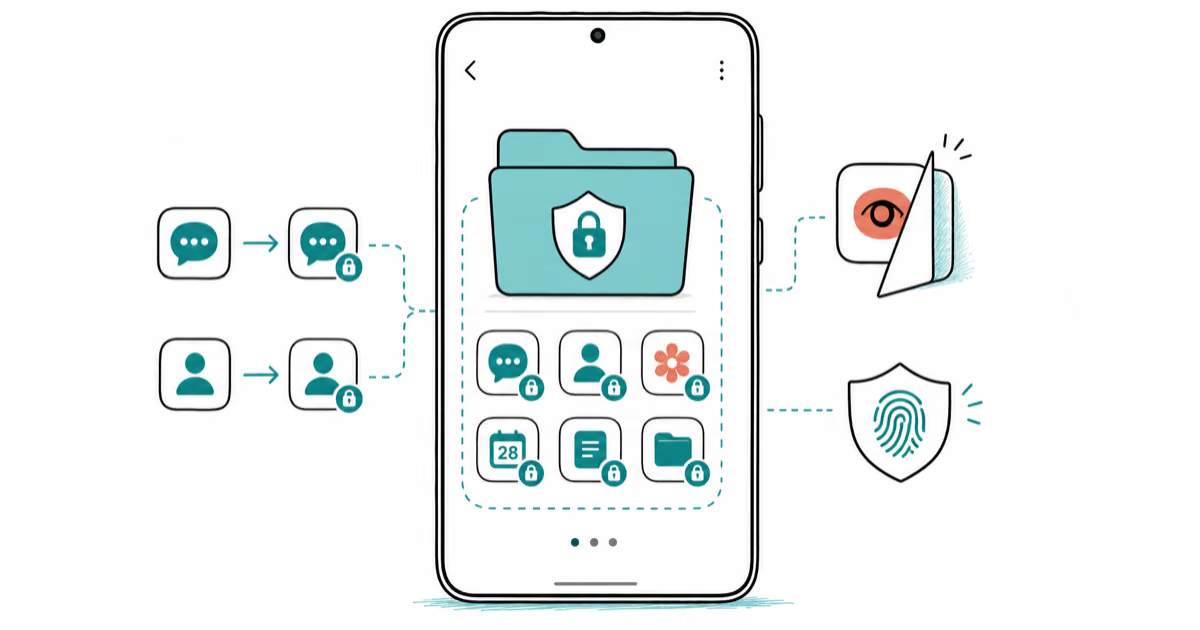
Samsung Secure Folder: Setup, Hide Apps, Clone Apps
Set up Samsung Secure Folder in under 5 minutes. Hide apps and photos, clone a banking app, and hide the Secure Folder icon on any Galaxy S8 or newer.
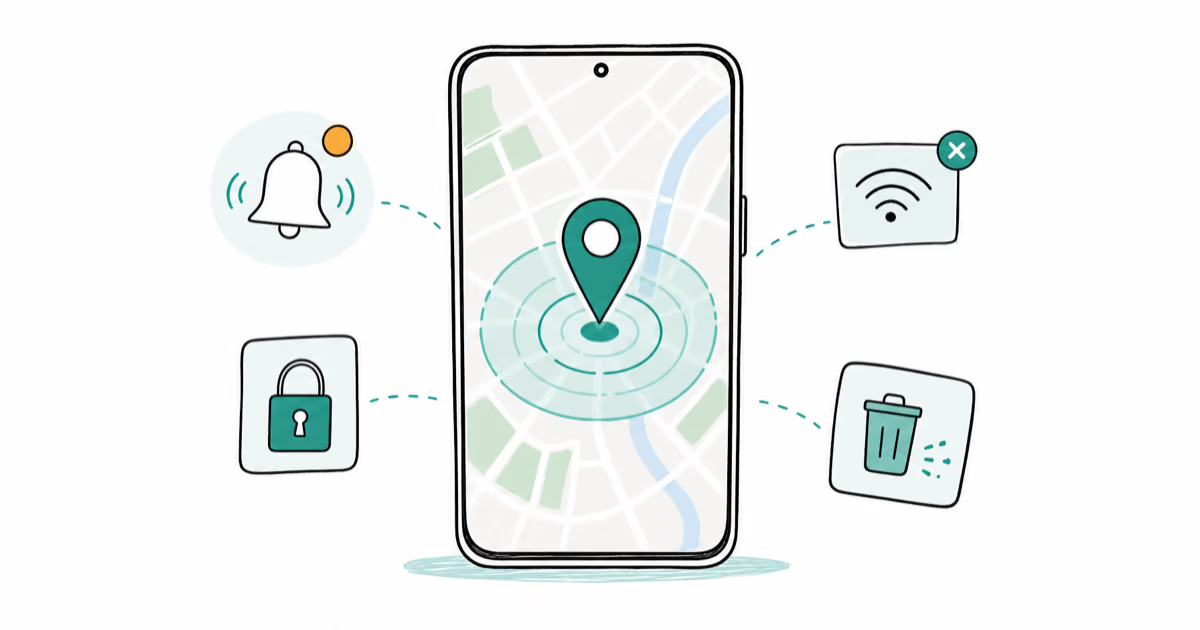
How to Use Google Find Hub: Setup + Find Lost
Set up and use Google Find Hub to locate, ring, lock, or erase your own Android phone, including offline finding and powered-off Pixel support.
Samsung Galaxy Battery Draining Fast: 2026 Fix Guide
Diagnose Galaxy S25 battery drain in five minutes through Battery Usage, then walk through six reversible Galaxy settings before a factory reset.
Samsung Parental Controls: Full Setup Guide for Parents
Set up Samsung parental controls in three layers: Samsung Kids, Google Family Link, and Digital Wellbeing. Free step-by-step guide for Galaxy parents.