Can You Activate an iPhone Without a Physical SIM?
You may activate an iPhone without a physical SIM by using Wi-Fi and eSIM. Learn when Apple may still require carrier activation or a SIM card.
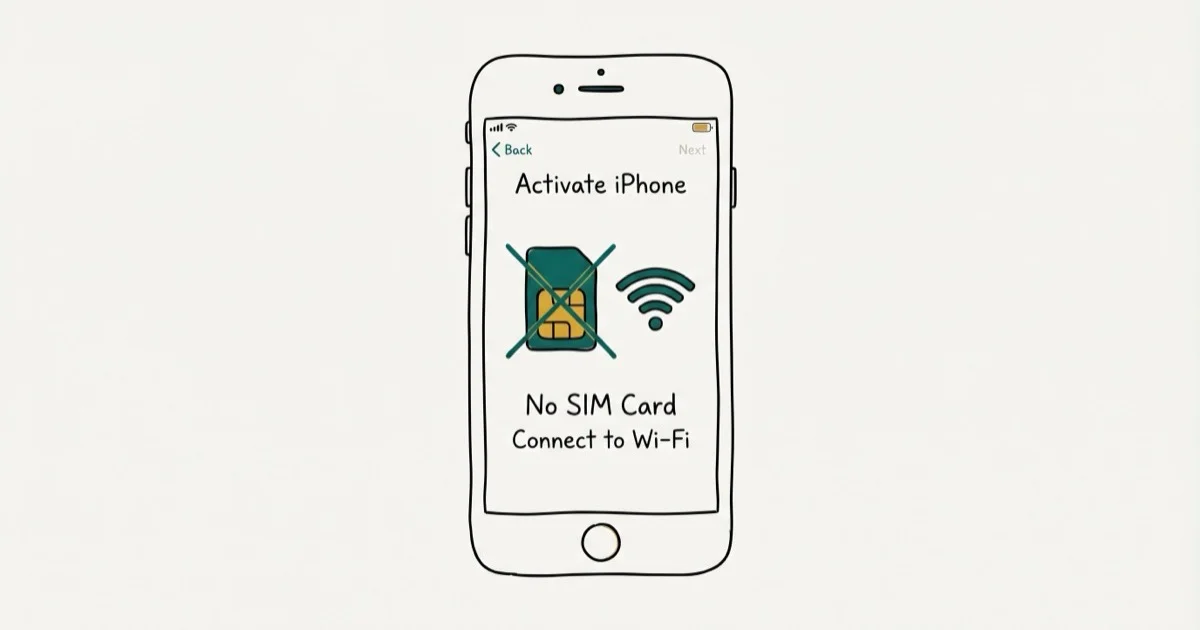
Quick AnswerYou can sometimes activate an iPhone without a physical SIM by connecting to Wi-Fi and setting up an eSIM. Apple says some devices may still require a SIM or eSIM during setup.
An iPhone can often be set up without a physical SIM, but that isn’t the same as skipping carrier activation. Some models and carriers still require an eSIM or physical SIM. Use this guide only on a device you own or may configure.
- Apple says activation needs Wi-Fi or a cellular network, and some devices may still require a SIM or eSIM
- An eSIM can replace a physical card when your iPhone and carrier support it
- Quick Start transfers settings and data but does not bypass carrier or Activation Lock checks
- A computer provides an official retry path when activation over Wi-Fi fails
- Activation Lock requires the linked owner’s credentials or Apple’s documented ownership process
#Can You Activate an iPhone Without a Physical SIM?
Sometimes. According to Apple’s current iPhone and iPad setup guide, you need Wi-Fi or a cellular network to activate. The same guide warns that you might need to insert a SIM or activate an eSIM before setup can continue.
There isn’t a universal on-screen shortcut around Apple’s activation requirements.
A phone with an assigned eSIM, or one whose setup flow doesn’t request cellular activation yet, may continue over Wi-Fi without a plastic card. A carrier-locked phone or an incompatible cellular plan can still stop at activation.
If the phone reports No SIM after it was already set up, use the checks in our iPhone No SIM guide instead of erasing it.
#Set Up Over Wi-Fi When the Phone Allows It
Follow the screens that actually appear on your device:
- Turn on the iPhone and choose your language and region.
- Choose Set Up Without Another Device if you are setting it up manually.
- Connect to a reliable Wi-Fi network.
- Continue through the prompts for your Apple Account, passcode, and data transfer.
- If setup asks for a SIM or eSIM, stop and use the carrier options below.
Apple’s setup page doesn’t promise that all models can finish with no cellular plan. It says a SIM “might” be required, so a SIM prompt is a requirement to resolve, not an error to dismiss.
If you’re moving from another iPhone, you can transfer data without relying on an iCloud restore, but data transfer and activation are separate checks.
#Use an eSIM Instead of a Physical Card
For a supported iPhone, an eSIM is the normal physical-SIM-free route. Apple’s eSIM setup instructions say a carrier can assign a plan through eSIM Carrier Activation, Quick Transfer, a QR code, a carrier link, or a carrier app.
Keep the iPhone connected to Wi-Fi while the eSIM downloads. If the plan is missing or rejected, contact the carrier that issued it; repeatedly restoring the phone won’t create a valid cellular plan.
After setup, verify the plan under Settings > Cellular.
If the phone shows an invalid plan, use our Invalid SIM troubleshooting guide while the carrier verifies provisioning.
#What Does Quick Start Actually Do?
Quick Start can copy settings and data from a nearby iPhone or iPad. Apple’s device-transfer guide lists Quick Start, iCloud, and a computer backup as transfer methods.
It doesn’t waive a carrier lock, a SIM requirement, or Activation Lock. Use Quick Start for migration, then follow any activation prompt shown on the new phone. If transfer stalls later, use our Quick Start troubleshooting guide instead of treating it as a SIM problem.
#Retry Activation With a Computer
Apple’s current activation troubleshooting page recommends a computer when the iPhone still won’t activate:
- Update macOS, Apple Devices, or iTunes.
- Confirm that the computer has an internet connection.
- Connect the iPhone with a working cable and locate it in Finder, Apple Devices, or iTunes.
- Wait for the computer to detect the phone.
According to that Apple guide, Set Up as New or Restore from Backup means the phone is activated. This is an alternate connection path, not a way to bypass an incompatible SIM, carrier lock, or owner lock.
If the computer reports invalid activation information, follow Apple’s recovery-mode direction. Don’t use undocumented button sequences as a routine activation method; a restore erases the device and should only be used when the displayed error calls for it. If recovery mode itself fails, see our iPhone recovery-mode guide.
#Resolve SIM, Carrier, and Activation Lock Messages
Read the exact message before choosing a fix:
- SIM or eSIM is unsupported or invalid: Apple directs you to the carrier. Confirm the phone is eligible for that network and that the plan is active.
- Activation server is unavailable: Apple says to wait a few minutes, connect to reliable Wi-Fi, and retry.
- iPhone Locked to Owner: The device is protected by Activation Lock.
Apple’s Activation Lock guide explains that the linked Apple Account password is required to reactivate the device. Don’t use tools or borrowed credentials to defeat that protection. Ask the previous owner to remove the device from their account, or use Apple’s documented support process with valid proof of purchase.
If the Apple Account itself is inaccessible, start with our locked Apple Account guide. For a legitimately purchased used phone, our Activation Lock ownership guide explains the records to gather before contacting Apple.
#Bottom Line
You may be able to activate an iPhone without a physical SIM, especially when the carrier provides an eSIM. Apple doesn’t promise SIM-free activation for every model and carrier.
Start with Wi-Fi, set up the assigned eSIM if required, and use a computer only as Apple’s official retry path. A carrier or owner-lock message must be resolved with the carrier or linked owner; it can’t be bypassed by Quick Start or a restore.
iPhone tips & tricks
#Frequently Asked Questions
Can I use an iPhone on Wi-Fi without cellular service?
After legitimate activation, many apps and internet features work over Wi-Fi. Cellular calls, SMS, and mobile data require an active carrier plan.
Does eSIM count as activating without a SIM card?
It removes the need for a physical card, but it’s still a SIM-based carrier plan. Your carrier must issue or transfer the eSIM.
Can Quick Start bypass a missing SIM?
No. Quick Start transfers data and settings. The new iPhone still completes its own carrier and Activation Lock checks.
Will Finder or Apple Devices bypass a carrier lock?
No. A computer can retry Apple’s activation process, but only the current carrier can unlock a carrier-locked iPhone.
Should I borrow another person’s SIM?
Only use a SIM with the account holder’s permission. Accessing another person’s SIM or account without permission can violate privacy law. Contact your carrier for a correctly provisioned SIM or eSIM instead.
Does recovery mode activate an iPhone without a plan?
No. Recovery mode can reinstall current software for specific activation-information errors. It doesn’t create a cellular plan or remove a carrier or owner lock.
What if the previous owner’s account appears?
Stop setup and ask the previous owner to remove the iPhone from their Apple Account. If they can’t, use Apple’s ownership-support route with valid purchase documentation.
How to Transfer Data to a New iPhone Without iCloud
Move everything to your new iPhone without iCloud: Quick Start device-to-device transfer, wired migration, and encrypted Finder or iTunes backups.
Best Wireless Earbuds for iPhone in 2026: USB-C Era Picks
Best wireless earbuds for iPhone in 2026, comparing AirPods Pro 3, Sony WF-1000XM6, Bose QC Ultra, and Anker Liberty 4 NC on the USB-C iPhone lineup.
iPhone Keyboard Lag? 7 Proven Fixes for iOS 26 (2026)
Fix iPhone keyboard lag with 7 proven fixes for iOS 26. Covers restart, storage, predictive text, third-party keyboards, and dictionary reset.
How to Block Porn on an iPhone: A Guide for Parents
Learn how to block porn on iPhone using Screen Time, DNS filtering, and safe browsers. Step-by-step guide for parents to protect kids' devices.