AirPod Mic Not Working? 6 AirPods Fixes to Try (2026)
AirPod mic not working? Clean the mesh, check mic settings, re-pair, update firmware, or reset. Six practical checks for compatible AirPods models.
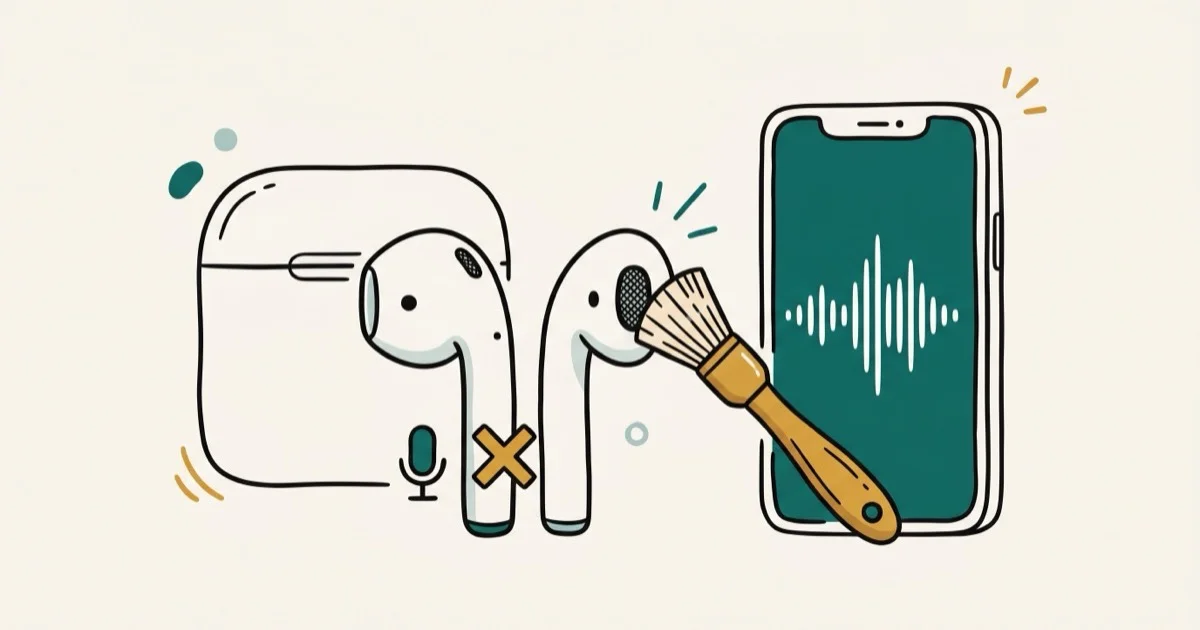
Quick AnswerClean the microphone mesh on the AirPod stem, then go to Settings > Bluetooth > your AirPods > Microphone and set it to Automatically Switch AirPods. Test the mic again before re-pairing or resetting the AirPods.
Your AirPod mic stopped working and people on calls can’t hear you. Start by cleaning the mic mesh and checking the Bluetooth microphone setting.
- Debris on the microphone mesh can muffle your voice; clean it with a dry, soft brush
- “Automatically Switch AirPods” lets either earbud act as the microphone
- If cleaning and settings checks fail, forget the AirPods and pair them again
- Firmware updates happen automatically while the closed, charging case stays near a Wi-Fi-connected iPhone, iPad, or Mac
- If the mic works in Voice Memos but not a third-party calling app, check that app’s microphone permission
#Why Does Your AirPod Mic Stop Working?
Earwax and lint can pack into the small mesh holes on the AirPod stem and block sound from reaching the microphone. The microphone setting can also be pinned to one earbud, and a stale Bluetooth pairing can interrupt call audio.
Work through the cleaning, settings, pairing, and firmware checks before considering a repair.
#Fix 1: Clean the Microphone Mesh
This is the fastest fix. The microphone sits at the bottom of each AirPod stem inside a small mesh grille that collects earwax, pocket lint, and skin oil.
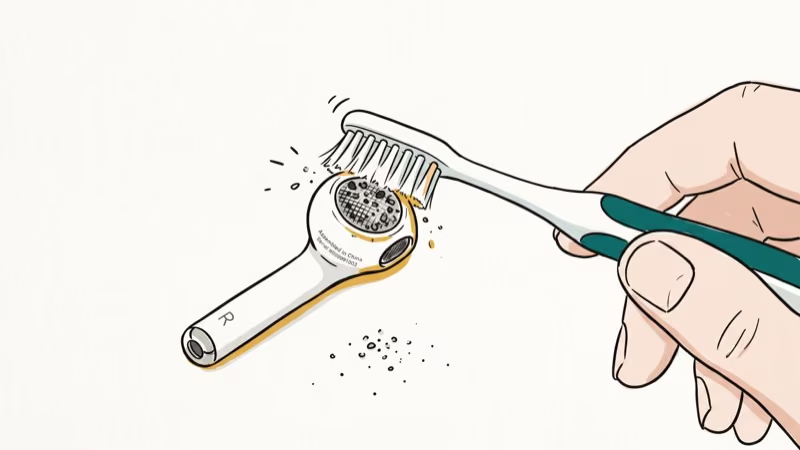
Grab a dry, soft-bristled toothbrush or a clean cotton swab. Don’t use water or isopropyl alcohol directly on the mesh. Brush across the grille in short strokes, holding the AirPod upside down so debris falls out rather than in. After cleaning, make a short Voice Memos recording or test call to confirm the mic is picking up sound.
#Fix 2: Check the Microphone Setting in Bluetooth
iOS lets you pin the mic to one earbud or let it switch automatically. If you’ve set it to “Always Left AirPod” or “Always Right AirPod” and that bud has low battery or a glitch, the mic goes dead entirely.
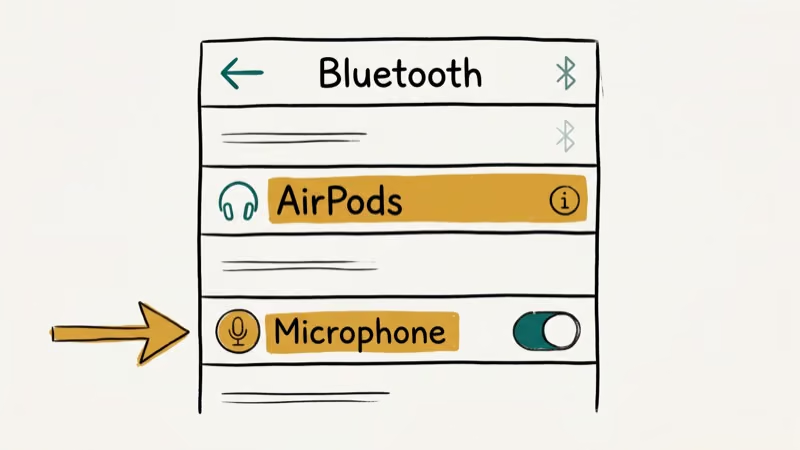
Go to Settings > Bluetooth > [your AirPods] > Microphone and select Automatically Switch AirPods.
Apple’s AirPods settings guide explains that either earbud can act as the microphone when Microphone is set to Automatic. If you recently reset or re-paired the AirPods, check the setting again.
#Fix 3: Check App Permissions and Call Routing
If your mic works in Voice Memos but fails in a particular calling app, check that app’s permission and the active call route.
Go to Settings > Privacy & Security > Microphone and allow access for the affected third-party app if it appears in the list. Apple’s iPhone microphone guide says to contact the app developer if the app is not listed. The built-in Phone app does not have a separate microphone toggle there.
Check routing during a live call by tapping the audio icon. If AirPods aren’t listed as an option, the re-pair fix in the next section is your next step.
#Fix 4: Re-Pair Your AirPods
Re-pairing creates a fresh Bluetooth connection after cleaning and settings checks have failed.
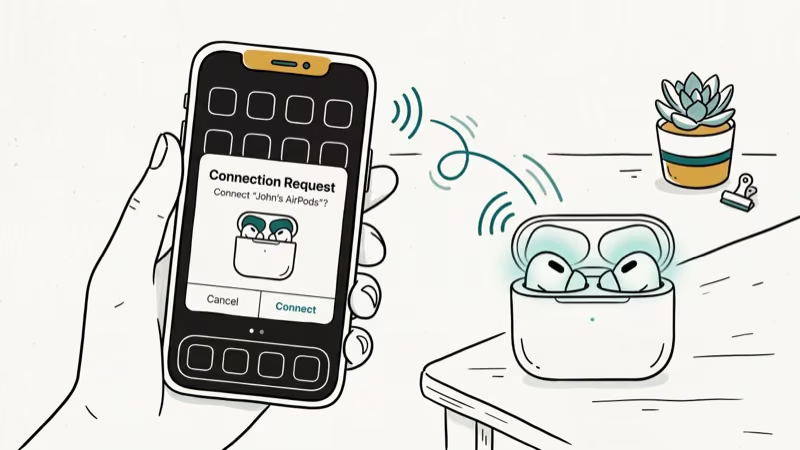
On your iPhone, go to Settings > Bluetooth and tap the i icon next to your AirPods. Tap Forget This Device and confirm. Put both AirPods in the case and open the lid.
For AirPods 1, 2, or 3 and AirPods Pro 1 or 2, hold the setup button on the back for about 5 seconds, until the status light flashes white. AirPods 4 and AirPods Pro 3 use a double-tap sequence on the front of the case instead. Hold the open case next to your iPhone and follow the pairing prompt. According to Apple’s pairing guide, the exact control depends on the AirPods model.
If you’re dealing with AirPods that won’t connect at all, run that guide first since the pairing process is slightly different.
#Fix 5: Update AirPods Firmware
Check the AirPods firmware before diagnosing a hardware fault.
Check your version at Settings > Bluetooth, tap the Info button next to your AirPods, then scroll to About. Compare the model and version with Apple’s current firmware page, which Apple updates as new builds are released.
You can’t trigger a firmware update with a button. Apple says to keep the AirPods in Bluetooth range of an iPhone, iPad, or Mac connected to Wi-Fi, connect the case to power, close the lid, and wait at least 30 minutes. Reconnect the AirPods afterward and check the version again.
If you’re also seeing AirPods sound muffled, a firmware update sometimes fixes both at once.
#Fix 6: Factory Reset Your AirPods
A factory reset clears the AirPods pairing and starts fresh. Use this only after trying fixes 1 through 5.
According to Apple’s model-specific reset instructions, AirPods 1, 2, or 3 and AirPods Pro 1 or 2 use this sequence: put both AirPods in the case, close the lid for 30 seconds, open it, then hold the setup button on the back for about 15 seconds until the light flashes amber and then white. AirPods 4 and AirPods Pro 3 use three double taps on the front of the case instead. Then pair the AirPods again.
After resetting, go back to Settings > Bluetooth > [your AirPods] > Microphone and set it to Automatically Switch AirPods.
#When Should You Contact Apple Support?
If all six checks fail, contact Apple for a hardware diagnosis.
Check coverage at checkcoverage.apple.com using the serial number from Settings > Bluetooth > i icon > Serial Number. According to Apple’s AirPods repair page, a personalized estimate depends on the device, service option, and coverage.
If one earbud also drains faster than the other, see our guide on why one AirPod dies faster before booking a repair.
#Bottom Line
Start with cleaning the mic mesh and setting the microphone to Automatically Switch AirPods. If the mic still fails, check the affected app and call route, re-pair the AirPods, update their firmware, and then reset them. Contact Apple if all six checks fail.
For the phone side of call problems, our article on iPhone microphone not working covers the same issue from the device end.
#Frequently Asked Questions
Why can people hear me on speakerphone but not through AirPods?
This confirms your iPhone’s built-in mic works fine but audio isn’t routing through the AirPods. During the call, tap the audio icon and switch to AirPods manually. If the option is greyed out, the AirPods aren’t recognized as an input device. Run the re-pair fix from Fix 4.
Can dirt permanently damage the AirPod microphone?
Avoid sharp tools because they can push debris deeper or damage the mesh. Follow Apple’s cleaning guidance for your model, and don’t apply liquid directly to the microphone opening.
Does the microphone work differently on AirPods vs AirPods Pro?
The available microphone controls and hardware vary by model. If your AirPods settings include the Microphone option, you can choose automatic switching or a specific earbud; use Apple’s model guide for features that don’t appear on your device.
Why does my AirPod mic cut out only on longer calls?
Intermittent dropout can point to Bluetooth interference or a low-battery earbud. Charge both AirPods before a long call and see our guide on AirPods that keep cutting out if the connection also drops during music playback.
Will factory resetting AirPods delete anything important?
No. AirPods hold pairing data and audio settings, not personal data. A reset clears those and re-pairs as a fresh device. Your call history, contacts, and media are completely unaffected.
How do I check if AirPods are under warranty for a mic repair?
Go to checkcoverage.apple.com and enter your serial number from Settings > Bluetooth > i icon > Serial Number. For a service estimate, use Apple’s AirPods repair page; the available service and price depend on the model, diagnosis, and coverage.
Can I use just one AirPod as the microphone while the other is broken?
Yes. Go to Settings > Bluetooth > AirPods > Microphone and select “Always Left AirPod” or “Always Right AirPod” depending on which one works. This is a temporary workaround while waiting for a repair; switch back to automatic if the selected earbud becomes unavailable.
My AirPods case isn’t charging. Could that cause mic problems?
Not directly. But a dead case means your AirPods can’t recharge. Fix the case first with our AirPods case not charging guide.

Mac mini M6 vs M5 Pro: Which Model Should You Buy?
Mac mini M6 vs M5 Pro compared on price, memory, ports, displays, and real workloads. Find the better 2026 Mac mini for your desk and budget.

Apple Siri Settlement: Who Qualifies and How to Claim
Apple's $250 million Siri settlement covers iPhone 15 Pro and iPhone 16 models bought June 2024 to March 2025. See who qualifies and how claims work.

iOS 26.6.1 Security Update: What Apple Fixed and Who Gets It
Apple released iOS 26.6.1 on August 17 with 29 security fixes, including an IPSec interception bug. See what it patches, who gets it, and how to update.

iPhone Adaptive Power: How It Works and When to Use It
Learn how iPhone Adaptive Power works, which models support it, what it changes, and when Low Power Mode is still the better battery-saving choice.