Best Photo Squarer Apps for iOS and Android (2026)
Best photo squarer apps for iOS and Android ranked by ease of use, output quality, and features. InSquare Pic and No Crop lead our top picks.
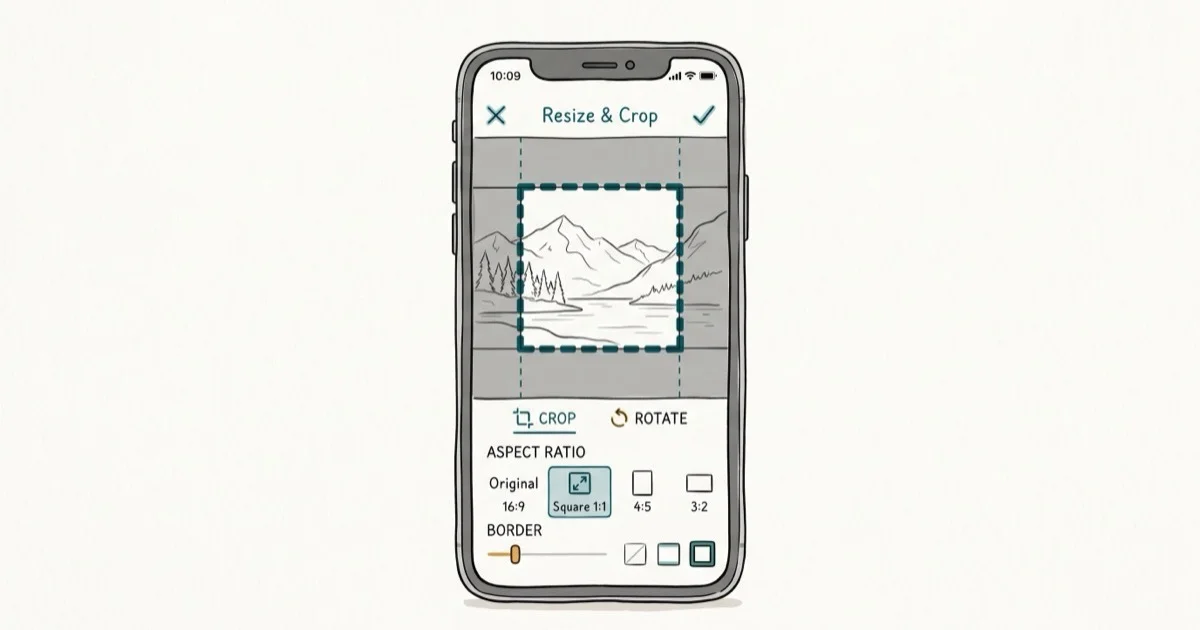
Quick AnswerInSquare Pic is the best photo squarer app for most users. It adds white or colored borders to make any photo square for Instagram without cropping, and it works on both iOS and Android.
Instagram’s grid still looks best with square photos, but cropping cuts off important parts of your image. This guide compares 10 photo squarer apps for iPhone and Android to find the ones that resize without quality loss.
- InSquare Pic is the top pick for both platforms with background effects, filters, and stickers included free
- No Crop and Square for Instagram has over 200 free background patterns and 30 built-in filters
- Photo and Picture Resizer on Android handles batch resizing for squaring multiple photos at once
- Square Sized on iOS lets you square photos in one tap with options for filters, shapes, and text
- All apps on this list maintain the original photo resolution when adding borders instead of cropping
#What Are the Best Photo Squarer Apps for Android?
#1. Photo and Picture Resizer
This free app handles batch resizing, which means you can square 20 photos at once instead of one at a time. It processes a batch of photos quickly without visible quality loss. According to its Google Play Store listing, it’s among the more widely downloaded resizers in this category.
The interface is minimal. You pick photos, choose your target dimensions, and tap resize. It doesn’t add watermarks to the output.
Pros: batch processing, no quality loss, clean interface Cons: limited to resizing and cropping only, no background effects
#2. No Crop and Square for Instagram
Square 1
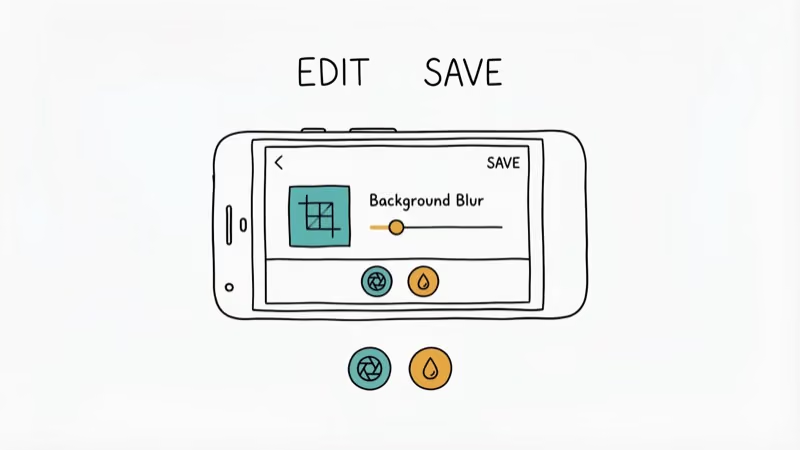
images remain a popular choice for Instagram feeds. According to 9to5Mac’s Instagram guide, that format works well across feed and Stories. No Crop gives you a wide range of free background patterns and filters to make that format easy.You don’t need to crop anything. The app adds a border to make your photo square, and you choose what the border looks like. The blur effect, which extends the photo’s edges into a soft background, looks especially clean.
It also has 400+ stickers for customization. The main downside is ads. They pop up between almost every action, though a one-time purchase removes them.
Pros: huge pattern library, built-in filters and stickers, blur background option Cons: frequent ads, uses more storage than competitors
You might also want to check out the best meme maker apps if you’re into creative photo editing.
#3. InSquare Pic
InSquare Pic is the most feature-packed squarer app on Android. It handles square, rectangle, and custom aspect ratios with background effects, stickers, and filters. You can post directly to Instagram and Facebook from inside the app.
Its background blur effect is among the smoothest in this category. The variety of border styles and color effects gives your squared photos a polished look. The downside is app size; it takes about 180MB of storage.
Pros: variety of backgrounds and effects, social sharing built in, supports multiple aspect ratios Cons: large app size, ads between actions
#4. Square Pic Photo Editor
Square Pic has over 40 design shapes and 10 mirror image effects. It’s useful if you want more creative options beyond basic squaring. It works well for collage-style square images, combining 2-4 photos into a single square layout.
Pros: creative shapes and layouts, decent speed, mirror effects for fun edits Cons: aggressive ads, can slow down older devices
#5. Cropix: Insta Photo Resizer
Cropix keeps things simple. Pick a photo, and it squares it in two taps. You can add frames if you want, but the default output is a clean white-bordered square. It squares photos without visible quality loss.
Pros: fastest workflow on this list, no watermark, maintains quality Cons: no resizing options beyond squaring, limited creative features
For more image editing tips, learn how to make a slideshow with music on iPhone or check out the best photo viewer for Windows 10.
#What Are the Top Photo Squarer Apps for iPhone?
#1. Square Sized
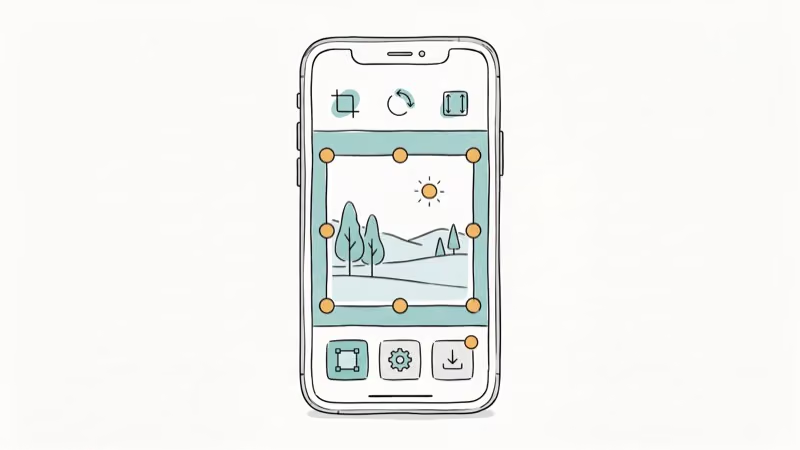
Square Sized is the one-tap squarer for iOS. You select a photo, and it’s instantly squared with a white border. Adding filters, shapes, text, and colored borders is optional. The app supports English, Japanese, and Chinese.
Pros: one-tap operation, three language support, free to use Cons: ads in free version, watermark on some outputs
#2. INSTFIT
INSTFIT maintains full resolution when squaring. It adds a background (blur, color, or pattern) without compressing the original image. INSTFIT preserves the source file’s resolution, adding a background without recompressing the original image.
It also includes exposure correction and saturation tools for quick edits.
Pros: no quality loss, additional editing tools, lightweight app Cons: requires a recent iOS version, watermark in free version
#3. Square Fit Photo Video Editor
Square Fit handles both photos and videos for Instagram. It has creative filters, backgrounds, and layouts. The video squaring feature works on clips up to 1 minute, which covers most Instagram Reels needs.
Pros: video support, creative features, good output quality Cons: 1-minute video limit, large app size
#4. Squaready
Squaready lets you share directly to Instagram from the app. It adds vignettes, frames, and blur effects to the borders. Output quality is solid. The app also supports Japanese, which is useful for bilingual users.
Pros: direct Instagram sharing, high quality output, bilingual support Cons: limited free features, frequent ads
#5. NoCrop
NoCrop squares images in a couple of taps and works on older iOS versions, making it one of the more backward-compatible apps on this list. It comes with a large set of preset backgrounds. It handles high-resolution photos, including 48MP shots from recent iPhones, without issues.
NoCrop’s extended compatibility makes it useful for older devices too.
Pros: works on old iOS versions, 100 backgrounds, reliable Cons: known camera roll upload bug, ads throughout the app
You can also learn how to mirror on Procreate for more advanced image editing, or add text to photos on Android for quick edits.
#How Squarer Apps Keep Your Photo Quality Intact
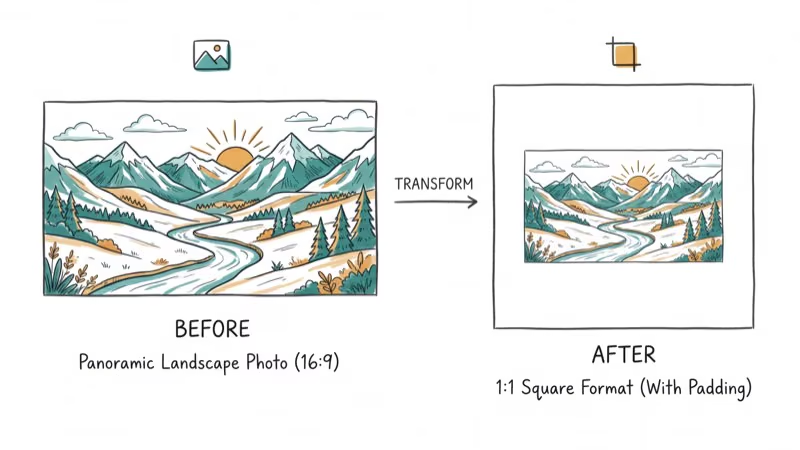
The reason these apps avoid quality loss is simple: they pad rather than crop. Instead of stretching pixels to fill a square, they keep your original photo at full resolution and add a border around it.
That border can be solid white, a color, or a blurred extension of the photo itself. Your subject stays untouched, and the export matches the source file’s resolution. Instagram supports square, portrait, and landscape aspect ratios, so padding to a clean 1
keeps display predictable.#Free Versions Versus Paid Upgrades
Every app here is free to start, but the free tiers differ in how aggressively they monetize. Some show full-screen ads between actions, while others stamp a small watermark on exports.
A one-time purchase usually removes both. Most squarer apps charge a single unlock fee under $5 rather than a recurring subscription. If you only square photos occasionally, the ad-supported free version is fine.
#Features to Look for Beyond Basic Squaring
Once you move past the core padding function, the apps split on extras. Background blur and pattern libraries matter most for a polished Instagram look, so check how many free presets each app includes.
Batch processing is the deciding feature if you post in volume, since only a handful of apps square multiple photos in one pass. Direct social sharing and built-in filters are convenient but not essential, because you can always export and edit elsewhere.
#Common Mistakes When Squaring Photos
The biggest mistake is choosing an app that crops instead of pads, which silently cuts off edges of your shot. Always confirm the app adds a border rather than zooming in to fill the frame.
A second pitfall is exporting at a reduced resolution. Microsoft’s photo handling documentation confirms that re-saving an image can compress it, so check your output dimensions after the first export. Finally, watch for watermarks that only appear on the saved file, not the preview.
#Bottom Line
Use InSquare Pic if you want the most features on either platform. For the fastest no-frills squaring, pick Cropix on Android or Square Sized on iOS. If batch processing matters, Photo and Picture Resizer is the only app here that handles multiple photos at once.
#Frequently Asked Questions
Can I use these photo squarer apps for free?
Yes. All apps on this list have free versions with basic squaring features. Some display ads or add watermarks that you can remove with a one-time purchase or subscription.
Will using a photo squarer app reduce my photo quality?
No. These apps add borders to make photos square rather than cropping and stretching them. The original image stays at full resolution inside the border, which you can confirm by comparing file sizes before and after processing.
Are these apps good for beginners?
All of them are designed for quick, simple use. Cropix and Square Sized are the easiest with one-to-two-tap workflows. InSquare Pic has more options but is still straightforward.
Can I share squared photos directly to Instagram?
Yes. Most apps on this list have built-in sharing to Instagram, Facebook, and other platforms. Squaready and InSquare Pic have the smoothest direct-share workflows.
Are these apps available for both iOS and Android?
InSquare Pic, No Crop, and Square Fit are available on both platforms. Photo and Picture Resizer and Cropix are Android-only. Square Sized, INSTFIT, Squaready, and NoCrop are iOS-only.
Do any of these apps work without an internet connection?
Yes. All the photo squaring features work offline since they process images locally on your device. You’ll only need internet for sharing to social media or downloading additional sticker packs.
Google Messages Error 3100: Why RCS Is Broken on Galaxy
Google Messages RCS error 3100 hits Galaxy owners after phone or carrier switches. Google told 9to5Google a fix is coming. Here's what actually helps.

Is This Bank App Real? Spot a Fake App on Your Home Screen
A bank app can land on your home screen from a web page with no install warning. Learn the checks that tell a real banking app from a phishing web app.
Apps Crashing After iOS 27 Update? Fix Order (2026)
Apps crashing after the iOS 27 update? Update the app in the App Store first, then offload and reinstall to clear stale cache, then restart. The fix order.
Do AI Translation Earbuds Work Offline? What to Know
Do AI translation earbuds work offline? A few do with downloaded language packs, but most need the cloud. Here's what works offline and what you give up.