Fix the Comdlg32.ocx Missing Error on Windows With Ease
Fix the comdlg32.ocx missing error on Windows with four proven methods including re-registering the file and replacing it via Command Prompt.
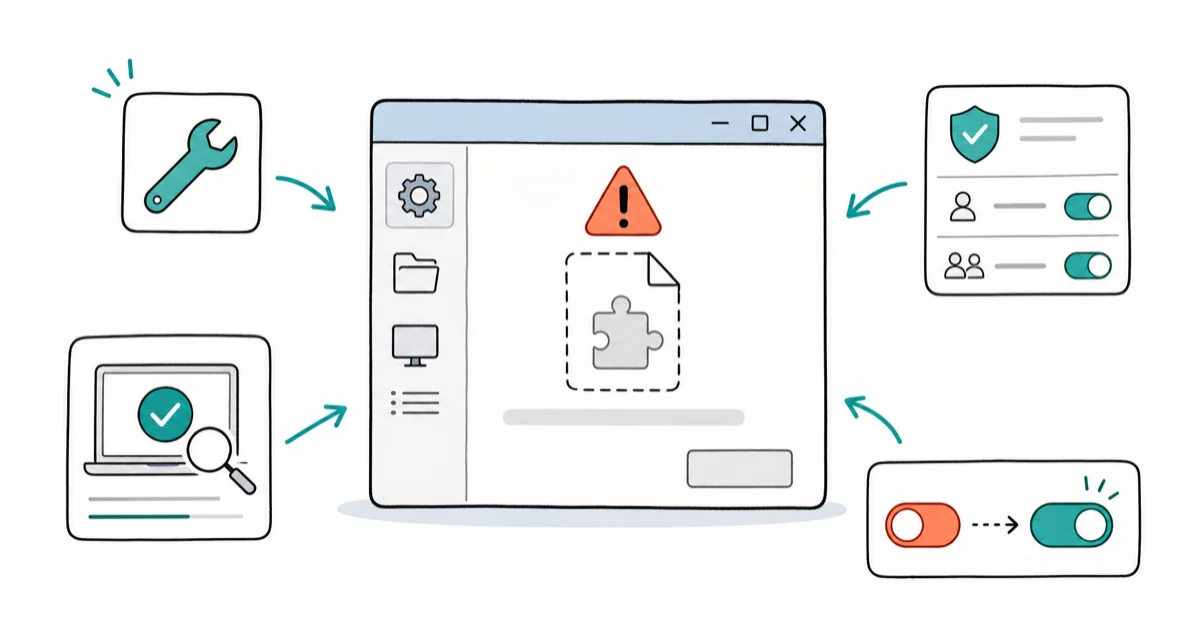
Quick AnswerDownload comdlg32.ocx, place it in C:\Windows\SysWOW64 (64-bit) or C:\Windows\System32 (32-bit), then open Command Prompt as admin and run: regsvr32 comdlg32.ocx to register it.
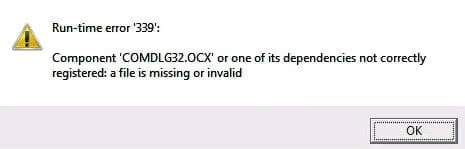
Comdlg32.ocx is a Visual Basic Runtime component that isn’t included with Windows by default. When an application needs it and can’t find it, or finds a corrupted version, you’ll see the error “a file is missing or invalid.”
Start with re-registering the file via Command Prompt. Use compatibility mode, ownership changes, and UAC only if needed.
- Comdlg32.ocx is an OCX file containing dialog box functions used by Visual Basic Runtime applications — it does not ship with Windows by default and must be manually placed and registered.
- On 64-bit Windows, the file must be placed in C:\Windows\SysWOW64; on 32-bit systems, it goes in C:\Windows\System32 before running the registration command.
- The registration command is run via Command Prompt as administrator: type “regsvr32 /u Comdlg32.ocx” first to unregister, then “regsvr32 /i Comdlg32.ocx” to re-register.
- User Account Control (UAC) can independently trigger the error even when the file is present and registered — disabling UAC is the fix in those specific cases.
- Running the Windows System File Checker (SFC) with “sfc /scannow” in an elevated Command Prompt can detect and repair a corrupted comdlg32.ocx file automatically.
#Two Root Causes of the Comdlg32.ocx Error
Two main reasons trigger this error on Windows: the file is missing or it’s present but not usable.
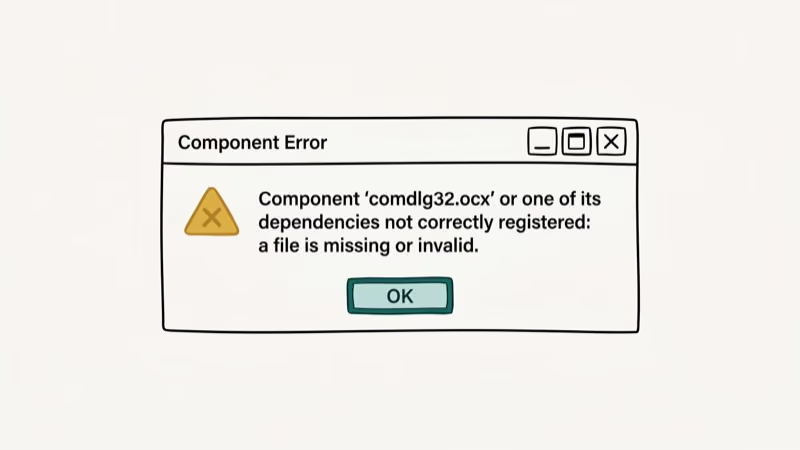
1. Problematic comdlg32.ocx file: Sometimes comdlg32.ocx file gets corrupted or damaged, which prevents it from responding to the system. In addition, if the file is not at the target location, comdlg32.ocx Windows error message pops up. To solve this problem, you need to replace and re-register the file using Command Prompt.
Sometimes the application lacks ownership or permission to access this file. The sections below cover those fixes.
2. User Account Control (UAC): UAC can also block older applications from loading the OCX file.
See our 8024402F guide for a related Windows error.
#Fix 1: Re-Register the Comdlg32.ocx File
In case the comdlg32.ocx file on Windows has corrupted or gone missing; the best way to solve this issue is to download the working comdlg32.ocx file and re-register it in the system with the help of Command Prompt.
This is the most accessible fix for the comdlg32.ocx Windows error code.
1: Go to comdlg32.ocx file’s manufacturer website and download the file in your system. Now, locate the file in your system and right-click on it. Select the ‘Copy‘ option from the drop-down menu.
2: After this, double click on the ‘Libraries‘ entries or any other folder and open it. At the left side of the menu, select the ‘This PC‘ option.
3: Go to the following location on your system to locate the folder where you want to copy the file.
- C: \Windows\System32 (for 32-bit system type)
- C: \Windows\SysWOW64 ( for 64-bit system type)
4: Now, right-click inside the selected folder and choose the ‘Paste‘ option from the menu. It may ask your administrator permission to paste the file. To grant permission, just confirm any prompts to replace the file’s current location.
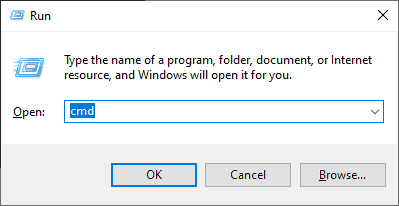
5: To open the ‘Command Prompt’ window, you can either go to Windows ‘Start‘ menu and search for Command Prompt or press Window + R keys and type in cmd in the dialog box and press Ctrl + Shift + Enter keys together to open the Command Prompt window.
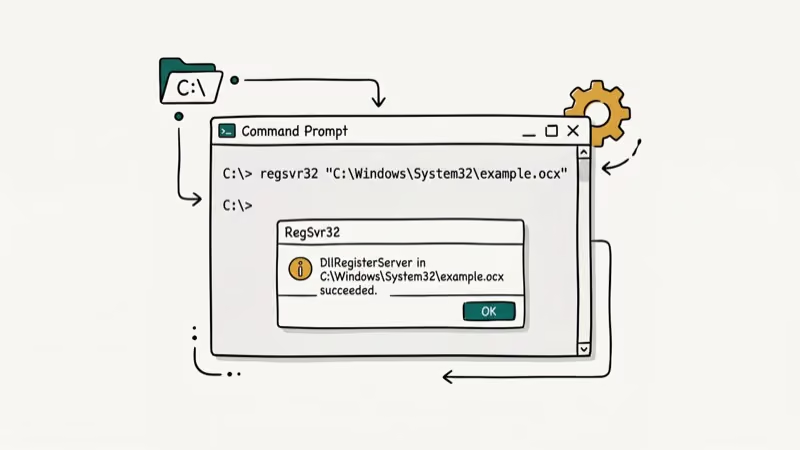
6: Type the below command and hit ‘Enter‘ after each command.
- regsvr32 /u Comdlg32.ocx
- regsvr32 /i Comdlg32.ocx
After registering the comdlg32.ocx file, run the problematic application again.
#Why Does Comdlg32.ocx Keep Showing the Error After Fixing?
You can run the old Windows program in compatibility mode or as administrator. This can help when the application can’t load a registered comdlg32.ocx file.
Try compatibility mode and administrator permission separately.
Extra Tip: In case there is a problem with your computer or laptop or notebook, you can try Restoro Repair, which will scan the repositories and replace those that are corrupted or gone missing. This method works in the cases of system corruption.
For a related missing-file error, our d3d9.dll guide covers that fix.
#The following steps will help you to run the program in compatibility mode and re-register the file in the system.
1: Navigate the program’s executable file and change its properties. To choose the ‘Properties’ option, you right-click either on the ‘Start‘ menu, or the Desktop, or the Search results windows.
Open the Compatibility tab and select Run this program as an administrator.
2: Now, search for the ‘Compatibility Mode‘ section, and under that section, click on the checkbox ‘Run this program in compatibility mode for.’
Before saving the changes, select Windows 7 or 8 from the drop-down menu.
3: Amid the process, a confirmation window may pop up. Make sure to confirm all dialog boxes with admin privileges. After this, the program will launch with admin privileges.
Restart your computer, then run the application again.
#Fix 3: Provide the full ownership for the comdlg32.ocx file
In case the above solutions are not helping you solving this error message, and you still encounter comdlg32.ocx windows message while running an application; you just need to change the ownership of the file and provide full permission.
You need administrator permission before changing ownership.
1: Open the ‘Libraries‘ option or any other folder in the problematic computer system. Now on the left side of the folder, search for the ‘This PC‘ option and click on it.
2: Locate the below location to locate the folder of the comdlg32.ocx file.
- C: \Windows\System32 (for 32-bit system type)
- C: \Windows\SysWOW64 (for 64-bit system type)
3: Make sure to take ownership of comdlg32.ocx file before proceeding to another step. Right-click the comdlg32.ocx file and choose ‘Properties,’ then select the ‘Security‘ tab. Click on the ‘Advanced‘ button, and ‘Advanced Security Settings‘ will appear. Here you’ll be able to change the ownership of the key.
4: Search for the ‘Change‘ option located next to the ‘Owner.’ A new window, ‘The Select User or Group‘, will pop up.
5: Now choose your user account from the ‘Advanced‘ option, or you can write your user account in the box which says ‘Enter the name of the object to select‘ and click on the ‘OK‘ button. Add the account option as ‘Everyone‘ so that everyone can access the file.
6: After selecting the option, click on the ‘Add‘ button and then click the ‘Select a principal‘ option located at the top. Choose the user account through the ‘Advanced‘ option, or you can simply write the user’s account in the box which says ‘Enter the name of the object to select‘ and then click on the ‘OK‘ button. Add ‘Everyone‘ account in the option.
7: Search for the ‘Basic permission‘ option and choose the Full control option located under Basic permission.
After this, restart your computer system again and try to run the problematic application to check whether the comdlg32.ocx Windows persists.
#Can Disabling UAC Fix the Comdlg32.ocx Error?
Disabling UAC might solve the comdlg32.ocx Windows error message for a specific older application. Use this only as a last resort because it reduces system prompts for significant changes.
1: Go to the ‘Start‘ menu and search for the ‘Control Panel.’ You can also open the Control Panel window by pressing Window + R keys together and input control.exe in the dialog box and press ‘Enter.’
2: In the Control Panel, change ‘View by‘ into ‘Large icons‘ and navigate the ‘User Accounts.’
3: Double-click on the User Account and open it. Click on the ‘Change User Account Control Setting‘ button. You’ll see different levels that you can select on the security sliders.
4: Slide the bar downwards and decrease its value and click on the ‘OK‘ button to save changes.
After this, restart your computer and try running the problematic application to check whether the comdlg32.ocx Windows error persists.
#Preventing the Error From Recurring
Once you’ve fixed the error, a few steps will keep it from coming back. Keep the comdlg32.ocx file backed up in a safe location. According to Microsoft’s Windows support documentation, OCX files placed in the correct system folder with proper registration stay stable across Windows updates and remain registered after major version upgrades.
Avoid uninstalling applications that install comdlg32.ocx unless you can reinstall them afterward.
For similar Windows DLL and OCX errors, our Windows registry errors guide confirms that COM registration problems can affect older components. If you’re seeing system-level crashes alongside this OCX error, our walkthrough on the ntfs.sys blue screen covers related driver and system file repair steps.
#Frequently Asked Questions
What is Comdlg32.ocx?
Comdlg32.ocx is an OCX file that contains dialog box functions used by Visual Basic Runtime applications. It provides standard Windows dialog boxes like Open File, Save As, Print, and Color Picker to VB-based programs.
How do I know if Comdlg32.ocx is missing?
You’ll see error messages like “Component ‘Comdlg32.ocx’ or one of its dependencies not correctly registered” when launching an application that depends on it. The error only appears when opening that specific app.
Can I fix the Comdlg32.ocx error manually?
Yes. The fastest manual fix is downloading the file from the application’s original installer, placing it in the correct System32 or SysWOW64 folder, and running regsvr32 via Command Prompt as administrator.
Is it safe to download Comdlg32.ocx from the internet?
It’s crucial to download it only from the original application’s developer or a trusted source. PCMag’s guide to keeping Windows clean reported that third-party download sites are a known vector for unwanted software, because users trust familiar filenames like comdlg32.ocx and mistake those sites for official Microsoft resources.
Can a registry cleaner fix the Comdlg32.ocx error?
A registry cleaner can fix broken COM registration entries that cause the error, but only if the file itself is present. If the file is missing, you need to download and register it first, then a registry cleaner can repair the associated keys.
What should I do if none of the solutions work?
If all four fixes fail, the application itself may be damaged rather than just the OCX file. Try uninstalling and reinstalling the application completely. That reinstalls all dependencies including comdlg32.ocx in the correct state.
#Bottom Line
Start with Fix 1 (re-registering the file via Command Prompt). It addresses the most common registration cause. If that doesn’t work, try the Compatibility Troubleshooter (Fix 2) before moving to the ownership change (Fix 3). Reserve the UAC disable (Fix 4) for last since it reduces system security.
If you’re dealing with related Windows stop errors, our guide on the Bad_Pool_Caller error covers a similar diagnostic and repair process.

Best Laptop for Running LLMs in 2026: Memory Comes First
The best laptop for running LLMs is a memory purchase first. Compare MacBook unified memory against NVIDIA laptop VRAM, and see what each tier really runs.

How to Run a Local LLM on Windows: A 2026 Setup Guide
Run a local LLM on Windows with LM Studio or Ollama. Pick a model that fits your GPU memory, keep every prompt offline, and skip the monthly bill.

Bluetooth Not Working on Snapdragon X? Fixes for 2026
Bluetooth not working on your Snapdragon X Copilot+ PC? Generic audio, mice, and keyboards work, but vendor apps often lack an ARM build. Fixes inside.

Docker Desktop and WSL2 Not Working on Snapdragon X? Fix It
WSL2 runs fine on Snapdragon X, but Docker Desktop ARM is Early Access and throws WSL errors. Use WSL2 plus native ARM64 Ubuntu and Docker Engine.