FaceTime is an essential communication tool for many iOS users, allowing seamless video calls with friends and family. However, the frustrating “FaceTime Waiting for Activation” error can disrupt this convenience. As an experienced iOS troubleshooter, I’ve helped countless users resolve this issue. In this comprehensive guide, we’ll explore the causes of this problem and provide step-by-step solutions to get your FaceTime up and running again.
#Understanding the FaceTime Activation Issue
Before diving into solutions, it’s crucial to understand what triggers the “FaceTime Waiting for Activation” error. This issue can occur due to various reasons:

- Network connectivity problems: A weak or unstable internet connection can prevent FaceTime from activating properly.
- System bugs: Sometimes, iOS updates can introduce bugs that affect FaceTime activation.
- Incorrect date and time settings: FaceTime relies on accurate device settings to function correctly.
- Apple ID issues: Problems with your Apple account can interfere with FaceTime activation.
- Carrier restrictions: In some cases, your cellular carrier may be blocking or delaying the activation process.
Understanding these potential causes will help you troubleshoot more effectively. Now, let’s explore the solutions to fix this frustrating issue.
#Step-by-Step Solutions to Fix FaceTime Activation
#1. Wait 24 Hours
Patience can be a virtue when it comes to FaceTime activation. Apple’s servers sometimes need up to 24 hours to fully process the activation request. Before trying more complex solutions, simply wait a day and check if the issue resolves itself.

#2. Check Your Internet Connection
A stable internet connection is crucial for FaceTime activation. Follow these steps to ensure your connection is solid:
- Go to Settings > Wi-Fi or Cellular and verify that you’re connected.
- Try switching between Wi-Fi and cellular data to see if one works better.
- Perform a speed test using a tool like Speedtest.net to check your connection quality.
- Toggle Airplane Mode on and off to refresh your network connections.
#3. Verify Date and Time Settings
Incorrect date and time settings can cause activation issues. To fix this:
- Go to Settings > General > Date & Time.
- Enable “Set Automatically” to ensure your device always has the correct time and time zone.
#4. Restart FaceTime and Your Device
Often, a simple restart can resolve activation problems:
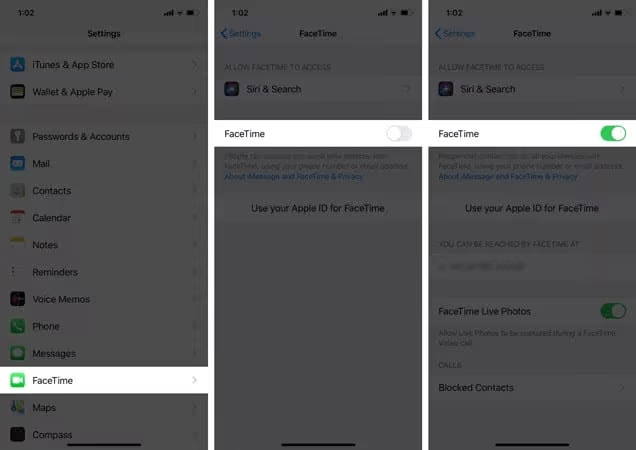
- Go to Settings > FaceTime and toggle it off.
- Restart your iPhone by turning it off and on again.
- Re-enable FaceTime in Settings.
#5. Sign Out and Back Into Your Apple ID
Refreshing your Apple ID connection can sometimes fix activation issues:
- Go to Settings > FaceTime.
- Tap your Apple ID and select “Sign Out.”
- Restart your device.
- Sign back in with your Apple ID.
#6. Update iOS to the Latest Version
Outdated iOS versions can cause various issues, including FaceTime activation problems:
- Go to Settings > General > Software Update.
- If an update is available, download and install it.
- Ensure your device is connected to Wi-Fi and a power source during the update.
#7. Reset Network Settings
If you’re still facing issues, try resetting your network settings:
- Go to Settings > General > Reset.
- Select “Reset Network Settings.”
- Enter your passcode if prompted.
- Reconnect to your Wi-Fi network after the reset.
#8. Contact Your Carrier
Sometimes, the issue may be on your carrier’s end:
- Contact your cellular provider’s customer support.
- Ask if there are any known issues with FaceTime activation.
- Verify that your account is in good standing and supports FaceTime.
#9. Use Tenorshare ReiBoot for Persistent Issues
For stubborn activation problems, consider using a professional iOS system repair tool like Tenorshare ReiBoot:
- Download and install Tenorshare ReiBoot on your computer.
- Connect your iPhone to the computer using a USB cable.
- Follow the on-screen instructions to repair your iOS system.
This method can resolve deeper system issues that may be preventing FaceTime activation.
#Troubleshooting Related FaceTime Issues
While working on FaceTime activation, you might encounter other related problems. Here are some quick solutions:
- Screen sharing not working: If you’re having trouble with screen sharing on FaceTime, check out our guide on why you can’t screen share on FaceTime for detailed solutions.
- FaceTime photos not saving: Sometimes, photos taken during FaceTime calls don’t save properly. Learn how to fix this issue in our article about FaceTime photos not saving.
- Camera issues: If your iPhone camera isn’t working, it can affect FaceTime. Explore solutions in our guide on how to fix iPhone camera not working.
#Preventing Future FaceTime Activation Problems
To avoid future activation issues, follow these best practices:

- Keep your iOS device updated to the latest version.
- Maintain a stable internet connection.
- Regularly sign out and back into your Apple ID to refresh the connection.
- Avoid jailbreaking your device, as this can cause various system issues.
#When to Contact Apple Support
If you’ve tried all the above solutions and are still experiencing problems, it’s time to reach out to Apple Support. Contact them if:

- The issue persists for more than 48 hours.
- You receive error messages not covered in this guide.
- Your device shows other symptoms of hardware issues.
To contact Apple Support:
- Visit support.apple.com
- Choose “FaceTime” as the product.
- Select your specific issue and follow the prompts to get personalized help.
#Key Takeaways
- FaceTime activation issues can be caused by network problems, system bugs, incorrect settings, or carrier restrictions.

- Most activation problems can be resolved by waiting 24 hours, checking internet connections, restarting the device, or updating iOS.
- For persistent issues, consider using professional tools like Tenorshare ReiBoot or contacting Apple Support.
- Regular maintenance and updates can prevent future activation problems.
#Frequently Asked Questions
- Q: How long does FaceTime typically take to activate? A: FaceTime usually activates within a few minutes, but it can take up to 24 hours in some cases.
- Q: Can I use FaceTime without a cellular plan? A: Yes, FaceTime works over Wi-Fi, so you can use it without a cellular plan as long as you have an internet connection.
- Q: Will resetting network settings delete my data? A: Resetting network settings will only delete saved Wi-Fi passwords and cellular settings. Your personal data will remain intact.
- Q: Is FaceTime available in all countries? A: No, FaceTime is not available in all countries due to local regulations. Check Apple’s support page for a list of supported regions.
- Q: Can I use FaceTime on older iOS devices? A: FaceTime is supported on iPhone 4 and later, iPad 2 and later, and iPod touch 4th generation and later. However, older devices may not support all features.
#Additional iPhone Troubleshooting Tips
While resolving FaceTime issues, you might encounter other iPhone problems. Here are some quick links to help:
- Fix iPhone keyboard not working
- Solve iPhone touch screen issues
- Troubleshoot when iPhone goes straight to voicemail
By following this guide, you should be able to resolve most FaceTime activation issues. Remember, patience and systematic troubleshooting are key to solving tech problems. If you’re still stuck, don’t hesitate to reach out to Apple Support for personalized assistance.