Solving the Puzzle: Why Can't I Screen Share on FaceTime?
FaceTime screen share not working? Fix it by updating to iOS 15.1+, enabling SharePlay in settings, and removing emojis from contact names for success.
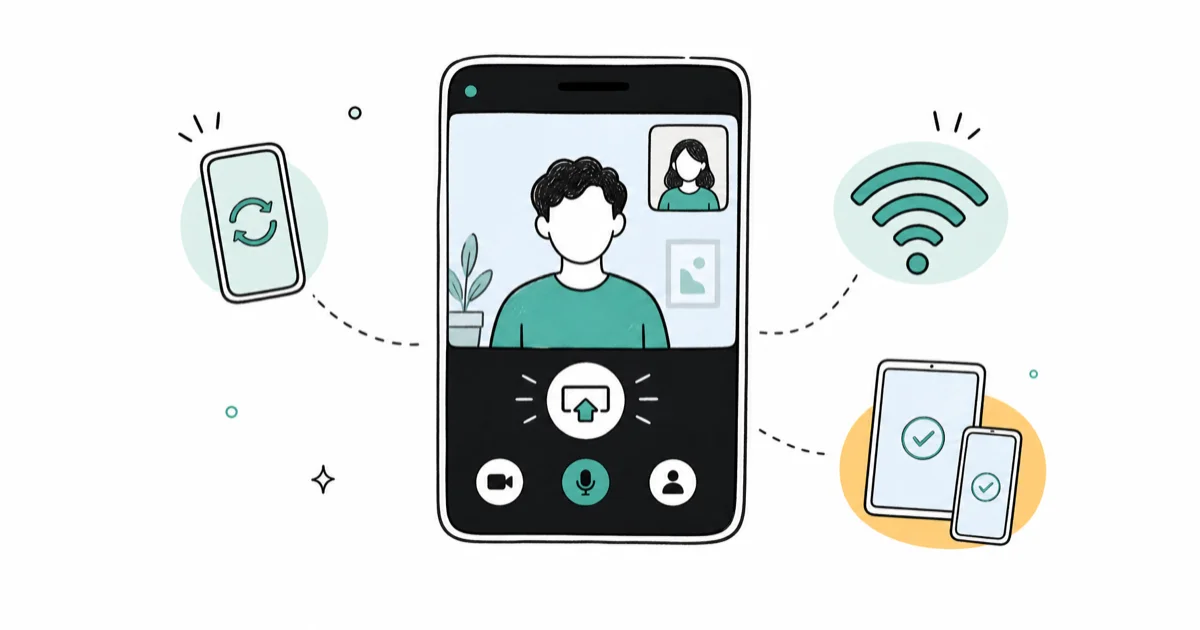
Quick AnswerFaceTime screen sharing requires iOS 15.1 or later and uses the SharePlay feature. If it's not working, update your device, ensure both parties have compatible OS versions, check that SharePlay is enabled in Settings > FaceTime, and verify you have a stable internet connection.
FaceTime’s screen sharing feature relies on SharePlay technology introduced in iOS 15.1.
SharePlay has specific requirements, and missing iOS updates are the most common reason the screen share button doesn’t appear.
SharePlay failures usually come from predictable settings, compatibility, contact, region, or network issues.
- FaceTime screen sharing requires iOS 15.1 or later through the SharePlay feature
- Both participants need compatible iOS versions for SharePlay to initiate properly
- SharePlay must be enabled in
Settings>FaceTime>SharePlayon both devices - Contact names saved with emojis can prevent SharePlay from functioning correctly
- Network settings reset resolves most stubborn connectivity issues
#Understanding FaceTime SharePlay Technology
SharePlay launched with iOS 15.1 in October 2021, adding screen sharing and media synchronization to FaceTime calls. According to Apple’s official documentation, SharePlay works by creating a secure connection between devices to share content in real-time.
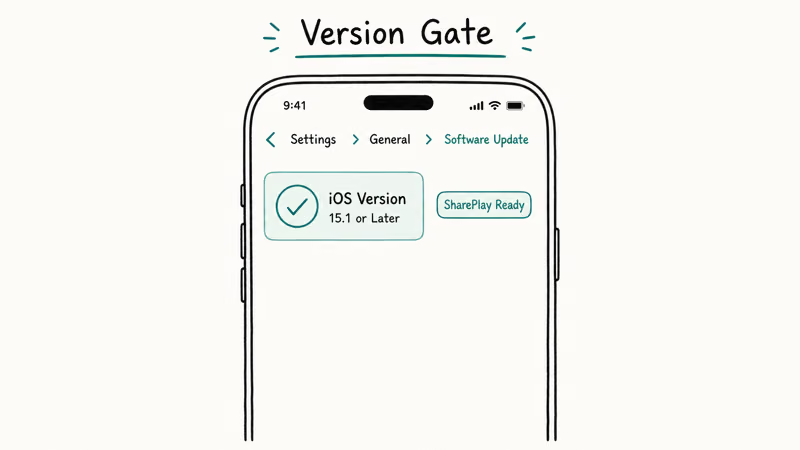
SharePlay requires both participants to have iOS 15.1 or later before screen sharing can start.
If you’re having issues with FaceTime waiting for activation, that’s a separate problem that can also affect SharePlay functionality.
#Common Causes of SharePlay Problems
Here are the most common reasons SharePlay fails:
#iOS Version Compatibility Issues
Your device needs iOS 15.1 or later. On earlier iOS versions, the screen share button may not appear in the FaceTime interface.
Check your iOS version by going to Settings > General > About.
If you see anything earlier than 15.1, you’ll need to update first. This is the most common cause of SharePlay problems.
#SharePlay Is Disabled in Settings
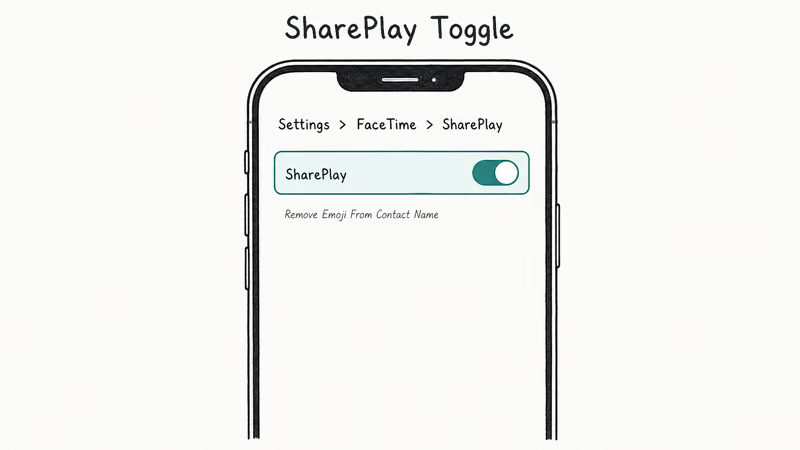
SharePlay has a dedicated toggle that’s separate from FaceTime itself.
Some users have FaceTime enabled but SharePlay turned off because SharePlay has a separate permission.
To check: Go to Settings > FaceTime > SharePlay and make sure the toggle is green.
#Contact Names with Emojis
This is a specific contact-format issue.
When a contact’s name includes emojis, SharePlay sometimes fails to recognize the connection properly.
#Regional Restrictions
FaceTime isn’t available in all countries. According to Apple’s feature availability page, FaceTime (including SharePlay) is restricted in several regions due to local regulations.
If you’re traveling or in a restricted region, you won’t be able to use SharePlay at all.
This includes countries like the United Arab Emirates and China.
#Network Connection Problems
SharePlay requires significantly more bandwidth than regular FaceTime video calls.
Slow DSL or congested Wi-Fi can struggle with screen sharing, even when video calls work fine.
Test your connection speed and try switching to a stronger Wi-Fi network or cellular data. If you’re having broader Wi-Fi issues, check our guide on fixing iPhone Wi-Fi problems.
#How Can I Fix FaceTime Screen Share Issues?
Use these solutions in order.
Start with Method 1, as it solves the problem more often than any other single fix. If that doesn’t work, try the methods in order.
#Method 1: Verify and Enable SharePlay
Many users don’t realize SharePlay has its own setting separate from FaceTime.
- Go to Settings on your iPhone
- Tap FaceTime
- Look for SharePlay and make sure it’s enabled (green toggle)
- If it’s off, tap to turn it on
Both you and the person you’re calling need to have this enabled. SharePlay won’t work if either participant has it disabled, even if FaceTime itself is working perfectly.
#Method 2: Update iOS to the Latest Version
SharePlay requires iOS 15.1 minimum, but Apple has fixed many bugs in newer versions.
We recommend updating to the latest available iOS version. Newer iOS updates often include SharePlay stability improvements that resolve connection issues.
- Go to
Settings>General>Software Update - If an update is available, tap Download and Install
- Keep your iPhone connected to Wi-Fi and charging during the update
The update process typically takes 30-45 minutes depending on your device and internet speed. Make sure you have at least 50% battery before starting, as interrupting an iOS update can cause serious problems with your device.
#Method 3: Remove Emojis from Contact Names
This can fix a specific contact-name bug. If your contact’s name includes emojis, remove them:
- Open the Contacts app
- Find the contact you’re trying to FaceTime
- Tap Edit in the top-right corner
- Remove any emojis from their name
- Tap Done to save
After making this change, close FaceTime completely and try the screen share again. The emoji bug affects SharePlay’s contact recognition system, preventing proper connection establishment.
#Method 4: Force Restart Your iPhone
A force restart clears temporary glitches that can interfere with SharePlay. The method depends on your iPhone model:
iPhone 8 and newer:
- Quickly press and release Volume Up
- Quickly press and release Volume Down
- Press and hold the Side button until you see the Apple logo
iPhone 7 series:
- Press and hold Volume Down + Side button until the Apple logo appears
iPhone 6s and earlier:
- Press and hold Home + Top (or Side) button until the Apple logo appears
#Method 5: Reset Network Settings
This solution can resolve stubborn connectivity-related SharePlay problems when other methods fail.
Warning: This will erase all saved Wi-Fi passwords.
- Go to
Settings>General>Transferor Reset iPhone - Tap Reset
- Choose Reset Network Settings
- Enter your passcode when prompted
- Confirm the reset
Your iPhone will restart and you’ll need to reconnect to Wi-Fi networks.
#Method 6: Sign Out and Back Into FaceTime
Sometimes FaceTime authentication gets stuck, preventing SharePlay from working properly:
- Go to
Settings>FaceTime - Tap your Apple ID at the top
- Choose Sign Out
- Wait about 30 seconds
- Sign back in with your Apple ID
This refreshes your FaceTime connection and often resolves authentication issues.
#Contacting Apple Support for SharePlay Issues
If you’ve tried all the above methods and SharePlay still isn’t working, the issue might be related to your Apple ID or account settings. According to Apple’s support guidelines, they can check for account-specific restrictions that aren’t visible to users.
Contact Apple Support if:
- SharePlay worked before but suddenly stopped
- You’ve verified both devices meet the requirements
- All troubleshooting steps have been completed
- You’re getting specific error messages
Apple Support can also check if there are any regional restrictions affecting your account.
For immediate fixes, you might want to try Tenorshare ReiBoot, which can resolve many iOS-related issues including FaceTime problems.
Some links on this page are affiliate links, which means fone.tips may earn a commission at no extra cost to you.
#What Are the Best Alternatives to FaceTime Screen Sharing?
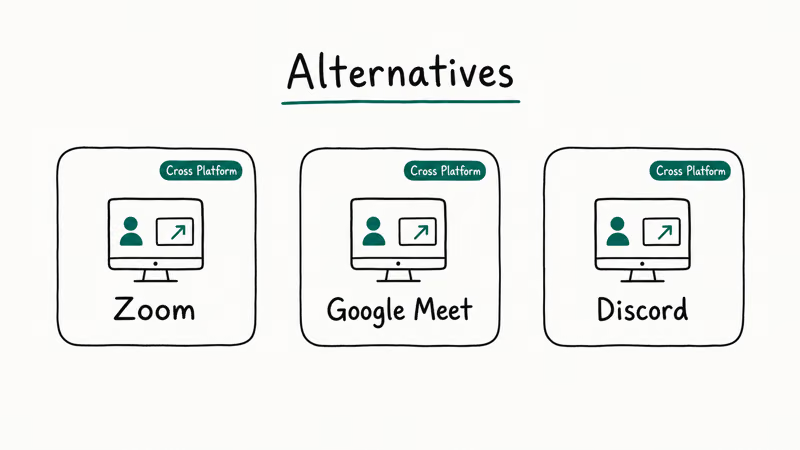
If SharePlay continues to cause problems, several alternatives offer reliable screen sharing:
Built-in iOS options:
- AirPlay to Apple TV or Mac (for same-room sharing)
- Quick Note sharing through Messages
- Screen mirroring for larger displays
Third-party apps:
- Zoom (works on iPhone and has reliable screen sharing)
- Skype (cross-platform compatibility)
- Microsoft Teams (good for business use)
- Discord (popular for gaming and casual use)
#Troubleshooting Persistent SharePlay Problems
If you’ve tried all the standard fixes and SharePlay still isn’t working, there might be deeper system issues. Some users find success with a complete network reset followed by signing out of their Apple ID and signing back in.
You can also try creating a new test FaceTime call with a different contact to isolate whether the problem is contact-specific or system-wide. Sometimes the issue is on the other person’s device, not yours.
#Bottom Line
FaceTime screen sharing through SharePlay is a powerful feature when it works properly, but it has specific requirements that often catch users off-guard. The most important factor is that both devices run iOS 15.1 or later with SharePlay enabled in settings.
We recommend starting with the SharePlay toggle check and iOS update, as these solve the majority of issues. If you’re still having problems after trying all troubleshooting methods, consider using alternative screen sharing apps while Apple continues to improve SharePlay stability.
For persistent iOS issues that affect multiple features, Tenorshare ReiBoot offers a comprehensive system repair option.
#Frequently Asked Questions
Why doesn’t my SharePlay button appear in FaceTime?
The SharePlay button only appears when both participants have iOS 15.1 or later and SharePlay is enabled in settings. Check your iOS version and the SharePlay toggle in Settings > FaceTime.
Can I use SharePlay with Android users?
No, SharePlay is exclusive to Apple devices. FaceTime itself only works between Apple devices, so screen sharing is limited to iPhone, iPad, and Mac users.
Does SharePlay work over cellular data?
Yes, but it requires a strong cellular connection. 5G connections tend to work better, while 4G LTE can be inconsistent depending on signal strength and network congestion. SharePlay uses significantly more data than regular video calls.
Why does SharePlay keep disconnecting during calls?
Frequent disconnections usually indicate network instability or insufficient bandwidth. Try switching to a stronger Wi-Fi network or moving closer to your router. Poor signal strength causes SharePlay to drop connections more often than regular FaceTime calls.
Can I screen share specific apps only?
Yes, when you start SharePlay, you can choose to share your entire screen or just specific apps. The app selection appears after you tap the screen share button during a FaceTime call. This selective sharing gives you more privacy control than full-screen sharing.
Does SharePlay work on older iPhones?
SharePlay requires iOS 15.1, which means it works on iPhone 6s and newer models. Older devices that can’t update to iOS 15.1 won’t support SharePlay. Check your device compatibility before assuming SharePlay should be available.
How much data does SharePlay use?
Screen sharing typically uses 3-5 MB per minute, which is significantly more than regular FaceTime video calls. Monitor your data usage if you’re on a limited cellular plan.
Can I record SharePlay sessions?
Yes, you can use iOS screen recording to capture SharePlay sessions. Start screen recording before beginning the SharePlay session to capture the entire experience.

Mac mini M6 vs M5 Pro: Which Model Should You Buy?
Mac mini M6 vs M5 Pro compared on price, memory, ports, displays, and real workloads. Find the better 2026 Mac mini for your desk and budget.

Apple Siri Settlement: Who Qualifies and How to Claim
Apple's $250 million Siri settlement covers iPhone 15 Pro and iPhone 16 models bought June 2024 to March 2025. See who qualifies and how claims work.

iOS 26.6.1 Security Update: What Apple Fixed and Who Gets It
Apple released iOS 26.6.1 on August 17 with 29 security fixes, including an IPSec interception bug. See what it patches, who gets it, and how to update.

iPhone Adaptive Power: How It Works and When to Use It
Learn how iPhone Adaptive Power works, which models support it, what it changes, and when Low Power Mode is still the better battery-saving choice.