How to Fix CE-34878-0 Error on PS4: 8 Proven Steps
Fix the CE-34878-0 PS4 crash error with 8 proven steps: restart, update software, rebuild database, reseat the HDD, or initialize the console.
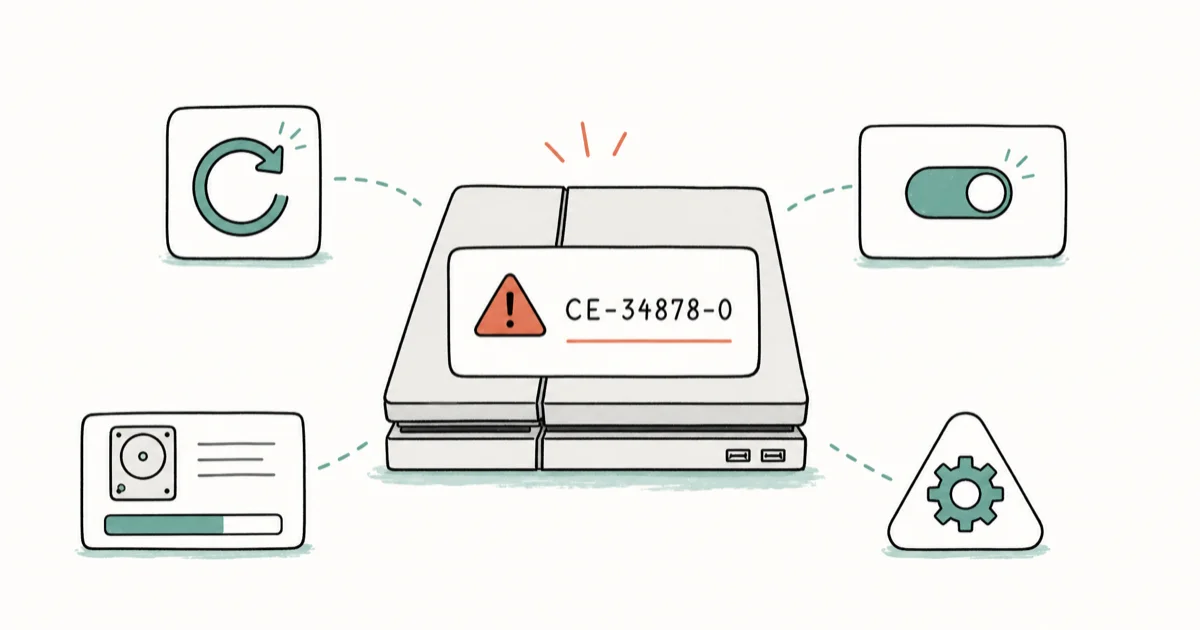
Quick AnswerThe CE-34878-0 error means a game crashed on your PS4. Restart the console, install all system and game updates, then rebuild the database in Safe Mode. If crashes continue, reseat or replace the internal hard drive.
The CE-34878-0 error is the PS4’s generic “application has crashed” code. It usually points at corrupted game data, a failing drive, or an outdated system build.
All eight fixes below apply to both the original PS4 and the PS4 Pro on current firmware. Rebuilding the database alone clears the crash in many cases of corrupted game data, which makes it the highest-value step to try early.
- CE-34878-0 is a generic crash code; the fix depends on whether the trigger is software, storage, or heat
- A power-cycle plus a 10-minute database rebuild clears most single-game crashes
- Updating firmware and the crashing game resolves compatibility-driven crashes without data loss
- Reinitializing the PS4 wipes every local save; back up to USB or PS Plus cloud first
- Persistent crashes after a reinit point at hardware, usually the HDD or a dusty heatsink
#What Does the CE-34878-0 Error Actually Mean?
CE-34878-0 is Sony’s catch-all code for a crashed application on PS4 and PS4 Pro. The console shows a blue screen with the error code, dumps you to the dashboard, and logs the crash internally. Sony’s own support page states that the message appears when a game or app encounters an error, and the recommended first steps are installing the latest system software and updating the game.
Because the code covers any crash, the root cause varies. Across the most common reports for this error, the top triggers are:
- Corrupted save data or profile
- Outdated firmware or game build
- Failing or near-full internal HDD
- Overheating from dust-clogged fans
- Scratched or dirty game disc
Why does drive age matter? Wikipedia’s PlayStation 4 article confirms that the original PS4 shipped in November 2013. Many consoles throwing CE-34878-0 today are running 10+ year old mechanical drives, well past the typical 5 to 7 year lifespan for 2.5-inch laptop HDDs.
#Quick Fixes Most Owners Try First
Start with the five non-destructive steps below. They take under 15 minutes combined and resolve the majority of single-title crashes. None of these touch your saved data.
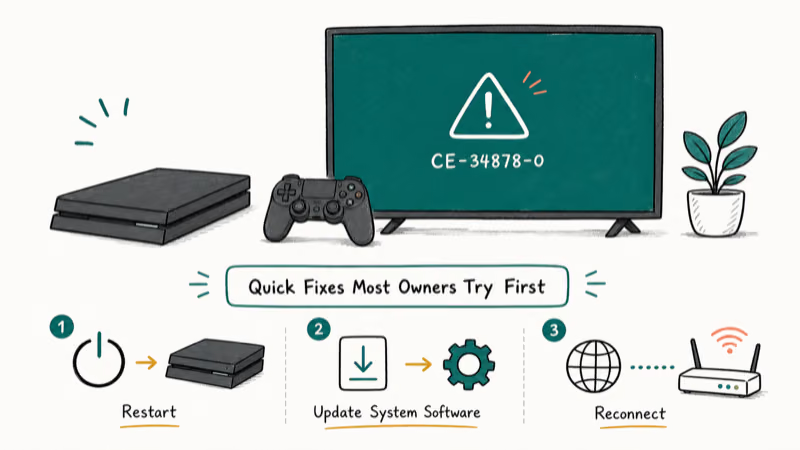
- Power-cycle the console: hold the front power button 7 seconds, then unplug for 30 seconds
- Install the latest system software from
Settings>System Software Update - Update the crashing game: highlight tile, press Options, then Check for Update
- Close background apps by holding the PS button
- Clean or swap the disc with a microfiber cloth, wiping from center outward
Sony confirms that firmware updates patch known stability issues for specific games, so don’t skip step 2.
Background apps such as Spotify running alongside a demanding open-world game can be enough to push an original PS4 with a near-full drive into CE-34878-0. If your console keeps misreading discs, see our guide to a PS4 that no longer recognizes discs.
Playing the disc version? The disc installs only the base files, so delete the game, reinstall from disc, and re-download patches.
#How Do You Rebuild the PS4 Database in Safe Mode?
Rebuilding the database is the single most effective software fix for CE-34878-0. The console scans every file on the drive, deletes orphaned data, and rebuilds the content index. It does not delete your games or saves.
- Power off the PS4 completely from the dashboard
- Hold the power button 7 seconds until you hear the second beep
- Plug the controller in via USB and press the PS button to pair
- Pick Option 5: Rebuild Database from the Safe Mode menu
- Wait for reboot (10 minutes on an empty drive, up to 2 hours on a full 1 TB drive)
Safe Mode has more tools: Option 3, Update System Software, installs firmware when the dashboard keeps crashing.
If Safe Mode itself throws errors or the rebuild hangs past 3 hours, the drive is likely the real culprit. See the hardware section below, or work through our dedicated fix for a corrupted PS4 database.
#Restoring Licenses and Reinitializing the Console
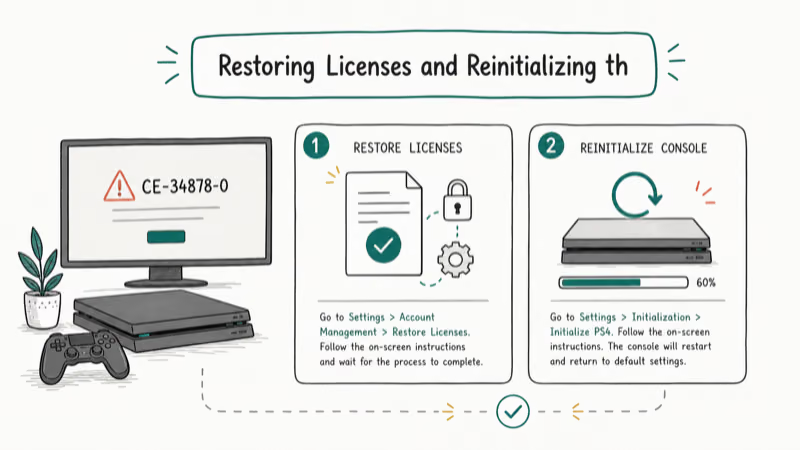
Two deeper software resets are available before you touch the hardware. Restoring licenses takes 30 seconds; a full initialization takes 1–3 hours and erases everything.
#Restore Licenses
If CE-34878-0 only hits digital downloads (not disc games), the console’s license cache may be stale. Go to Settings > Account Management > Restore Licenses. This re-validates every digital entitlement against PSN and typically finishes in under a minute on broadband.
#Initialize PS4 (Nuclear Option)
Full initialization wipes saves, users, screenshots, and every installed game. Back everything up first:
- Plug an exFAT-formatted USB drive into the PS4 and use
Settings>System>Back Up and Restore>Back Up PS4. - PS Plus subscribers should upload saves to cloud storage under Settings > Application Saved Data Management > Saved Data in
System Storage>Uploadto Online Storage.
Once backed up, go to Settings > Initialization > Initialize PS4 > Full. The process reinstalls the system software from scratch. A Full init often stops repeat CE-34878-0 crashes that hit multiple games, though if an aging, fragmented HDD is the real culprit, the crashes can return until the drive is replaced.
#Hardware-Level Fixes When Software Fails
If a Full initialization doesn’t stop the crashes, you’re almost certainly looking at a failing drive or a cooling problem. Both are cheaper to fix than a new console.
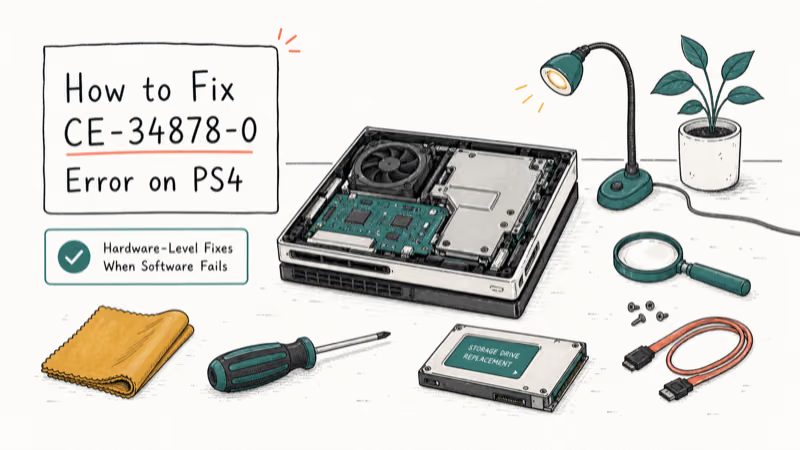
Check the internal drive first. Slide off the HDD bay cover, unscrew the single blue screw, and pull the caddy out. Reseat the drive to rule out a loose SATA connection. For months-long crashes, swap in a 2.5-inch SSD; we cover the best SSD for PS4 separately.
Moving a demanding open-world game from an old mechanical HDD to a 2.5-inch SSD typically cuts load times sharply and removes the disk-level bottleneck that triggers CE-34878-0 crashes on a failing or fragmented drive.
Look at cooling next. Blow compressed air through the rear vent. If the fan shrieks on every boot, the thermal paste on the APU has likely dried out after a decade of use. iFixit’s PS4 teardowns document that the original CUH-1xxx models use standard Phillips screws and a single thermal compound pad, which makes a repaste a 45-minute job for a careful first-timer.
Rule out USB accessories. Unplug every USB device except the controller. A cheap hub can crash active games; a powered PS4 USB hub solves this.
Check the controller too. A controller that drops connection mid-session can trigger a crash in some titles. If your pad won’t hold a charge, our PS4 controller charging fixes solve the most common causes. If the console shows any unusual light behavior after a reboot, such as the white light of death, walk through our PS4 white light diagnostics before opening the case further.
#Preventing CE-34878-0 From Coming Back
Five habits help keep a PS4 crash-free after you have finished troubleshooting:
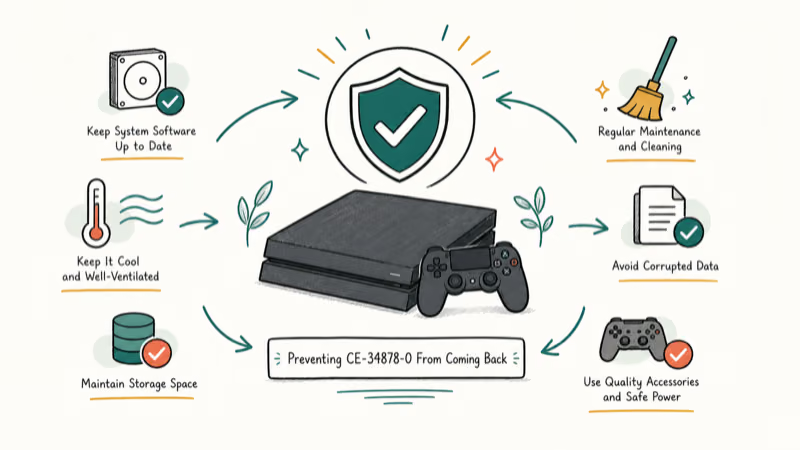
- Keep at least 50 GB free on the internal drive
- Rebuild the database every 3 months
- Vacuum or air-blow the rear vent monthly
- Enable automatic updates under
Settings>Power Save Settings - Back up saves to USB or PS Plus cloud storage weekly
Dust buildup becomes visible within weeks in most living rooms, and a near-full HDD is one of the strongest predictors of repeat crashes.
#Bottom Line
If CE-34878-0 hit you just once, run the quick fixes and rebuild the database in Safe Mode. That two-step combination resolves most one-off cases with no data loss and no full reinitialization required, usually in well under an hour. If the crashes keep returning, the cause is almost always the drive, so reseat or replace it next.
For repeat crashes on multiple games after a full initialization, replace the internal 2.5-inch HDD with a budget SATA SSD before buying a new console. Replacing it with a budget SATA SSD such as the Crucial MX500 often ends the crashes entirely on older launch-model PS4s.
#Frequently Asked Questions
Does CE-34878-0 mean my PS4 is dying?
Not on its own. A single crash is almost always software and clears after a rebuild.
Will rebuilding the database delete my saves?
No. Rebuilding only reorganizes the file system and clears orphaned data. Saves, screenshots, and installed games remain intact. A full initialization is the step that wipes everything, and the PS4 warns you clearly before starting it.
How long should a database rebuild take?
Expect 10 to 20 minutes on a mostly-empty 500 GB drive, 30 to 60 minutes on a half-full 1 TB drive, and up to 2 hours on a near-full 2 TB external HDD. If the progress bar has not moved in over 3 hours, power off, boot into Safe Mode again, and try Option 6 (Initialize PS4) instead.
Can a bad HDMI cable cause CE-34878-0?
No. HDMI only carries video and audio output. If a cable or port is bad you’ll see black screens, flickering, or no signal at all, not a game crash with a specific error code.
Is my PS4 still under warranty if CE-34878-0 keeps happening?
Sony’s standard warranty runs 1 year in the US and 2 years across most EU countries. Out of warranty? Self-replacement with a 2.5-inch SATA SSD is allowed and voids nothing else.
Should I reinitialize or just buy a PS5?
Reinitialize first if your PS4 is less than 5 years old or you still play PS4-exclusive discs you own. A full initialization plus an SSD upgrade costs under $50 and typically restores full reliability. If the console is 8+ years old and the fan sounds like a jet engine, upgrading is the more sensible call.
Does the CE-34878-0 error affect the PS5?
No. The PS5 uses a different error code format entirely. PS4 games played on PS5 via backward compatibility can still hit CE-34878-0 if the underlying save data is corrupted, but clearing the save or reinstalling the PS4 title resolves it.

Best Laptop for Running LLMs in 2026: Memory Comes First
The best laptop for running LLMs is a memory purchase first. Compare MacBook unified memory against NVIDIA laptop VRAM, and see what each tier really runs.

How to Run a Local LLM on Windows: A 2026 Setup Guide
Run a local LLM on Windows with LM Studio or Ollama. Pick a model that fits your GPU memory, keep every prompt offline, and skip the monthly bill.

Bluetooth Not Working on Snapdragon X? Fixes for 2026
Bluetooth not working on your Snapdragon X Copilot+ PC? Generic audio, mice, and keyboards work, but vendor apps often lack an ARM build. Fixes inside.

Docker Desktop and WSL2 Not Working on Snapdragon X? Fix It
WSL2 runs fine on Snapdragon X, but Docker Desktop ARM is Early Access and throws WSL errors. Use WSL2 plus native ARM64 Ubuntu and Docker Engine.