If you’ve ever found your iPhone text messages jumbled and out of chronological order, you’re not alone. This frustrating issue can disrupt conversations and lead to confusion. As an iOS expert , I’ll walk you through the causes of this problem and provide 7 proven fixes to get your messages back in order.
#Understanding the Issue
iPhone text messages appearing out of order is a common problem that can occur for several reasons:
- Incorrect date and time settings on your device
- iOS bugs or glitches
- Corrupted app cache
- Network connectivity issues
- Device syncing problems
Users often report symptoms like:
- Recent messages appearing below older ones
- Conversation threads in random order
- New messages not moving to the top of the list
- Missing or disappeared conversations
Now let’s dive into the solutions.
#Quick Fixes to Try First
Before moving on to more advanced troubleshooting, start with these quick and easy fixes:
#1. Toggle Date & Time Settings
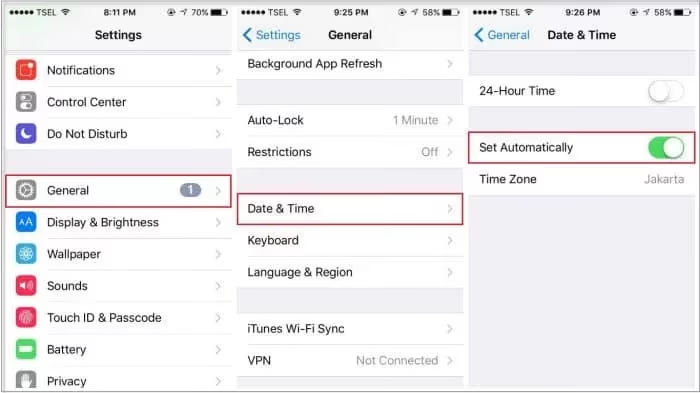
Incorrect time settings are a common culprit for out-of-order messages. Here’s how to fix it:
- Go to Settings > General > Date & Time
- Toggle off “Set Automatically”
- Wait a few seconds
- Toggle “Set Automatically” back on
This forces your iPhone to resync its clock, potentially resolving timestamp issues.
#2. Restart Your iPhone
A simple restart can often clear up minor glitches:
- For iPhone X and later: Press and hold the side button and either volume button until the slider appears. Drag the slider to turn off your device. After it turns off, press and hold the side button to turn it back on.
- For iPhone SE (2nd generation), 8, or earlier: Press and hold the side or top button until the slider appears. Drag the slider to turn off your device. After it turns off, press and hold the side or top button to turn it back on.
#3. Force Close and Reopen Messages App
Clearing the app’s active memory can help:
- Swipe up from the bottom of the screen and pause in the middle (iPhone X and later) or double-click the Home button (iPhone 8 and earlier)
- Swipe up on the Messages app to close it
- Reopen the Messages app
#Advanced Troubleshooting Steps
If the quick fixes didn’t work, try these more in-depth solutions:
#4. Update iOS to the Latest Version
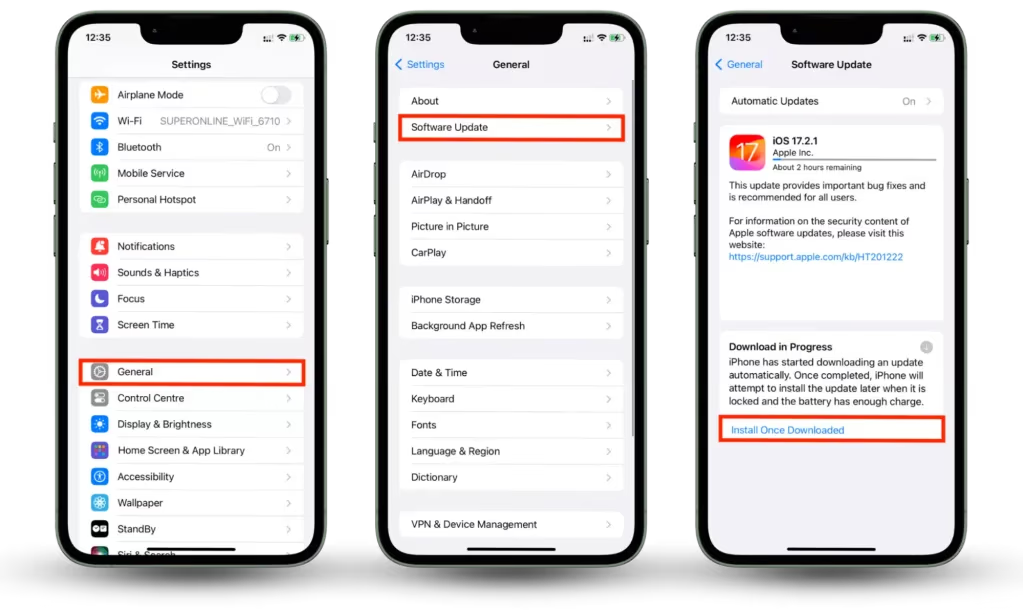
Keeping your iOS up-to-date ensures you have the latest bug fixes:
- Go to Settings > General > Software Update
- If an update is available, tap “Download and Install“
- Follow the on-screen instructions to complete the update
#5. Disable and Re-enable iMessage
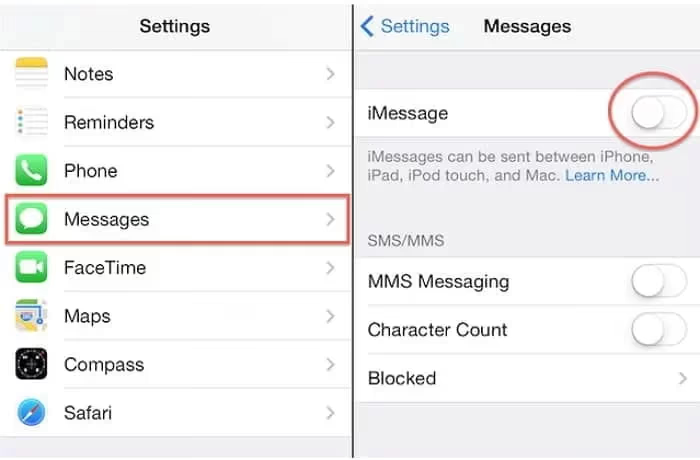
Refreshing the iMessage service can often resolve ordering issues:
- Go to Settings > Messages
- Toggle off iMessage
- Wait about 30 seconds
- Toggle iMessage back on
If you’re having trouble with iMessage, you might want to learn how to change text messages to iMessage or troubleshoot if iMessage needs to be enabled to send a message.
#6. Reset Network Settings
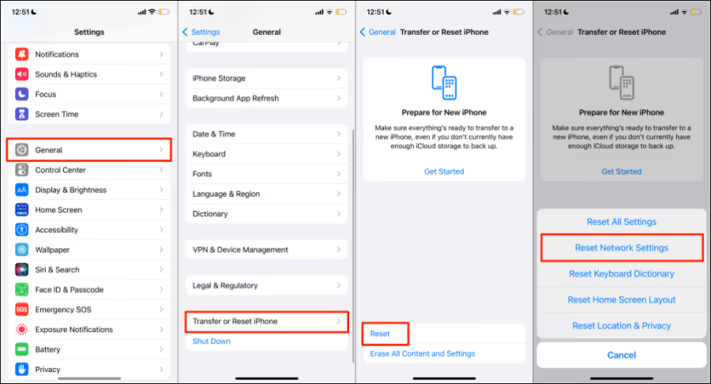
Network issues can sometimes cause message ordering problems:
- Go to Settings > General > Reset
- Tap “Reset Network Settings“
- Enter your passcode if prompted
- Confirm the reset
Note: This will erase saved Wi-Fi passwords, so have them handy to reconnect.
#7. Clear Messages App Cache
Clearing the app’s cache can resolve persistent issues:
- Force close the Messages app as described earlier
- Go to Settings > General > iPhone Storage
- Scroll down and tap on “Messages“
- Tap “Review Large Attachments” and delete any unnecessary files
- Restart your iPhone
#When All Else Fails
If you’ve tried all the above steps and still have issues, consider these options:
#Contact Apple Support
Apple’s support team can provide further assistance and may have additional troubleshooting steps. Visit support.apple.com or use the Apple Support app on your device.
#Backup and Recovery Options
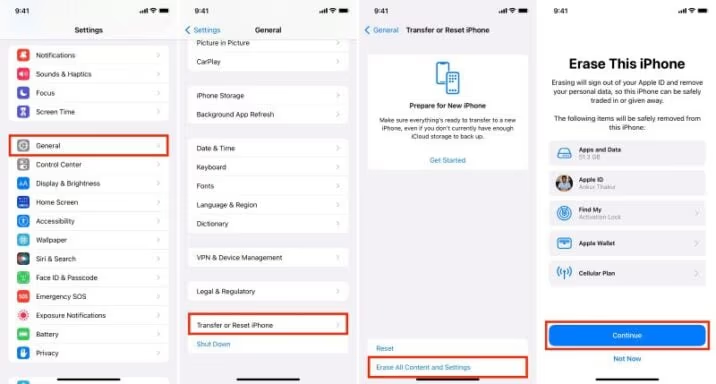
As a last resort, you may need to restore your iPhone:
- Back up your iPhone using iCloud or iTunes
- Perform a factory reset (Settings > General > Reset > Erase All Content and Settings)
- Restore your backup
For recovering lost messages, consider using third-party data recovery tools designed for iOS devices.
#Preventing Future Issues
To minimize the chances of encountering out-of-order messages in the future:
- Keep your iOS updated to the latest version
- Regularly restart your iPhone (at least once a week)
- Maintain a stable internet connection when using iMessage
- Periodically clear out old messages and attachments
#Security Considerations
While troubleshooting message issues, it’s important to be aware of potential security risks. If you suspect unauthorized access to your messages, learn how to detect spyware on your iPhone. It’s crucial to protect your privacy and ensure your device is secure.
#Key Takeaways
- Out-of-order iPhone text messages are often caused by incorrect time settings, iOS glitches, or network issues
- Quick fixes include toggling date & time settings, restarting your iPhone, and force closing the Messages app
- Advanced solutions involve updating iOS, resetting network settings, and clearing the app cache
- Regular maintenance and keeping iOS updated can help prevent future occurrences
#Frequently Asked Questions
Q1: Will resetting network settings delete my data? A: No, it only resets network-related settings like Wi-Fi passwords and cellular settings. Your personal data remains intact.
Q2: How often should I update my iOS? A: It’s best to update your iOS as soon as new versions become available, as they often include important bug fixes and security updates.
Q3: Can using third-party messaging apps cause ordering issues? A: While it’s possible, the issue is more commonly related to the native Messages app or iOS itself.
Q4: Do iCloud syncing issues affect message order? A: Yes, problems with iCloud syncing can sometimes lead to message ordering issues across devices.
Q5: Is it safe to use third-party data recovery tools? A: While many reputable tools exist, always research thoroughly and back up your data before using any third-party software on your device.
Q6: Does Airplane Mode affect GPS and messaging? A: Airplane Mode typically turns off all wireless communications, including cellular and Wi-Fi. To learn more about how it affects GPS, check out Does Airplane Mode turn off GPS?
Q7: What if my iPhone goes straight to voicemail? A: If you’re experiencing issues with calls going straight to voicemail, which can also affect messaging, see iPhone goes straight to voicemail for troubleshooting steps.
By following these steps and tips, you should be able to resolve the frustrating issue of out-of-order iPhone text messages. Remember, if problems persist, don’t hesitate to seek help from Apple Support or visit an Apple Store for hands-on assistance.