How to Clear Recents on Snapchat: Ultimate Privacy Guide
Learn how to clear recents on Snapchat including conversations, search history, and cache. Complete step-by-step privacy guide for all Snapchat users.
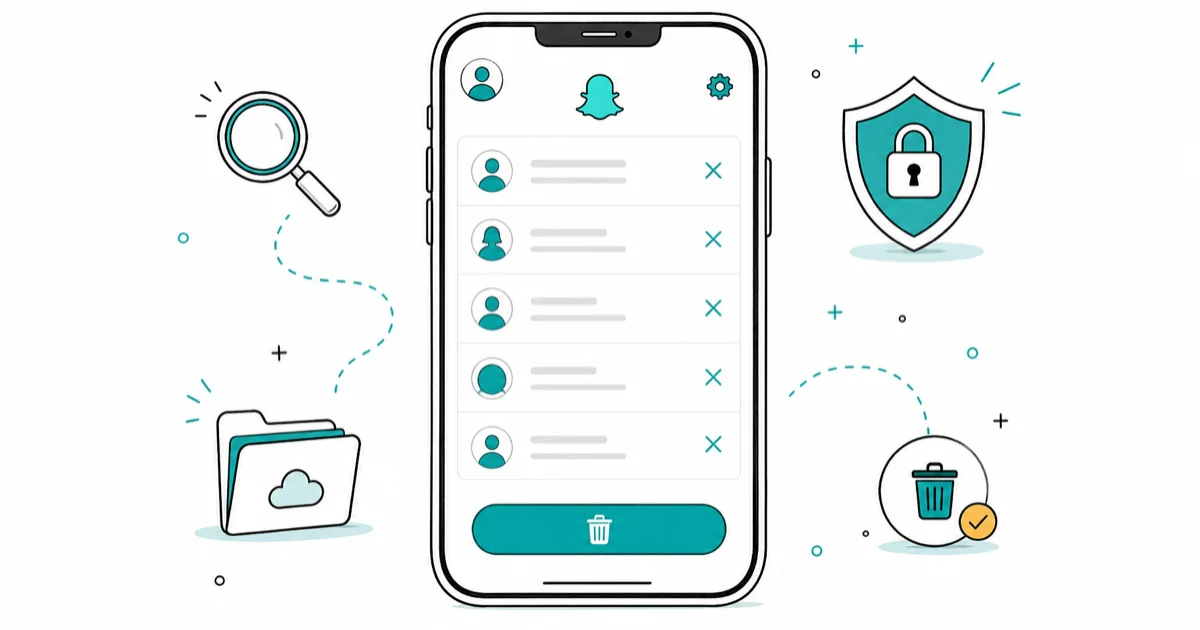
Quick AnswerOn iOS, open Snapchat Settings, then go to App & Privacy > My Privacy & Data > Clear Data > Clear Conversations and tap the X beside a name.
Snapchat is a popular social media platform known for its ephemeral content and fun filters. However, the app still keeps track of your activities, including recent conversations, searches, and scans. For privacy-conscious users, knowing how to clear this data is essential.
This comprehensive guide will walk you through the process of clearing various types of recent activity on Snapchat, helping you maintain your privacy and optimize app performance.
- Clearing conversations removes them from your chat list only; the other person still sees the full conversation on their end.
- Snapchat only provides an X beside each name in Clear Conversations; its current iOS instructions don’t include a Clear All button.
- Clearing the app cache improves performance without deleting your saved Memories, Snaps, or Chats.
- Snapchat tracks six data types you can clear independently: conversations, search history, scan history, cache, Cameo Selfies, and Top Locations.
- Once data is cleared in Snapchat, it can’t be recovered from within the app, so act with intention before confirming.
#What Are Snapchat Recents and Why Clear Them?
Before we dive into the clearing process, it’s important to understand what Snapchat Recents are and why you might want to clear them.
#What are Snapchat Recents?
Snapchat Recents include:
- Recent conversations : your chat history with friends
- Search history : terms you’ve searched within the app
- Scan history : QR codes and objects you’ve scanned
- Cache data : temporary files stored to improve performance
- Cameo Selfies : your Bitmoji selfies used in animations
- Top Locations : places you frequently visit with location enabled
These elements create a record of your activity on the app, which can be accessed through various parts of the Snapchat interface.
According to Consumer Reports, most smartphone users have taken steps to remove or mask their digital footprint. Cached app data can also build up during regular use, so clearing it can be a practical privacy and maintenance step.
#Why Clear Snapchat Recents?
There are several reasons you might want to clear your Snapchat Recents:
- Privacy Protection: Clearing recents prevents others from seeing your recent activity if they gain access to your device.
According to Consumer Reports, most smartphone users have taken steps to remove or mask their digital footprint.
- Improved App Performance: Clearing cache and other data can help the app run more smoothly and reduce crashes.
- Storage Space Recovery: Removing unnecessary data frees up valuable space on your device, especially important for users with limited storage.
When dealing with storage issues, you might also want to learn about clearing cache and history on Android to free up additional space across all apps.
- Fresh Start Experience: Sometimes, it’s nice to start with a clean slate.
Now, let’s go through the process of clearing different types of recent data on Snapchat.
#Clearing Conversations
Clearing conversations removes them from your chat list, but remember that this doesn’t delete the conversations for the other person. It’s important to understand that Snapchat’s conversation clearing is one-sided : the other party will still see the full conversation history on their device.

- Open Snapchat and tap your profile icon in the top left corner.
- Tap the gear icon in the top right to open Settings.
- Scroll to App & Privacy and tap My Privacy & Data.
- Under Manage My Data, tap Clear Data.
- Scroll down and tap Clear Conversations.
- Tap the X next to a name to clear that conversation from the feed. Repeat this for each conversation you want to remove.
According to Snapchat’s current conversation-clearing instructions, clearing a conversation doesn’t delete saved or sent content. The official iOS steps only show the per-name X; they don’t list a Clear All option.
#Clearing Search History
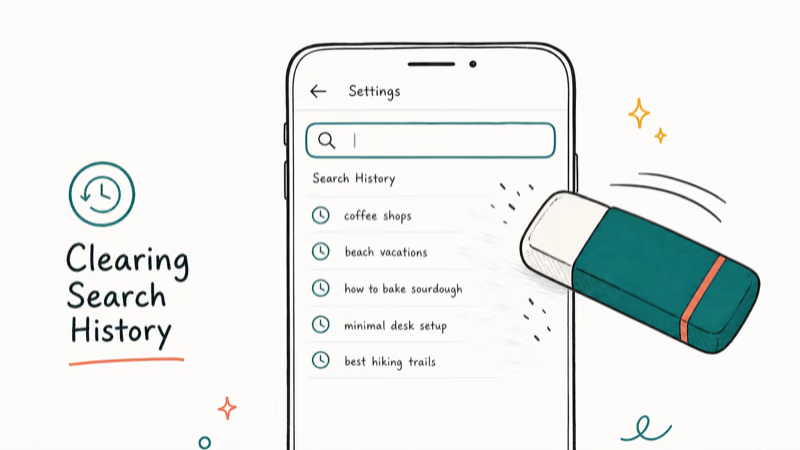
Your search history includes terms you’ve looked up within Snapchat. According to Snapchat’s search-history instructions, deleting it removes past searches but doesn’t stop future searches from being logged.
- Go to your Snapchat Settings as described above.
- Go to
App & Privacy>My Privacy & Data>Clear Data. - Tap Delete Search History and confirm.
#Clearing Scan History
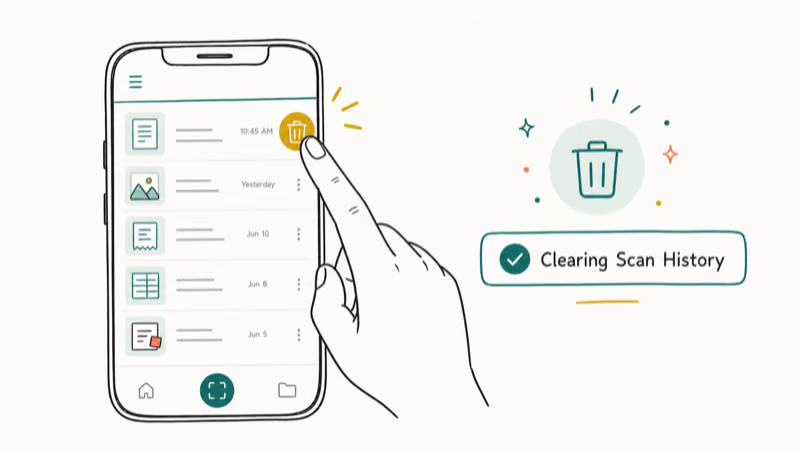
Scan history includes records of QR codes and objects you’ve scanned using Snapchat’s camera.
- In Snapchat Settings, scroll to ‘Privacy Controls’.
- Tap ‘Clear Data’, then ‘Clear Scan History’.
Confirm the action in the pop-up that appears.
#Clearing Cache
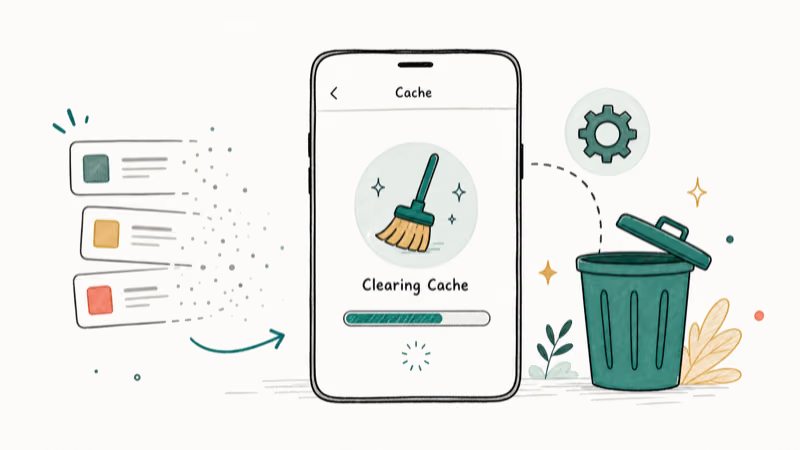
Clearing the cache can help improve app performance without deleting important data. Cache files can accumulate quickly during regular use, especially in media-heavy apps.
- In Snapchat Settings, find ‘Account Actions’.
Then tap Clear Cache and confirm.
Note: Clearing cache won’t delete your Memories, Snaps, or Chats.
#What Other Data Can You Clear from Snapchat?
My AI sits pinned to the top of the chat feed by default. To unpin or hide Snapchat My AI, long-press the chat and choose Unpin Conversation or Clear From Chat Feed on a free account, or use the hide toggle if you subscribe to Snapchat Plus.
#Clearing Cameo Selfies
Go to Account Actions and tap Clear My Cameos Selfie.
Confirm when prompted.
#Clearing Top Locations
- In ‘Account Actions’, select ‘Clear Top Locations’.
- Confirm the action.
#Clearing Lenses and Voice Scan History
- Go to
Settings>My Account>Lenses. - Choose ‘Clear Local Lens Data’ or ‘Clear All Lenses’.
- For Voice Scan, go to
Settings>Account Actions>Clear Voice Scan History.
#Best Practices for Snapchat Privacy
To maintain your privacy on Snapchat:
- Regular Clearing: Make it a habit to clear your data regularly : ideally weekly for heavy users.
- Manage Account Settings: Review and adjust your privacy settings periodically to stay secure.
- Be Cautious with Sharing: Only share content you’re comfortable with others potentially seeing.
- Use a Strong Password: Protect your account with a unique, strong password that includes numbers and symbols.
- Enable Two-Factor Authentication: This adds an extra layer of security to your account.
According to CISA, using multi-factor authentication makes you 99% less likely to be hacked, making it one of the most effective security measures you can implement.
#Logging Out of Snapchat
For added security, you may want to log out of Snapchat when you’re not using it, especially on shared devices. To learn how to log out of Snapchat properly, check out our detailed guide here.

#Managing Snapchat Friends
Understanding your Snapchat connections is crucial for privacy. Learn how to see mutual friends on Snapchat with our step-by-step tutorial here.
#Troubleshooting Common Issues
If you’re having trouble clearing your data or experiencing other issues:
- Update the App: Ensure you’re using the latest version of Snapchat from the App Store or Google Play.
- Restart the App: Sometimes, simply force-closing and reopening Snapchat can resolve stubborn issues.
Check Internet Connection: A stable WiFi or cellular connection is necessary for these clearing actions to sync properly. If you’re still experiencing issues after these steps, try clearing the app data completely.
Contact Support: If none work, contact Snapchat’s Help Center.
#Account Reactivation
If you’ve previously deactivated your account and want to return to Snapchat, you can learn how to reactivate your Snapchat account here.
For users experiencing persistent account access issues, our guide on recovering deleted Snapchat memories provides additional troubleshooting steps.
#Bottom Line
Clearing your Snapchat recents is a straightforward process that significantly improves both your privacy and app performance. The most important action you can take is regularly clearing conversations and cache data : this single step removes the bulk of stored personal information and optimizes app functionality. For maximum privacy protection, clear your search history weekly and conversations monthly, especially if you share your device with others.
#Frequently Asked Questions
Will clearing conversations delete them for the other person?
No, clearing conversations only removes them from your chat list. The other person retains their full conversation history and won’t know you’ve cleared yours.
Does clearing cache delete my Memories or saved Chats?
No, clearing cache only removes temporary data and doesn’t affect your saved content. Your Memories, saved Snaps, and important chats remain intact.
How often should I clear my Snapchat data?
This depends on your usage patterns, but clearing data monthly is a good practice for privacy and performance. Heavy users should consider weekly clearing.
Can I recover cleared data after deletion?
Once data is cleared, it can’t be recovered within the app. Make sure you don’t need any conversation history before clearing it permanently.
Will clearing data log me out of Snapchat?
No, clearing data as described in this guide won’t log you out of your account. You’ll remain signed in with all your account settings preserved.
Does clearing search history affect friend suggestions?
Yes, clearing search history may temporarily affect Snapchat’s friend and content recommendations, as the app uses this data to personalize your experience.
What happens to my Snap Map location data when I clear top locations?
Clearing top locations removes your saved frequent places from Snapchat’s memory, but it doesn’t delete your current location sharing settings or Snap Map visibility preferences.
By following these steps and best practices, you can maintain your privacy and enjoy a smoother Snapchat experience. Remember, being proactive about your digital privacy is an important part of using any social media platform responsibly.
Google Messages Error 3100: Why RCS Is Broken on Galaxy
Google Messages RCS error 3100 hits Galaxy owners after phone or carrier switches. Google told 9to5Google a fix is coming. Here's what actually helps.

Is This Bank App Real? Spot a Fake App on Your Home Screen
A bank app can land on your home screen from a web page with no install warning. Learn the checks that tell a real banking app from a phishing web app.
Apps Crashing After iOS 27 Update? Fix Order (2026)
Apps crashing after the iOS 27 update? Update the app in the App Store first, then offload and reinstall to clear stale cache, then restart. The fix order.
Do AI Translation Earbuds Work Offline? What to Know
Do AI translation earbuds work offline? A few do with downloaded language packs, but most need the cloud. Here's what works offline and what you give up.