How to Delete Spotify Playlists (Mobile, Desktop, Web)
Delete Spotify playlists on iPhone, Android, desktop, or web in 3 steps. Learn how to recover deleted playlists and manage your music library.
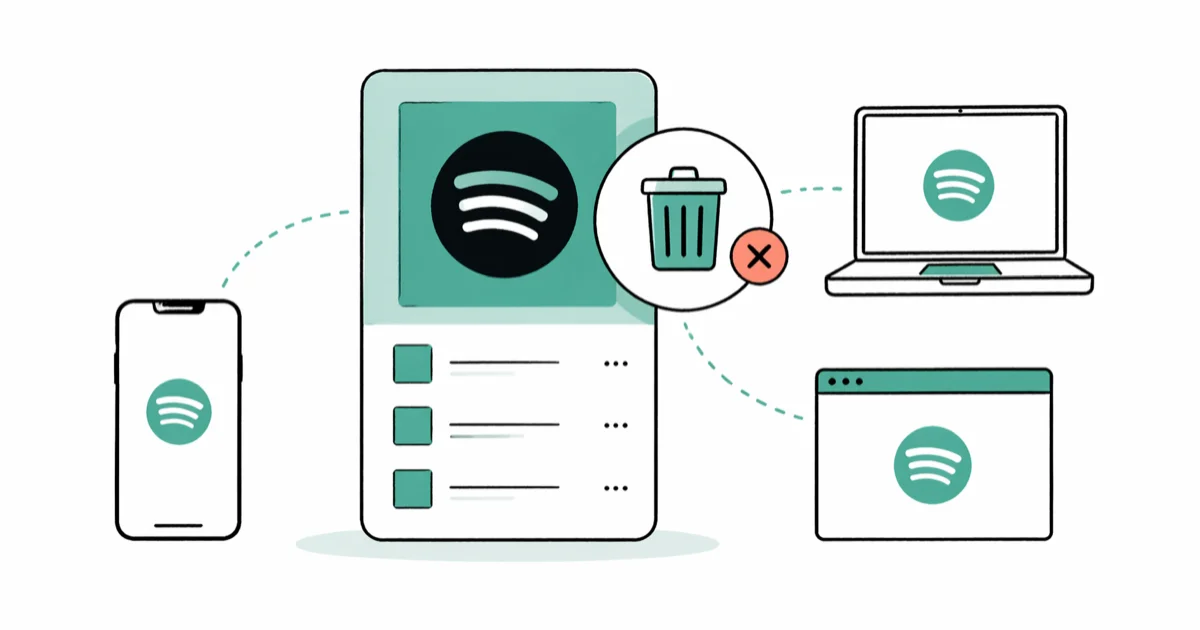
Quick AnswerOpen your playlist, tap the three dots (...), and select Delete Playlist. Confirm deletion. This works on mobile, desktop, and web. Deleted playlists can be recovered within 90 days from your account page.
Deleting a Spotify playlist is straightforward, but the process varies slightly between mobile, desktop, and web.
Here’s how to delete playlists on every platform.
- On mobile (iPhone and Android), tap the three dots (…) next to the playlist in Your Library, then select “Delete Playlist” and confirm — the playlist disappears immediately.
- On desktop, right-clicking the playlist name in the left sidebar and selecting “Delete” is faster than opening the playlist first.
- Deleted playlists can be recovered within 90 days by visiting spotify.com/account and clicking “Recover playlists” — all songs restore intact.
- You can only delete playlists you created; for playlists made by others, the option is “Unfollow” not “Delete.”
- Spotify has no bulk delete feature — large cleanups require deleting playlists one at a time.
#How to Delete a Playlist on Spotify Mobile
The mobile app (iPhone and Android) uses the same process.
#Step 1: Open Your Library
Tap “Your Library” at the bottom of the screen. This shows all your playlists, albums, and podcasts.
#Step 2: Find the Playlist
Tap “Playlists” at the top to filter your library. Scroll to find the playlist you want to delete, or use the search bar at the top.
#Step 3: Delete the Playlist
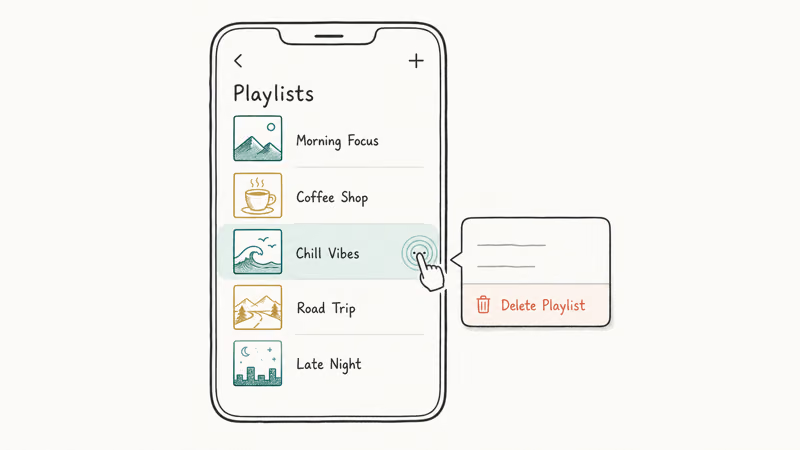
Tap the three dots (…) next to the playlist name. Scroll down and tap “Delete Playlist.” Confirm by tapping “Delete” in the popup.
The playlist disappears from your library immediately. According to WikiHow’s Spotify guide, deleted playlists can be recovered within 90 days.
#How to Delete a Playlist on Spotify Desktop
The desktop app (Windows and Mac) has two methods.
#Method 1: From Your Library
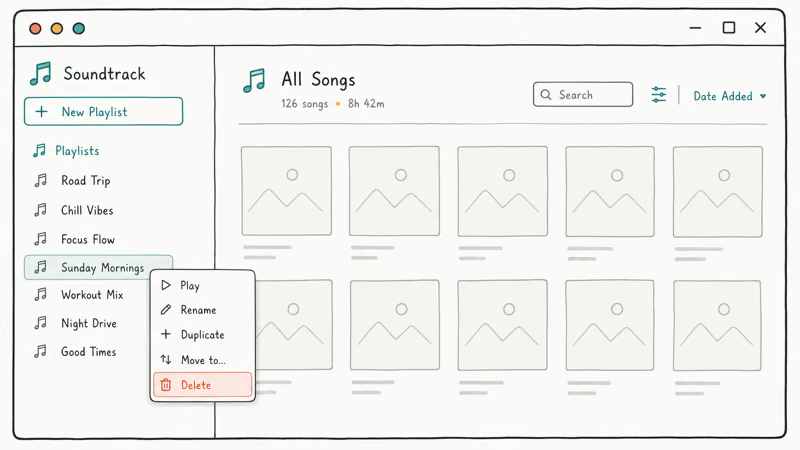
Open Spotify and go to “Your Library” in the left sidebar. Find the playlist you want to delete. Right-click the playlist name and select “Delete.” Confirm deletion in the popup.
The desktop process is the same on Windows and macOS.
#Method 2: From the Playlist Page
Open the playlist you want to delete. Click the three dots (…) below the playlist title (next to the green Play button). Select “Delete” from the dropdown menu. Confirm deletion.
According to ViWizard’s step-by-step guide, this method is faster if you’re already viewing the playlist.
#How to Delete a Playlist on Spotify Web Player
The web player (play.spotify.com) works like the desktop app.
Go to play.spotify.com and log in. Click “Your Library” in the left sidebar. Find the playlist and click the three dots (…) next to it. Select “Delete” and confirm.
Major browsers follow the same web player flow.
#Recovering Deleted Playlists
Yes, but only within 90 days. After that, it’s permanently gone.
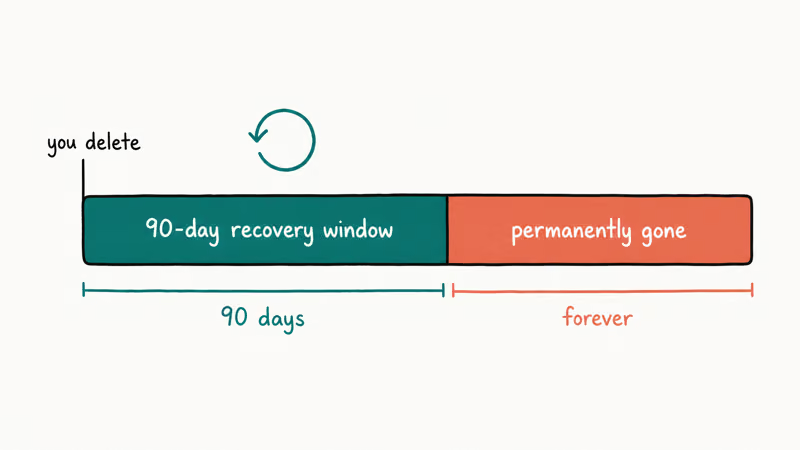
Go to spotify.com/account and log in. Scroll down to “Recover playlists” and click it. You’ll see a list of deleted playlists with deletion dates. Click “Restore” next to the playlist you want back.
Restored playlists should return with their songs intact. According to Spotify’s playlist recovery page, playlists deleted more than 90 days ago can’t be recovered.
#What Happens When You Delete a Playlist?
The playlist disappears from your library immediately. If you shared the playlist link with others, they’ll see “Playlist not found” when they try to open it. Songs in the playlist aren’t deleted from Spotify, just the playlist itself.
Deleted playlist links show an error page. For more on Spotify features and collaborative playlists, check our related guides.
If you also travel or move regions often, see our notes on changing Spotify location and listening on planes.
#Deleting Playlists You Don’t Own
No. You can only delete playlists you created. If someone else created a playlist and you followed it, you can unfollow it but not delete it.
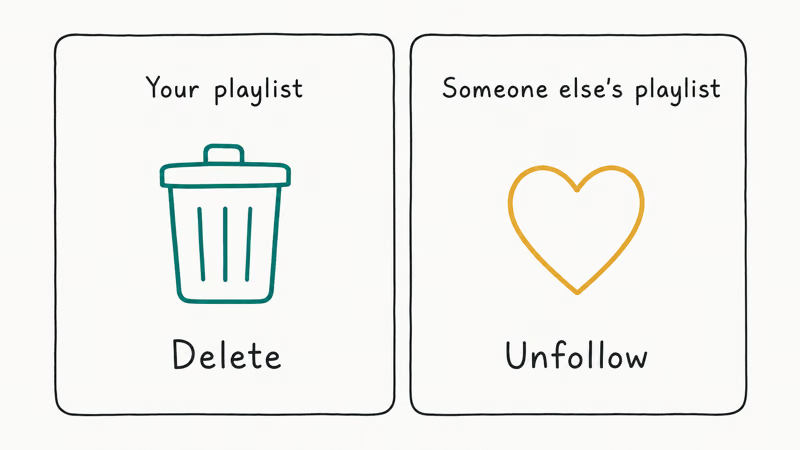
To unfollow a playlist, open it and click “Following” (the heart icon). The playlist disappears from your library but still exists for the creator.
Unfollowing removes the playlist from your library, but it still exists for the creator.
#Bulk Deletion Options
Spotify doesn’t have a bulk delete feature. You need to delete playlists one at a time.
Each deletion is quick, but dozens of playlists still take time because there is no bulk delete option. For more on Apple Music alternatives, check our streaming guides.
#Common Issues and Fixes
#“Delete” Option Is Grayed Out
This means you don’t own the playlist. You can only delete playlists you created. If you followed someone else’s playlist, unfollow it instead.
#Playlist Reappears After Deletion
This happens if Spotify didn’t sync properly. Close and reopen the app, then check if the playlist is still there.
#Can’t Find “Recover Playlists” on Account Page
Make sure you’re logged into the correct account. The recovery option only shows playlists deleted from that specific account.
#Should You Delete or Archive Playlists?
If you’re unsure about deleting a playlist, consider making it private instead. This hides it from your public profile but keeps it in your library.
Open the playlist, click the three dots (…), and toggle “Make Private.” This works well for seasonal playlists (Christmas music, summer hits) that you don’t want visible year-round.
#Bottom Line
Deleting Spotify playlists is straightforward: open the playlist, click the three dots, and select Delete. Remember you have 90 days to recover deleted playlists from your account page.
If you’re cleaning up your library, delete playlists you haven’t listened to in 6+ months. For seasonal or occasional playlists, make them private instead of deleting.
#Frequently Asked Questions
Can I recover a Spotify playlist deleted more than 90 days ago?
No. Spotify only keeps deleted playlists for 90 days. After that, they’re permanently gone and can’t be recovered.
Does deleting a playlist delete the songs?
No. Deleting a playlist only removes the playlist itself. The songs remain on Spotify and in your Liked Songs if you saved them.
Can I delete someone else’s playlist?
No. You can only delete playlists you created. For playlists created by others, you can unfollow them to remove them from your library.
How do I delete a playlist on Spotify without opening it?
Right-click the playlist name in your library (desktop) or tap the three dots next to it (mobile), then select Delete. You don’t need to open the playlist first.
What happens to shared playlist links after deletion?
Shared links stop working immediately. Anyone who clicks the link will see “Playlist not found.” There’s no way to redirect old links to a new playlist.
Can I delete playlists from Spotify web player?
Yes. The web player at play.spotify.com has the same delete function as the desktop and mobile apps. Go to Your Library, find the playlist, click the three dots, and select Delete.
How many playlists can I delete at once?
Spotify doesn’t support bulk deletion. You need to delete playlists one at a time.
Google Messages Error 3100: Why RCS Is Broken on Galaxy
Google Messages RCS error 3100 hits Galaxy owners after phone or carrier switches. Google told 9to5Google a fix is coming. Here's what actually helps.

Is This Bank App Real? Spot a Fake App on Your Home Screen
A bank app can land on your home screen from a web page with no install warning. Learn the checks that tell a real banking app from a phishing web app.
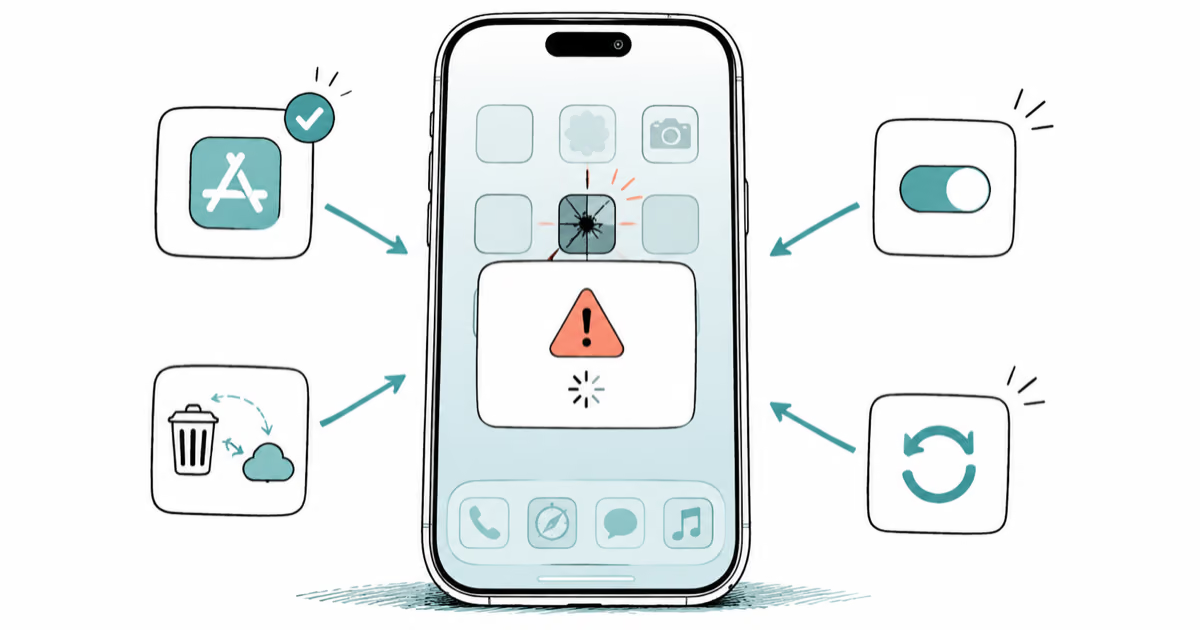
Apps Crashing After iOS 27 Update? Fix Order (2026)
Apps crashing after the iOS 27 update? Update the app in the App Store first, then offload and reinstall to clear stale cache, then restart. The fix order.
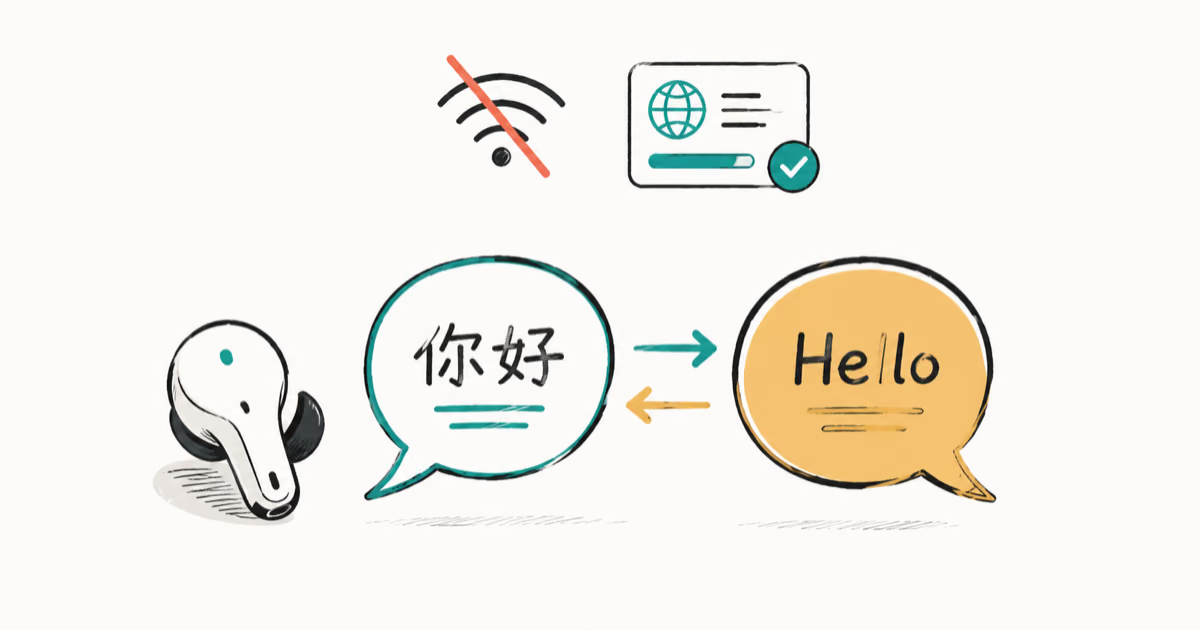
Do AI Translation Earbuds Work Offline? What to Know
Do AI translation earbuds work offline? A few do with downloaded language packs, but most need the cloud. Here's what works offline and what you give up.