How to Fix an Apple Watch Stuck on the Apple Logo (2026)
Fix an Apple Watch stuck on the Apple logo with Apple's current force-restart, unpairing, software-update, backup, and service steps for a frozen watch.
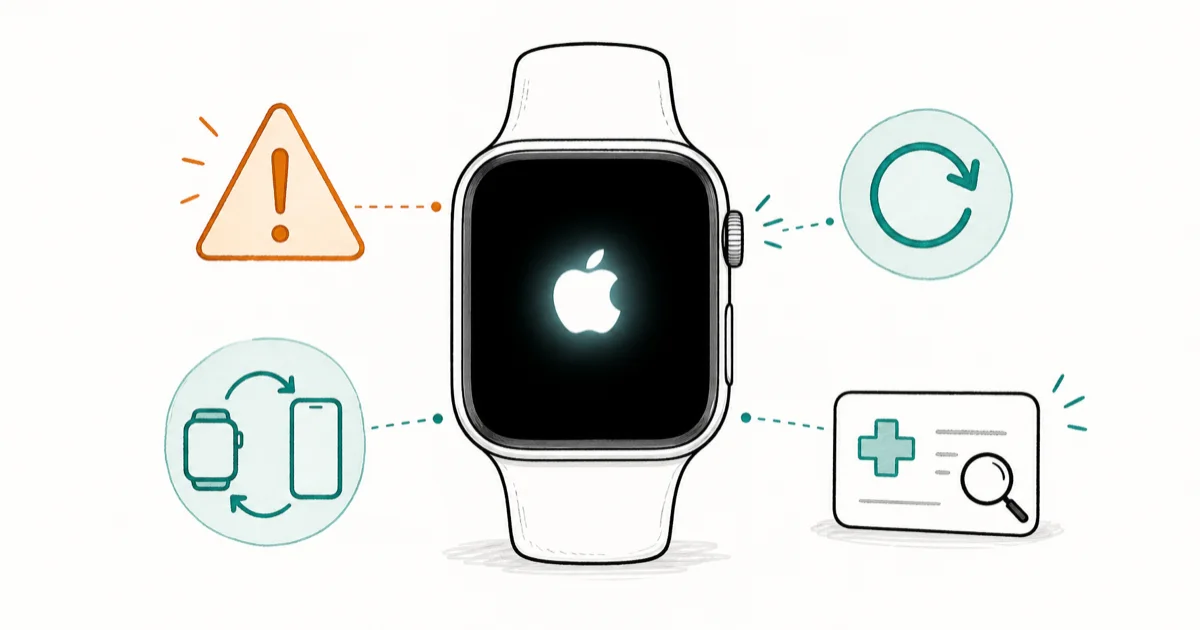
Quick AnswerHold the side button and Digital Crown until the screen goes black and the Apple logo returns. If it remains stuck, unpair and pair again in the Watch app, install any update, then contact Apple.
An Apple Watch stuck on the Apple logo won’t respond to taps, swipes, or ordinary button presses. The steps below follow Apple’s current support flow without tying the advice to an old model generation.
Before changing these settings, use the steps only on your own device, computer, or account, or with explicit permission from the owner. Unauthorized access can violate law, privacy rights, and platform terms, so don’t use this guide to bypass someone else’s controls. When available, start with the official support option, built-in settings menu, or vendor documentation before trying manual fixes, especially if the device or account belongs to work, school, or another person.
- Force restart by holding the side button and Digital Crown until the screen goes black and the Apple logo reappears
- Unpairing creates a watch backup on the paired iPhone, but you should verify Health and Fitness backup conditions first
- If the logo persists, unpair and pair the watch again, then check for a software update
- For future updates, start with at least 50% charge and leave the watch on its charger
- Get service if the watch is still stuck after Apple’s documented software steps
#What Causes an Apple Watch to Get Stuck on the Apple Logo?
According to Apple’s dedicated stuck-logo guide, force restart first; if the logo remains, unpair and pair again, update, then get service.
For a later update attempt, Apple’s current watchOS update guide states that the watch should be at least 50% charged and left on its charger while the update completes. Those are update requirements, not proof that a low battery caused this particular freeze. If you’ve also had your iPhone stuck on the Apple logo, use the iPhone-specific flow for that separate device.
#How Do You Force Restart an Apple Watch?
A force restart is Apple’s first documented step when the watch is unresponsive or stuck on the logo.
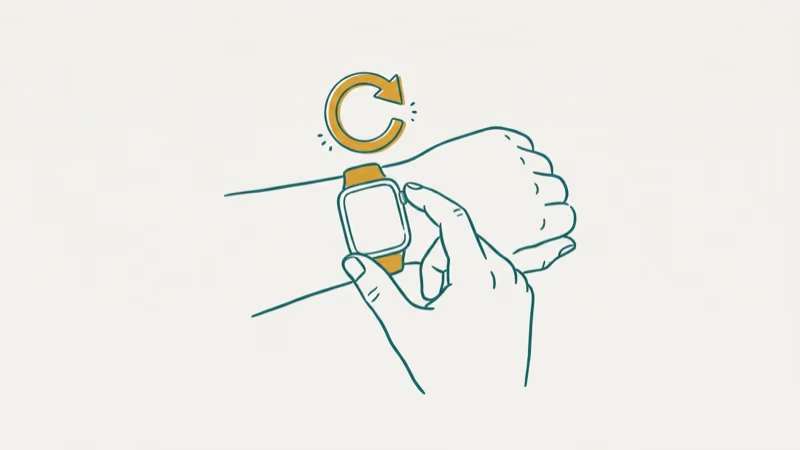
Hold the side button and Digital Crown until the screen turns black and the Apple logo reappears, then release.
The watch might take a few moments to restart. If your Digital Crown feels stuck or unresponsive, you might need to clean and eject water from it first.
One important detail: don’t force restart while the watch is actively installing an update. Apple’s update guide says to leave the watch charging and not restart it until the update completes. If progress seems to stop, keep it charging and use Apple Support instead of inventing a time cutoff or interrupting the install.
#Unpairing and Re-Pairing Your Apple Watch
When a force restart doesn’t work, Apple’s next stuck-logo step is to unpair and pair the watch again. Unpairing erases the watch, so check the available backup first.
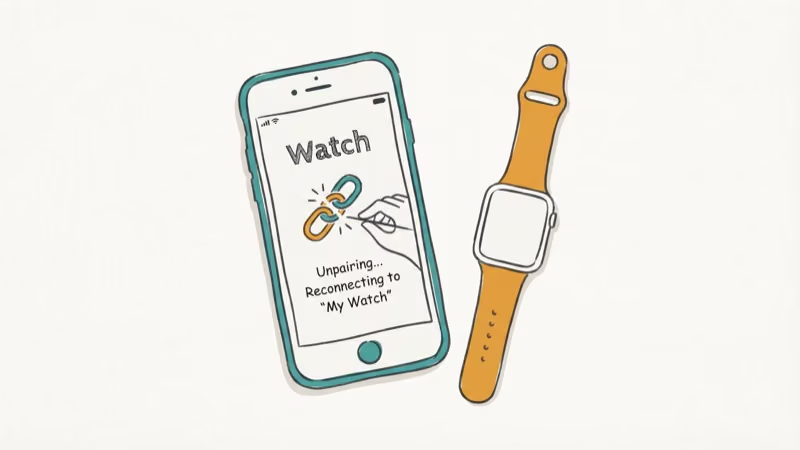
Open the Watch app, tap All Watches, then the info button beside the watch. Choose Unpair Apple Watch and confirm.
After unpairing finishes, bring your watch close to your iPhone and follow the on-screen pairing instructions. Choose Restore from Backup when prompted. If you hit too many passcode attempts during this process, the paired-iPhone unpairing flow is the relevant one.
According to Apple’s current Apple Watch backup guide, the backup includes settings, app layout, and Health and Fitness data, while excluding Apple Pay cards and the watch passcode. It also says Health and Fitness data requires iCloud or an encrypted computer backup, so don’t promise that every item will restore without checking those conditions.
#Checking Battery and Charging Issues
A dead or nearly dead battery mimics the logo freeze because the watch can’t sustain enough power to complete booting. Place your watch on its magnetic charger and wait.
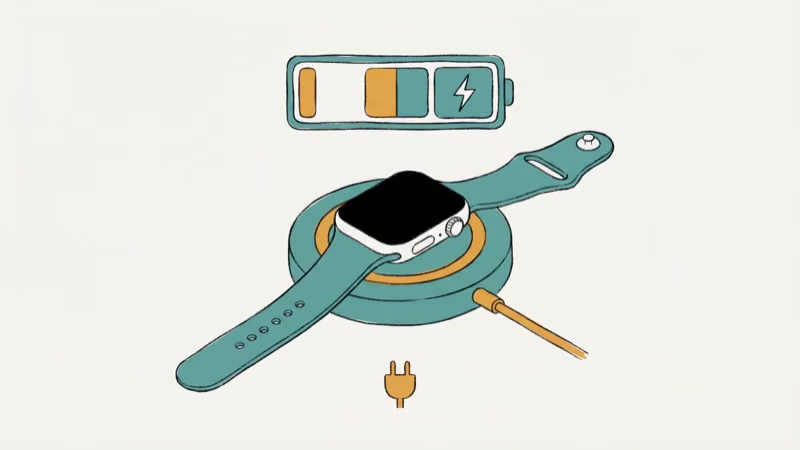
If you see a red lightning bolt, Apple says the watch doesn’t have enough battery power to turn on. When connected correctly, that icon changes to a red lightning bolt inside a ring. If the screen stays blank or shows a charging-cable icon, Apple’s charging guide says it may need to charge for up to 30 minutes before it turns on.
Keep the back of the watch and charger clean and aligned. If it still won’t turn on after Apple’s charging checks, try the documented force restart and then request service. If your Apple Watch battery has been draining fast, use that battery-specific guide after the watch recovers.
#Updating watchOS After Recovery
After the watch recovers, check whether a compatible watchOS update is available.
Open the Watch app on your iPhone, go to General > Software Update. If an update is available, tap Download and Install. Keep the watch on its charger with at least 50% battery. Stay within Bluetooth range of your iPhone until the update finishes.
Apple’s watchOS update page says to update the paired iPhone to the latest iOS version available to it and check the current watchOS compatibility requirements. If your watch shows unable to check for update, fix the connectivity issue first.
#When to Contact Apple Support
If the watch still loops after Apple’s force-restart, re-pairing, and update steps, request service rather than guessing at the failed component.
Book a Genius Bar appointment through the Apple Support app or use Apple’s Apple Watch service page to review mail-in and in-person options.
Apple says it must inspect the watch to provide a personalized estimate. The final fee and service option depend on the model, damage, coverage, location, and parts availability, so check the current estimate rather than relying on a fixed price in an article.
#Bottom Line
Start with Apple’s documented force restart. If the logo loop continues, unpair through the Watch app on your iPhone, then re-pair and choose an available backup. Request service if the watch remains stuck after those software steps.
#Frequently Asked Questions
How long should I wait before force restarting?
If the logo persists and the watch is not installing an update, follow Apple’s force-restart step. If an update is active, leave the watch charging and don’t restart it.
Will unpairing delete my health data?
Unpairing creates a watch backup on the paired iPhone, but restoration is not an unconditional guarantee. Apple says Health and Fitness data requires iCloud or an encrypted computer backup, and some items such as Apple Pay cards and the watch passcode are excluded.
Can I fix this without my iPhone nearby?
You can charge or force restart the watch without an iPhone. Apple’s stuck-logo flow uses the paired iPhone for unpairing, pairing, and restoring. Once the watch responds, watchOS 6 or later can also update directly over Wi-Fi. If your iPhone is stuck in recovery mode, fix that separate problem before using the paired-iPhone steps.
Does the green snake icon mean my watch is broken?
Not by itself. Apple says a charging-cable icon or blank screen can mean the watch needs to remain on the charger for up to 30 minutes before it turns on.
Is it safe to force restart during a watchOS update?
No. Apple says to leave the watch on its charger and not restart it while the update completes. If the update remains stuck, use Apple Support rather than imposing an unsupported time cutoff.
How do I prevent this from happening again?
Keep the watch on its charger during updates, don’t restart it while an installation is active, and install compatible watchOS updates after the watch is responsive again.
Does Apple replace watches stuck on the logo?
Apple decides whether repair or replacement is appropriate after inspection. Coverage and cost depend on the diagnosis, model, damage, country, warranty, and AppleCare plan, so check your coverage and request a current estimate from Apple.

Best Laptop for Running LLMs in 2026: Memory Comes First
The best laptop for running LLMs is a memory purchase first. Compare MacBook unified memory against NVIDIA laptop VRAM, and see what each tier really runs.

How to Run a Local LLM on Windows: A 2026 Setup Guide
Run a local LLM on Windows with LM Studio or Ollama. Pick a model that fits your GPU memory, keep every prompt offline, and skip the monthly bill.

Bluetooth Not Working on Snapdragon X? Fixes for 2026
Bluetooth not working on your Snapdragon X Copilot+ PC? Generic audio, mice, and keyboards work, but vendor apps often lack an ARM build. Fixes inside.

Docker Desktop and WSL2 Not Working on Snapdragon X? Fix It
WSL2 runs fine on Snapdragon X, but Docker Desktop ARM is Early Access and throws WSL errors. Use WSL2 plus native ARM64 Ubuntu and Docker Engine.