How to Play MOV Files on Windows 10: 4 Methods That Work
Play MOV files on Windows 10 with VLC, Media Player, or by converting to MP4. Four free methods for Windows 10 and 11 with step-by-step setup.
Quick AnswerInstall VLC Media Player from videolan.org and double-click any .MOV file on Windows 10. Windows Media Player 12 plays MOV after you add the K-Lite Codec Pack, and HandBrake converts MOV to MP4 for permanent compatibility.
MOV files won’t open in Windows 10’s default apps because Apple’s QuickTime container isn’t fully supported by Microsoft’s stock players. The fix depends on what you need: VLC opens MOV natively, Windows Media Player works after a codec pack, and HandBrake converts MOV to MP4 for a permanent answer.
- VLC Media Player opens .MOV files on Windows 10 without extra codecs
- Windows Media Player 12 plays .MOV only when the K-Lite Codec Pack Basic is installed
- HandBrake converts MOV files to MP4 using presets such as Fast 1080p30
- Movies & TV (the built-in Windows 10/11 video app) plays iPhone MOV files once the HEVC Video Extensions package is added from the Microsoft Store
- QuickTime Player for Windows stopped receiving updates in 2016 and is not recommended for new installs because of unpatched security flaws
#Why Won’t Windows 10 Play MOV Files?
Windows 10 doesn’t ship with native MOV support because the .MOV container was built by Apple and wraps codecs that aren’t always in Microsoft’s default video stack. Apple’s QuickTime 7.7.9 for Windows download page confirms that 7.7.9 is the last release Apple shipped for Windows, and security updates stopped in 2016.
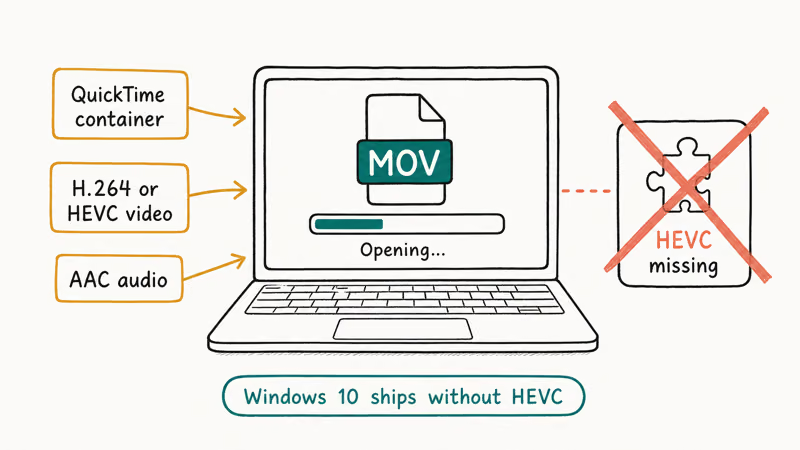
The clip itself usually isn’t broken. The codec is. iPhone records 4K HEVC inside the QuickTime container, and Windows 10 has to decode both at once.
When MOV playback fails, the error you see depends on the app. Windows Media Player throws a “can’t play the file” message and blames the codec. Movies & TV can show a black screen with a playback failure message. Either signal means the codec is missing, not that the file is corrupt.
#Method 1: Play MOV Files With VLC Media Player
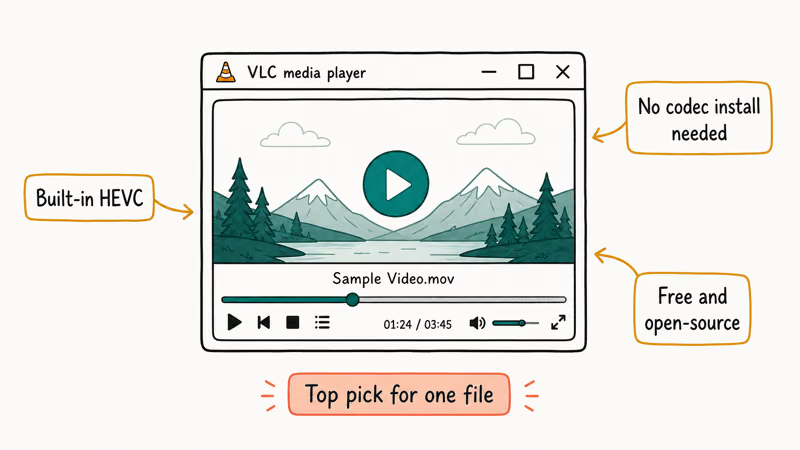
VLC Media Player is the fastest fix because it ships with its own decoders and doesn’t depend on the Windows codec stack. According to VLC’s official feature list, VLC plays MOV, MP4, MKV, AVI, and most video container formats without needing external codecs.
#Install VLC on Windows 10
- Go to videolan.org/vlc and click Download VLC.
- Pick the 64-bit installer for Windows.
- Run the installer. Default settings are fine — keep the file associations checkbox on so .MOV double-clicks open in VLC.
- Launch VLC after install.
Keep the file association option enabled if you want .MOV files to open in VLC by default.
#Open MOV Files in VLC
You have two clean options:
- Drag and drop: Pull the .MOV file straight onto the VLC window.
- File menu: Open VLC, click
Media>Open File, and pick the .MOV.
If a file still won’t open, click Tools > Codec Information to see which codec the clip uses. VLC handles HEVC, H.264, ProRes, and DV, which covers nearly every iPhone, GoPro, and DSLR export. For other strong open-source options across Windows, see the best video players for Windows roundup.
#Method 2: Use Windows Media Player 12 With a Codec Pack
Windows Media Player 12 ships with Windows 10 and Windows 11 but doesn’t decode MOV out of the box. The fix is a codec pack. The K-Lite Codec Pack Basic adds the codecs WMP needs to handle .MOV, .MKV, .FLAC, and other common formats.
- Download the K-Lite Codec Pack Basic from codecguide.com. Pick “Basic” — Standard and Full bundle features you won’t use.
- Run the installer. At the “Player Preferences” screen, set Windows Media Player as default for the formats you want.
- After install, right-click a .MOV file and pick Open with > Windows Media Player.
For H.264 MOV files, K-Lite lets Windows Media Player open them after install. K-Lite works the same on Windows 11’s renamed Media Player app.
Caveat: If the .MOV clip uses HEVC (typical for iPhone footage at 4K), you’ll also need the HEVC Video Extensions package from the Microsoft Store. That’s a separate paid extension (currently $0.99) or a free version included with some OEM PCs. If WMP rotates your video sideways during playback, the how to rotate a video in Windows Media Player guide walks through the fix.
#Method 3: Convert MOV to MP4 With HandBrake
If you share .MOV files often or need them to work on phones, smart TVs, or older PCs, converting to MP4 once is better than fighting codecs every time. HandBrake is a free, open-source converter that handles MOV to MP4 reliably. HandBrake’s official downloads page confirms that the converter is free for Windows, macOS, and Linux with no ads or bundled software.
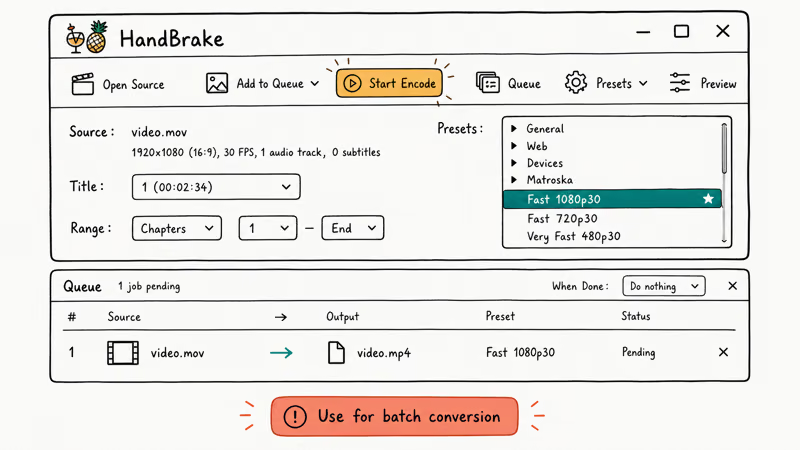
- Download HandBrake from handbrake.fr/downloads. Pick the Windows 64-bit installer.
- Open HandBrake and click Open Source in the top-left. Pick your .MOV file.
- Under
Summary>Format, pick MP4. - Under Preset, pick
General>Fast1080p30 for most clips. Use Fast 4K60 for iPhone HEVC footage at full quality. - Set the output destination and click Start Encode in the top bar.
HandBrake’s Fast 1080p30 preset is a practical default for HEVC clips when full 4K output isn’t required.
For batch jobs (10 or more files), use Add to Queue instead of Start Encode. HandBrake will work through the queue overnight. If QuickTime on the Mac side also rejects the file, see the QuickTime MOV troubleshooting guide. For other conversion paths, see the walkthroughs on how to convert video files to MP4 which also covers HEVC rewraps when you need the reverse direction.
#Method 4: Use Movies & TV (Built-In Windows App)
Movies & TV (called Films & TV in some regions) is the default video app on Windows 10 and 11. It plays MOV files in most cases when the right HEVC and HEIF extensions are installed.
- Open Microsoft Store and search for HEVC Video Extensions. The Microsoft-published version costs $0.99; some PCs come with the free OEM version pre-installed.
- Install HEVC Video Extensions from Device Manufacturer if the free version is available on your machine.
- Right-click a .MOV file and pick Open with > Movies & TV.
The HEVC Video Extensions package adds H.265 (HEVC) decoding to Windows apps, which is the same codec iPhone has used for 4K recording since iOS 11. When this method fails, the cause is usually an older .MOV file using ProRes or Cinepak instead of H.264 or HEVC. For ProRes clips, drop back to VLC. If you also work with .MKV files, the best MKV player guide lists the apps that double up on both formats.
#Which Method Should You Choose?
Pick by what you do most often.
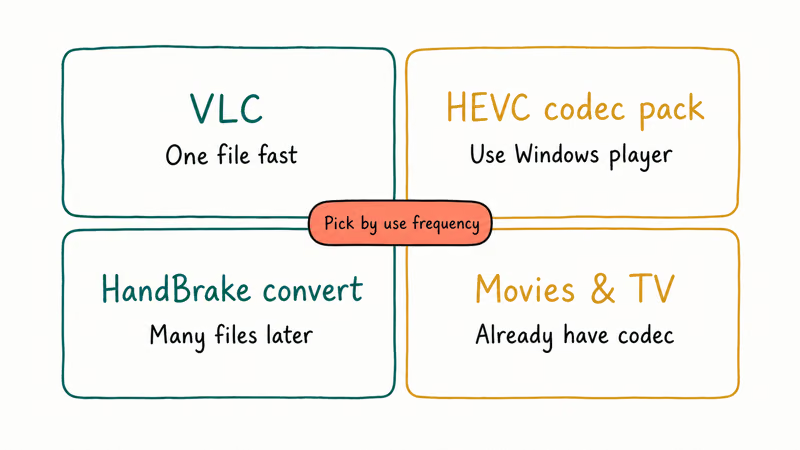
| Use case | Best method | Why |
|---|---|---|
| Quick one-off playback | VLC Media Player | Free, installs in a minute, plays any codec |
| Already use Windows Media Player | WMP 12 + K-Lite Codec Pack | Keeps your default app, adds MOV support |
| iPhone 4K HEVC clips | Movies & TV + HEVC extensions | Native Windows app, no third-party install |
| Sharing files with others | Convert with HandBrake | MP4 plays on phones, TVs, and browsers |
| Editing footage | Convert to MP4 first | Most editors prefer MP4 over MOV |
Table 1: MOV playback method by use case on Windows 10 and 11.
For most readers, VLC is the right pick. Install once, never think about codecs again.
#Bottom Line
For most people, install VLC Media Player and stop here. It opens .MOV files on Windows 10 the moment you double-click and handles the common codecs used by iPhone, GoPro, and DSLR footage.
If VLC isn’t an option on a locked-down work PC, convert your .MOV files to MP4 with HandBrake on a personal machine and share the MP4 instead. That’s the cleanest long-term path because MP4 plays on every device and platform you’ll touch.
Skip QuickTime Player for Windows. It’s been unsupported since 2016 and isn’t worth the security risk for a job that VLC, Movies & TV, or HandBrake all do better.
#Frequently Asked Questions
Can you play MOV files on Windows 10 without installing extra software?
Sometimes, yes. Windows Media Player 12 plays .MOV files that use H.264 video and AAC audio (the most common combo for older iPhones), but it fails on HEVC clips from newer iPhones. Movies & TV plays MOV when the HEVC Video Extensions package is already on your PC from the OEM. For consistent playback across every .MOV variant, install VLC.
Why doesn’t Windows Media Player open my MOV file?
Windows Media Player relies on installed codecs to decode video, and the QuickTime container used by .MOV isn’t always covered by the default Windows codec set. Install the K-Lite Codec Pack Basic, then reopen the file.
Is QuickTime Player safe to use on Windows 10?
Not really. Apple stopped updating QuickTime for Windows in 2016, and security researchers have flagged unpatched vulnerabilities in the Windows build. VLC or Movies & TV give you the same playback without the security exposure.
Will converting MOV to MP4 reduce video quality?
It depends on the settings. HandBrake’s default Fast 1080p30 preset re-encodes the video, which causes a small quality loss that’s usually invisible at viewing distance. For lossless conversion, pick MP4 (passthrough) in HandBrake. That copies the original streams into the new container with zero re-encoding, which only works if the codecs are MP4-compatible.
How big is a typical MOV file from iPhone?
MOV file size depends on resolution, codec, frame rate, and length. 4K HEVC clips are much larger than 1080p HEVC clips. iPhone records HEVC by default since iOS 11, but you can switch to H.264 (older format, larger files) in Settings > Camera > Formats > Most Compatible.
Can you play MOV files on Windows 10 tablets?
Yes for full Windows 10 and 11 tablets like Surface or Asus ZenBook Duo. VLC and Movies & TV work the same as on desktop. Windows 10 Mobile is discontinued and needs MP4.
Do you need to update your graphics driver to play HEVC MOV files?
Sometimes. Hardware-accelerated HEVC decoding needs a recent GPU driver, which typically means Intel Iris Xe, NVIDIA GTX 1050 or newer, or AMD Radeon RX 400 series or newer. If playback stutters or shows green artifacts, update your graphics driver through Windows Update or the GPU vendor’s website, then restart the PC.

Best Laptop for Running LLMs in 2026: Memory Comes First
The best laptop for running LLMs is a memory purchase first. Compare MacBook unified memory against NVIDIA laptop VRAM, and see what each tier really runs.

How to Run a Local LLM on Windows: A 2026 Setup Guide
Run a local LLM on Windows with LM Studio or Ollama. Pick a model that fits your GPU memory, keep every prompt offline, and skip the monthly bill.

Bluetooth Not Working on Snapdragon X? Fixes for 2026
Bluetooth not working on your Snapdragon X Copilot+ PC? Generic audio, mice, and keyboards work, but vendor apps often lack an ARM build. Fixes inside.

Docker Desktop and WSL2 Not Working on Snapdragon X? Fix It
WSL2 runs fine on Snapdragon X, but Docker Desktop ARM is Early Access and throws WSL errors. Use WSL2 plus native ARM64 Ubuntu and Docker Engine.