Taking screenshots on your Huawei phone is an essential skill that can enhance your mobile experience. Whether you want to capture important information, share a funny meme, or document an issue for tech support, knowing how to screenshot efficiently is crucial. This guide will walk you through various methods to take screenshots on your Huawei device, ensuring you’re equipped with all the knowledge you need.
#Introduction to Huawei Phone Screenshots
Screenshots have become an integral part of our digital lives. They allow us to capture and share visual information quickly and easily. Huawei phones offer multiple ways to take screenshots, catering to different user preferences and needs.
#Importance of Screenshots
- Capture important information for later reference
- Share visual content with friends and colleagues
- Document issues for troubleshooting purposes
- Save digital receipts and confirmation pages
#Overview of Huawei Screenshot Methods
Huawei provides several methods for taking screenshots:
- Hardware button combination
- Knuckle gestures
- Quick settings shortcut
- Three-finger swipe
- Voice assistant commands
- Air gestures (on select models)
- Scrolling screenshots
Let’s explore each method in detail.
#Using Hardware Buttons for Screenshots
The most universal method for taking screenshots on Huawei phones is using the hardware buttons.
#Step-by-step Guide
- Navigate to the screen you want to capture.
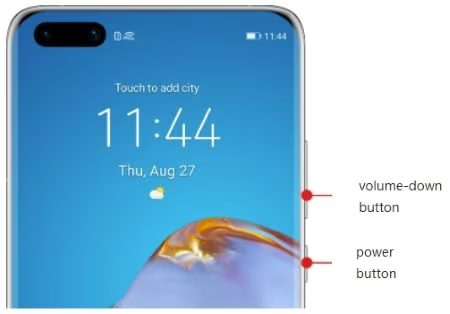
- Press and hold the Power button and Volume Down button simultaneously.
- You’ll hear a shutter sound or see a visual confirmation that the screenshot was taken.
- The screenshot will be saved in your Gallery app under the “Screenshots” folder.
#Advantages and Limitations
Advantages:
- Works on all Huawei models
- Doesn’t require any setup
Limitations:
- Can be tricky to press both buttons at the same time
- May be difficult for users with limited hand mobility
If you’re interested in comparing this method to other phone brands, check out our guides on how to screenshot on Motorola or how to screenshot on Alcatel devices.
#Knuckle Gesture Screenshots
Huawei’s innovative knuckle gesture feature offers a unique way to take screenshots.
#Enabling Knuckle Gestures
- Go to Settings > Accessibility features > Shortcuts & gestures > Take screenshot.
- Enable “Knuckle screenshots” or “Smart screenshot.”
#Taking Screenshots with Knuckles
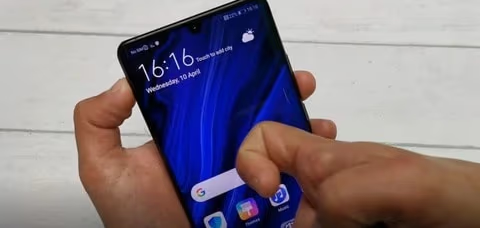
Once enabled, simply knock twice on the screen with one knuckle to capture a screenshot.
#Advanced Knuckle Gesture Techniques
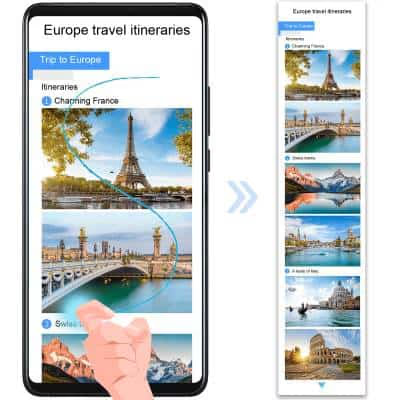
- Draw an “S” with your knuckle to take a scrolling screenshot.
- Draw a circle with your knuckle to capture a specific portion of the screen.
#Quick Settings Shortcut for Screenshots
For those who prefer a more visual approach, the quick settings shortcut is an excellent option.
#Accessing the Shortcut
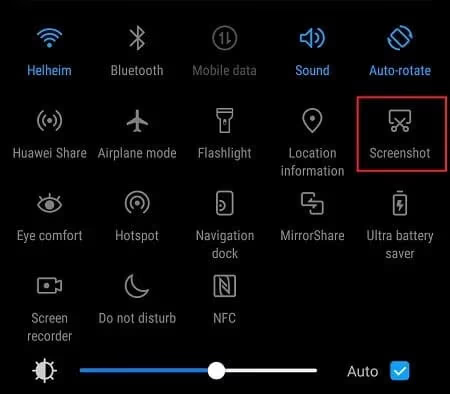
- Swipe down from the top of the screen to open the notification panel.
- Swipe down again to reveal the full quick settings panel.
- Tap the “Screenshot” icon to capture the screen.
#Customizing Quick Settings Panel
If you don’t see the Screenshot icon:
- Tap the edit button (usually a pencil icon).
- Drag the Screenshot icon to the active shortcuts area.
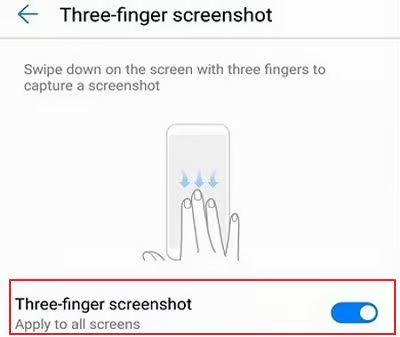
#Three-Finger Screenshot Method
The three-finger swipe is a convenient gesture-based method for taking screenshots.
#Enabling Three-Finger Screenshots
- Go to Settings > Accessibility features > Shortcuts & gestures > Take screenshot.
- Enable “Three-finger screenshot.”
#Executing the Gesture
Once enabled, swipe down from the top of the screen with three fingers to capture a screenshot.
#Using Voice Assistants for Screenshots
For a hands-free approach, you can use voice commands to take screenshots.
#Google Assistant Method
- Activate Google Assistant by saying “Hey Google” or long-pressing the home button.
- Say “Take a screenshot.”
#Celia Voice Assistant Method
On Huawei devices without Google services:
- Activate Celia by saying “Hey Celia.”
- Say “Take a screenshot.”
#Air Gestures for Screenshots
Some newer Huawei models support air gestures for taking screenshots without touching the screen.
#Setting Up Air Gestures
- Go to Settings > Accessibility features > Shortcuts & gestures > Air gestures.
- Enable “Grabshot.”
#Performing Air Gesture Screenshots
- Hold your palm about half an arm’s length from the front camera.
- Close your hand into a fist to capture a screenshot.
#Capturing Scrolling Screenshots
For long webpages or documents, Huawei offers a scrolling screenshot feature.
#Using the Scrollshot Feature
- Take a regular screenshot using any method.
- Tap the “Scrollshot” option that appears at the bottom of the screen.
- The screen will automatically scroll and capture until you tap to stop.
#Knuckle Gesture for Scrolling Screenshots
Alternatively, draw an “S” on the screen with your knuckle to initiate a scrolling screenshot.
#Advanced Screenshot Techniques
#Partial Screenshots
To capture only a portion of the screen:
- Use the knuckle gesture to draw a shape around the area you want to capture.
- Adjust the shape if needed, then tap to save.
#Screen Recording
For capturing video of your screen:
- Use two knuckles to double-tap the screen.
- Tap the record button to start and stop the recording.
#Managing and Editing Screenshots
#Locating Saved Screenshots
Find your screenshots in the Gallery app under the “Screenshots” folder.
#Built-in Editing Tools
Huawei phones come with built-in editing tools:
- Crop and rotate images
- Add text or drawings
- Apply filters
- Share directly from the editor
#Troubleshooting Common Screenshot Issues
#Gestures Not Working
- Ensure the feature is enabled in settings.
- Check if your screen protector is interfering with touch sensitivity.
- Restart your device to resolve temporary glitches.
#Storage Problems
- Check available storage space and clear unnecessary files.
- Verify that the Gallery app has the necessary permissions to save images.
#Conclusion
#Recap of Methods
We’ve covered multiple ways to take screenshots on Huawei phones:
- Hardware buttons
- Knuckle gestures
- Quick settings shortcut
- Three-finger swipe
- Voice commands
- Air gestures
- Scrolling screenshots
#Choosing the Best Method for Your Needs
Experiment with different methods to find the one that works best for you. Consider factors like ease of use, frequency of screenshots, and any physical limitations you may have.
By mastering these screenshot techniques, you’ll be able to capture and share content from your Huawei phone quickly and efficiently, enhancing your overall mobile experience.
For those interested in sharing their screen content beyond just screenshots, check out our guide on screen mirroring for Huawei devices to learn how to display your phone’s screen on a larger display.