How to Take a Screenshot on Alcatel: A Comprehensive Guide
Learn how to take a screenshot on Alcatel phones using button combinations, quick settings, and third-party apps with a clear step-by-step guide.
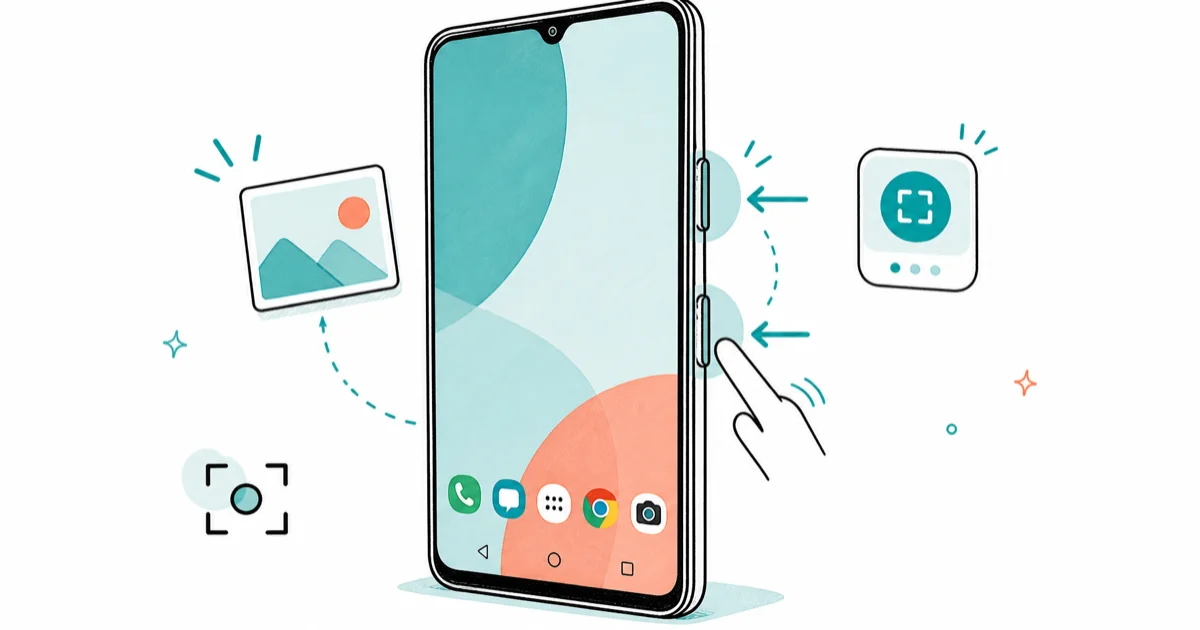
Quick AnswerPress and hold the Power button and Volume Down button simultaneously for two seconds to capture a screenshot on your Alcatel phone.
Many times, when you’re enjoying something on an Alcatel smartphone, you may want to keep a memory of it. The basic screenshot methods are consistent across many Alcatel phones, though exact menus can vary between newer and older models.
Plus, many people wonder how to screenshot on Alcatel. This may not be a troubling issue for Android or iOS users, who can do that by merely pressing a few simple buttons.
But for Alcatel smartphone users, the process isn’t this direct. Alcatel devices use Android’s screenshot system with some customizations for their user interface.
This guide simplifies the process and shows the additional steps you’ll need to know how to take a screenshot on Alcatel.
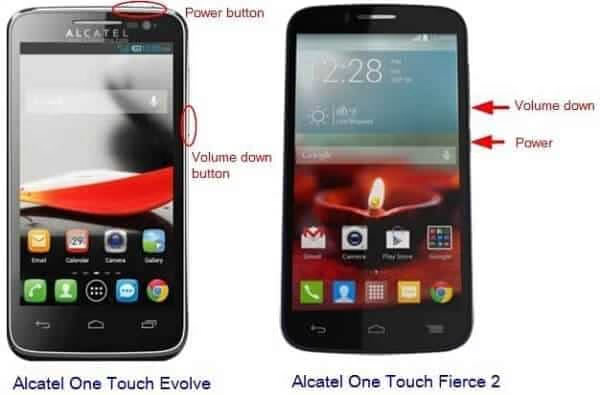
- The universal button method on Alcatel phones is to press and hold the Power button and the Volume Down button at the same time until a shutter sound confirms the capture.
- Screenshots are automatically saved to your device’s internal storage or SD card and can be reviewed in the screenshot folder inside your gallery app.
- The notification panel shortcut lets you tap a dedicated screenshot button from any screen without holding physical buttons, making it the easiest hands-free option.
- Alcatel’s gestures and motions setting offers a motion-based screenshot method, accessible under
Settings>Gestures and Motions>Special Motion Mode. - Third-party screenshot apps from the Google Play Store add annotation and cropping tools but consume extra storage and may request unnecessary permissions.
#Why Do You Need Screenshots on Alcatel?
Screenshots are incredibly useful. The feature allows you to capture your device’s display instantly.
Alcatel phones maintain most standard Android screenshot methods. However, they include some unique additions that make the process slightly different from other Android manufacturers, particularly in their custom UI overlay.
Screenshots can capture anything from images and videos to documents or PDFs with ease.
Screenshots help in keeping important information for reference which you may otherwise forget, and they’re particularly useful for preserving temporary content like social media stories, error messages, or confirmation screens.
According to Android’s official support documentation, screenshots are stored in the DCIM/Screenshots folder by default.
It also makes it possible for you to share an image or document with others that you can’t download directly.
Screenshots typically match your Alcatel phone’s display resolution. Once you capture a screenshot from your device, you can share it with your friends on social media sites or keep it in your gallery as a memory.
PS: if you wonder how to screenshot on Motorola, this guide is just for you. Based on the Samsung device backup guide, you can also compare how another Android maker handles device workflows.
#How Do You Take a Screenshot on Alcatel?
Here are the main ways to capture a screenshot on Alcatel.
#1. How to Screenshot on Alcatel Using the Buttons?
One of the easiest ways to take a screenshot on Alcatel is to try out the specified key combination programmed for taking the screenshot.
Similar to Android and iOS, Alcatel also provides its users with a defined method to capture screenshots. You can use this method anytime, whether you’re watching a video or find something interesting on your social media feed.
#Follow the below steps on how to take a screenshot on Alcatel using the key combination method:
- Open the application or document where you want to take a screenshot.
- Press the Power button and Volume Down button simultaneously and hold for about 2 seconds.
- Your phone will produce a shutter tone and briefly flash the screen white.
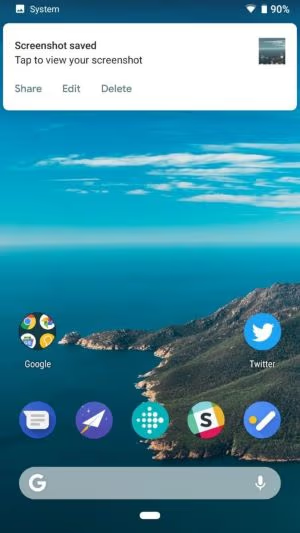
- The phone displays a miniature preview of the screenshot for 3-4 seconds. After this, it saves the screenshot to your device’s internal storage or SD card.
- To review the captured screenshot, go to Gallery > Screenshots folder or use your file manager.
So, this is the combination method you can use whenever you want to save and store something on your phone.
Besides, according to the related guide on how to screenshot on a Huawei smartphone, Android makers often keep the same button pattern while changing menu labels. As described in Windows keyboard troubleshooting, hardware buttons and shortcuts can fail for reasons unrelated to the app you’re using.
#2. How to Take a Screenshot on Alcatel Using an In-built Feature?
The key combination is a simple method that anyone can use with Alcatel smartphones. However, if you don’t like the idea of holding the buttons while using your phone, you can also try the intrinsic Alcatel feature to take screenshots on your device.
The method is almost identical to the one you use to take a screenshot on an Android smartphone.
#Steps on how to take a screenshot on Alcatel using its In-Built Feature:
- Begin by going to the application or document of which you want to take a screenshot.
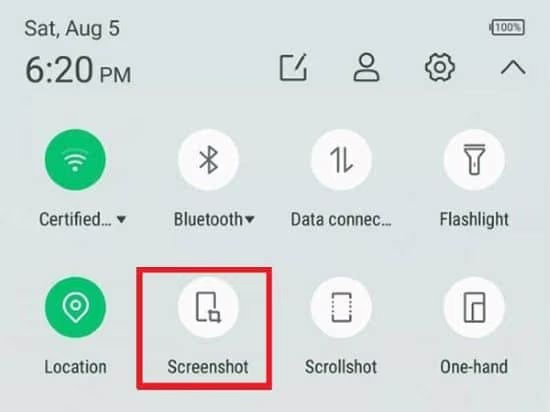
- Open your notification panel by tapping and dragging down from the upper part of your display.
- Now, look for the screenshot button from the list of quick settings options. Tap on it.
- The device will capture a screenshot as you press the button, producing a shutter tone in the process. It will also show the mini-version of the captured screenshot for a split second.
- If you want to see the screenshot with more details, open your File Manager and go to Screenshots folder. From there, you can edit or share it with your friends if needed.
Using these steps, you can take a screenshot anytime without holding power and volume key buttons.
#3. How to Take a Screenshot on Alcatel Using the Gestures?
Applying gestures and movements is also one of the simplest methods to snap a screenshot on Alcatel devices. The procedure to capture with gestures is explained below.
- On your Alcatel device, open Settings.
- Go to the Gestures and Motions option for more information.
- Select the Special motion mode on your Alcatel device to enable screenshot gestures.
- Next, on an Alcatel smartphone, go to the area you wish to save and replicate the gesture actions you configured earlier.
#4. How to Take a Screenshot on Alcatel Using a Third-party Application?
If none of these techniques suit you, then you can install an external third-party application to take a screenshot on an Alcatel.
The only problem is that you may need to spend some extra storage, and it may even risk your disk security. This can be eliminated if you install it from the Play store.
#Follow the steps mentioned here to take a screenshot using a third-party application:
- Open the Google Play Store, search for and download any Screenshot application.
- For a few moments, hold the Power and Volume Down buttons simultaneously until the app takes a screenshot and you hear a notification sound.
- After taking a screenshot, you may crop it, add content, or add annotations.
The image will be stored in your device’s Gallery application automatically.
#Alcatel Screenshot Quality Tips
To ensure that your screenshots look clear and professional, keep the following best practices in mind:
- Clean your screen to remove smudges or fingerprints that may interfere with the image clarity.
- Use natural lighting or adjust the brightness of your screen to avoid overexposure or underexposure.
- Frame your content appropriately to capture all essential information within the screenshot.
- Experiment with different methods to find the one that consistently produces the best results for your specific device model.
#Where Alcatel Saves Your Screenshots
Knowing where your captures land saves a lot of hunting later.
According to Google’s Android storage documentation, screenshots live in the Screenshots sub-folder, usually under DCIM or Pictures, kept separate from your camera roll. Open the Gallery app and look for the Screenshots album, or browse the same path in your file manager when you need to find a specific capture fast.
If you keep an SD card inserted, you can redirect new screenshots to it through your storage settings. This frees up internal storage on lower-capacity Alcatel models without deleting older captures.
#Editing and Sharing Alcatel Screenshots
The built-in tools cover most quick edits. Tap the preview that pops up right after capture, or open the file later in the Gallery app to crop out private details, highlight key areas, and add text labels before you send it on. These markup options are handy for flagging an error message or annotating a how-to image.
Sharing is one tap. Open the screenshot, tap the share icon, and Alcatel routes it to your messaging, email, and social apps.
The quick-share row in the post-capture preview is the fastest path when you want to fire off an image immediately.
#Fixing Common Alcatel Screenshot Problems
Most screenshot failures trace back to a botched button press. Press Power and Volume Down at the exact same moment and hold briefly, since a stagger often pops the power menu or volume slider instead of capturing.
Some apps block screenshots entirely.
Banking apps and streaming services use DRM that returns a blank image or an error message. According to Google’s Play Protect documentation, apps can flag a window as secure, which blocks capture by design and is not a fault with your Alcatel phone or its buttons. Low storage can also interrupt saving, so free up space in Settings > Storage before assuming the hardware is broken.
#Bottom Line
From the above methods, you would have understood by now how to take a screenshot on Alcatel. You can refer to this article anytime in the future if you’re not able to recollect the points.
Also, since there are several ways to take a screenshot, if one method doesn’t work, you can go for the next option.
#Frequently Asked Questions
Can I edit my screenshots on an Alcatel handset?
Yes, once you’ve captured a screenshot, you can access it through the Gallery or Photos app on your Alcatel handset. From there, you can use various editing tools to crop, annotate, or enhance your screenshots as desired. Most Alcatel devices include basic editing options like cropping, brightness adjustment, and adding text overlays.
Are the methods mentioned in this article applicable to all Alcatel handsets?
While most Alcatel handsets follow similar procedures to capture screenshots, there might be slight variations depending on the specific model or software version. Most models use the standard Power + Volume Down combination. Refer to your device’s user manual or the Alcatel support website for precise instructions tailored to your handset.
Can I take screenshots of long webpages or conversations that require scrolling?
Yes, newer Alcatel handsets often include a scrolling screenshot feature that allows you to capture lengthy webpages or conversations in a single screenshot. To activate this feature, take a regular screenshot first, then look for a “Scroll” or “Capture more” option in the preview that appears. This feature is available on most Alcatel models running Android 9 or newer.
Where are my screenshots saved on Alcatel phones?
Screenshots are automatically saved to your device’s Pictures/Screenshots folder or DCIM/Screenshots directory. You can access them through the Gallery app, File Manager, or Photos app. Most screenshots are saved as PNG files with timestamps in their filenames for easy identification.
Is it possible to share my screenshots directly from my Alcatel handset?
Absolutely! Once you’ve taken a screenshot, you can instantly share it through various communication apps, social media platforms, or email. Simply locate the screenshot in your Gallery or Photos app and tap the share button. You can also use the quick share option that appears in the screenshot preview immediately after capturing.
Can I take screenshots while watching videos or playing games on my Alcatel handset?
Yes, you can take screenshots while watching videos or playing games on your Alcatel handset. However, some content may be protected by digital rights management (DRM) and prevent screenshots from being captured. In such cases, you’ll receive a notification or black screen result when attempting to take a screenshot.
How can I change the screenshot save location on my Alcatel phone?
Most Alcatel phones save screenshots to internal storage by default. To change the save location to an SD card, go to Settings > Storage > Screenshots and select your preferred storage location. Note that this option is only available if you have an SD card inserted and the feature is supported by your Alcatel model.
Why do my Alcatel screenshots look blurry or low quality?
Screenshots typically match your screen resolution. If screenshots appear blurry, check if your phone’s display resolution is set to maximum in Settings > Display > Screen Resolution. Also, ensure you have sufficient storage space, as low storage can affect screenshot quality on some Alcatel models.

Pixel 11 vs Pixel 10: What Changed and Who Should Upgrade
Pixel 11 vs Pixel 10: same screen and camera resolution, new Tensor G6, 25W wireless, and Gemini Intelligence. Here is who should actually upgrade.

Verizon Not Receiving Texts? How to Fix It in 9 Steps
Verizon not receiving texts? Fix it in 9 steps: check Message Blocking in My Verizon, reset network settings, deregister iMessage, and call support.
Pixel Battery Drain: What Google's July Fix Really Covers
Google marked the Pixel idle battery drain bug fixed in July, but only some phones got the patch. Here is who is covered, who is not, and what to try.
iPhone Stuck on EDGE? How to Get 5G or LTE Back (2026)
iPhone stuck on EDGE with crawling data? Here's why the E icon appears, which settings force 5G or LTE back, and when the problem is your carrier.