Forgot Your Windows or Mac Password? Official Recovery Steps
Recover access to your own Windows PC or Mac with official account, FileVault, BitLocker, and reset steps, including clear data-loss boundaries.
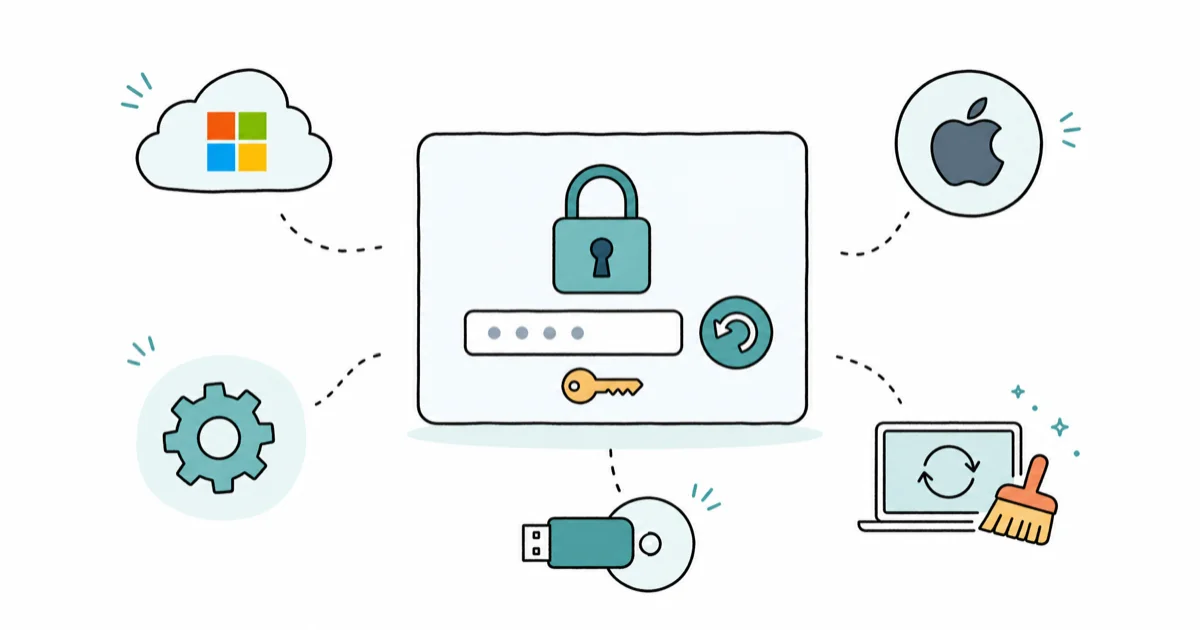
Quick AnswerIdentify the credential first: Microsoft account, local Windows account, PIN, or Mac login password. Use official recovery before any reset or erase.
If you forgot the password to a Windows PC or Mac you own, start with the recovery path built for that sign-in type. A Microsoft account password isn’t a local Windows password, and a Mac login password isn’t your Apple Account password.
This guide covers owner-authorized recovery only. It does not bypass BitLocker, FileVault, a company administrator, Activation Lock, or another person’s account.
- Identify whether Windows uses a Microsoft account, local account, PIN, or work account
- A Mac login password and Apple Account password are separate credentials
- Use security questions or a reset disk only when that local Windows account was set up for them
- FileVault and BitLocker recovery keys protect encrypted data; they aren’t password bypasses
- Reset or erase is the last resort because some choices remove apps, settings, accounts, or files
#1. Which Credential Are You Trying to Reset?
Use these steps only on your own computer or with the owner’s explicit permission. Trying to access someone else’s device without consent can violate privacy and computer-access laws.
On Windows, look at the sign-in screen and select Sign-in options. You may be using:
- a Microsoft account password
- a local-account password
- a Windows Hello PIN
- a work or school account managed by an organization
The broader laptop lockout guide can help if you haven’t identified the sign-in type yet.
A PIN belongs to that device; it isn’t the same as the Microsoft account password. If the screen shows a work or school identity, contact the organization’s administrator instead of trying consumer recovery steps.
On a Mac, the password entered at the login window is the Mac login password. According to Apple’s current Mac login-password guide, it isn’t the Apple Account password used for services such as iCloud and the App Store. A forgotten login Keychain password has a separate Keychain troubleshooting path.
#2. Reset a Microsoft Account Password
If the Windows sign-in uses an email address tied to a Microsoft account, use Microsoft’s forgotten-password recovery flow.
- On another trusted device, open Microsoft’s password-reset page.
- Enter the account address and complete the identity checks offered for that account.
- Set a new password.
- Return to the locked PC, connect it to the internet, and choose the password sign-in option.
Don’t promise that recovery will finish within a fixed time. The available checks depend on the account and whether Microsoft can verify the request. If Microsoft sends you into an account-recovery process, follow that process rather than trying an offline password tool.
If you remember the Microsoft account password but forgot only the PIN, select I forgot my PIN at the sign-in screen and follow the identity prompts. Changing the account password and resetting a device PIN are different operations.
#3. Reset a Local Windows Account Password
According to Microsoft’s current Windows password guidance, a local account can use these routes:
- At the sign-in screen, select Reset password and answer the security questions if they were configured for that account.
- Use a password reset disk only if you created one before the lockout.
- Ask an already-existing administrator on the same PC to reset the local account.
Resetting a local password from another administrator can affect access to encrypted files or stored credentials. The administrator must already exist and be authorized; Safe Mode does not create one.
Don’t follow instructions that expose a hidden Administrator account, replace accessibility executables, edit the SAM database, or clear an NTLM hash. Those are bypass techniques, not Microsoft’s supported consumer recovery flow; the older administrator-password article should be read with that boundary in mind.
If no usable security questions, reset disk, or authorized administrator exists, the supported fallback is to reset Windows. Review the data boundary before selecting it.
#4. Reset a Mac Login Password at the Login Window
Start at the normal Mac login window. Apple’s Mac login-password guide says reset messages can appear after repeated password attempts. Depending on the Mac’s setup, the message may offer a reset using your Apple Account or the FileVault recovery key.
Follow the option shown on that Mac. You may be asked to:
- choose the account whose password you forgot
- verify with the Apple Account associated with the Mac or enter the FileVault recovery key
- create a new Mac login password
- restart and sign in with the new password
The FileVault recovery key for this flow is a 24-character key. It’s different from the 28-character recovery key that can protect an Apple Account.
If no reset message appears, continue with macOS Recovery. Don’t reset the Apple Account password merely because the Mac login password is forgotten; they’re separate unless the Mac specifically offers the Apple Account as a reset method.
#5. Use macOS Recovery When the Login Window Can’t Reset It
Apple’s current macOS Recovery guide gives different startup steps by processor:
Apple silicon:
- Shut down the Mac.
- Press and hold the power button until startup options appear.
- Select Options, then Continue.
Intel Mac:
- Turn on the Mac.
- Immediately hold Command-R until the Apple logo or another startup image appears.
In Recovery, follow any password-reset option Apple displays. If the guided options are absent, Apple’s login-password article provides the resetpassword command from Utilities > Terminal as a later supported route.
Don’t assume Recovery bypasses FileVault. Apple’s FileVault guide states that if you forget both the login password and the applicable recovery method, the encrypted files and settings are lost.
#6. What Does the BitLocker Screen Require?
A BitLocker prompt is not asking for your Windows password. It needs a 48-digit recovery key associated with that encrypted volume.
Use Microsoft’s BitLocker recovery-key guide to check the Microsoft account, work or school account, printout, or USB location where the key may have been saved. Match the key ID shown on the PC when more than one key is listed.
According to Microsoft’s BitLocker recovery-key guide, the prompt needs a 48-digit key and Microsoft can’t retrieve, provide, or recreate a lost one. If the key can’t be found and the PC must be reset, the reset removes files. The BitLocker key troubleshooting guide covers key-ID and account checks. No password-recovery utility can truthfully guarantee access to data encrypted by a missing key.
#7. Reset Windows Only After Checking the Data Boundary
Microsoft’s current Reset your PC guide offers two materially different choices:
- Keep my files reinstalls Windows and keeps personal files, but removes apps and settings.
- Remove everything removes personal files, apps, and settings.
Back up anything still accessible and locate the BitLocker key before starting. Read the confirmation screen on the PC; don’t infer that “Keep my files” preserves installed applications or every locally stored item. If Reset this PC fails, use the reset-error guide rather than repeating destructive attempts.
From the sign-in screen, Windows can open the recovery environment through the power menu while you hold Shift and select Restart. Choose Troubleshoot > Reset this PC, then select the option that matches your data decision.
#8. Erase a Mac Only as the Last Resort
Apple’s login-password guide treats erasing the Mac as the last resort when the supported reset options don’t work. Erasing permanently removes the user accounts, passwords, and data stored on the Mac.
Before erasing, confirm whether a current Time Machine or other usable backup exists. After erase and reinstall, the Mac may still require the Apple Account previously associated with Activation Lock. Erase is not a way to take ownership of a computer that belongs to someone else.
If the Mac is managed by an employer or school, stop and contact that administrator. Management and recovery-key escrow can change which authorized options are available.
#9. When Should You Stop and Get Support?
Stop experimenting and contact Microsoft, Apple, the organization administrator, or an authorized service provider when:
- the account identity can’t be verified
- a work or school policy blocks the reset
- BitLocker or FileVault requests a key you can’t locate
- the storage device may be failing
- the computer contains important data without a current backup
- the computer isn’t yours or the owner can’t give permission
Third-party “unlockers” often blur the difference between resetting a credential and bypassing encryption. Treat any promise to preserve all data without the password or recovery key as unverified.
#Bottom Line
Match the recovery method to the credential: Microsoft account recovery for a Microsoft password, security questions or a pre-created reset disk for a local Windows account, and Apple’s login-window or macOS Recovery flow for a Mac login password. FileVault and BitLocker keys protect encrypted data. Reset or erase only after you understand exactly what will be removed.
#Frequently Asked Questions
Is my Mac login password the same as my Apple Account password?
Not necessarily. Apple treats them as separate credentials. A Mac may offer the Apple Account as one verified way to reset the login password, but changing one does not make the names interchangeable.
No supported Microsoft flow depends on Safe Mode revealing an administrator. Another administrator helps only if that authorized account already exists on the PC.
Can a password reset disk be created after lockout?
No. It must have been created for that local account before the password was forgotten.
Will Reset this PC keep my files?
Only the Keep my files option is designed to retain personal files, and it still removes apps and settings. Remove everything removes personal files too. Encryption or hardware problems can add risk, so keep a separate backup.
Can Microsoft recover a lost BitLocker key?
Microsoft says it can’t retrieve, provide, or recreate a lost recovery key. Search every location listed in its recovery-key guide before considering a reset.
Can Apple recover FileVault-encrypted files without the password or key?
Apple’s FileVault guidance says the files and settings are lost if neither the password nor the applicable recovery method is available.
Does erasing bypass Activation Lock?
No. Erasing removes local data; it does not transfer ownership or guarantee removal of Activation Lock.

Best Laptop for Running LLMs in 2026: Memory Comes First
The best laptop for running LLMs is a memory purchase first. Compare MacBook unified memory against NVIDIA laptop VRAM, and see what each tier really runs.

How to Run a Local LLM on Windows: A 2026 Setup Guide
Run a local LLM on Windows with LM Studio or Ollama. Pick a model that fits your GPU memory, keep every prompt offline, and skip the monthly bill.

Bluetooth Not Working on Snapdragon X? Fixes for 2026
Bluetooth not working on your Snapdragon X Copilot+ PC? Generic audio, mice, and keyboards work, but vendor apps often lack an ARM build. Fixes inside.

Docker Desktop and WSL2 Not Working on Snapdragon X? Fix It
WSL2 runs fine on Snapdragon X, but Docker Desktop ARM is Early Access and throws WSL errors. Use WSL2 plus native ARM64 Ubuntu and Docker Engine.