How to Update Apple ID Settings on Your iPhone or iPad
Use current Apple Account menus to change passwords, trusted numbers, recovery contacts, recovery keys, devices, and a stuck update alert safely.
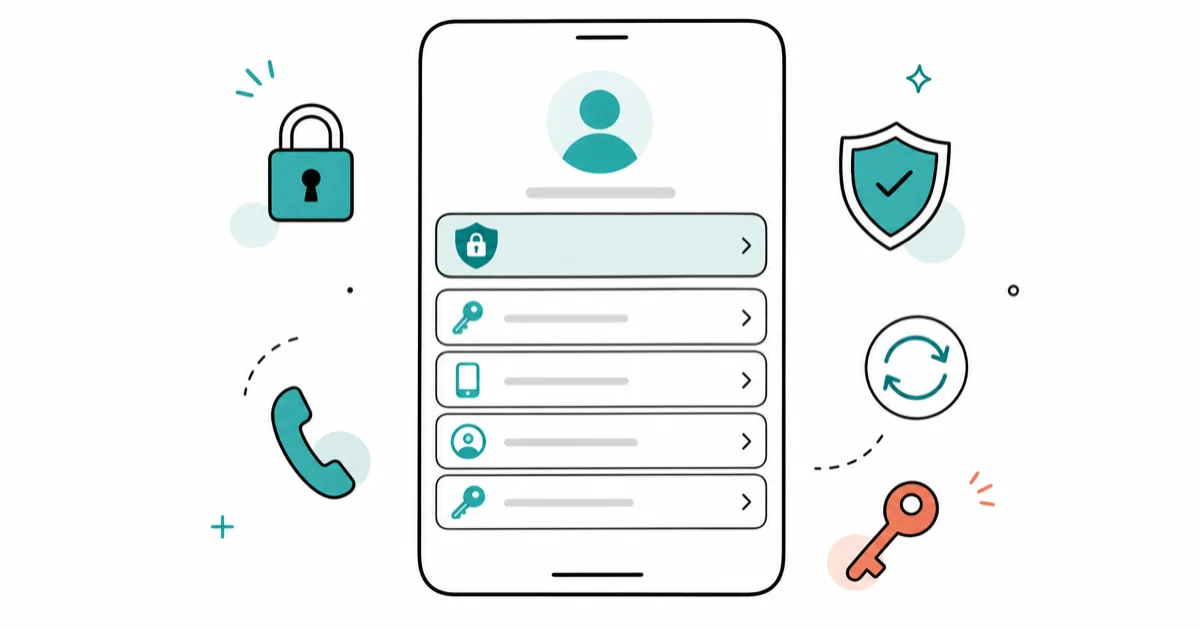
Quick AnswerApple ID is now Apple Account. Open Settings, tap your name, and use Sign-In & Security; read the recovery-key warning before enabling it.
Apple now calls Apple ID Apple Account, but many iPhone and iPad menus, searches, and alerts still use the older term. The main account screen is Settings > [your name], and most security controls are inside Sign-In & Security.
This guide separates routine account changes from a stuck “Update Apple ID Settings” or “Update Apple Account Settings” alert. It does not promise that a server-side change will appear on every device within a fixed number of seconds.
- Apple ID and Apple Account refer to the same account under Apple’s current naming
- Change the password and manage two-factor authentication in Sign-In & Security
- Add a trusted phone number before losing access to the old number
- A recovery contact helps with recovery but can’t see your account data
- A recovery key turns off Apple’s standard account-recovery process; it isn’t an extra fallback to enable casually
#1. Where Are the Current Apple Account Settings?
Open Settings and tap your name at the top. Apple’s current iPhone user guide groups password, sign-in phone and email, two-factor authentication, recovery options, and Legacy Contact under Sign-In & Security.
Other account sections on the same screen manage iCloud, media purchases, Find My, Family, and the device list. Avoid following an old guide that tells you to look for an Apple ID submenu or puts every control under Password & Security; current labels use Apple Account and Sign-In & Security.
Use these steps only on your own account or with the account owner’s explicit permission. Changing trusted numbers or recovery methods can affect whether the owner can sign in later.
#2. Change the Apple Account Password
According to Apple’s current password-change article, iPhone and iPad use this path:
- Open Settings.
- Tap your name.
- Tap Sign-In & Security.
- Tap Change Password.
- Follow the prompts and enter the device passcode when asked.
The device may enforce a security delay when Stolen Device Protection applies. Apple’s page says this delay can be one hour in some circumstances, so don’t interpret a delayed Change Password action as proof that the account is broken.
After a password change, other devices or services may ask you to sign in again. Complete those prompts on devices you recognize; don’t approve an unexpected sign-in request. The Apple verification guide explains how to separate a legitimate account prompt from a repeating verification problem.
#3. Add or Replace a Trusted Phone Number
A trusted phone number can receive verification codes. Apple’s current trusted phone and device guidance uses this path:
- Open Settings > [your name] > Sign-In & Security.
- Tap Two-Factor Authentication.
- Choose Add a Trusted Phone Number.
- Enter and verify the number using the options Apple provides.
Add the replacement before removing a number you are about to lose. Confirm that the new number can actually receive the verification method you select.
If you have already lost access to every trusted device and phone number, the same Apple page directs you to account recovery. According to Apple’s trusted-number guidance, account recovery can take several days or longer and Support can’t shorten the waiting period. Don’t attach an invented delivery time to a verification code or an account-recovery request.
#4. Review Two-Factor Authentication
Open Settings > [your name] > Sign-In & Security > Two-Factor Authentication to review trusted phone numbers and related security choices.
Apple’s current two-factor authentication article states that most accounts use two-factor authentication and that accounts created with it can’t turn it off. If you recently enabled it on an eligible older account, Apple may provide a limited route in the enrollment-confirmation email to return to the previous security settings.
Don’t disable protection based on an old screenshot showing a universal Off switch. The option depends on the account, and Apple doesn’t present it for most current accounts.
If verification codes don’t arrive, first confirm the trusted number, cellular service, and prompts on other trusted devices. The trusted-devices troubleshooting guide covers the device-list side, while the verification-code guide covers message delivery without assuming that a SIM swap is always the cause.
#5. Add or Remove a Recovery Contact
A recovery contact is a trusted person who can give you a recovery code if you lose account access. Apple’s current recovery-contact article uses this path on current iOS and iPadOS:
- Open Settings > [your name] > Sign-In & Security.
- Tap Recovery Contacts.
- Tap Add Recovery Contact and authenticate.
- Choose the person and send the request if Apple asks you to.
The contact does not receive access to your account or data. Their role is limited to helping generate a recovery code after you ask for help.
To remove a contact, return to Recovery Contacts, select the person, and choose the removal option shown. Don’t rely on an older path that inserts a separate Account Recovery screen when the current device shows Recovery Contacts directly.
#6. Should You Enable a Recovery Key?
An Apple Account recovery key is a 28-character secret that you generate and store yourself. Apple’s current recovery-key article uses Settings > [your name] > Sign-In & Security > Recovery Key.
The important tradeoff isn’t just where to store the key. Apple’s recovery-key article confirms that turning on a recovery key disables its standard account-recovery process. You then need a trusted device or the recovery key to regain access. If you lose access to trusted devices and lose the key, Apple says you can be permanently locked out.
That means a recovery contact and recovery key are not simply two equivalent fallbacks that Apple recommends pairing in every case. Read the on-screen warning, decide who will secure the key, and keep verified copies in places that are not all lost with the same phone or bag.
Never paste the key into a support chat, email, or website reached from an unsolicited message.
#7. Review and Remove Signed-In Devices
To see devices associated with the account, open Settings > [your name] and scroll down. Apple’s current device-list article explains how to select a device and remove it from the account.
Review the model, serial information, software version, and whether the device is trusted before removing it. Removing a device stops its access to iCloud, Find My, other Apple services, and verification codes.
Removal is not a substitute for signing out on a device you still control. Apple notes that a removed device can reappear if it remains signed in, so erase or sign out of a device properly before selling or giving it away.
#8. How Do You Clear an “Update Apple ID Settings” Alert?
Start with the action requested by the alert itself:
- Open Settings.
- Tap Update Apple ID Settings or Update Apple Account Settings.
- Tap Continue if shown.
- Enter the requested current password, device passcode, or verification information.
Don’t promise that the badge will clear within a fixed number of seconds. The prompt can depend on a password change, terms acceptance, a device verification request, or a service that is temporarily unavailable. The stuck iCloud-settings guide covers the separate setup-progress screen.
If the prompt returns:
- confirm the device is online
- restart the iPhone or iPad once
- open Settings > [your name] and check which account is signed in
- complete any separate terms, payment, iCloud, or security prompt shown there
- install an available iOS or iPadOS update after backing up
Don’t sign out of iCloud as the first generic fix. Signing out can remove synced copies from the device, pause services, and create a larger recovery problem if you don’t know the current password or can’t receive a verification code.
#9. What to Do When You Can’t Sign Out
If Sign Out is unavailable, read the explanation on the screen. Screen Time restrictions, device management, a pending account action, or missing credentials require different responses.
For a personal device, check Settings > Screen Time > Content & Privacy Restrictions > Account Changes and make sure the setting reflects your own intended policy. The can’t-sign-out guide covers other on-screen causes. On a managed work or school device, contact the administrator rather than trying to remove management.
Before signing out, verify that important photos, files, messages, and other iCloud data are synced or backed up. If backup itself is failing, use the iCloud backup troubleshooting guide first. Know the Apple Account password and how you’ll receive two-factor authentication codes.
#10. Update Settings on Other Apple Devices
Account-level changes can affect every signed-in device, but each device may ask for separate verification. Open the account screen on each device you still use and respond to legitimate prompts.
Don’t publish fixed propagation times for password, phone-number, contact, or device-list changes. Apple doesn’t give one universal completion window for all of them. A device that’s offline can’t reflect a current server-side change until it reconnects.
Remove devices you no longer own, but don’t remove an unfamiliar entry until you have checked whether it’s an old name for a device you still possess. If you believe the account was accessed by someone else, change the password and review trusted numbers and devices from a device you trust.
#Bottom Line
Open Settings > [your name] > Sign-In & Security for current Apple Account security settings. Change the password through Apple’s supported prompt, verify trusted phone numbers, and use Recovery Contacts for a human-assisted recovery option. Enable a recovery key only after accepting that it turns off standard account recovery. For a stuck update badge, follow the exact prompt and troubleshoot the account state without inventing a timer or signing out as the first move.
iPhone tips & tricks
#Frequently Asked Questions
Are Apple ID and Apple Account different?
No. Apple Account is Apple’s current name for the credential formerly called Apple ID. Older alerts and search terms can still use Apple ID.
Where are trusted phone numbers on current iOS?
Open Settings > [your name] > Sign-In & Security > Two-Factor Authentication. Add or verify a replacement number before removing one you are about to lose.
How long should an Update Apple ID Settings alert take to clear?
Apple does not publish one universal clearing time for every cause. Complete the exact prompt, check the signed-in account and connection, then address any separate account or service message.
Can Apple Support speed up account recovery?
No. Apple’s trusted-phone guidance says Support can’t shorten the account-recovery waiting period.
Is a recovery key always safer?
It changes the recovery model rather than simply adding a harmless backup. Enabling it turns off standard account recovery, and losing both trusted-device access and the key can permanently lock the account.
Can a recovery contact see my photos or messages?
No. Apple’s recovery-contact article says the contact can’t access your account or data; they can provide a recovery code when asked.
Why did a removed device reappear?
Apple says a device can reappear if it’s still signed in. Sign out or erase a device properly before transferring ownership.
How to Transfer Data to a New iPhone Without iCloud
Move everything to your new iPhone without iCloud: Quick Start device-to-device transfer, wired migration, and encrypted Finder or iTunes backups.
Best Wireless Earbuds for iPhone in 2026: USB-C Era Picks
Best wireless earbuds for iPhone in 2026, comparing AirPods Pro 3, Sony WF-1000XM6, Bose QC Ultra, and Anker Liberty 4 NC on the USB-C iPhone lineup.
iPhone Keyboard Lag? 7 Proven Fixes for iOS 26 (2026)
Fix iPhone keyboard lag with 7 proven fixes for iOS 26. Covers restart, storage, predictive text, third-party keyboards, and dictionary reset.
How to Block Porn on an iPhone: A Guide for Parents
Learn how to block porn on iPhone using Screen Time, DNS filtering, and safe browsers. Step-by-step guide for parents to protect kids' devices.