iMovie Video Rendering Error 10008: 7 Fixes That Work
Fix iMovie error 10008 fast: isolate the broken clip, standardize codecs to H.264, free 20 GB of disk space, and finish your export on macOS.
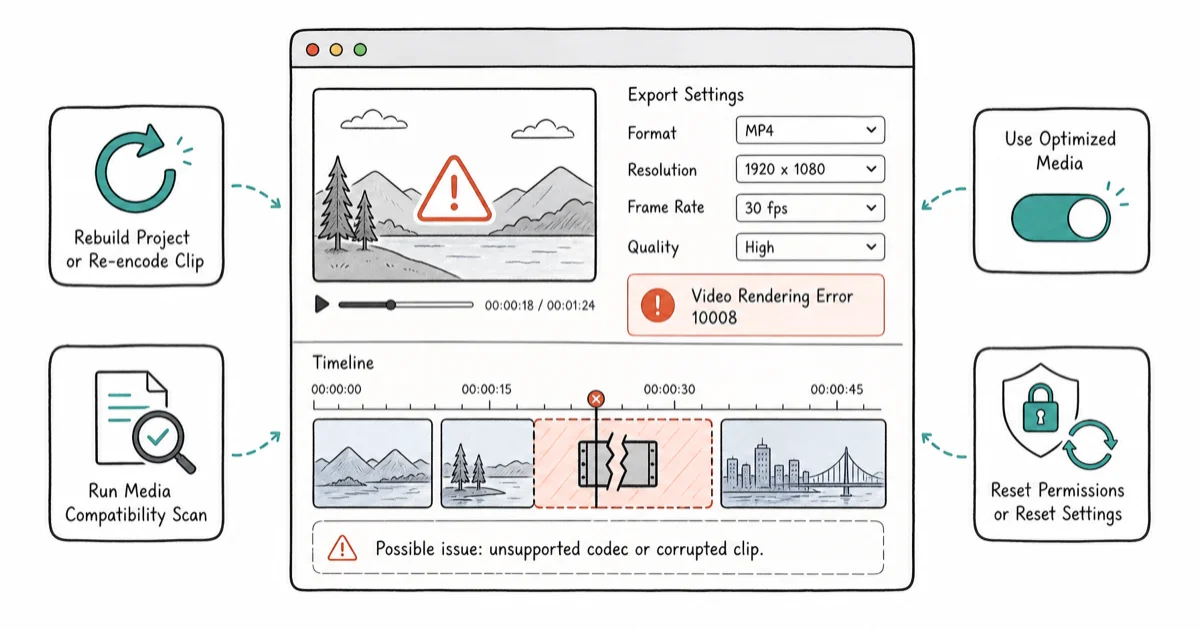
Quick AnsweriMovie error 10008 is almost always a single broken clip or a codec mismatch. Skim the timeline frame by frame to find the bad clip, replace or re-encode it to H.264 MP4, then export at 1080p instead of 4K.
iMovie video rendering error 10008 hits at the worst time, right when you click Share and expect a finished file. The error is iMovie’s catch-all for “something in your project broke during the final encode,” and the cause is almost always one bad clip or a codec mismatch. The seven fixes below work through those causes in order, and a single corrupted MP4 is the most common trigger.
- Error 10008 fails at the encode stage, not the edit stage, so the timeline plays fine until you hit Share or
File>Export - A single corrupted clip is the most common cause; isolate it by deleting half the timeline at a time until the export succeeds
- Mixing H.264, HEVC, and ProRes clips in one project forces re-encoding that often triggers the error on Intel Macs
- Exporting at 1080p instead of 4K cuts memory pressure and resolves the error when other fixes fail
- iMovie needs roughly 3x your project size in free disk space; a 20 GB project needs 60 GB free to render cleanly
#What Triggers iMovie Error 10008?
Error 10008 is iMovie’s generic encoding failure code. It fires when the QuickTime engine can’t read a frame, write a frame, or both. Apple’s iMovie engineering team hasn’t published a public list of root causes, so most fixes come from community testing and Apple Support Community threads.
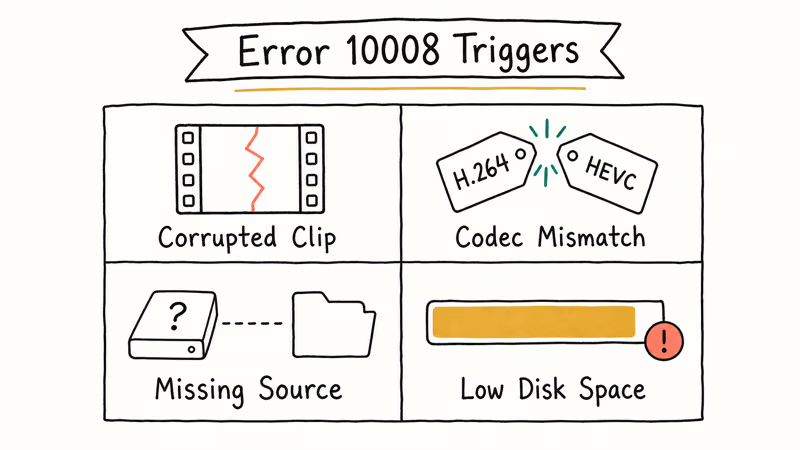
Four triggers cover almost every case: corrupted clip from a bad phone transfer, codec mixing where HEVC clips meet H.264 footage, missing source file on an unmounted drive, or low disk space during the temporary render pass.
According to Apple’s iMovie support documentation, iMovie supports a defined list of formats that includes H.264, HEVC, MPEG-4, and Apple ProRes. Files outside that list, including most FLV, MKV, and AVI clips, have to be converted before iMovie will render reliably. A 4K MKV from a screen recorder is a classic culprit: iMovie throws error 10008 until the clip is transcoded to H.264 MP4 in HandBrake, after which the same export completes normally.
#How Do I Find the Corrupted Clip Fast?
The fastest method is binary search on the timeline. Skimming every frame in order works, but a 30-minute project takes an hour. Split your timeline in half, export each half, then split the failing half again. Each round halves the search.
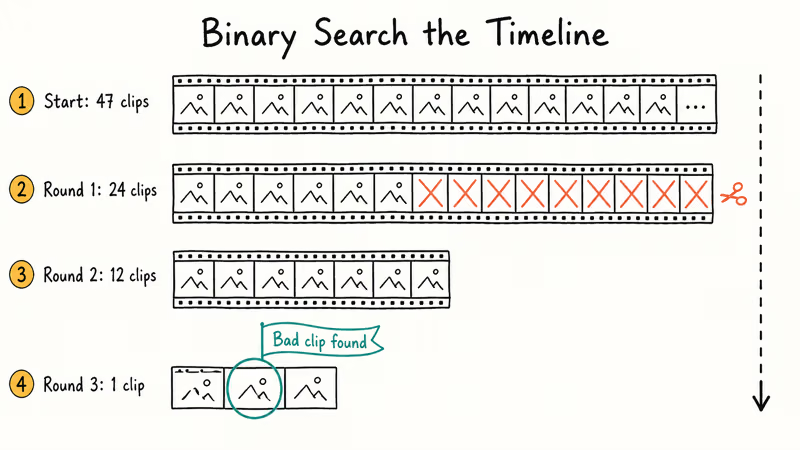
Here’s the exact process:
- Open the project and select the back half of all clips on the timeline.
- Press Delete to remove them from the timeline only (originals stay safe in the library).
- Try the export. If it succeeds, the bad clip is in the half you removed. Undo with Command + Z and delete the other half instead.
- Repeat until you’re down to a small group of clips, then test them one at a time.
On a project with dozens of clips, binary search narrows a single bad clip down in just three or four rounds, a few minutes of work. A corrupted clip often shows a green flash on one frame in QuickTime Player, which confirms the damage before you even reach the export step.
If the clip is irreplaceable, use a video repair tool. Wondershare Repairit handles damaged MP4, MOV, and M4V files, including clips that show that green-flash corruption. For MP4 footage specifically, our guide to MP4 video repair tools covers free options and paid recovery software side by side.
Some links on this page are affiliate links, which means fone.tips may earn a commission at no extra cost to you.
#Fix 1: Standardize Every Clip to H.264 MP4
Mix codecs and you stress the encoder.
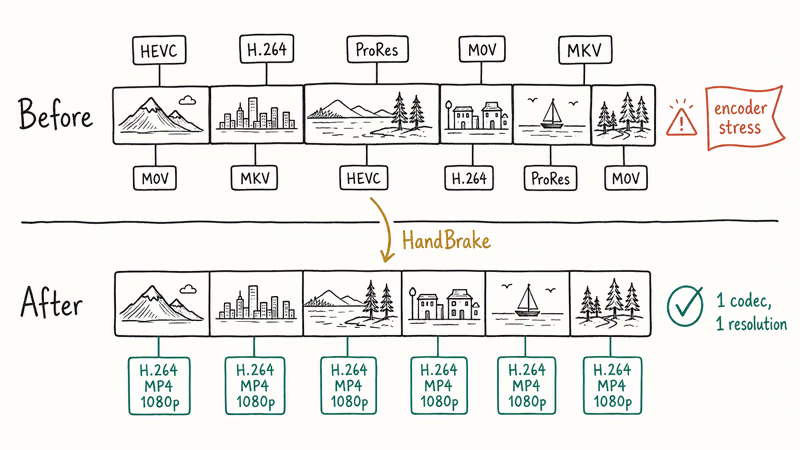
The cleanest fix is to convert everything to H.264 MP4 at 1080p before you import. Apple’s HEVC clips from iPhone 12 and later cause the most trouble, especially on Intel Macs without hardware HEVC decoding. The Mac App Store iMovie listing states that iMovie supports HEVC export only on Macs with the T2 chip or Apple Silicon, which is why the same project can render fine on a newer Mac and crash on an older pre-T2 Intel model.
HandBrake is the standard free tool for this job. Use the Fast 1080p30 preset. For batch jobs across folders, Wondershare UniConverter handles 30 or 40 clips in one queue with GPU acceleration on Apple Silicon.
After converting, don’t drag the new files into the existing timeline. Start a fresh project and import the converted clips. iMovie sometimes caches metadata from the original problem clips even after you delete them.
#Fix 2: Drop Export Resolution to 1080p
If your project source is 4K but you only need a 1080p deliverable, exporting at 4K is the slowest, most failure-prone path. Each 4K frame is four times the pixel data of 1080p, which means four times the memory pressure during the final encode. A 4K project that fails with error 10008 will often succeed at 1080p with no other changes.
Open File > Share > File and look at the Resolution dropdown. Pick 1080p instead of 4K. Quality can stay at High. The export runs faster.
This fix is most effective on older Macs with limited RAM, where a 4K export can fail repeatedly while the same project, same clips, exports cleanly at 1080p. Only the resolution changes, and the encode also runs faster.
#Fix 3: Free Up Disk Space the Right Way
iMovie writes large temporary files during render. A good rule of thumb is 3x the final project size in free space, with 20 GB minimum for any project longer than five minutes. A 4K project that exports as a 5 GB file may need 15 GB or more in temporary scratch space.
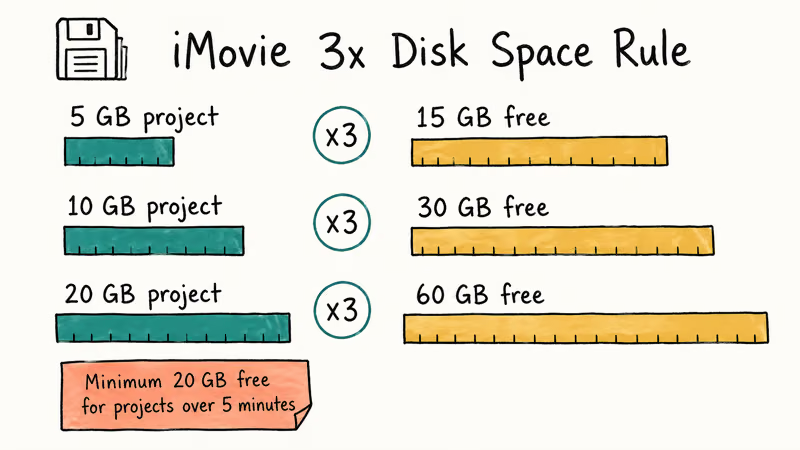
Apple’s storage management guide recommends opening Apple menu > About This Mac > More Info > Storage Settings, then using Optimize Storage to remove watched Apple TV downloads and review the iMovie Library size in Documents.
Three quick wins to recover space:
- Empty the Trash, including the iMovie Library trash inside the app
- Delete render files from old projects:
File>Delete Render Filesinside iMovie - Move large source clips to an external SSD and re-link them in iMovie
Avoid using a USB 2.0 spinning hard drive for active projects. iMovie can render from external storage, but a USB 3.0 SSD is dramatically faster than a USB 2.0 platter drive on the same project.
#Fix 4: Replace Custom Titles and Effects
Custom fonts and certain title animations can break the render pass. The Cinematic and Reveal title styles in iMovie 10.4 have been flagged in multiple Apple Support Community threads as triggers for error 10008 when combined with mixed-codec timelines.
Test by duplicating the project (File > Duplicate Project) and removing all titles from the duplicate. If that exports cleanly, add the titles back one at a time until the error returns. The Standard, Lower Third, and Centered title styles are the safest bets if you need to keep titles in the final cut.
For complex title animations that iMovie can’t handle, our iMovie problems and solutions guide covers workarounds. The iMovie vs Final Cut Pro comparison breaks down which projects need the upgrade.
#Fix 5: Re-Link Missing Source Files
iMovie stores references, not embedded clips.
If a clip lived on an external drive that got disconnected, or if you moved files in Finder after importing them, iMovie loses the reference. Error 10008 can fire mid-render even when the timeline still shows thumbnails.
Open the project, then look for clips with a yellow exclamation triangle in the corner. Right-click the clip and choose Reveal in Finder. If Finder can’t find it, the source is missing. Either restore the file from backup or delete the clip from the timeline before exporting.
External drives that sleep mid-render cause this more often than user error. Disable Prevent Automatic Sleeping in System Settings > Displays > Advanced, or export from your internal SSD instead.
#Fix 6: Update macOS and iMovie Together
iMovie ships through the Mac App Store. Apple confirms that iMovie compatibility tracks the current and previous two macOS versions. Running iMovie 10.4 on macOS Monterey, for example, works but lacks bug fixes that landed in newer iMovie builds tied to macOS Ventura and Sonoma.
Open the Mac App Store and check the Updates tab. If iMovie shows an update, install it. Restart the Mac. Render bugs often clear after the post-update launch because iMovie rebuilds its preference files.
For macOS itself, go to Apple menu > System Settings > General > Software Update. Skipping a major macOS jump for years and then trying to render in iMovie is a common path to error 10008. Bringing a years-behind Mac up to a current macOS release can clear the error on its own, with no other changes.
#Fix 7: Use a Clean Project as a Last Resort
The project file itself may be corrupted.
iMovie’s library is a bundle of XML metadata and thumbnail caches. A bad write during a power loss or a forced quit can leave invisible damage that breaks rendering even after every clip checks out.
Create a new project with File > New Movie. Import the original clips fresh. Rebuild the timeline using the old project as a visual reference open on a second window. On a 30-minute project this can take two hours, and it works almost every time on stubborn cases that survived all six fixes above.
If you’re recreating a project anyway, it’s a good moment to pick up iMovie features that improve the result. A few short guides worth bookmarking before you rebuild the timeline:
- Add motion variety with our iMovie time-lapse videos walkthrough.
- Clean up audio using the steps in removing background noise in iMovie.
- Convert AVCHD footage first via how to convert MTS to MP4.
- Salvage legacy clips with our fix FLV files guide.
#Bottom Line
Start with the binary-search method to find the bad clip. That single step solves error 10008 for most people in under five minutes. If the export still fails after the bad clip is gone, drop the resolution to 1080p before you change anything else, because resolution alone fixes the second-largest group of cases. Convert all clips to H.264 MP4 only if the first two steps both fail, because conversion is the slowest path and changes your source quality.
If you reach Fix 7 and still hit the error, the issue is almost certainly the project file itself, not your clips. Build a fresh project. Import the originals, and try again. That last-resort path clears even the most stubborn cases that survive every other fix.
#Frequently Asked Questions
What does iMovie error 10008 actually mean?
It’s iMovie’s generic encoding failure code. The QuickTime engine couldn’t read or write a frame during the final render pass, and Apple has never published an official root-cause list for the number. Across the many Apple Support Community threads on the error, the cause is almost always one of four things: a single corrupted clip, a codec mismatch between H.264 and HEVC sources, a missing source file on a drive that disconnected, or low free disk space during render.
Will lowering the export resolution hurt video quality?
Yes, but only at the level you choose. A 1080p export from 4K source still looks excellent on phones, laptops, and standard TVs. The downscale uses better algorithms than upscaling, so the result is sharper than native 1080p source on the same screen.
How much disk space does iMovie need to render?
Plan for 3x the source project size as a working minimum, with 20 GB free as a hard floor for any project longer than five minutes. A 4K project that exports as 5 GB may consume 15 GB of temporary scratch space during render.
Can I render iMovie projects on an external drive?
Yes, on a fast drive. Use a USB 3.0 SSD or Thunderbolt SSD.
Why do iPhone HEVC clips cause more rendering errors?
HEVC needs hardware decoding to perform well, and Intel Macs without a T2 chip lack that hardware support. Re-encoding HEVC to H.264 in HandBrake before import removes the bottleneck and fixes the error in most cases on older Macs. Apple’s HEVC support page confirms which Macs include hardware HEVC decode acceleration, and that list excludes most pre-2017 Intel models. The fix is to transcode once, then import.
Should I update macOS to fix iMovie rendering errors?
Update if you’re more than two macOS versions behind. Apple ties iMovie bug fixes to current macOS releases, so a four-year-old macOS leaves you on outdated render code. Bringing a years-behind Mac up to a current macOS release can resolve error 10008 on its own with no other changes. Back up your iMovie library first using Time Machine; macOS upgrades occasionally rewrite library metadata in a forward-only way.
Can a video repair tool save a clip that crashes iMovie?
Yes, in most cases. Wondershare Repairit, Stellar Repair, and several free tools rebuild the file structure of damaged MP4 and MOV clips. The repaired file may have a few dropped frames, but it usually imports into iMovie and renders without error.

Best Laptop for Running LLMs in 2026: Memory Comes First
The best laptop for running LLMs is a memory purchase first. Compare MacBook unified memory against NVIDIA laptop VRAM, and see what each tier really runs.

How to Run a Local LLM on Windows: A 2026 Setup Guide
Run a local LLM on Windows with LM Studio or Ollama. Pick a model that fits your GPU memory, keep every prompt offline, and skip the monthly bill.

Bluetooth Not Working on Snapdragon X? Fixes for 2026
Bluetooth not working on your Snapdragon X Copilot+ PC? Generic audio, mice, and keyboards work, but vendor apps often lack an ARM build. Fixes inside.

Docker Desktop and WSL2 Not Working on Snapdragon X? Fix It
WSL2 runs fine on Snapdragon X, but Docker Desktop ARM is Early Access and throws WSL errors. Use WSL2 plus native ARM64 Ubuntu and Docker Engine.