iPhone Stolen Device Protection: Setup and Tips for 2026
iPhone Stolen Device Protection explained for 2026: how Security Delay works, Always vs familiar locations, setup steps, and what to do before travel.
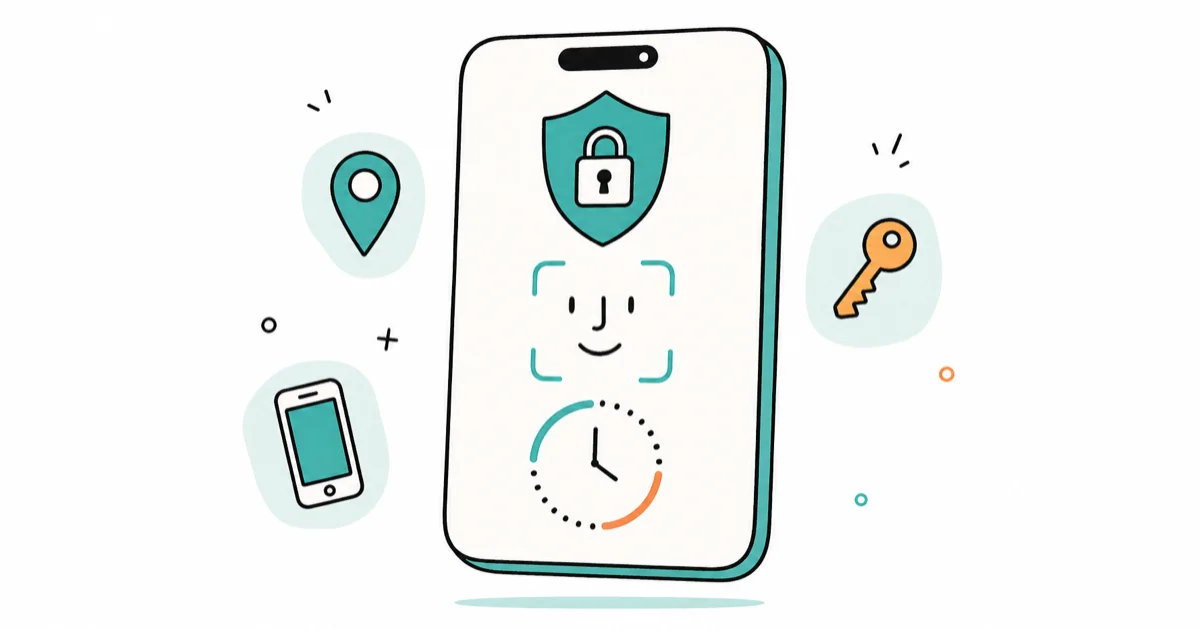
Quick AnswerStolen Device Protection adds biometric checks and a Security Delay to sensitive actions. Turn it on under Face ID & Passcode, then choose Always if you want those checks at familiar locations too.
Stolen Device Protection adds safeguards against a thief who knows your iPhone passcode. Away from familiar locations, specified actions require Face ID or Touch ID with no passcode fallback, and some account changes also trigger a Security Delay.
- Some protected actions require Face ID or Touch ID with no passcode fallback
- Critical account changes can require biometrics, a one-hour delay, then biometrics again
- Always applies the extra checks even at familiar locations such as home or work
- Setup requires iOS 17.3 or later, two-factor authentication, biometrics, location settings, and Find My
- Find My remains the tool for locating, locking, or erasing a missing iPhone
#What Is iPhone Stolen Device Protection?
Stolen Device Protection is a security layer Apple added in iOS 17.3 to defend against a specific crime: someone learns your passcode by watching, then steals the phone. Without the feature, that passcode can authorize some sensitive device and account changes.
When the feature is on and your iPhone is in an unfamiliar location, specified actions demand Face ID or Touch ID and refuse to accept the passcode as a backup. Apple’s current Stolen Device Protection page states that critical account changes can also require a one-hour Security Delay followed by another biometric check.
Requirements shown here apply away from familiar locations; Always extends the additional protections to familiar locations too.
| Action | Requirement away from familiar locations |
|---|---|
| View saved passwords | Face ID or Touch ID, no passcode fallback |
| Erase all content and settings | Face ID or Touch ID, no passcode fallback |
| Change the Apple Account password | Biometrics, one-hour delay, biometrics |
| Turn off Stolen Device Protection | Biometrics, one-hour delay, biometrics |
If you want a broader hardening pass beyond this one feature, the iPhone privacy settings checklist covers the rest of the settings worth tightening.
#Should You Set Security Delay to Always?
Choose based on where you want the added checks to apply. “Away from Familiar Locations” uses them outside places such as home or work; “Always” uses them regardless of location.
Always applies both biometrics and the Security Delay even at familiar locations.
#How to Turn It On Before Travel
Turn it on before a trip rather than waiting until the iPhone is missing. Apple notes that the feature must already be enabled before a device is lost or stolen.
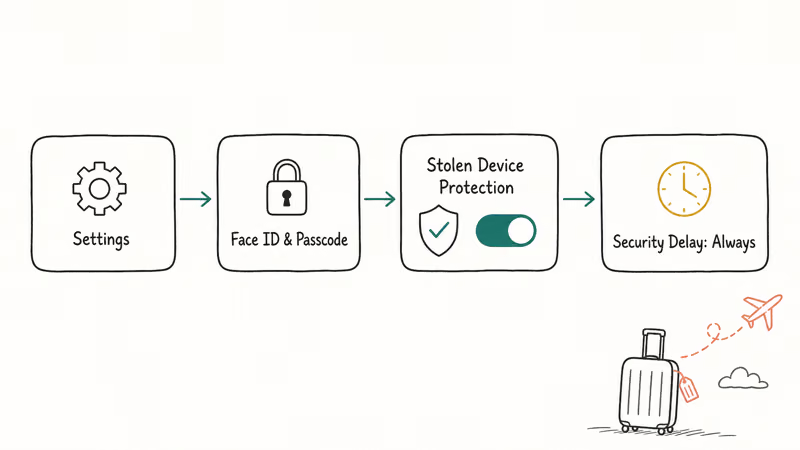
Open Settings, tap Face ID & Passcode, enter your passcode, then scroll to Stolen Device Protection and turn it on. Choose Always if you want the extra requirements at familiar locations too. If the option is missing, check every prerequisite below rather than assuming two-factor authentication is the only cause.
While you’re hardening sign-in, consider switching key accounts to passkeys. The guide on how to set up passkeys on iPhone walks through it, and passkeys remove the typed password a thief could otherwise capture.
#Confirm Every Prerequisite First
According to Apple’s setup requirements, Stolen Device Protection needs iOS 17.3 or later, two-factor authentication for the Apple Account, a device passcode, Face ID or Touch ID, Significant Locations within Location Services, and Find My. Find My can’t be turned off while Stolen Device Protection is enabled.
Check two-factor authentication under Settings > your name > Sign-In & Security. Check Significant Locations under Settings > Privacy & Security > Location Services > System Services > Significant Locations & Routes. Apple can vary labels by iOS version or region, so use Settings search if a label differs.
Reusing one authenticator app across phones? The guide on how to prevent SIM swapping covers a related attack two-factor alone won’t stop.
#What Changes Away From Familiar Locations
Apple states that familiar locations typically include home, work, and other places where you regularly use the iPhone. Away from those locations, the feature adds the action-specific checks below.
Away from familiar places, viewing stored passwords, using saved payment methods in Safari, applying for an Apple Card, and erasing the device require Face ID or Touch ID with no passcode fallback. Changing the Apple Account password, signing out, changing Recovery Key settings, changing the device passcode, and turning off Stolen Device Protection use the one-hour delay followed by a second biometric check.
That design means a thief with your passcode is stuck. They can’t quietly reset your account and lock you out, which is the exact attack the feature was built to stop. If you suspect your device was already compromised, the how to tell if your phone is hacked guide helps you check.
#Where It Can Get in Your Way
Mostly during legitimate account changes and after losing access to Face ID. The same friction that stops thieves can slow you down.
Crack your screen or lose biometric access, and protected actions can become harder to complete. A Recovery Key is optional and separate from Stolen Device Protection, although adding or removing one is a delayed action. If you use one, Apple’s recovery key documentation states that losing the key without access to a trusted device can lock you out of the Apple Account permanently.
For privacy and legal reasons, only enable these protections on a device you own, and never use account locks on someone else’s phone without consent. Worried about being tracked? The how to find an AirTag tracking you guide helps.
#Bottom Line
Turn on Stolen Device Protection before travel and choose Always if you want the extra checks at home and work too. Confirm every prerequisite, especially Find My, biometrics, Significant Locations, and two-factor authentication. A Recovery Key isn’t required; store it safely only if you’ve separately enabled one.
#Frequently Asked Questions
What iOS version do I need for Stolen Device Protection?
You need iOS 17.3 or later. You also need two-factor authentication, a device passcode, Face ID or Touch ID, Significant Locations within Location Services, and Find My. Check all of them if the option doesn’t appear.
Does Stolen Device Protection slow down everyday use?
Normal unlocking, app use, and messaging work as usual. The extra checks apply only to Apple’s listed sensitive actions, and their location behavior depends on whether you selected Always or Away from Familiar Locations.
What is the difference between Always and Away from Familiar Locations?
Always applies the Security Delay everywhere, while Away from Familiar Locations applies it outside familiar places. Always provides broader coverage with more inconvenience; choose based on your threat model and tolerance for delays at home or work.
Can I turn off Stolen Device Protection if I’m locked out?
You can turn it off under Settings > Face ID & Passcode, but the feature can require the Security Delay first. Apple states that the iPhone may end the delay early after detecting arrival at a familiar location. With Always, returning home doesn’t bypass the delay because the extra requirements apply regardless of location.
Does this protect me if my iPhone is lost or destroyed?
If a lost or stolen iPhone is found by someone who knows its passcode, Stolen Device Protection still guards Apple’s listed sensitive actions. Use Apple’s Find My to locate, mark lost, or erase a missing device. The feature can’t recover a physically destroyed phone or data that wasn’t backed up.
What should I avoid doing after enabling it?
Don’t turn off the settings the feature depends on, and remember that Find My can’t be disabled while Stolen Device Protection is on. If you separately use a Recovery Key, keep it outside the device. Only change these protections on an iPhone you own or are authorized to manage.

Is This Bank App Real? Spot a Fake App on Your Home Screen
A bank app can land on your home screen from a web page with no install warning. Learn the checks that tell a real banking app from a phishing web app.
Passkeys Not Syncing Between iPhone and Windows? Read This
Passkeys not syncing between iPhone and Windows is by design, not a bug. Here is why iCloud passkeys skip Windows Hello and the three ways to fix it.
VPN Not Working on Snapdragon X? Why It Fails, How to Fix
Your VPN won't install or connect on a Snapdragon X Copilot Plus PC because Windows on ARM can't emulate the network driver. Here are the fixes that work.
How to Check If a Link Is Safe Before You Click It
Learn how to check if a link is safe with official-first steps: read the real domain, use the app instead, and treat scanners as a second opinion only.