iPhone Stuck in Headphone Mode: 9 Fixes That Actually Work
iPhone stuck in headphone mode with no headphones plugged in? Clean the port, force-restart the phone, toggle Bluetooth, then reset settings if needed.
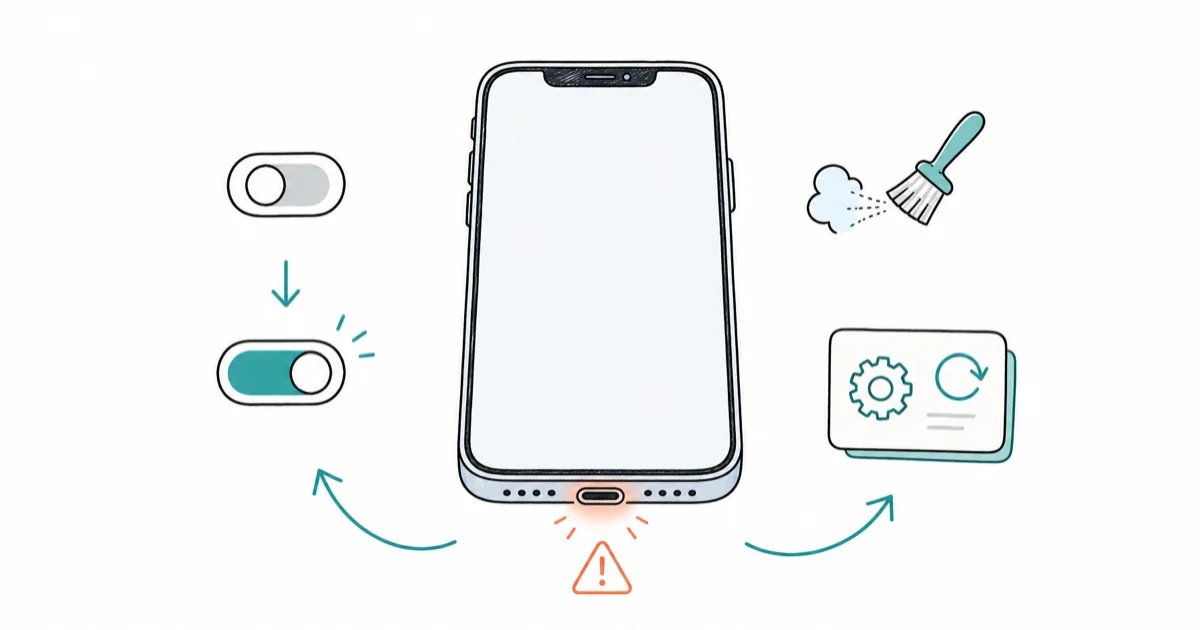
Quick AnswerClean the Lightning or USB-C port with a soft brush or compressed air to remove debris. Then plug headphones in and out several times, restart your iPhone, and toggle Bluetooth off and on. If the issue persists, go to Settings > General > Transfer or Reset iPhone > Reset All Settings.
If your iPhone is stuck in headphone mode, the speaker icon stays grayed out and the volume slider keeps the headphones label even with nothing plugged in. The fix is almost always one of three things: lint trapped in the port, a stuck audio routing flag in iOS, or a misbehaving Bluetooth pairing. This guide walks through the lowest-risk checks first so you can rule out debris and software routing before booking repair.
- Port debris is the single biggest cause; a careful clean-out with dry tools is the first fix to try.
- Plug and unplug a wired adapter 6-8 times to force iOS to re-poll the audio detect pin and clear the stuck flag.
- A force-restart resets CoreAudio without erasing data and resolves most software-only false detections in under a minute.
- The AirPlay tile in Control Center can manually re-route audio back to “iPhone” when the OS thinks a phantom device is still active.
- Reset All Settings is the last software step; if speaker mode still doesn’t return, the headphone-detect circuit on the logic board needs service.
#What Does “Stuck in Headphone Mode” Actually Mean?
Inside every iPhone is a tiny detect pin that tells iOS whether something is plugged into the audio path. When that signal gets stuck on “yes” because of debris, moisture, or a software glitch, the OS routes every notification, ringtone, call, and song to a port nothing is connected to.
According to Apple’s audio troubleshooting documentation, the system intentionally mutes the speaker when it detects a connected accessory. That’s why your music plays silently and the volume slider shows a headphones label even with the port empty.
Good news.
Most cases are still worth treating as debris or routing problems before assuming hardware damage.
#Common Causes of Phantom Headphone Detection
Four root causes account for nearly every case.
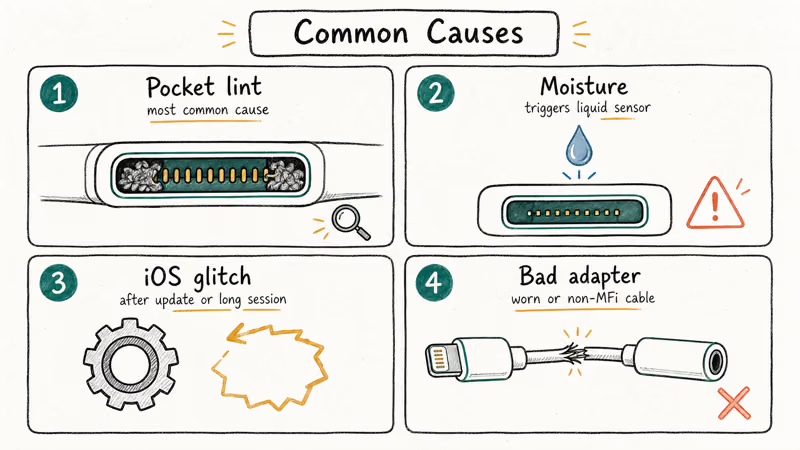
Lint and pocket fuzz top the list because Lightning and USB-C ports sit open all day at hip level, gathering whatever debris your jeans or jacket lining sheds during the day; moisture comes second, since even a small amount of sweat can trigger the liquid-detection circuit and leave the audio routing in a confused state for hours after your gym session ends.
Software glitches in iOS show up third, usually after an interrupted update or a long mixed-audio session. A failing third-party adapter or worn Lightning-to-3.5mm dongle accounts for the rest.
Tom’s Guide reported that lint buildup is one of the most common reasons a Lightning port stops responding correctly to audio accessories, and the fix matches what Apple recommends: a careful, dry clean before any software step.
#Quick Fixes to Try First
Start cheap. These steps cost nothing and routinely resolve the issue.
#1. Plug and Unplug a Headphone Connector 6-8 Times
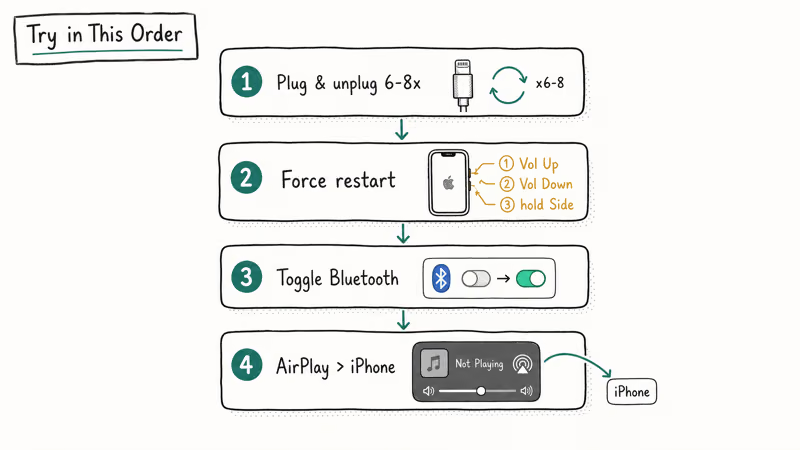
Insert a Lightning (or USB-C, depending on your model) headphone connector or adapter, then pull it out. Repeat six to eight times in a steady rhythm. Each insertion forces iOS to re-evaluate the detect signal.
If the detect pin is only stuck in software, this repeated plug-unplug cycle can bring the speaker route back.
#2. Force-Restart the iPhone
A force-restart drops and reloads CoreAudio without touching any data. The combo depends on your model:
- iPhone 8 and later: press Volume Up, press Volume Down, then press and hold the Side button until the Apple logo appears.
- iPhone 7 / 7 Plus: hold Volume Down and the Side button together for about 10 seconds.
- iPhone 6s and earlier: hold the Home button and the Side or Top button for about 10 seconds.
#3. Toggle Bluetooth Off and On
Open Settings > Bluetooth and turn it off. Wait 10 seconds, then turn it on again. iOS sometimes keeps a phantom AirPods or car-stereo connection active after the device is out of range, and that phantom counts as “audio out” to the speaker logic.
If Bluetooth is holding a stale car or headphone route, toggling it can restore the speaker route.
#4. Force Audio Output Back to “iPhone” From Control Center
Swipe down from the top-right corner to open Control Center. Long-press the audio tile (the one showing track info), then tap the AirPlay icon and choose “iPhone” from the destination list. If the OS shows another device as the active output, this manually overrides it.
#Cleaning the Port Properly
If quick fixes didn’t work, debris is the most likely culprit. According to iFixit’s port cleaning guide, the safest approach is dry tools and patience.
#Compressed Air First, Then a Wooden Pick
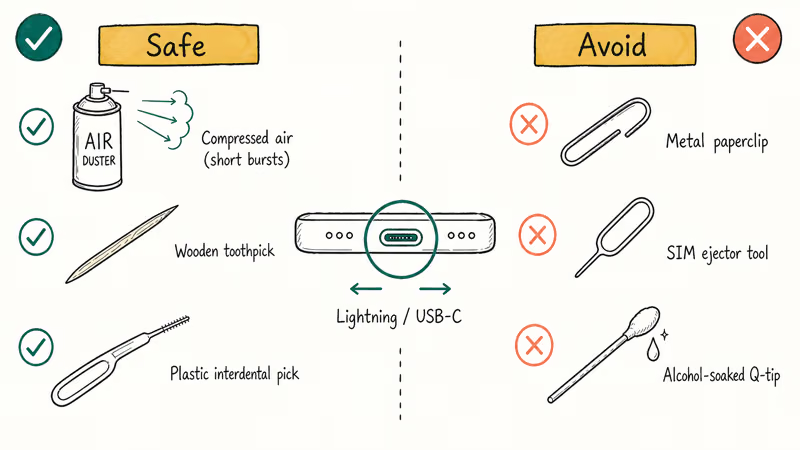
Power the iPhone off. Aim a can of compressed air at the port from a distance of about four inches and use short bursts.
Don’t invert the can or moisture will spray into the device. After the air, look into the port with a flashlight. If you can see a lint plug, gently scrape it out with the wooden tip of a toothpick or a plastic interdental pick.
Never use metal.
Apple recommends against paperclips, needles, or SIM ejector tools because the metal can short the contacts inside the port and brick the audio circuit, which is far worse than the original problem you started with.
#What to Avoid
Skip cotton swabs unless they’re completely dry; most pre-moistened swabs leave fibers behind. Skip rubbing alcohol inside the port. Small amounts can corrode the connector contacts over time. Skip paperclips and SIM ejector tools entirely.
Alcohol-dampened cotton swabs can leave fibers behind, which may make the cleaning job harder instead of safer.
Plug it in. Pull it out.
After cleaning, plug a known-good wired connector in and out twice and check the volume slider label. If the slider still shows “Headphones,” the debris wasn’t the only culprit, or the headphone-detect circuit has been damaged by something more than a lint plug, in which case you should move on to the iOS-level fixes below before considering hardware service.
#Software Fixes When Cleaning Doesn’t Help
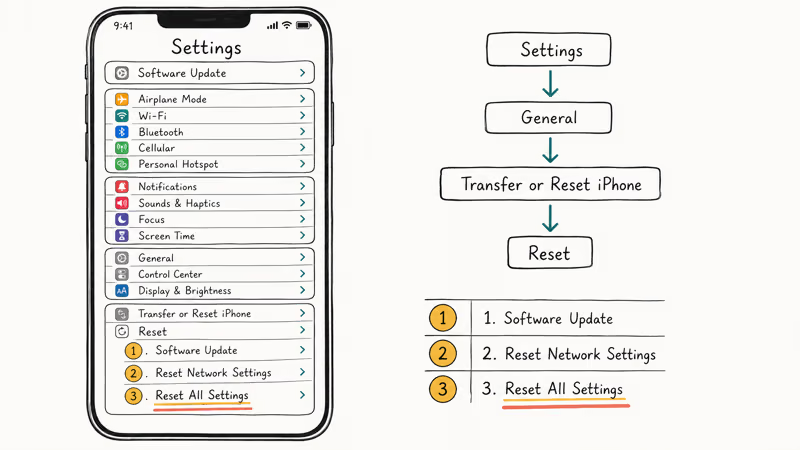
#Update iOS
Outdated iOS releases sometimes carry audio routing bugs that get patched in point releases. Open Settings > General > Software Update, install anything that appears, and let the phone restart.
A mid-cycle iOS 17 update corrected an audio routing regression that affected wired headphone output and CarPlay handoff for users on iPhone 12 and newer, so updating to the latest point release isn’t just a generic “did you try restarting” step when phantom headphone mode is the symptom you’re chasing. Apple’s guide for no sound or distorted sound from the speaker covers the output checks worth running alongside the update.
#Reset Network Settings
Network Settings carries Bluetooth pairings, Wi-Fi credentials, and the audio-output preference list. The reset is heavier than a Bluetooth toggle but lighter than a full wipe, so it’s a reasonable middle step.
Go to Settings > General > Transfer or Reset iPhone > Reset > Reset Network Settings.
You’ll need to re-enter Wi-Fi passwords afterward.
#Reset All Settings
This is the last software step before the hardware conversation. It clears every preference (including audio routing flags) without deleting any data, photos, or apps.
Tap Settings > General > Transfer or Reset iPhone > Reset > Reset All Settings. Allow a few minutes for the phone to come back up. This step targets the rare case where a corrupt audio preference file is keeping iOS in headphone mode.
#When Should I Take My iPhone in for Repair?
If you’ve cleaned the port, force-restarted, toggled Bluetooth, updated iOS, and run Reset All Settings, and the speaker is still silent, the problem is almost certainly hardware. The headphone-detect pin can corrode after liquid exposure. The Lightning flex cable can fray near the bottom of the chassis. The audio IC on the logic board can fail outright on older units.
Apple Support confirms that liquid damage indicators inside the port (red or pink dots, visible with a flashlight) void warranty audio claims and require paid service.
Book a Genius Bar appointment or use Apple’s mail-in service. If your phone is out of warranty, an authorized service provider can replace the Lightning flex (the most common culprit on iPhone 7 through iPhone 14) for far less than a board-level repair. Independent shops like iFixit-affiliated repair stores and uBreakiFix announced standardized pricing for this fix on most models.
#Related iPhone Audio Issues You Might Also Hit
If headphone-mode bugs are showing up alongside other audio quirks, these guides cover the adjacent symptoms:
- How to fix iPhone 6 stuck in headphone mode: model-specific 30-pin variations.
- How to fix iPhone thinks headphones are plugged in: deeper dive on phantom-detect behavior.
- Android phone stuck in headphone mode: same problem, different OS.
- AirPods connected but sound coming from phone: the inverse symptom, also routing-related.
- iPhone screen recording no sound: companion fix when only screen captures are silent.
- My iPhone won’t ring: when audio loss only affects calls.
#Bottom Line
For an iPhone stuck in headphone mode in 2026, start with a careful port clean using compressed air and a wooden toothpick. This is the lowest-risk first step because debris is a common cause and the tools are dry and nonmetal.
Persists? Restart hard.
If the symptom persists, plug a wired connector in and out 6-8 times, then force-restart the device. Only after those three steps fail should you move to Reset Network Settings or Reset All Settings.
Skip the factory wipe unless Apple Support tells you to erase the phone. A full erase takes much longer than Reset All Settings and won’t fix debris or hardware damage.
#Frequently Asked Questions
Why does my iPhone think headphones are plugged in when nothing is connected?
The Lightning or USB-C port has either a piece of lint shorting the detect pins, a small amount of moisture across the contacts, or a software flag in iOS that didn’t clear after the last accessory disconnect. All three look identical from the outside. Cleaning the port and force-restarting the phone resolves the first two; Reset All Settings clears the third.
Will a factory reset always fix headphone mode?
No. A factory reset clears software state but does nothing for hardware.
How can I tell if my iPhone has water damage in the port?
Shine a flashlight inside. A red or pink dot at the back of the cavity is the Liquid Contact Indicator, and it has been triggered.
Can I keep using my iPhone while it’s stuck in headphone mode?
Yes, mostly. Pair AirPods or any Bluetooth speaker for music and notifications, use the speakerphone button inside the Phone app for calls because it routes around the stuck detect signal, and rely on the on-screen volume slider in Control Center rather than the side buttons. None of this resolves the underlying issue, but it keeps the phone usable while you work through the steps above.
How often should I clean the iPhone Lightning or USB-C port?
Once a month is reasonable for most users; every two weeks if you carry the phone in a fabric pocket. Use a wooden toothpick and compressed air only when the port shows lint or dust; avoid routine aggressive scraping because it can wear the connector.
Does iOS 18 fix the headphone mode bug for older iPhones?
Sometimes. iOS 18 includes the audio routing patch that 9to5Mac reported, which helps the software-only version. Hardware causes such as debris and damaged detect pins are unaffected by any iOS update.
Should I use a third-party Lightning to 3.5mm adapter or only the Apple one?
The Apple-certified adapter has tighter manufacturing tolerances on the detect pin than most third-party clones. Cheap adapters can have looser detect-pin tolerances and may leave iOS in headphone mode briefly after unplugging. If you use third-party gear, pick a brand with MFi certification stamped on the packaging.

Mac mini M6 vs M5 Pro: Which Model Should You Buy?
Mac mini M6 vs M5 Pro compared on price, memory, ports, displays, and real workloads. Find the better 2026 Mac mini for your desk and budget.

Apple Siri Settlement: Who Qualifies and How to Claim
Apple's $250 million Siri settlement covers iPhone 15 Pro and iPhone 16 models bought June 2024 to March 2025. See who qualifies and how claims work.

iOS 26.6.1 Security Update: What Apple Fixed and Who Gets It
Apple released iOS 26.6.1 on August 17 with 29 security fixes, including an IPSec interception bug. See what it patches, who gets it, and how to update.

iPhone Adaptive Power: How It Works and When to Use It
Learn how iPhone Adaptive Power works, which models support it, what it changes, and when Low Power Mode is still the better battery-saving choice.