Fix iTunes Back Up Now Greyed Out: 7 Proven Methods
iTunes Back Up Now button greyed out? Fix it with USB cable swaps, software updates, backup cleanup, and firewall checks for Windows and Mac.
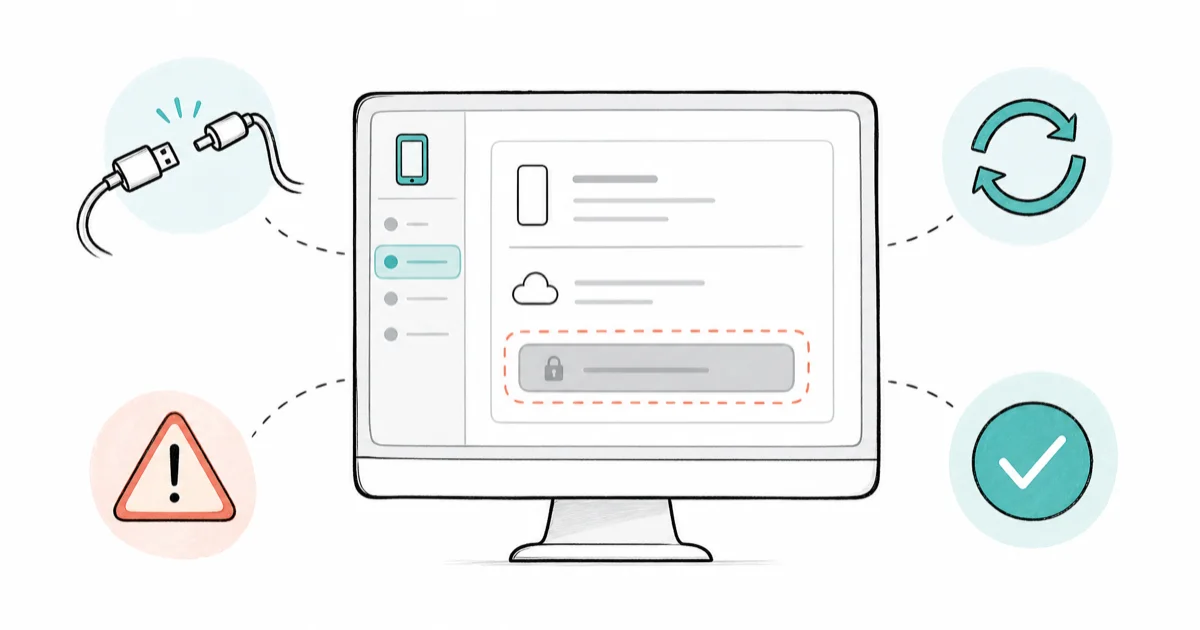
Quick AnswerDisconnect your iPhone, restart both devices, then reconnect with a different USB cable. If the Back Up Now button stays greyed out, update iTunes and iOS to the latest versions, then delete any old corrupt backups from iTunes preferences.
iTunes Back Up Now greyed out? It almost always comes down to a bad USB cable or a software version mismatch between iTunes and iOS.
- Swapping from a third-party USB cable to an Apple-certified one is the single most effective fix and often re-enables the button instantly
- Updating iTunes and iOS together fixes the greyed-out button when version mismatches block the handshake
- Deleting corrupted backups from
Edit>Preferences>Devicesclears the lock that disables the button - Switching to a different user account on your computer bypasses profile-specific permission blocks
- iCloud Backup from Settings > [Your Name] > iCloud works as a reliable fallback when iTunes stays broken
#Why Is the Back Up Now Button Greyed Out?
iTunes disables the “Back Up Now” button when it detects a problem with the device connection, the software configuration, or the local backup store. It goes grey because iTunes runs a pre-flight check before enabling it, and that check fails silently.
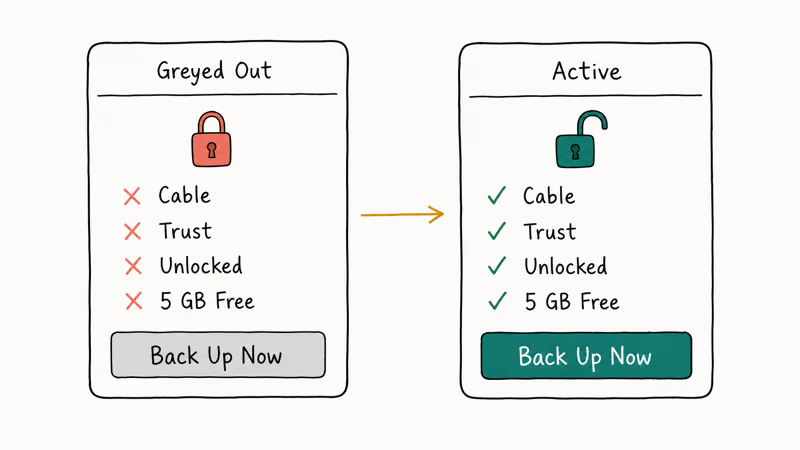
According to Apple’s Windows backup instructions, connect the device by cable, respond to the passcode or Trust This Computer prompt if asked, select the device in iTunes, and then click Back Up Now. If the phone doesn’t appear in iTunes, fix the connection before trying the backup again.
Cable issue. The button commonly stays grey until you swap a fraying Lightning cable for a fresh, undamaged one that can negotiate a data connection.
#How Do You Fix a USB Connection That Blocks the Backup?
USB issues cause the greyed-out button more often than software bugs. Here’s the troubleshooting sequence that works most reliably:
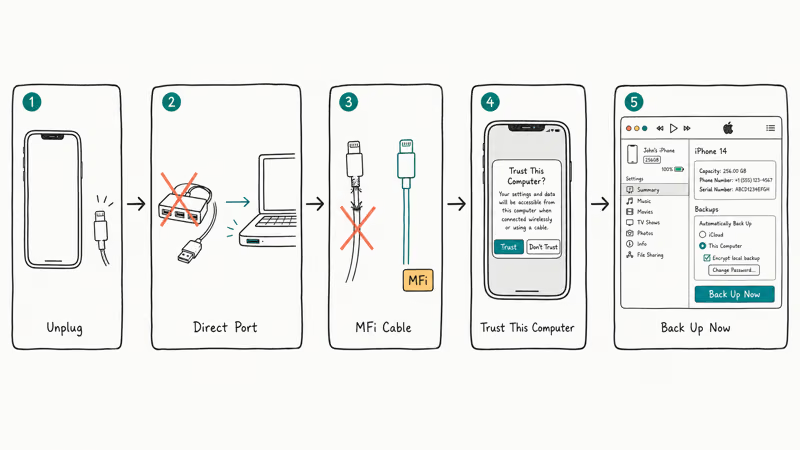
- Unplug your iPhone from the computer
- Try a different USB port (use a port directly on the computer, not a hub)
- Swap to an Apple-certified MFi cable or the cable that came with your iPhone
- Plug in and wait for the “Trust This Computer” prompt on your iPhone
- Tap “Trust” and enter your passcode
- Open iTunes and check if “Back Up Now” is now clickable
According to Apple’s device recognition steps, try another cable and USB port.
The replacement cable must support both data and charging.
On a Mac, switching from a USB hub to a direct port on the machine often fixes the trust prompt and re-enables the backup button immediately. The whole process takes about 30 seconds.
#Update iTunes and iOS to the Latest Versions
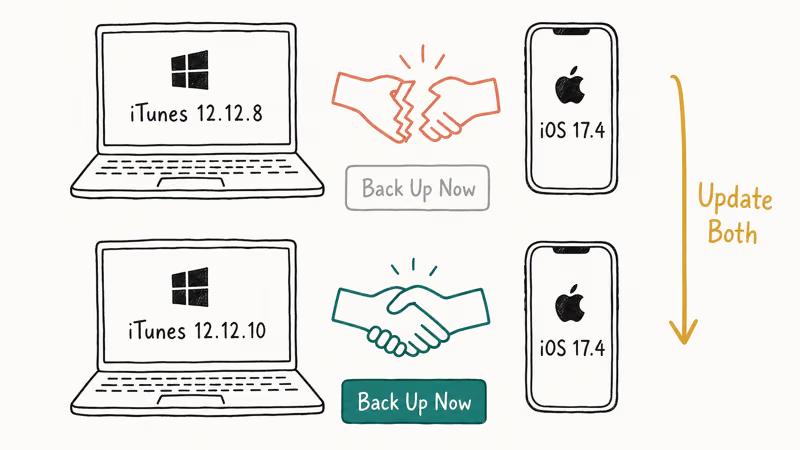
Version mismatches between iTunes and iOS quietly break the backup handshake. iTunes 12.12.9 and earlier can’t handle iOS 17.4+ backup encryption headers properly.
Update iTunes on Windows:
- Open iTunes
- Go to
Help>Check for Updates - Install any available update and restart iTunes
Update iTunes on Mac (macOS Mojave and earlier):
- Open the App Store
- Click Updates and install any iTunes update
On macOS Catalina and later, Apple replaced iTunes with Finder for device management. If you’re on macOS Catalina or newer, open Finder, click your iPhone in the sidebar, and check for the backup option there.
Update iOS:
- Go to
Settings>General>Software Update - Download and install the latest version
After updating both, reconnect your iPhone and give iTunes a moment to re-read the device. When an older iTunes build is paired with a newer iOS version, the backup button is often greyed out because the two sides can’t agree on the backup encryption header format. Bringing both up to their latest versions almost always restores the button shortly after reconnecting. If it stays grey, fully quit iTunes and reopen it before testing again.
#Remove an Old Local Backup
Removing a backup you no longer need is a cleanup step, not proof that an old backup was corrupt.
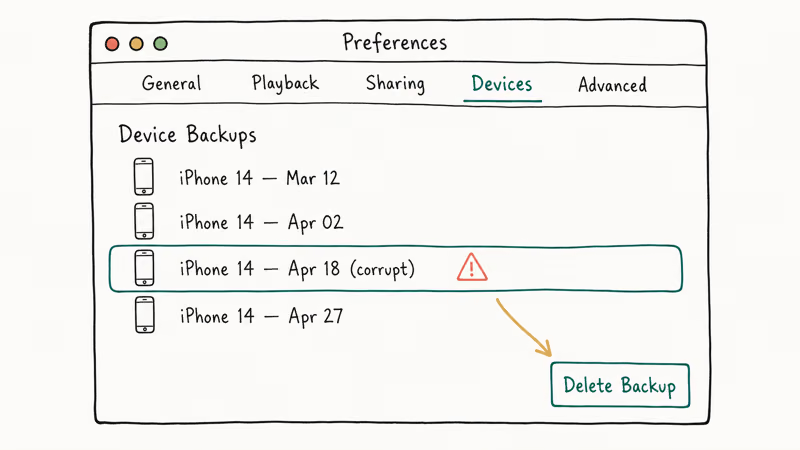
- Open iTunes
- Go to
Edit>Preferences>Devices(Windows) or iTunes>Preferences>Devices(Mac) - You’ll see a list of all local backups with timestamps
- Select any backup you don’t need and click “Delete Backup”
- Close Preferences and try “Back Up Now” again
Apple’s backup management guide confirms that Finder and the Apple Devices app let you select an existing backup and choose Delete. In iTunes, use the Devices list above and remove only a backup you no longer need.
If you’ve also been getting iPhone backup failed errors, don’t treat an old backup as proof of corruption. Retry once after the cleanup, then continue with the connection and service checks if the button stays grey.
#Check Firewall and Antivirus Settings
Third-party security software can stop Apple Mobile Device Service unexpectedly. When that happens, iTunes may fail to recognize the phone.
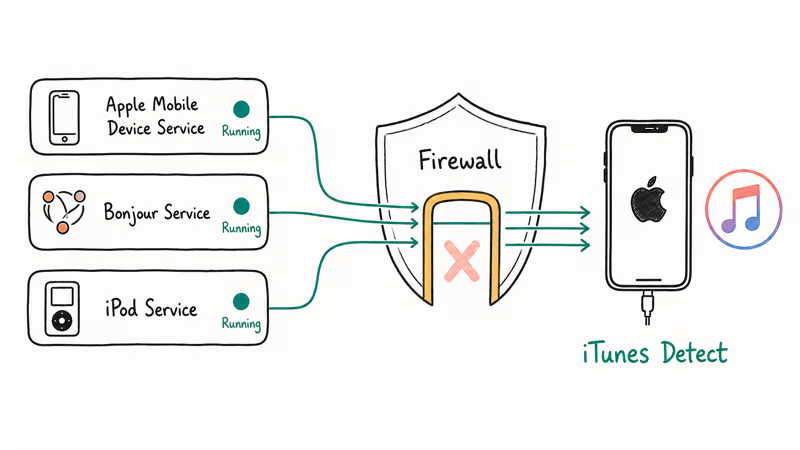
On Windows:
Open Windows Security>Firewall & Network Protection- Click “Allow an app through firewall”
- Make sure iTunes is checked for Private and Public networks
Third-party antivirus (Norton, McAfee, Bitdefender):
Temporarily disable real-time protection, then reconnect your iPhone and open iTunes. If the phone appears, re-enable protection and use your antivirus vendor’s instructions to set the correct exception.
According to Apple’s AMDS guide, an unrecognized iPhone may require an AMDS restart.
- Press Windows + R, type
services.msc, and press Enter - Find “Apple Mobile Device Service” in the list
- Right-click and select Restart
- Reopen iTunes and reconnect your iPhone
#Switch User Accounts or Reinstall iTunes
Some user profiles on Windows develop permission issues that specifically block iTunes backups. The button works on one Windows account but not another.
Try a different user account:
- Create a new administrator account in
Settings>Accounts>Other Users - Log into the new account, install or open iTunes, and connect your iPhone
- If the backup button works, the issue is profile-specific
Reinstall iTunes (Windows only):
- Uninstall iTunes, Apple Software Update, Apple Mobile Device Support, Bonjour, and Apple Application Support in that order
- Restart your computer
- Download the latest iTunes from Apple’s website
- Install and reconnect your device
Your existing iTunes library stays intact through the reinstall. The uninstall only removes the program files, not your music or backup data. If you’ve been dealing with sync session failed to start alongside the greyed button, a clean reinstall often fixes both problems at once.
#Back Up Without iTunes
If iTunes continues to give you trouble, you’ve got two solid alternatives that don’t require the “Back Up Now” button at all.
iCloud Backup:
- On your iPhone, go to Settings > [Your Name] > iCloud > iCloud Backup
- Toggle on iCloud Backup
- Tap “Back Up Now”
iCloud backs up app data, device settings, photos, messages, and ringtones. Apple gives you 5 GB free, which isn’t enough for most people. Paid iCloud+ plans start at 50 GB and are available through Settings > [Your Name] > iCloud > Manage Storage.
Finder (macOS Catalina and later):
- Connect your iPhone to your Mac
- Open Finder and click your iPhone in the sidebar
- Click “Back Up Now” under the General tab
Finder uses the exact same backup engine as iTunes. If the iTunes button was greyed out because of the app itself and not a USB or software issue, Finder often works fine.
Related guides you may find useful:
- iPhone stuck on the iTunes logo
- What restoring your iPhone means
- Restoring your iPhone without updating
#Bottom Line
Swap your USB cable and port first. That single step fixes the greyed-out backup button on most machines. If the cable isn’t it, update iTunes and iOS, then delete old backups. Windows users: check that Apple Mobile Device Service isn’t blocked by antivirus.
#Frequently Asked Questions
Why does iTunes say my iPhone is syncing when it isn’t?
iTunes sometimes gets stuck in a phantom sync state, which greys out both the Sync and Back Up buttons. Force-quit iTunes using Task Manager (Windows) or Activity Monitor (Mac), disconnect your iPhone, wait 10 seconds, then reopen iTunes and reconnect. This clears the stale sync lock.
Can I back up my iPhone to an external hard drive through iTunes?
Not directly through the app. Use a symbolic link (mklink on Windows, ln -s on Mac) to redirect the backup folder to your external drive.
Does the greyed-out button mean my iPhone data is corrupted?
No. The greyed-out button reflects a connection or software problem on the computer side. Your photos, messages, and apps are safe on the device.
Will factory resetting my iPhone fix the backup button?
A factory reset won’t help because the problem sits with iTunes on your computer, not with your iPhone. Resetting your phone would erase all your data without solving the grey button. Focus on the computer-side fixes first, like updating iTunes, swapping cables, and checking firewall settings.
How long should an iTunes backup take?
A first-time full backup of a 128 GB iPhone with about 80 GB of data takes a fair while over USB 3.0. Incremental backups after that usually finish in 2 to 5 minutes since iTunes only backs up what changed. If yours hangs past 45 minutes, disconnect and retry with a different cable.
Is Finder backup the same as iTunes backup?
Yes. Apple moved the backup engine from iTunes to Finder in macOS Catalina (2019). Format, encryption, and restore are identical.
What happens if I delete all my iTunes backups?
Deleting backups from iTunes Preferences > Devices removes only the local copies on your computer. Nothing changes on your iPhone. Your photos, apps, messages, and settings stay on the device, and you can create a new backup immediately after clearing the old ones.
Can I use a wireless connection instead of USB for iTunes backup?
iTunes supports Wi-Fi sync and backup, but it requires a one-time USB setup first. Connect your iPhone via USB, open iTunes, click your device, then check “Sync with this iPhone over Wi-Fi” under Options. After that initial pairing, your iPhone shows up in iTunes whenever both devices share the same network. If iTunes Wi-Fi sync isn’t working, USB is your fallback.

Mac mini M6 vs M5 Pro: Which Model Should You Buy?
Mac mini M6 vs M5 Pro compared on price, memory, ports, displays, and real workloads. Find the better 2026 Mac mini for your desk and budget.

Apple Siri Settlement: Who Qualifies and How to Claim
Apple's $250 million Siri settlement covers iPhone 15 Pro and iPhone 16 models bought June 2024 to March 2025. See who qualifies and how claims work.

iOS 26.6.1 Security Update: What Apple Fixed and Who Gets It
Apple released iOS 26.6.1 on August 17 with 29 security fixes, including an IPSec interception bug. See what it patches, who gets it, and how to update.

iPhone Adaptive Power: How It Works and When to Use It
Learn how iPhone Adaptive Power works, which models support it, what it changes, and when Low Power Mode is still the better battery-saving choice.