MacBook Not Turning On? 8 Safe Fixes Before You Call Apple
MacBook not turning on? Run these 8 fixes in order, from power cycle to SMC reset. Knowing when to stop and call Apple saves you hundreds in repairs.
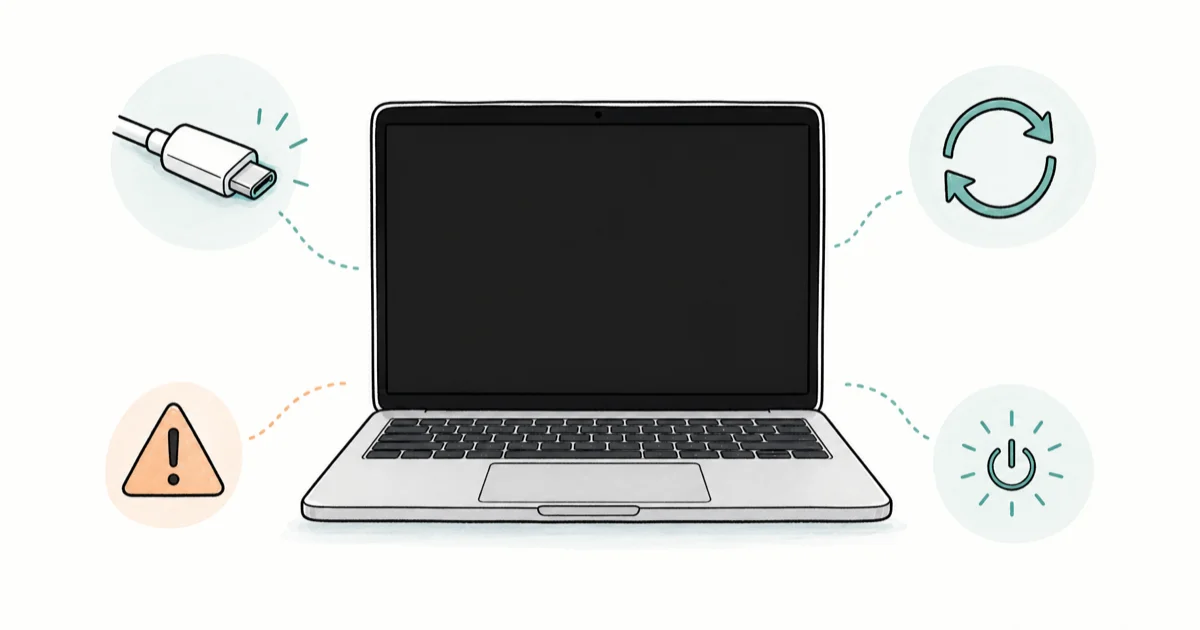
Quick AnswerPlug into a known-good USB-C charger for 15 minutes, then hold the power button for 10 seconds, release, and press once. If the screen stays black, reset the SMC on Intel Macs or run a 30-second power-button hold on Apple Silicon Macs.
A MacBook that refuses to turn on is rarely a dead MacBook. Most of the time the cause is a stuck firmware state, a flat battery, a bad charger or cable, or a dead backlight on an otherwise healthy machine. The fixes below cover both Intel and Apple Silicon models, and a 10-second power-button hold revives the Mac in most cases before Apple Support ever needs to get involved.
The trick is simple. Work from the lowest-risk fix to the highest, and stop the moment something works so you don’t blow out a healthy logic board chasing a problem that’s already solved.
- A 10-second power button hold fixes most “won’t turn on” cases on both Intel and Apple Silicon MacBooks
- Always charge for at least 15 minutes before assuming the battery is dead, because a deeply discharged Mac shows no light or sound
- Apple Silicon Macs (M1, M2, M3, M4) don’t have a separate SMC, so the old Shift plus Control plus Option combo does nothing on them
- A black screen with audible fan or chime is a display problem, not a power problem, so try an external monitor first
- Three short beeps at startup means a RAM error, and that almost always means Apple Support is the next step
#Start With the 10-Second Power Cycle
Before anything else, do a clean power cycle. This single step resolves the majority of “won’t turn on” reports because it forces the firmware to drop any stuck wake state.
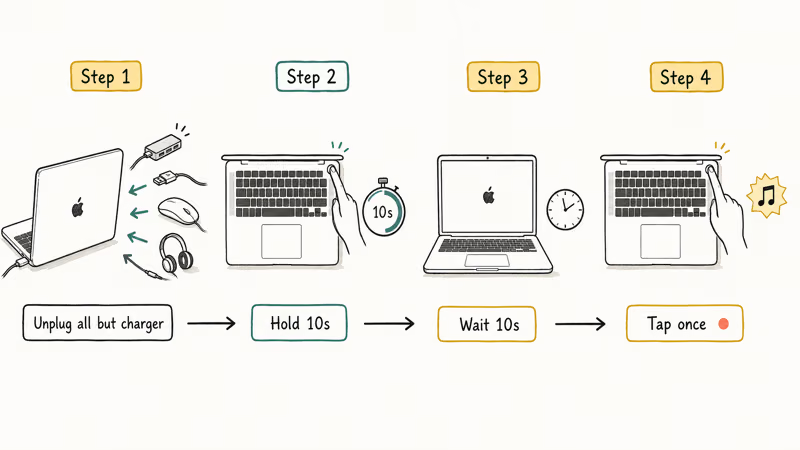
- Unplug everything from the MacBook except the original Apple charger
- Press and hold the power button for 10 full seconds (Touch ID button on newer Macs)
- Let go and wait 10 seconds
- Press the power button once normally
Listen carefully. A faint chime, fan spin, or keyboard backlight means the Mac is booting and the screen is the issue, not the logic board. If you hear absolutely nothing, leave the charger plugged in for another 15 minutes before assuming the battery is dead, because a fully discharged battery on a 16-inch MacBook Pro can take that long to show any sign of life.
According to Apple’s startup troubleshooting guide, pressing and holding the power button is the recommended first step before any deeper reset. Skip this and you risk fixing a software hang with a hardware reset.
#Why Won’t My MacBook Turn On Even When Plugged In?
A plugged-in MacBook that shows no light, no chime, and no fan is usually one of four things, in order of likelihood:
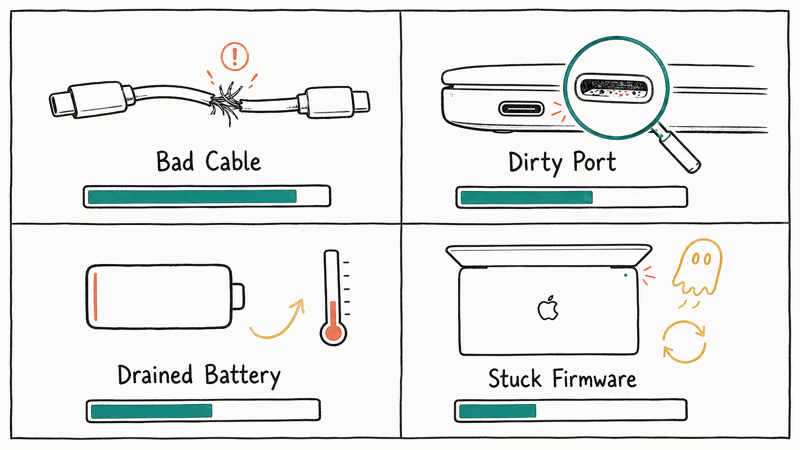
- A bad power adapter or cable (much more common than a bad MacBook)
- A USB-C port that has dust, debris, or oxidation blocking contact
- A drained battery so flat it needs the firmware to recover before anything lights up
- A stuck firmware state from a failed sleep or shutdown
Swapping in a second USB-C charger fixes a large share of “totally dead” MacBooks. Try a different cable first, then a different brick, then a different wall outlet. According to Apple, 30W is the minimum USB-C wattage for the MacBook Air and 67W for 14-inch Pros, per their USB-C power guide. Under-spec adapters can charge the battery so slowly the Mac never gets above the wake threshold.
If your charger is fine but the Mac still ignores it, you may have a charging-circuit issue rather than a startup issue. Our guide on MacBook Pro not charging covers that diagnostic path in more detail.
#Reset the SMC (Intel MacBooks Only)
The System Management Controller handles power, fans, and battery on Intel Macs. Resetting it clears stuck states that block startup. This step does nothing on M1, M2, M3, or M4 MacBooks, because Apple Silicon handles SMC duties inside the main chip.
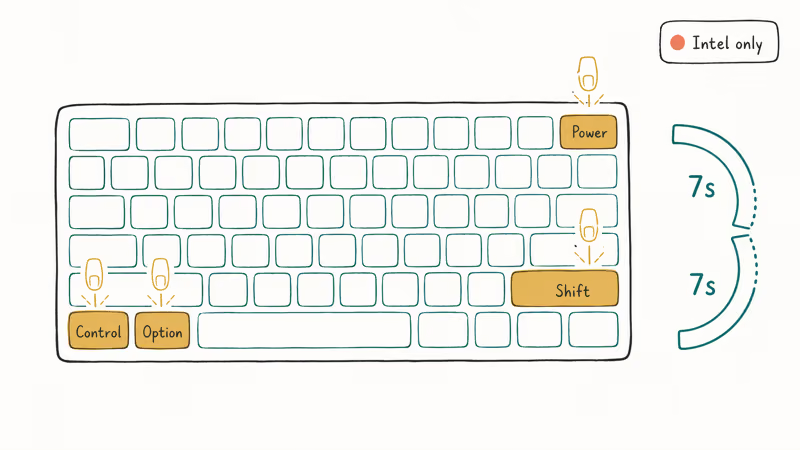
For Intel MacBooks with the T2 Security Chip (2018 and later):
- Shut down the Mac
- Press and hold Control + Option (left side) + Shift (right side) for 7 seconds
- Keep holding those keys and add the power button for another 7 seconds
- Release everything and wait a few seconds
- Press the power button to start up
For older Intel MacBooks without the T2 chip:
- Shut down the Mac
- Press Shift + Control + Option (all on left side) + power button at the same time
- Hold for 10 seconds
- Release everything, then press the power button to start up
According to Apple’s SMC reset documentation, you should only reset the SMC after a normal restart and Safe Mode boot have failed, because the reset clears your battery learning data and forces a recalibration cycle.
#Force-Restart for Apple Silicon MacBooks
Apple Silicon MacBooks (every M-series chip from M1 onward) have one universal recovery move: press and hold the power button for about 30 seconds. That’s it. There’s no separate SMC reset and no NVRAM key combo, because the firmware handles both automatically on every cold boot.
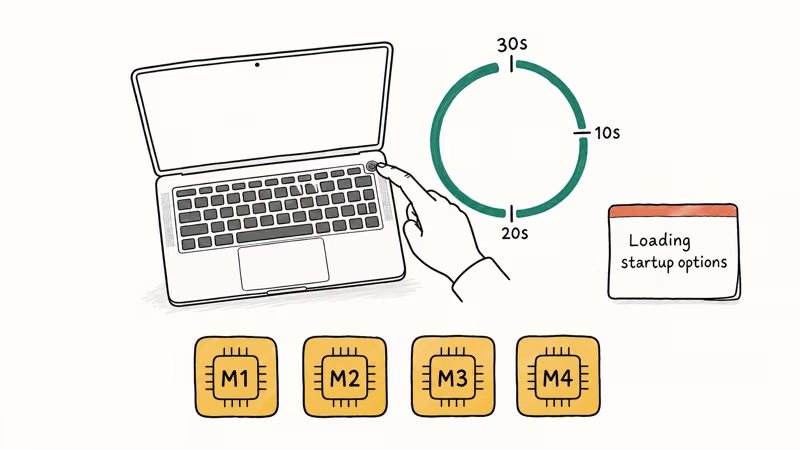
If a 30-second hold doesn’t bring the Mac back, escalate to macOS Recovery:
- Press and hold the power button until “Loading startup options” appears
- Click Options, then Continue
- From the Recovery menu, run Disk Utility and click First Aid on your startup disk
- If First Aid finds errors it can’t repair, choose Reinstall macOS as the last in-place fix
On an Apple Silicon MacBook stuck on a black screen after a Time Machine restore, the long-press plus Recovery sequence usually brings it back without erasing the drive. If your Mac gets past the Apple logo but freezes there instead, the symptom path is different and our Mac stuck on Apple logo walkthrough is the right place to look.
#Reset NVRAM and Try Safe Mode
NVRAM stores small settings like startup disk choice, screen resolution, and audio volume. A corrupted entry can sometimes block boot. This applies to Intel Macs only.
To reset NVRAM:
- Shut down the Mac
- Press the power button, then immediately hold Command + Option + P + R
- Hold for about 20 seconds, until you hear the startup chime twice or see the Apple logo flash twice
- Release the keys
If NVRAM reset doesn’t help, try Safe Mode.
Safe Mode loads only the macOS kernel and essential drivers, so any third-party kernel extension or login item that was blocking startup gets skipped. On Intel, hold Shift during boot. On Apple Silicon, hold the power button until startup options appear, then hold Shift while clicking your boot drive.
If the Mac boots fine in Safe Mode but not normally, you have a software conflict, not a hardware failure. Remove recent kernel extensions, login items, and third-party menu bar apps, then reboot normally. Persistent freezing after a successful Safe Mode boot is a separate symptom that our Mac keeps crashing guide addresses.
#Is It a Display Problem or a Power Problem?
This is the diagnostic that saves people the most money.
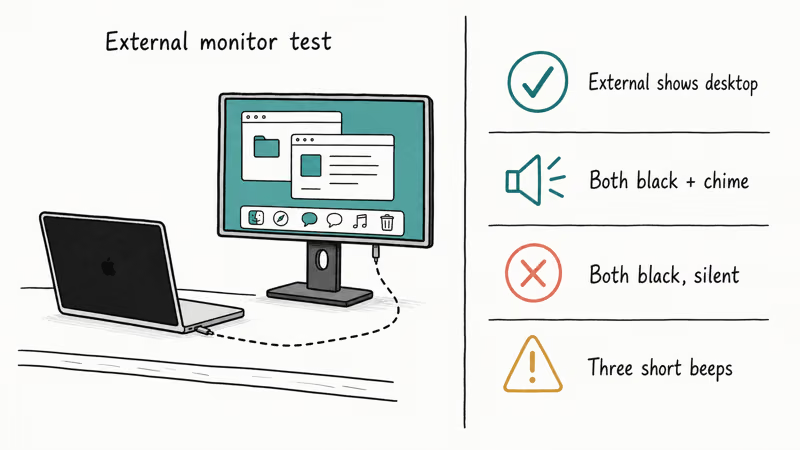
A black screen doesn’t always mean the Mac is off. Plug the MacBook into an external monitor over HDMI or USB-C and watch what happens when you press the power button.
| What you see | What it means |
|---|---|
| External monitor shows the desktop, internal screen black | Display, backlight, or display cable failure (in-shop repair) |
| Both screens black, but you hear a chime or fan | Logic board is alive, GPU or display chain failed (Apple) |
| Both screens black, total silence | Power, battery, or logic board (try power cycle and SMC first) |
| Three short beeps every 5 seconds | RAM failure (Apple Support, don’t open it) |
A MacBook Pro that “won’t turn on” can turn out to be booting normally with a dead backlight, which an external monitor reveals in seconds. A backlight cable repair runs a fraction of the cost of a logic-board swap, so the monitor check is worth doing before you escalate. Apple’s startup tone reference confirms that beep patterns map directly to specific hardware faults, and that page is worth bookmarking too.
#Software Recovery as a Last Resort
If the Mac shows the Apple logo but never reaches the desktop, the issue is software. Boot into Recovery (Command + R on Intel, long-press on Apple Silicon) and try these in order:
- Disk Utility First Aid on the internal drive
- Reinstall macOS without erasing (keeps your files)
- Erase and reinstall as the absolute last resort
Always run Time Machine or any other backup before erasing. Apple confirms that reinstalling macOS in place keeps your user data, applications, and settings intact, but disk failures during the reinstall can still corrupt files, so a backup is non-negotiable. If your backup drive itself does not show up in Disk Utility, the steps in our external hard drive not detected guide will help you get it mounted before you start.
#When to Stop and Take It to Apple
Stop and book a Genius Bar appointment when any of these are true:
- You hear three short beeps repeating every 5 seconds (RAM)
- The Mac smells like burned electronics or shows scorch marks near the logic board vent
- Liquid was spilled on it within the last 30 days, even if it seemed to dry out
- A drop or impact preceded the failure
- All eight steps above gave you nothing — no chime, no fan, no light, no external display
Apple’s diagnostics use machine logs you can’t read at home, and opening a liquid-damaged or dropped Mac often turns a $300 repair into a $900 logic-board replacement.
According to Apple’s repair pricing guide, out-of-warranty top-case and battery service is dramatically cheaper than logic-board replacement, so escalating early is the financially safer call. If you’re still on AppleCare or within the standard one-year warranty, almost everything covered above except accidental damage is free.
#Bottom Line
Start with the 10-second power button hold and a 15-minute charge before anything else. That combination fixes more MacBook startup failures than every advanced reset put together.
Move to SMC and NVRAM resets only if those first two steps did nothing. Stop the instant you hear a chime, see a backlight, or get any sign of life. If you reach beep codes, burned smells, or zero response after eight clean tries, book Apple before you open the case.
#Frequently Asked Questions
Why won’t my MacBook turn on even when plugged in?
Bad cable, wrong-wattage adapter, or a deeply discharged battery. Try a known-good Apple charger first.
How do I know if my MacBook battery is completely dead?
Plug it in for at least 30 minutes using the original Apple charger and watch for a green or amber LED on the MagSafe connector, or a battery icon on the screen after a power-button press. If you see nothing at all after 30 minutes on a known-good charger, the battery may need replacement, or the charging circuit on the logic board has failed.
Can a macOS update brick my MacBook?
Rarely. Try Safe Mode first, then a Recovery-mode reinstall without erasing.
How long does a Mac boot normally take?
A modern Apple Silicon MacBook reaches the login screen in about 15 to 25 seconds from a cold start. Intel Macs typically take 30 to 60 seconds. If your Mac sits on the Apple logo for more than 5 minutes, it’s hung. If it boots but feels sluggish for hours afterward, our macOS slow guide covers the cleanup steps.
Is it safe to reset the SMC and NVRAM?
Yes, both are safe. Neither reset touches your files.
What does it mean when my MacBook beeps but won’t start?
Beeps are RAM error codes. One beep every 5 seconds means no RAM is detected. Three beeps means RAM failed a startup integrity check. Both patterns point to a memory problem that, on modern soldered-RAM MacBooks, requires a logic-board repair at Apple or an authorized service provider.
Should I try fixes from forums before going to Apple?
Stick to the eight steps above. Forums often suggest opening the case to disconnect the battery, which voids your AppleCare and risks dust contamination on the logic board. The disconnect-battery trick can work, but the keyboard ribbon connector is fragile and easy to tear, which turns a free fix into a costly one.
Can I fix a liquid-damaged MacBook myself?
No. Take it to Apple within 48 hours, even if it seems to be working.

Mac mini M6 vs M5 Pro: Which Model Should You Buy?
Mac mini M6 vs M5 Pro compared on price, memory, ports, displays, and real workloads. Find the better 2026 Mac mini for your desk and budget.

macOS 27 Compatible Macs: Every Supported Model (2026)
macOS 27 Golden Gate runs only on Apple Silicon Macs. Here is the full list of supported M-series models and the four Intel Macs that lose support.

macOS 27 Golden Gate: Every Major New Feature Confirmed
macOS 27 Golden Gate goes Apple Silicon only, adds a Gemini-powered Siri, refines Liquid Glass, and rebuilds Spotlight. Here is every confirmed change.

macOS 27 Liquid Glass: Every Readability Fix Explained
macOS 27 Golden Gate refines Liquid Glass with an intensity slider, better contrast, cleaner window corners, and edge-to-edge sidebars to fix readability.