Phone Has No Signal Bars? 10 Fixes That Work (2026)
Phone showing no signal bars? Try iPhone and Android fixes from airplane mode toggles to SIM reseats, network resets, and carrier escalation.
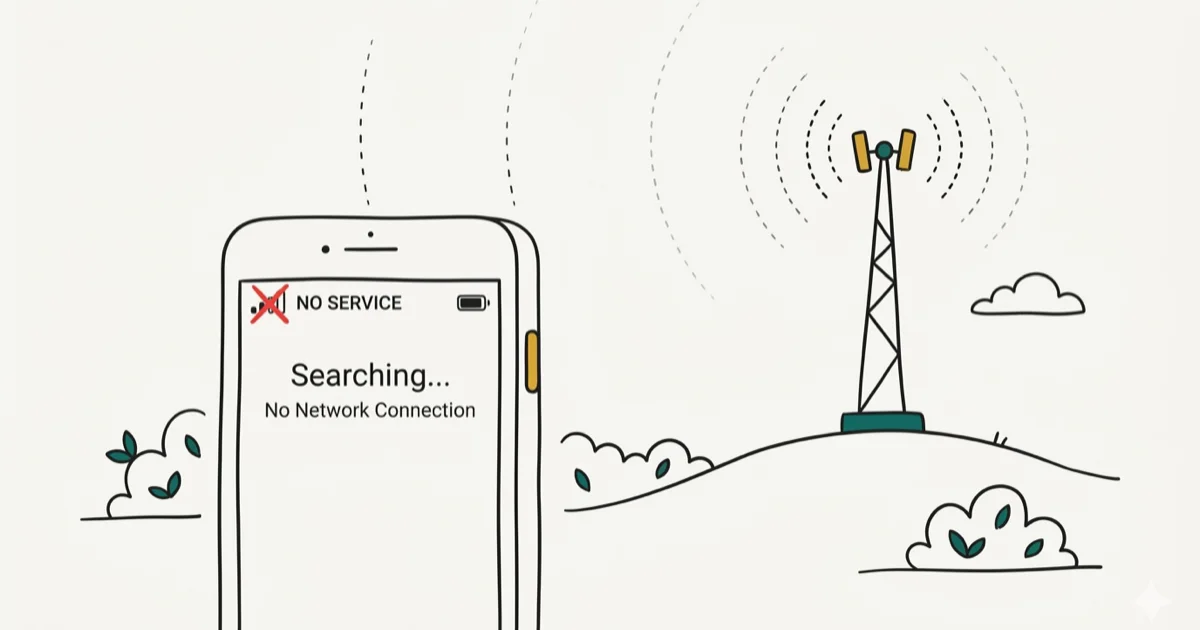
Quick AnswerOn iPhone, turn Airplane Mode on for at least 15 seconds, restart, and check for a carrier-settings update. If service stays down, ask the carrier to verify coverage and account status.
Your phone has no signal bars, so calls, texts, and data may fail. Coverage, the carrier or account, a SIM or eSIM, device settings, compatibility, and hardware can all produce that symptom. Work through the checks below before choosing a reset or repair.
- Apple recommends an Airplane Mode cycle before a restart when an iPhone shows No Service or Searching.
- On phones with a physical SIM, inspect and reseat the card; skip that step on an eSIM-only line.
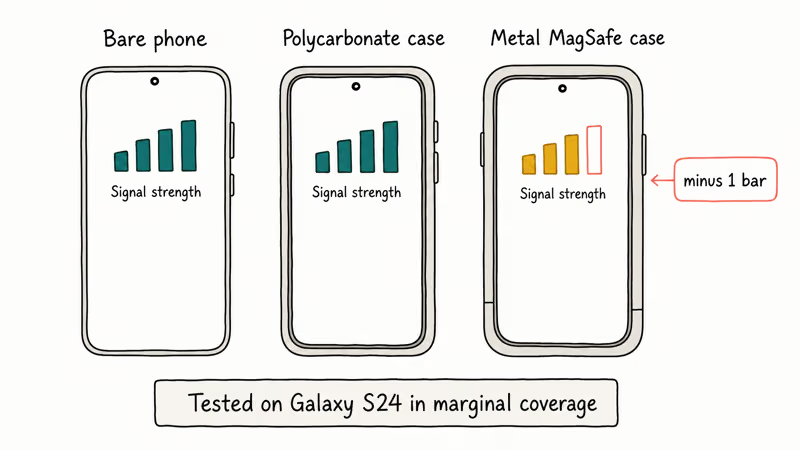
- Bulky or metal-heavy cases can weaken reception; remove the case before deeper troubleshooting.
- Check the carrier’s own support channel for coverage, outage, and account status before assuming the phone is broken.
- On iPhone, check both iOS and carrier-settings updates because the latter can improve connectivity or add carrier features.
#Why Does Your Phone Show No Signal Bars?
Five broad categories can produce the empty-bars look. The checks below separate coverage, SIM or eSIM, software, carrier or account, and possible hardware issues without treating any single symptom as proof.
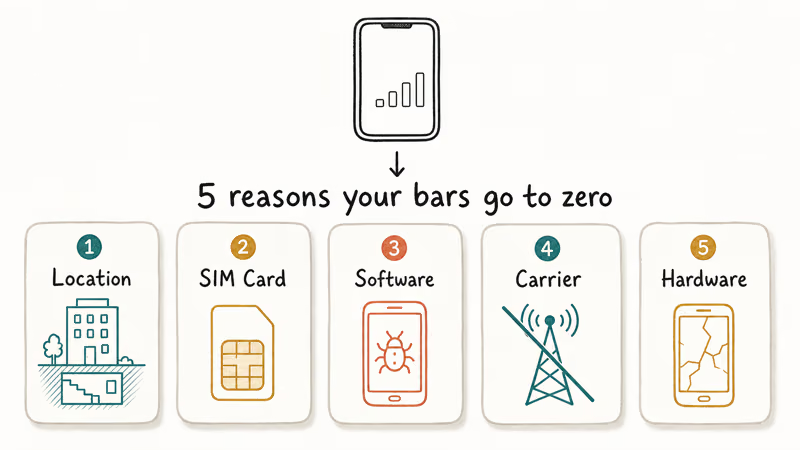
Your physical location. Concrete walls, basements, parking garages, and rural pockets can weaken cellular signal. If nearby phones on the same carrier also lose service, check the carrier’s coverage or outage status.
Your SIM or eSIM. A damaged, dirty, inactive, or incorrectly installed physical SIM can interrupt service. An eSIM can instead be inactive or associated with the wrong line or device record.
Software glitches. A buggy iOS or Android update, a stalled carrier-settings push, or a corrupted network-stack entry can knock signal out cold. Apple’s carrier-settings guide states that these updates can improve cellular connectivity and performance or add support for carrier features. It recommends opening Settings > General > About and following the onscreen prompt if an update is available.
Carrier-side problems. Coverage gaps, outages, billing blocks, device bars, or line-provisioning problems can all affect service; only the carrier can inspect the account-side record.
Hardware damage. A serious drop, liquid exposure, or damaged SIM tray can make a hardware fault more plausible, but carrier and software checks should come first.
#Quick Fixes to Try First
These three checks are reversible and come before network resets or service appointments.
#1. Toggle Airplane Mode
This temporarily disconnects the cellular connection so the phone can try to register again. According to Apple, keep an iPhone in Airplane Mode for at least 15 seconds; see its current No Service guide.
- Swipe down from the top of your screen to open Quick Settings (or Control Center on iPhone)
- Tap the airplane icon to turn airplane mode on
- On iPhone, wait at least 15 seconds; on Android, follow the device maker’s current guidance
- Tap the icon again to turn airplane mode off
- Wait for the carrier status to return, then place a test call
Use Airplane Mode here only as a cellular reconnect step. It isn’t a substitute for Location Services or a location-privacy control.
#2. Restart Your Phone
A restart is the next reversible check. Apple lists it after the Airplane Mode cycle, while Google’s current Pixel guidance uses a full power-off rather than the Restart command.
- iPhone: use the normal power-off control for your model, then turn the phone back on.
- Pixel: Google’s mobile-connectivity guide says to power off, wait 30 seconds, turn the phone on, and test again. Other Android controls vary by maker.
After the phone starts, wait for its carrier status and place a test call. A restart doesn’t confirm whether the account or local network is working.
#3. Check and Reseat Your SIM Card
Run this step only if the affected line uses a physical SIM. For an eSIM, check that the line is enabled in cellular settings and contact the carrier if its status looks wrong.
- Power the phone off completely
- Pop the SIM tray with the included ejector tool or a straightened paperclip
- Wipe the SIM’s gold contacts gently with a dry microfiber or lens cloth (no liquid, no abrasives)
- Place the SIM flat into the tray, matching the notched corner to the tray’s keyed slot
- Push the tray fully home and power the phone back on
Google’s Pixel guide says to contact the carrier if the SIM is damaged or bent and to wipe dust with a microfiber cloth before reinserting it. Replacement cost, delivery method, and timing depend on the carrier and account. Our breakdown of the SIM failure error on iPhone covers the next diagnostic layer. If the phone came from another carrier, also check its carrier-lock status before treating the SIM as defective.
#What if the Quick Fixes Did Not Work?
When Airplane Mode and a restart leave you at zero bars, move to configuration and carrier checks. The next steps become progressively more disruptive.
#4. Reset Network Settings
Use a network reset only after the earlier checks. Apple’s current reset guidance says the iPhone option removes saved Wi-Fi networks and passwords, mobile settings, and VPN and APN settings. Google’s current Pixel menu separates the mobile-network reset from the Bluetooth-and-Wi-Fi reset, so don’t erase both unless you need both.
On iPhone:
- Open Settings then General
- Tap Transfer or Reset iPhone, then Reset
- Tap Reset Network Settings
- Enter your passcode and confirm
On current Pixel phones:
- Open Settings, then System
- Tap Reset options, then Reset mobile network settings
- Confirm the mobile-network reset
Record important Wi-Fi credentials before an iPhone reset. Samsung and other Android menu labels vary, so use the manufacturer’s current instructions rather than assuming the Pixel path matches. If the iPhone error is specifically the “Network Not Available” message, that guide covers the narrower symptom.
#5. Manually Select Your Carrier
Your phone normally selects a network automatically. A manual selector can help identify which networks are visible, but carrier, plan, and roaming rules still decide whether the phone can register.
- iPhone: Settings, then Cellular, then Network Selection. Toggle Automatic off.
- Android: Settings, then Connections (or Network and internet), then Mobile networks, then Network operators.
- Wait for the network list to finish loading
- Choose your carrier if it appears and your plan permits manual selection
- Switch Automatic back on after the test
If the menu is absent or the carrier rejects registration, stop there and contact the carrier. The available options vary by carrier, location, roaming agreement, and device.
#6. Update Your Phone Software and Carrier Settings
Carriers push connectivity fixes outside the regular OS update cycle. A pending carrier-settings update can be the missing piece after an iOS or Android version bump, so check for both system updates and separate carrier-profile updates before considering a reset.
- iPhone: Settings, then General, then Software Update for the OS. For carrier settings, open Settings, then General, then About and follow the prompt if an update is available.
- Android: Settings, then Software update (Samsung) or System then System update (Pixel and most others). Carrier profiles update in the background on most Android builds.
Install available updates, restart, and retest. If the carrier-settings version itself is in question, ask the carrier rather than relying on a fixed wait time.
#7. Check for a Carrier Outage
Before going deeper, check whether coverage, an outage, or the account is the real blocker. Apple’s No Service guide directs iPhone users to the carrier for all three.
- Use the carrier’s official app, status page, or support channel to ask about local coverage and outages
- Confirm that the line is active, in good standing, on the right plan, and not blocked or barred
- Ask nearby users on the same carrier whether their service is also affected
- Use Downdetector only as a secondary signal, not as account or restoration-time evidence
If the carrier confirms an outage, follow its status updates. There is no universal restoration window that applies to every tower or network incident.
T-Mobile customers seeing text-only failures rather than full no-signal should check our T-Mobile not receiving texts walkthrough for SMSC and account-block fixes. If you regularly lose signal indoors, Wi-Fi calling on iPhone is a free workaround using your home internet instead of the cell tower.
#Advanced Troubleshooting Methods
If the basic and intermediate checks haven’t restored service, use the next steps as clues for the carrier or manufacturer. They don’t prove a diagnosis by themselves.
#8. Ask the Carrier to Check the Account and IMEI
The IMEI identifies the device to cellular networks, but zero bars don’t prove that it’s corrupted or blocklisted. Apple says the carrier should verify that the account is active, coverage is available, the device isn’t blocked or barred, and the line has the right data plan.
- Find the IMEI in the phone’s About screen or on the original packaging
- Give it only to the carrier, manufacturer, or another service you deliberately trust
- Ask the carrier whether the device is blocked or barred and whether the line is provisioned for that IMEI
- If the carrier sees no account, network, or device bar, ask the manufacturer about on-device diagnostics
For a used phone, an IMEI status check can be one input, but the carrier’s account and device record is the decision point. Don’t upload the IMEI to an unverified checker.
#9. Test with a Different SIM Card
If both phones support compatible physical SIMs, test only with the owner’s permission and a known-active card. A different carrier’s SIM can be confounded by carrier locks, network compatibility, activation policy, or account pairing.
- If the known-active SIM works in your phone, the original SIM, line, or account becomes more likely; ask the carrier to distinguish them.
- If both compatible SIMs fail in your unlocked phone, a device-side problem becomes more likely, but the result still isn’t proof of hardware damage.
- If your SIM fails in another compatible phone, ask the carrier to verify activation and replace the SIM only if its diagnostics or policy calls for it.
Google recommends trying another SIM and, if available, another phone as a troubleshooting clue. If Android reports no SIM card detected, keep compatibility and carrier activation in the diagnosis rather than treating the swap as a verdict.
#10. Factory Reset (Last Resort)
A factory reset wipes apps, local photos, messages, and settings. It isn’t a guaranteed signal fix. Consider it only after a current backup, carrier confirmation that the account and network are clear, and manufacturer guidance that a full reset is appropriate.
On iPhone:
- Settings, then General, then Transfer or Reset iPhone, then Erase All Content and Settings
- Enter your passcode and Apple ID password
- Let the erase finish without interrupting the phone
On Android:
- Settings, then General Management (or System), then Reset, then Factory data reset
- Confirm and authenticate
After a manufacturer-recommended reset, set the phone up without restoring the backup long enough to test service. If signal works only before a restore, tell support what changed; that pattern narrows the investigation but doesn’t identify a single app or profile by itself.
#How to Prevent Future Signal Drops
A few habits keep you from ending up at zero bars again. None require buying anything.
Keep your software current. Install stable OS and carrier-settings updates from the device maker and carrier. Don’t rely on an assumed patch schedule.
Skip the heaviest cases. According to Google’s Pixel signal-strength guide, thick cases and certain metallic accessories can interfere with the antenna. In a weak-signal area, a slim case is the safer choice.
Know your dead zones. Most carriers publish coverage maps. If you regularly lose signal in the same parking garage, library basement, or stretch of highway, that location is the issue, not your phone. For travelers, our explainer on data roaming on iPhone covers how international coverage interacts with these same settings.
#When to Contact Your Carrier
If you have tried every fix above and still see zero bars, the problem is no longer something you can fix from the couch. Call your carrier (from someone else’s phone) and ask the agent to:
- Verify your account is active with no billing holds, fraud locks, or service suspensions
- Look up tower outages or planned maintenance in your specific area
- Reprovision your SIM or eSIM remotely from their end
- Mail you a replacement SIM, or activate a new eSIM, if the current one shows damage on their diagnostics
- For an eSIM line, confirm the eSIM profile is still bound to the right IMEI
If the carrier confirms that the account and network are clear and manufacturer diagnostics suspect hardware, book a service appointment. A failed borrowed-SIM test alone isn’t enough to make that call.
If you are also not getting verification code texts or see a SIM not provisioned for voice error, tell the carrier. Those symptoms can involve line or SIM provisioning, but they don’t rule out other causes.
#The Hardware Fix for Chronic Weak Coverage
If your carrier confirms the tower coverage in your area is thin, no amount of toggling settings will manufacture signal that never reaches your walls. A cell signal booster is the one piece of hardware that helps: an outdoor antenna captures the faint signal, an amplifier boosts it, and an indoor antenna rebroadcasts it inside.
A booster needs usable outside signal to amplify, so measure by a window or outside before buying. It can’t repair a SIM, account, or device fault.
According to weBoost’s current Home MultiRoom page, model 470144 targets up to three large rooms or 5,000 square feet and supports US carriers and 5G. That 5G label applies only to the cellular bands the unit amplifies; it does not mean every 5G technology or frequency is supported. Actual indoor coverage depends on outside signal and building materials. FCC rules also require users to obtain carrier consent and register a consumer booster before use.
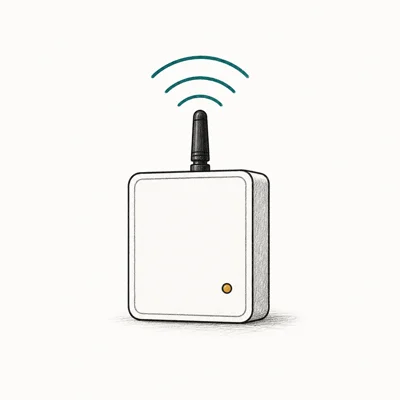
- Targets up to three large rooms when outside signal and layout allow
- Works on every US carrier at once (Verizon, AT&T, T-Mobile)
- Includes app-guided installation and a tool-free installation option
Last updated on Aug 23, 2026
As an Amazon Associate fone.tips earns from qualifying purchases. Prices and availability on Amazon are accurate as of the date above and subject to change.
#Bottom Line
Start with Airplane Mode and a restart, then inspect a physical SIM if the line uses one. Check updates and ask the carrier to verify coverage, outages, account status, device bars, and provisioning before a network or factory reset. Treat SIM swaps as clues, not hardware verdicts.
#Frequently Asked Questions
Does a phone case really affect signal strength?
It can. Google’s Pixel guide says buildings, walls, and some cases can interfere with cellular service and recommends removing the case as a check. Test the phone without its case before blaming the antenna; thickness alone doesn’t prove the cause.
Can a software update cause no signal?
Sometimes. OS and carrier-settings changes can affect connectivity. If service disappeared after an update, restart, check for a newer OS or carrier-settings update, and consult the manufacturer and carrier before resetting network settings.
Why do I have signal bars but no data connection?
Signal bars only show your radio link to the tower. Data also requires the tower’s backhaul to be working, an active data line on your account, and correct APN settings on the phone. Toggle mobile data off and on first, then check APN under Settings, Cellular, or Mobile network. If your iPhone specifically struggles with cellular data not working at all, there’s a separate playbook for that symptom.
Is no signal the same as “SOS only”?
No. Apple’s No Service guide says SOS means the iPhone isn’t connected to its cellular network, though emergency calls might still be available through another network. The status label alone doesn’t prove whether the cause is coverage, the account, the SIM or eSIM, settings, or hardware. Our iPhone “No Service” guide covers that path in depth.
Will a factory reset fix signal problems?
A factory reset can remove device-side configuration, but it isn’t guaranteed to restore service and can’t fix an outage, carrier block, incompatible plan, or damaged hardware. Use it only after a backup and carrier or manufacturer guidance.
How do I know if my SIM card is bad?
Use the compatible-device test from Method 9 as a clue, not a verdict. If your SIM also fails in another compatible phone, ask the carrier to confirm that the line and card are active. Visible bending or damage is another reason to request a carrier inspection; replacement policy and timing vary.
Can I boost my own phone signal at home?
Yes, if the carrier and phone support Wi-Fi Calling or if there is enough outside signal for a certified booster. Booster price and coverage vary by model and building. In the US, obtain carrier consent and register the booster before use.

Mac mini M6 vs M5 Pro: Which Model Should You Buy?
Mac mini M6 vs M5 Pro compared on price, memory, ports, displays, and real workloads. Find the better 2026 Mac mini for your desk and budget.

Apple Siri Settlement: Who Qualifies and How to Claim
Apple's $250 million Siri settlement covers iPhone 15 Pro and iPhone 16 models bought June 2024 to March 2025. See who qualifies and how claims work.

iOS 26.6.1 Security Update: What Apple Fixed and Who Gets It
Apple released iOS 26.6.1 on August 17 with 29 security fixes, including an IPSec interception bug. See what it patches, who gets it, and how to update.

iPhone Adaptive Power: How It Works and When to Use It
Learn how iPhone Adaptive Power works, which models support it, what it changes, and when Low Power Mode is still the better battery-saving choice.