Roblox has become a global phenomenon, captivating millions of players with its diverse array of user-generated games. However, like any online platform, it’s not immune to technical hiccups. One such issue that players often encounter is the dreaded Roblox Error Code 524. This error can be frustrating, preventing you from joining games and fully enjoying the Roblox experience. But don’t worry – we’ve got you covered with this in-depth guide to understanding, troubleshooting, and resolving Error Code 524.
#What is Roblox Error Code 524?
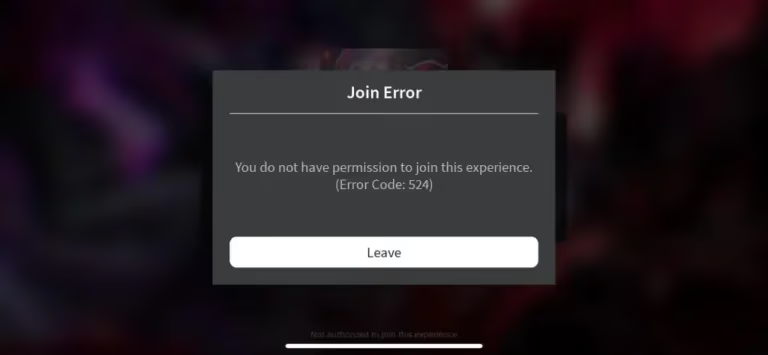
Error Code 524 in Roblox typically appears when you’re trying to join a game or experience. The error message usually reads, “You do not have permission to join this experience.” This can occur due to various reasons, ranging from simple permission issues to more complex network problems.
#Common Causes of Error Code 524
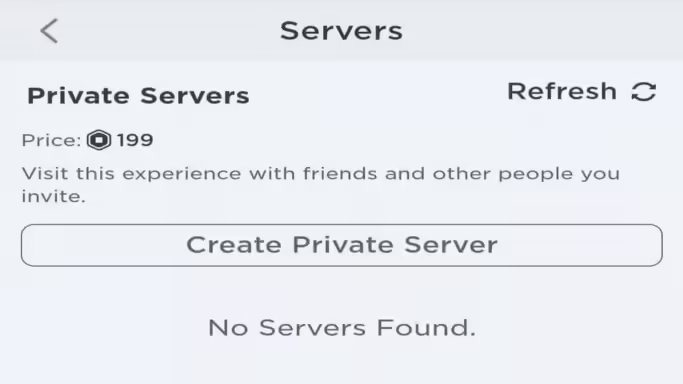
- Permission Issues: You may not have the necessary permissions to join a particular game, especially VIP servers.
- Network Problems: Unstable internet connections can trigger this error.
- Server Issues: Roblox servers may be experiencing downtime or high traffic.
- Account Restrictions: Your account settings might be preventing you from joining certain servers.
- Outdated Roblox Client: Running an old version of the Roblox application can sometimes cause this error.
#Basic Troubleshooting Steps
Before diving into more advanced solutions, let’s start with some basic troubleshooting steps that can often resolve Error Code 524:
#1. Restart Your Device
It might sound simple, but a quick restart of your device can work wonders. This action refreshes your system and clears any temporary glitches that might be causing the error.
#2. Check Your Internet Connection
A stable internet connection is crucial for smooth Roblox gameplay. Try these steps:
- Run a speed test to ensure your connection is stable
- Restart your router
- If possible, switch to a wired connection instead of Wi-Fi
#3. Adjust VIP Server Invitation Settings
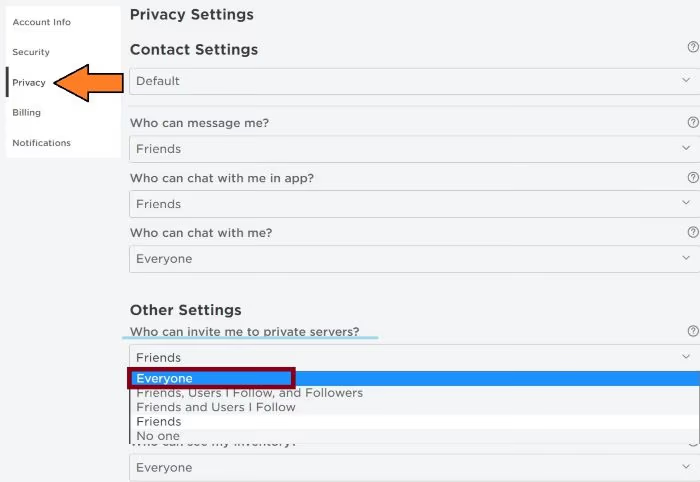
Sometimes, Error 524 occurs because your settings don’t allow you to receive VIP server invitations. Here’s how to fix that:
- Log into your Roblox account
- Go to Settings > Privacy
- Find “Who can invite me to VIP Servers“
- Set it to “Everyone“
#4. Accept Invitations Properly
If you’re trying to join a VIP server, make sure you’re accepting the invitation correctly:
- Find a player who’s already in the VIP server
- Wait for them to accept your friend request
- Join the game through their profile
#Advanced Solutions for Roblox Error Code 524
If the basic troubleshooting steps didn’t work, it’s time to try some more advanced solutions.
#Reinstalling Roblox
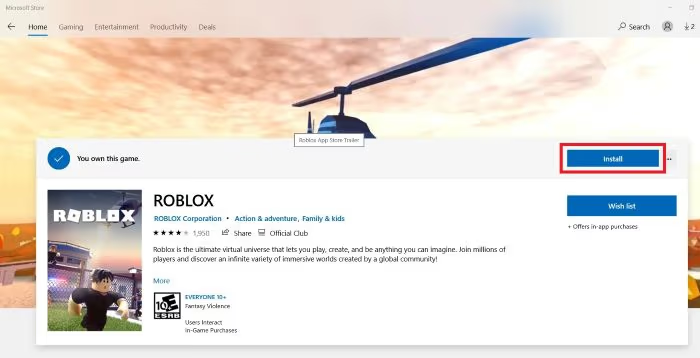
A fresh installation can often resolve persistent issues. Here’s how to do it:
- Uninstall Roblox from your device
- Restart your device
- Download the latest version of Roblox from the official website
- Install and run the new version
#Starting a New Server
Sometimes, creating a new server can bypass Error 524:
- Open Roblox and select the game you want to play
- Invite at least 5 friends to join a party
- Join the game and simultaneously leave the game party
- This should create a new server instance, potentially avoiding the error
#Check Firewall and Router Settings
Your firewall or router might be blocking Roblox. Ensure that Roblox is added to your firewall’s list of allowed applications.
#When to Contact Roblox Support
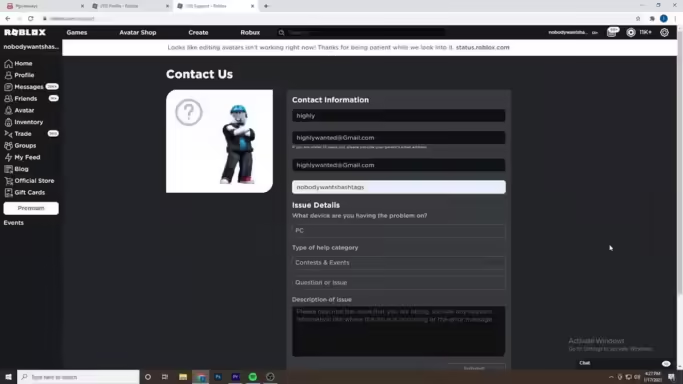
If you’ve tried all the above solutions and are still encountering Error Code 524, it’s time to reach out to Roblox Support. Here’s how:
- Visit the official Roblox support page
- Click on “Submit a Request“
- Fill out the form with detailed information about your issue
- Include your username, the exact error message, and steps you’ve already taken
- Submit the ticket and wait for a response from the support team
#Additional Roblox Tips and Troubleshooting
While dealing with Error Code 524, you might encounter other Roblox-related issues. Here are some helpful resources:
- If you’ve forgotten your Roblox PIN, don’t panic. Check out our guide on how to recover your Roblox PIN for step-by-step instructions.
- Understanding your Roblox User ID can be crucial for various platform functions. Learn how to find your Roblox User ID easily.
- For those interested in the economic side of Roblox, we have guides on how to trade on Roblox and how to give Robux to other players.
#Preventing Future Occurrences of Error Code 524
To minimize the chances of encountering this error in the future:
- Keep your Roblox client updated
- Regularly check and optimize your internet connection
- Be cautious when joining VIP servers or games with specific entry requirements
#FAQs About Roblox Error Code 524
Q: Can Error 524 be caused by my account being too new? A: Yes, some Roblox servers have restrictions for newer accounts. If your account is less than 30 days old, this could be the cause.
Q: Will using a VPN help solve Error 524? A: While a VPN can sometimes help with connection issues, it’s not a guaranteed fix for Error 524 and may even cause additional problems.
Q: Can Error 524 occur on all platforms or just PC? A: Error 524 can occur on any platform that runs Roblox, including PC, mobile devices, and gaming consoles.
Q: Is Error 524 related to inappropriate content on Roblox? A: Generally, Error 524 is not directly related to content issues. However, it’s important to note that Roblox has strict policies against inappropriate content. Players should always be cautious and report any violations they encounter.
#Key Takeaways
- Roblox Error Code 524 is often related to permission or connection issues
- Basic troubleshooting like restarting your device and checking your internet connection can often resolve the error
- Advanced solutions include reinstalling Roblox and adjusting firewall settings
- If all else fails, contacting Roblox Support is your best bet for resolving persistent issues
Remember, while Error Code 524 can be frustrating, it’s usually not a permanent problem. With patience and the right troubleshooting steps, you’ll be back to enjoying your favorite Roblox games in no time!
#Additional Resources
For more advanced Roblox users or developers, you might find it helpful to understand how Discord integrates with Roblox communities. Check out our guide on Discord ID lookup to learn how to manage your Roblox-related Discord servers more effectively.
By following these tips and utilizing the resources provided, you’ll be well-equipped to handle Error Code 524 and other common Roblox issues. Happy gaming!