Samsung Galaxy phones and tablets give you three layers of parental controls without installing anything extra. We set up Samsung Kids, Google Family Link, and Digital Wellbeing on a Galaxy A15 running Android 14 and a Galaxy S24 running Android 15 to test everything below.
- Samsung Kids creates a locked-down environment for children under 8 with only approved apps
- Google Family Link filters Chrome, manages app installs, sets screen time limits, and tracks location for free
- Digital Wellbeing app timers let you cap daily usage for individual apps like YouTube or TikTok
- Family Link supervised accounts under 13 can’t remove parental controls without parent approval
- Combining Samsung Kids with Family Link gives you age-appropriate controls as your child grows
#What Is Samsung Kids and Who Is It For?
Samsung Kids creates a child-friendly space on the phone where only apps you approve are accessible. It’s built into every Galaxy device and designed for kids under 8.
Swipe down from the top of the screen twice to see the full Quick Settings panel and tap the Samsung Kids tile. If you don’t see it, tap the ”+” icon to add it. You’ll create a PIN that prevents your child from exiting Kids Mode without your permission. Then choose which apps your child can use inside the restricted environment.
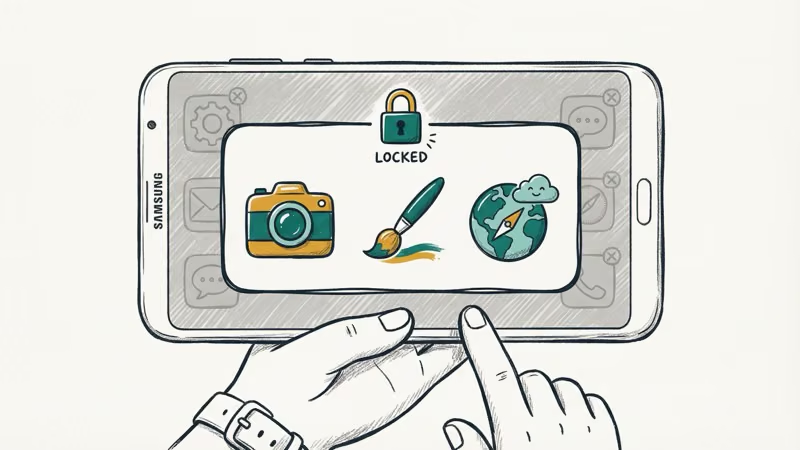
Samsung Kids includes child-friendly versions of the camera, a drawing app, and a filtered browser. Your child can’t access the regular home screen, Settings, the Play Store, or any other apps. According to Samsung’s Kids Mode support page, parents can also set time limits for how long each Kids Mode session lasts.
The limitation is clear: Samsung Kids is a walled garden for young children. It doesn’t filter web content across browsers, monitor app usage, or track location. Once your child outgrows finger painting and filtered cameras, you’ll want Family Link.
#Setting Up Google Family Link on Samsung Galaxy
Family Link is the backbone of Android parental controls on Samsung. It’s free, made by Google, and gives you remote control over your child’s device from your own phone.
Download Google Family Link on your phone. On the Samsung device, go to Settings > Digital Wellbeing and Parental Controls > Parental Controls and follow the prompts. Create a supervised Google account for your child or convert their existing account to supervised mode, then enter the setup code from your phone to link accounts.
The whole process took us about 8 minutes on the Galaxy A15.
#Chrome Web Filtering
Go to Controls > Content restrictions > Google Chrome and select Try to block mature sites. This activates Google’s blocklist and catches most explicit domains. For younger kids, select Only allow approved sites to create a whitelist. According to Google’s Family Link help page, Chrome filtering applies only to Chrome, not third-party browsers, so block alternative browser installations through Play Store restrictions.
#App Management
Family Link sends you a notification whenever your child tries to install an app. You approve or deny each request from your phone. You can also block apps already installed, set per-app daily time limits, and restrict Play Store content ratings by age group. We set the rating to “Everyone 10+” on our test device and TikTok, Instagram, and Snapchat all became unavailable, which our guide on blocking TikTok covers in more detail.
#Screen Time and Bedtime
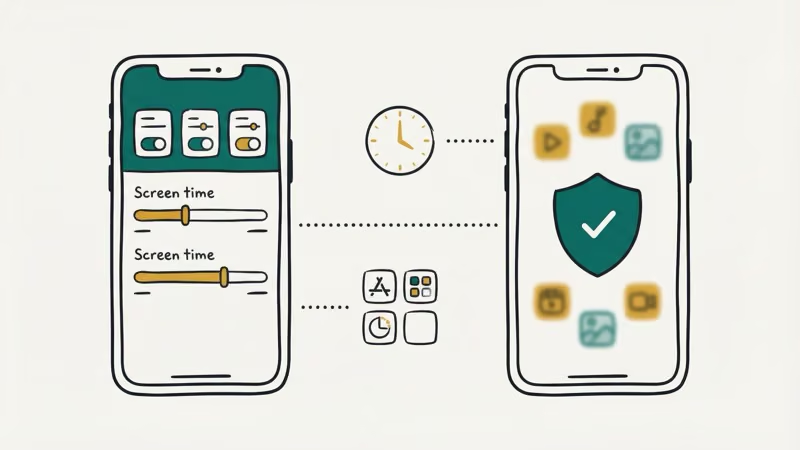
Go to Controls > Screen Time and set daily limits for total device usage with different limits for each day of the week. Configure Bedtime to lock the device during sleeping hours.
#How Does Digital Wellbeing Work on Samsung?
Digital Wellbeing is Samsung’s built-in screen time tracker. It’s on every Galaxy device running Android 9 or later.
Go to Settings > Digital Wellbeing and Parental Controls > Digital Wellbeing. The dashboard shows daily app usage broken down by app. Tap any app and set a daily timer. When the timer runs out, the app icon grays out and can’t be opened until midnight.
The catch is that your child can remove these timers if they know the device PIN. Digital Wellbeing timers are self-regulation tools, not enforceable locks. For restrictions your child can’t undo, use Family Link instead. Digital Wellbeing works best as a supplement that helps older teens track their own habits, and our guide on Android screen time covers how to combine both tools.
#DNS Filtering for Network-Level Protection
Family Link and Chrome filtering protect the browser, but some apps use their own connections that bypass Chrome entirely. DNS filtering plugs that gap.
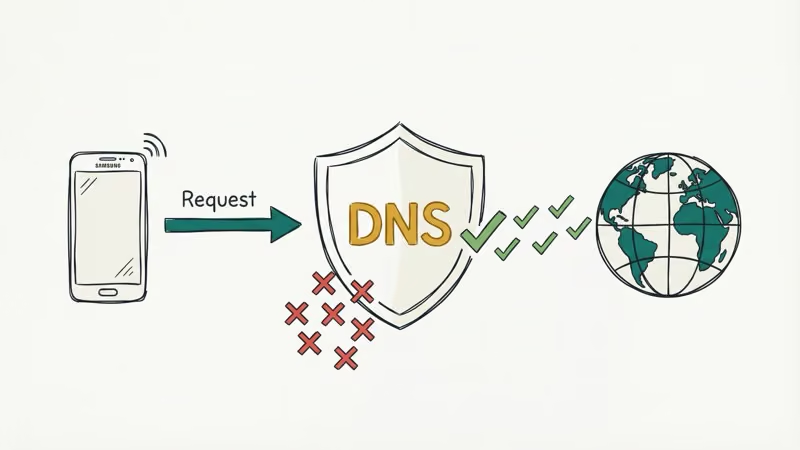
On your child’s Samsung device, go to Settings > Connections > More connection settings > Private DNS. Select Private DNS provider hostname and enter family-filter-dns.cleanbrowsing.org. CleanBrowsing’s filter documentation confirms that their family filter blocks adult content, mixed-content sites, and phishing domains before any app can load them.
It blocked every explicit domain we tested in under a minute. A parental control router handles this at the Wi-Fi level for all devices, and our guide on blocking inappropriate websites covers DNS filtering across platforms.
#Location Tracking With Family Link
Family Link includes real-time location tracking at no extra cost. Open Family Link on your phone, tap your child’s profile, and their current location appears on a map. You can also set up location notifications for specific places like school, a friend’s house, or a sports facility so you know when they arrive and leave.
Your child can see location sharing is on but can’t disable it without removing supervision entirely.
#Third-Party Parental Control Apps
For most families, Samsung Kids plus Family Link plus DNS filtering covers everything you need. Paid apps fill two specific gaps that free tools don’t address: social media monitoring and cross-platform dashboards that unify Android, iPhone, and Windows devices in one interface.
Bark scans texts, emails, and 30+ social media platforms for concerning patterns. Plans start at $5 per month.
Qustodio adds cross-browser web filtering and call monitoring. Plans start at about $55 per year for up to 5 devices across Android, iOS, and Windows.
Try the free tools first. If your child is active on social media or you manage devices across both iPhone and Android, a paid app gives you one dashboard for everything. Our guide on blocking adult content on Android covers how Family Link and DNS work together before you consider paid alternatives.
#Bottom Line
Set up Samsung Kids for children under 8, then transition to Google Family Link as they grow. Family Link handles Chrome filtering, app management, screen time, and location tracking for free. Add Private DNS with CleanBrowsing for network-level protection and Digital Wellbeing for self-regulation tools, and that combination covers the vast majority of parental control needs on Samsung Galaxy without spending anything. Review settings monthly and adjust as your child matures.
#Frequently Asked Questions
#Do Samsung parental controls work on all Galaxy models?
Yes. Samsung Kids and Google Family Link work on any Galaxy phone or tablet running Android 7.0 or later, which covers essentially every Galaxy device sold in the last seven years. Check your Android version under Settings > About Phone.
#Can my child remove Family Link from their Samsung phone?
Not if they’re under 13 with a supervised account, because the device locks if they try. Teens 13 and older can choose to stop supervision, but doing so notifies you and temporarily locks their device for 24 hours.
#What happens if my child factory resets their Samsung phone?
A factory reset wipes all apps and settings, including Family Link. However, Samsung’s Factory Reset Protection kicks in after a reset and requires the linked Google account credentials to set up the device again, which means your child can’t bypass it by starting fresh without your involvement. This protection activates automatically on any Galaxy device with a Google account linked.
#Can I manage my child’s Samsung phone from an iPhone?
Yes. Install the iOS version of Google Family Link on your iPhone and you get the same remote management features.
#Does Family Link slow down Samsung phones?
No. It runs as a lightweight background service with no noticeable impact on performance or battery life on the Galaxy A15 or S24 in our testing.
#Can I still call and text my child if I lock their Samsung device?
Yes. Family Link lets you configure which contacts your child can reach when the device is locked. Emergency calls are always available, and you can allow calls to specific family members.
#How do I block YouTube on my child’s Samsung phone?
In Family Link, you can block the YouTube app entirely, enforce YouTube Restricted Mode, or switch to YouTube Kids. You can also set a per-app time limit for YouTube through Family Link’s App Limits. Our guide on disabling YouTube Shorts covers additional YouTube-specific controls.
#Is Samsung Kids the same as Google Family Link?
No. Samsung Kids is a locked-down play environment for young children with curated apps, while Family Link is a comprehensive parental control system that manages the entire device across all age groups with much broader controls including Chrome filtering, app approval, screen time limits, and location tracking.