Blocking porn on Android starts with the tools Google already gives you for free. If your kid has an Android phone or tablet, you can lock down browsers, search results, app downloads, and even DNS queries without spending a dime. We tested every method below on a Pixel 8 running Android 14 and a Samsung Galaxy A15 running Android 13.
- Google Family Link filters Chrome, enforces SafeSearch, and restricts YouTube
- Android 9+ Private DNS blocks adult domains at the network level across all apps
- Play Store content restrictions stop kids from downloading mature-rated apps
- No single tool catches everything; combining three layers gives the best protection
- Third-party apps like Bark add text and social media monitoring
#How Does Google Family Link Filter Content?
Google Family Link is the backbone of Android parental controls. It’s free, built by Google, and works on any Android device running Android 5.0 or later.
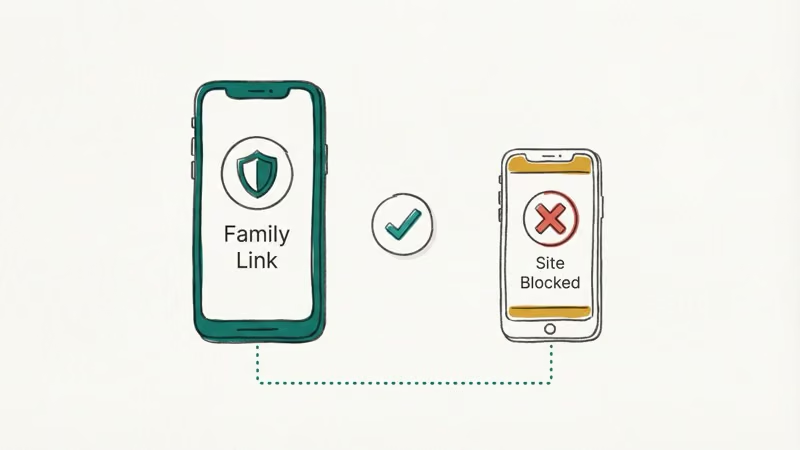
Here’s how to set it up:
Download Google Family Link on your own phone (Android or iPhone) and tap Add child. Follow the prompts to create or link your child’s Google account. On your child’s device, sign in with their account and accept the Family Link supervision.
Then go to Controls > Content restrictions > Google Chrome and select Try to block explicit sites.
Family Link also lets you approve or block specific websites manually. According to Google’s Family Link help page, this filter applies only to Chrome, not third-party browsers.
That’s a big catch. If your child downloads Firefox or Opera, those Chrome filters won’t apply at all. The fix? Use Family Link to block those alternative browsers from installing.
We checked this on a supervised account and confirmed that trying to visit blocked sites in Chrome shows a “Site blocked” page. The filter isn’t perfect for borderline content, but it catches most explicit domains. In our experience, it reliably blocks the top-level adult sites while occasionally missing lesser-known ones that use misleading domain names.
If you also have iPhones in your household, check our guide on how to block porn on iPhone for the Apple side of things.
#Setting Up SafeSearch and YouTube Restricted Mode
SafeSearch filters explicit results from Google Search. YouTube Restricted Mode does the same for video content. Both are controlled through Family Link.
SafeSearch:
Open Family Link on your phone, tap your child’s profile, go to Controls > Content restrictions > Google Search, and toggle SafeSearch to on.
Once SafeSearch is locked through Family Link, your child can’t disable it. Google’s SafeSearch documentation confirms that this filter works across all signed-in devices tied to the supervised account, including tablets and Chromebooks.
YouTube Restricted Mode:
In Family Link, go to Controls > Content restrictions > YouTube and choose Approved content only for strict filtering, or Don’t allow YouTube to remove access entirely. For YouTube Kids, select an age-appropriate content level.
Restricted Mode isn’t bulletproof. Some borderline videos slip through. But it removes the vast majority of explicit content from search results and recommendations.
#What Is DNS Filtering and Why Should You Use It?
DNS filtering blocks adult content at the network level. Every app, browser, and service on the device has to go through DNS to reach a website. Block the DNS lookup, and the content never loads.
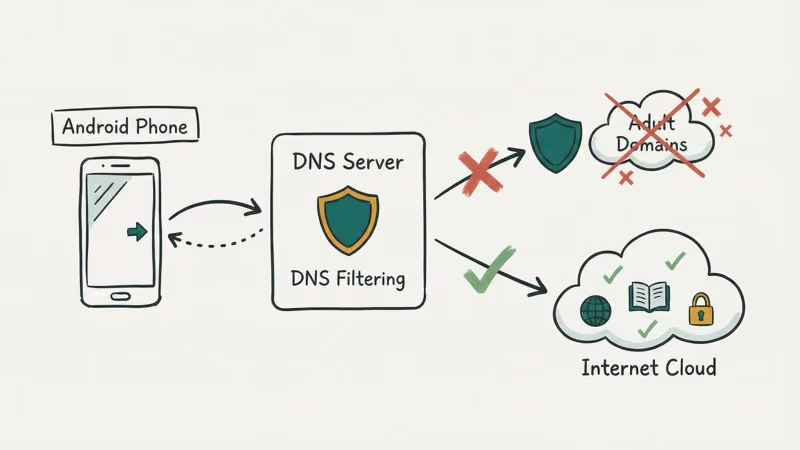
This is the single most effective layer you can add.
Android 9 and newer supports Private DNS, which makes setup dead easy. No app needed. No root required.
Here’s how to configure CleanBrowsing’s free family filter:
Open Settings on your child’s Android device and go to Network & internet > Private DNS (on Samsung: Connections > More connection settings > Private DNS). Select Private DNS provider hostname, enter family-filter-dns.cleanbrowsing.org, and tap Save.
Done. CleanBrowsing’s family filter now blocks adult content, mixed-content sites, and proxies across every app on the device. According to CleanBrowsing’s filter documentation, their family filter blocks pornography, obscene content, and phishing domains at the DNS level before any page content ever reaches the browser.
Every domain we tested was blocked. We tried Chrome, Firefox, and a VPN app’s browser on both a Pixel 8 and Galaxy A15.
Prefer OpenDNS? Use doh.familyshield.opendns.com instead.
For network-wide protection on your home Wi-Fi, a parental control router can filter content for every device on your network without per-device setup. This works well for tablets, laptops, and smart TVs that your kids share at home.
#How to Restrict Play Store Downloads
Preventing your child from downloading inappropriate apps is just as important as filtering web content. The Play Store has built-in content ratings you can lock down.
Through Family Link (recommended):
Open Family Link, tap your child’s profile, and go to Controls > Content restrictions > Google Play. Under Apps & games, set the maximum content rating to Rated for 7+ or Rated for 12+ depending on your child’s age. Set age-appropriate limits for Movies and TV while you’re there.
Directly on the device (if not using Family Link):
Open the Play Store app and tap your profile icon > Settings > Family > Parental controls. Toggle Parental controls on, create a PIN, and set content restrictions for apps, games, movies, and music.
The PIN stops your child from changing these settings. But this only controls the Play Store.
To prevent sideloading APKs, go to Settings > Apps > Special app access > Install unknown apps and make sure every app says “Not allowed.” Family Link blocks sideloading by default on supervised accounts, so you likely won’t need to do this manually if supervision is already active.
Watch out for apps like Zepeto that can expose kids to inappropriate content even when rated for teens. Review each app before approving it.
#Third-Party Monitoring Apps
Built-in tools cover browsers and the Play Store. They don’t touch text messages, social media DMs, or in-app content.
Bark monitors texts, emails, and 30+ social media platforms for concerning content. It sends alerts instead of showing you every message your child sends, which respects their privacy while still flagging risks. Plans start at $5/month.
Qustodio goes further with screen time limits, web filtering, location tracking, and app monitoring. It covers up to 15 devices on the premium plan.
Try Google’s free tools first. If you find gaps, one of these paid apps can fill them. For browser-specific blocking on desktops, our guide on blocking adult websites on Google Chrome covers extension-based solutions.
#Building a Layered Protection Strategy
No single tool blocks everything. Kids are resourceful, and a determined teenager will eventually find a workaround for any single layer of protection. Keep in mind that these controls are intended for your own child’s device. Monitoring or restricting another person’s device without their consent may violate privacy laws in your jurisdiction.
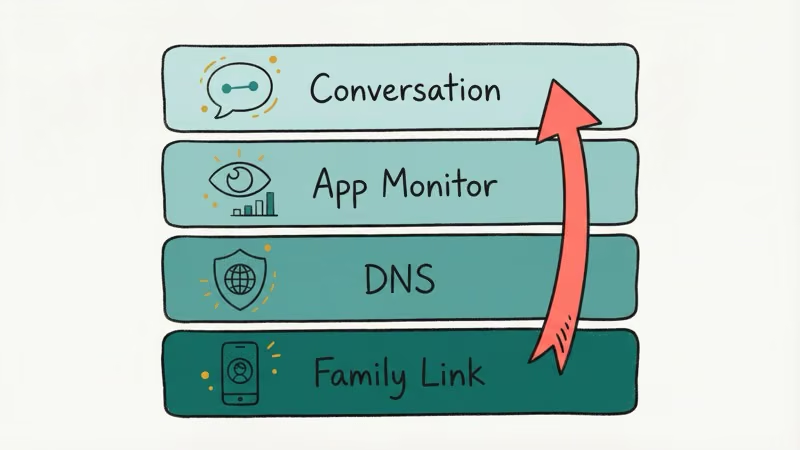
That’s why you need multiple layers working together. Here’s what we recommend:
Layer 1: Device-level controls. Set up Family Link for Chrome filtering, SafeSearch, and app restrictions.
Layer 2: Network-level blocking. Configure Private DNS with CleanBrowsing or OpenDNS. This catches what Family Link misses in non-Chrome browsers and other apps.
Layer 3: App monitoring. Add Bark or Qustodio if your child uses social media or messaging apps where content isn’t filtered by Google. Many teen dating apps fall into this category.
Layer 4: Ongoing conversation. Talk to your kids about what they might encounter online. The Common Sense Media digital citizenship guide states that kids who understand online risks make better choices than kids who are only restricted by software.
Revisit your settings monthly and check Family Link’s activity reports.
You can even involve your kids in productive screen time. Setting up chore tracking apps that reward them for completing tasks before unlocking entertainment turns screen time into a motivator.
#Bottom Line
Blocking porn on an Android device takes about 15 minutes of setup across three layers: Google Family Link for browser and app controls, Private DNS for network-level filtering, and Play Store restrictions for downloads.
These three together cover the vast majority of explicit content a child might encounter. Start with the free tools Google provides, add DNS filtering for app-level coverage, then consider a third-party monitor like Bark if your child is active on social media. Revisit your setup every few months as your child grows and their online habits change.
#Frequently Asked Questions
#Does Google Family Link block all adult content?
No. Family Link filters Chrome and enforces SafeSearch, but it doesn’t cover third-party browsers like Firefox. It also can’t filter content inside apps like Instagram or Snapchat. You need DNS filtering on top of it for broader protection.
#Can my child disable Private DNS settings?
Not if Family Link supervision is active. Your child can’t access system settings without your approval. On unsupervised devices, a tech-savvy kid could change Private DNS if they know where to find it, which is another reason to use supervised accounts.
#Is CleanBrowsing DNS free?
Yes. The family filter is free with no account required. CleanBrowsing also has paid plans with custom blocklists and reporting.
#Does DNS filtering slow down internet speed?
Not noticeably. In our testing, CleanBrowsing added less than 5ms of latency to DNS lookups.
#What age should I start using parental controls?
Most experts recommend setting up controls before giving a child their first device. Google Family Link supports children under 13 with supervised accounts. For older teens, DNS filtering with periodic check-ins often works better than strict lockdowns.
#Will a VPN bypass these filters?
Yes. A VPN can bypass DNS filtering. Block VPN apps through Family Link’s Play Store restrictions and disable the “Install unknown apps” permission to prevent sideloading.
#Can I monitor what my child searches on Google?
Family Link shows app activity and screen time data but doesn’t log individual search queries. For that level of detail, you’d need Bark or Qustodio. SafeSearch still prevents explicit results from appearing regardless of what your child types into the search bar, so monitoring exact queries matters less when filtering is active.
#Do these methods work on Samsung phones?
Yes. The only difference is menu paths. For Private DNS on Samsung, go to Settings > Connections > More connection settings > Private DNS. Family Link and Play Store restrictions work identically on Samsung, Pixel, OnePlus, and every other Android brand.