Have you ever encountered the frustrating message “Sign Out is Not Available Due to Restrictions” when trying to log out of your Apple ID? This common issue can leave users feeling stuck and unable to manage their accounts effectively. As an experienced tech consultant with over 20 years in the field, I’ve helped countless clients navigate this problem. In this comprehensive guide, we’ll explore the causes of this restriction and provide step-by-step solutions to get you back in control of your Apple ID.
#Understanding Screen Time Restrictions
Before diving into solutions, it’s crucial to understand what causes this sign-out restriction. The primary culprit is often the Screen Time feature, introduced by Apple to help users manage their device usage and set parental controls.

Screen Time can inadvertently block account changes, including the ability to sign out of an Apple ID. This is particularly common in family sharing setups or on devices managed by schools or employers. When Screen Time restrictions are in place, the sign-out option may appear grayed out in your settings, preventing any changes to your account.
#Steps to Disable Screen Time
The most straightforward solution is often to disable Screen Time entirely. Here’s how to do it:

- Open the Settings app on your iPhone or iPad.
- Scroll down and tap on “Screen Time.”
- Scroll to the bottom and select “Turn Off Screen Time.”
- Enter your Screen Time passcode if prompted.
- Confirm by tapping “Turn Off Screen Time” again.
After disabling Screen Time, you should be able to sign out of your Apple ID without any restrictions.
If you’ve forgotten your Screen Time passcode, don’t worry. You can remove the Screen Time passcode using alternative methods. It’s also important to know what happens after 10 failed Screen Time passcode attempts to avoid potential lockouts.
#Allowing Account Changes
If you prefer to keep Screen Time enabled but still need to sign out, you can adjust the settings to allow account changes:
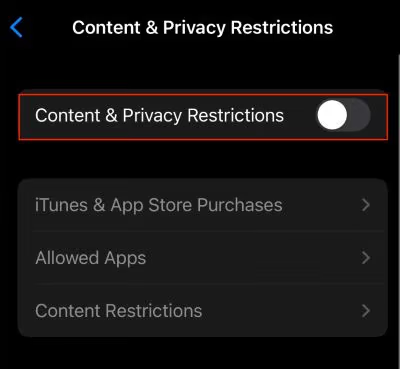
- Go to Settings > Screen Time > Content & Privacy Restrictions.
- Enter your Screen Time passcode.
- Tap on “Account Changes.”
- Select “Allow” to enable account modifications.
This method maintains your Screen Time settings while giving you the freedom to manage your Apple ID.
#Alternative Methods to Resolve the Issue
#Restarting Your Device
Sometimes, the simplest solutions are the most effective. Restarting your device can often clear temporary glitches:
- Press and hold the power button until “slide to power off” appears.
- Slide to turn off your device.
- Wait a few seconds, then turn it back on.
After restarting, check if you can sign out of your Apple ID.
#Updating iOS Software
Keeping your device updated is crucial for resolving many issues:
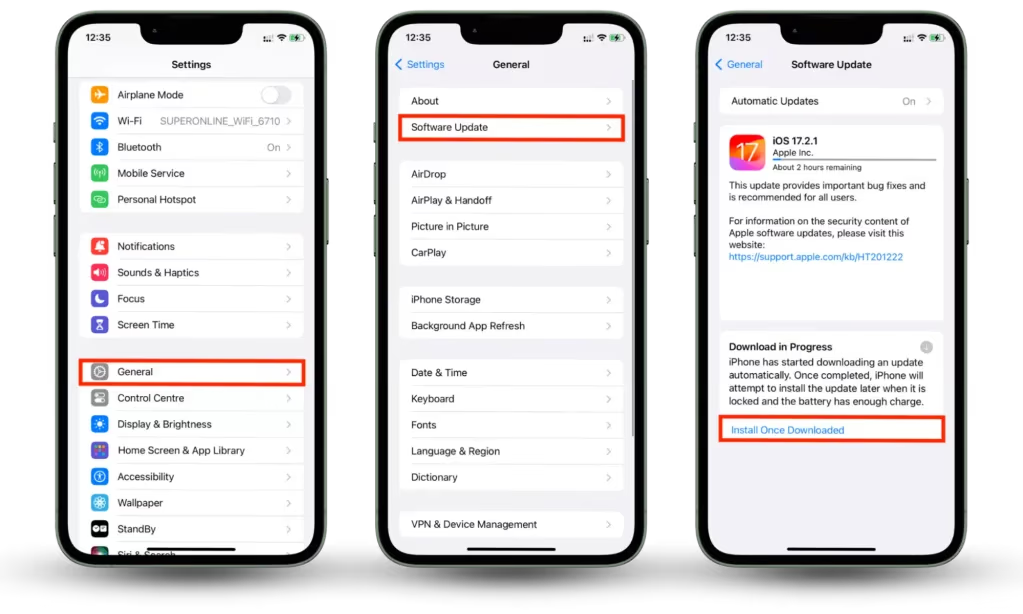
- Go to Settings > General > Software Update.
- If an update is available, download and install it.
Software updates often include fixes for bugs that might be causing restrictions.
#Using Third-Party Tools (with Caution)
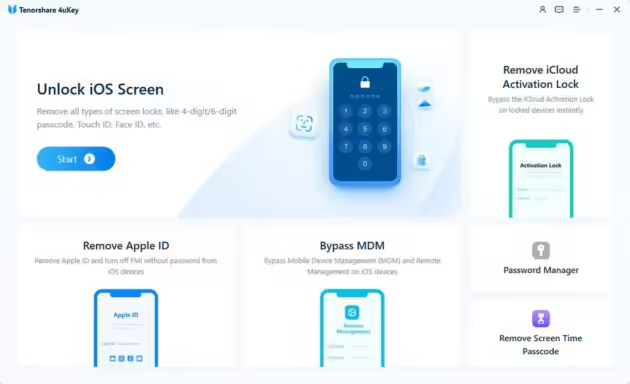
In some cases, third-party tools like Tenorshare 4uKey, EaseUS MobiUnlock, or iCloud Erasing BESTool can help bypass Screen Time restrictions. However, use these with caution and only from reputable sources to avoid compromising your device’s security.
#Troubleshooting Persistent Problems
#Checking for MDM Restrictions
If your device is managed by an organization, Mobile Device Management (MDM) restrictions might be in place. Contact your IT department to request the removal of these restrictions. For school-issued iPads, you may need to remove school iPad restrictions to regain full control of your device.
#Contacting Apple Support
When all else fails, don’t hesitate to reach out to Apple Support. They can provide expert assistance tailored to your specific situation.
#Factory Reset (Last Resort)
As a final option, you may need to consider a factory reset. Be sure to back up your data before proceeding:
- Go to Settings > General > Reset.
- Select “Erase All Content and Settings.”
- Follow the prompts to reset your device.
If you’re unable to sign out normally, you might need to remove your Apple ID from the device entirely. This can give you a fresh start with your device.
#Preventing Future Sign Out Issues
To avoid encountering this problem in the future:
- Use Screen Time judiciously, especially on shared devices.
- Regularly update your iOS to the latest version.
- Keep your Apple ID settings current and review them periodically.
#FAQs
- Can I protect my account if the sign-out option is unavailable? Yes, you can still enhance security by enabling two-factor authentication, using strong passwords, and monitoring account activity regularly.

- Does this issue affect multiple devices? It can, especially if your devices are synced. Changes on one device may reflect on others connected to the same Apple ID.
- What if I’ve forgotten my Screen Time passcode? You can reset it by tapping “Forgot Passcode” in the Screen Time settings and verifying your Apple ID credentials.
- Can MDM restrictions be removed without contacting IT? Generally, no. MDM restrictions are controlled by the organization managing the device and require their intervention to modify or remove.
- Is it safe to use third-party tools to bypass restrictions? While some tools can be effective, they pose potential security risks. Only use reputable software and consider it as a last resort.
#Conclusion
The “Sign Out is Not Available Due to Restrictions” message can be a significant inconvenience, but it’s not insurmountable. By understanding the cause and following the steps outlined in this guide, you can regain control of your Apple ID and ensure smooth account management in the future. Remember, keeping your device updated and managing your settings proactively can prevent many such issues from occurring. If you encounter persistent problems, don’t hesitate to seek professional help from Apple Support.