What Happens After 10 Failed Screen Time Passcode Attempts?
Apple does not publish a fixed ten-attempt Screen Time timer. Learn what Erase Data covers and how to reset the separate passcode safely today.
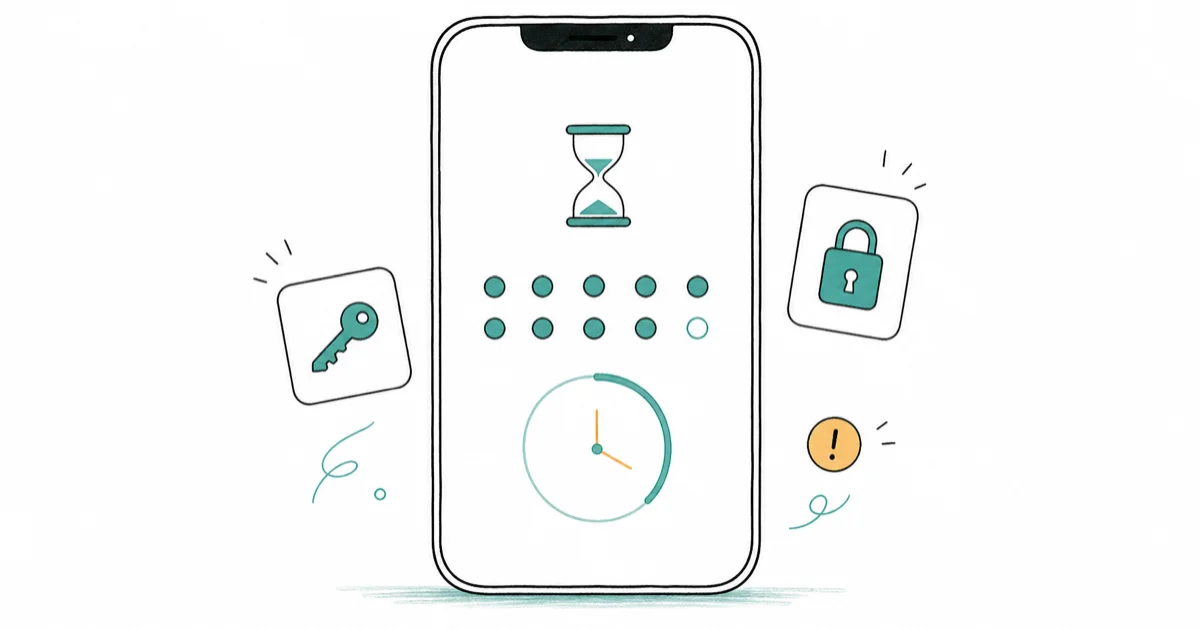
Quick AnswerApple does not publish a guaranteed timer for the tenth failed Screen Time code. The ten-attempt Erase Data rule applies to the device passcode, not Screen Time; use Apple Account or Family organizer recovery.
Apple’s current pages don’t publish a fixed result or minute-by-minute schedule for the tenth wrong Screen Time passcode. Follow any countdown shown, then use Screen Time Passcode Recovery instead of guessing or erasing the iPhone.
Use this guide only for your device or a child’s device you may legally manage. Unauthorized changes can violate privacy laws.
- A Screen Time passcode is separate from the device passcode used on the Lock Screen.
- Current Apple Screen Time pages don’t publish a guaranteed delay table for failed Screen Time codes.
- Apple’s ten-attempt Erase Data rule covers consecutive wrong device passcodes, not the Screen Time prompt.
- Reset your own Screen Time code with the Apple Account linked to Screen Time Passcode Recovery.
- A Family organizer resets a child’s Screen Time code on the organizer’s device.
#How Are Screen Time and Device Passcodes Different?
According to Apple’s Screen Time passcode guide, the Screen Time code controls changes to limits, restrictions, and settings selected for yourself or a child. It’s a separate settings passcode, not the code that unlocks the device.
The Lock Screen device passcode protects the whole iPhone or iPad. Screen Time doesn’t.
If the Lock Screen itself says iPhone Unavailable or Security Lockout, stop using this article. Follow the recovery order in our disabled-iPhone guide, because that is a device-passcode problem.
#What Happens After Failed Screen Time Attempts?
No current Apple page verified for this update publishes an exact Screen Time delay table. Apple’s Screen Time guides explain how to set, change, and recover the code, but they don’t promise a one-hour lockout after the tenth failure or document a universal 1/5/15/60-minute staircase.
That absence doesn’t prove every iOS version, account type, and device behaves the same way. It means the old one-hour statement can’t be presented as guaranteed Apple policy.
Use the state shown on your device:
- Stop entering guesses when a delay or disabled control appears.
- Wait for the displayed countdown to finish if the reset controls are temporarily unavailable.
- Open the supported reset route when the controls allow it.
- Don’t restart, change the date, sign out, restore a backup, or factory-reset the device just to defeat a timer.
Follow the timer you can actually see.
#The Ten-Attempt Erase Rule Covers the Device Passcode
Apple’s Platform Security guide states that Erase Data removes all content and settings after 10 consecutive incorrect device-passcode attempts when that option is enabled. Repeating the same wrong code does not count again toward the limit.
That rule belongs to the device passcode. Apple doesn’t attach it to failed Screen Time entries.
Apple documents the possible device-passcode states separately: escalating Lock Screen delays, a locked device at 10 or more attempts, and an erase after 10 consecutive wrong codes when Erase Data is enabled. Don’t transfer those outcomes to the Screen Time code.
Our device-passcode reset guide keeps those destructive Lock Screen routes separate from Screen Time recovery.
#Reset Your Own Screen Time Passcode
Apple’s forgotten Screen Time passcode page confirms this sequence for your own iPhone or iPad:
- Open
Settings>Screen Time. - Tap Change Screen Time Passcode.
- Tap Change Screen Time Passcode again.
- If asked, enter the Apple Account email address and password used to set up Screen Time Passcode Recovery.
- Enter and confirm a new Screen Time passcode.
Use the same Apple Account that was linked when Screen Time Passcode Recovery was configured. If you have more than one account, it may differ from the account currently shown elsewhere on the device.
This settings flow changes the Screen Time code. It doesn’t require Recovery Mode, Erase All Content and Settings, or a backup rollback. Our forgotten Screen Time passcode guide includes a longer walkthrough of the same self-managed route.
#Reset a Child’s Code as the Family Organizer
When Family Sharing manages a child’s Apple Account, the Family organizer resets the Screen Time code on the organizer’s device, not on the child’s device.
Use the current route:
- On the organizer’s iPhone or iPad, open
Settings>Screen Time. - Scroll down and select the child’s name under Family.
- Under Restrictions, tap Manage Screen Time.
- Tap Change Screen Time Passcode, then tap it again.
- Enter and confirm the new code.
Apple’s child Screen Time page states that a Family organizer can manage the child’s settings from the organizer’s Apple device. Keep the participating devices updated if the new code or settings don’t sync.
Don’t share the organizer’s password; keep recovery on the organizer’s device.
#If the Apple Account Reset Fails
Check the account before considering anything destructive. Apple says the recovery email or phone number and password must match the Apple Account used when Screen Time Passcode Recovery was set up.
Work through these checks:
- Confirm whether the code belongs to your device or a child’s account managed by Family Sharing.
- Try the exact Apple Account used for Screen Time Passcode Recovery.
- Check that the child’s name appears under
Settings>Screen Time>Familyon the organizer’s device. - Update the participating devices if Screen Time changes aren’t syncing.
- Ask Apple Support for account-specific help if the linked account is still rejected.
Don’t restore an old backup on the assumption that it clears Screen Time. Apple does not present backup rollback as the current passcode-recovery route, and a restore can replace newer device data. A factory reset is not the routine fix either.
#Avoid Guessing Loops and Bypass Tools
Use Apple’s built-in recovery first. Third-party tools can’t change the Apple Account linked to Screen Time recovery.
After legitimate access returns, use our Screen Time removal guide if you want to remove the code, or the disable Screen Time guide if you intend to turn off the feature. Neither route authorizes access to another person’s settings.
For prevention, store the code securely and link recovery to an Apple Account you can access.
#Bottom Line
Honor the timer shown on the device. Apple does not publish a guaranteed one-hour result for the tenth failed Screen Time passcode on its current support pages.
The documented ten-attempt Erase Data rule applies to consecutive wrong device passcodes. Reset a separate Screen Time code with its linked Apple Account, or have the Family organizer change a child’s code from the organizer’s device.
#Frequently Asked Questions
Will 10 wrong Screen Time passcodes erase the iPhone?
They’re not the trigger Apple documents for Erase Data. Apple’s erase rule applies to consecutive wrong device-passcode attempts, while Screen Time has a separate settings-based recovery flow.
Does Apple guarantee a one-hour lockout after the tenth attempt?
No current Apple page verified for this update publishes that fixed result. Follow any countdown shown on the device instead of treating an old timing chart as universal.
Can I keep using the iPhone during a Screen Time delay?
Apple does not publish a blanket feature-by-feature promise for that state. Use what remains available, avoid more guesses, and open the supported reset flow when its controls allow it.
Does changing the Screen Time passcode erase data?
Apple’s documented reset is a Screen Time settings flow, not an erase or restore procedure. Enter the linked Apple Account when asked and set a new code.
What if I don’t remember which Apple Account was used?
Check the accounts used when Screen Time Passcode Recovery was configured. Apple notes that the account may differ from the one currently signed in or may belong to another family member.
Can a parent reset a child’s Screen Time passcode remotely?
The Family organizer can reset it on the organizer’s device through Settings > Screen Time > child’s name > Manage Screen Time > Change Screen Time Passcode.
Should I restore a backup or factory-reset the iPhone?
Not as the routine response to a forgotten Screen Time code. Apple’s current instructions use the linked Apple Account or Family organizer route; a restore can overwrite newer data.

Is This Bank App Real? Spot a Fake App on Your Home Screen
A bank app can land on your home screen from a web page with no install warning. Learn the checks that tell a real banking app from a phishing web app.
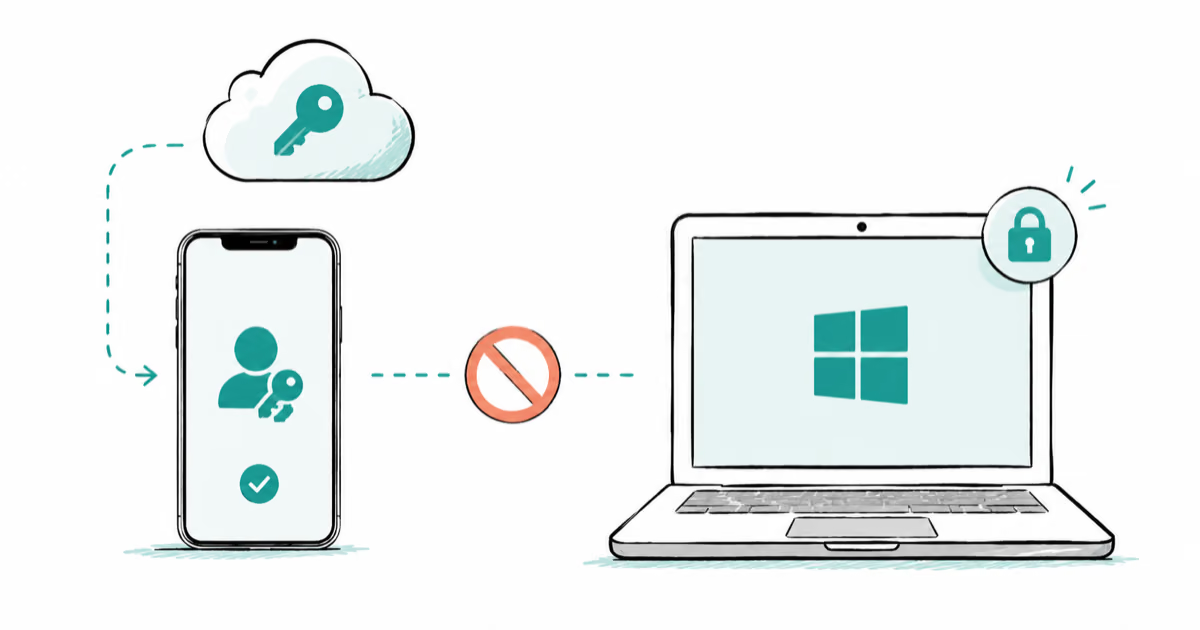
Passkeys Not Syncing Between iPhone and Windows? Read This
Passkeys not syncing between iPhone and Windows is by design, not a bug. Here is why iCloud passkeys skip Windows Hello and the three ways to fix it.
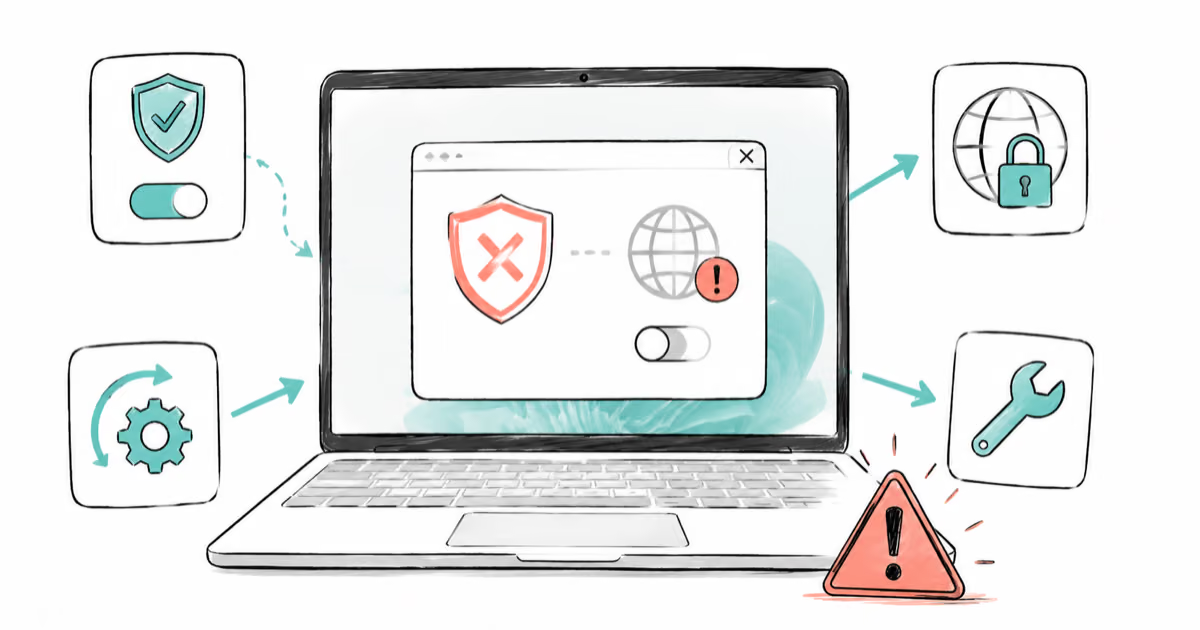
VPN Not Working on Snapdragon X? Why It Fails, How to Fix
Your VPN won't install or connect on a Snapdragon X Copilot Plus PC because Windows on ARM can't emulate the network driver. Here are the fixes that work.

How to Check If a Link Is Safe Before You Click It
Learn how to check if a link is safe with official-first steps: read the real domain, use the app instead, and treat scanners as a second opinion only.