Snap Map is one of Snapchat’s most popular features, allowing users to share their real-time location with friends and discover what’s happening around them. However, it can be frustrating when Snap Maps stops working properly. If you’re experiencing issues with Snap Map not updating, showing incorrect locations, or not loading at all, you’re not alone. This comprehensive guide will walk you through the most common reasons for Snap Map problems and provide 10 easy solutions to get you back on the map.
#What is Snap Map and How Does it Work?
Before diving into troubleshooting, let’s quickly review what Snap Map is and how it functions. Snap Map is an interactive map feature within the Snapchat app that allows users to share their real-time location with friends. It uses your device’s GPS and internet connection to pinpoint and display your location on a map, represented by your Bitmoji avatar.
Key features of Snap Map include:
- Real-time location sharing with friends
- Ability to see friends’ locations and activities
- Discover local events and popular places
- View public Stories from different locations worldwide
Snap Map relies on several factors to work correctly:
- Access to your device’s location services
- An active internet connection
- The latest version of the Snapchat app
- Proper app permissions and settings
When any of these elements are compromised, you may experience issues with Snap Map functionality.
#Common Reasons Why Snap Maps May Not Be Working
Before we explore solutions, it’s helpful to understand the most common reasons why Snap Maps might not be working:

- Location services disabled: If your device’s location services are turned off or Snapchat doesn’t have permission to access your location, Snap Map can’t function properly.
- Outdated Snapchat app: Using an older version of Snapchat can lead to compatibility issues and bugs affecting Snap Map.
- Poor internet connection: A weak or unstable internet connection can prevent Snap Map from updating or loading correctly.
- Ghost Mode enabled: If you’ve accidentally enabled Ghost Mode, your location won’t be visible on Snap Map.
- App glitches or cache issues: Temporary app glitches or a buildup of cached data can interfere with Snap Map’s functionality.
- Incorrect device location: Sometimes, your device might show the wrong location, affecting Snap Map’s accuracy. This issue isn’t exclusive to Snapchat and can affect other location-based apps as well. Learn more about why your location might be wrong on your iPhone.
Now that we understand the potential causes, let’s explore 10 solutions to fix Snap Maps when it’s not working.
#10 Solutions to Fix Snap Maps Not Working
#1. Enable Location Services for Snapchat
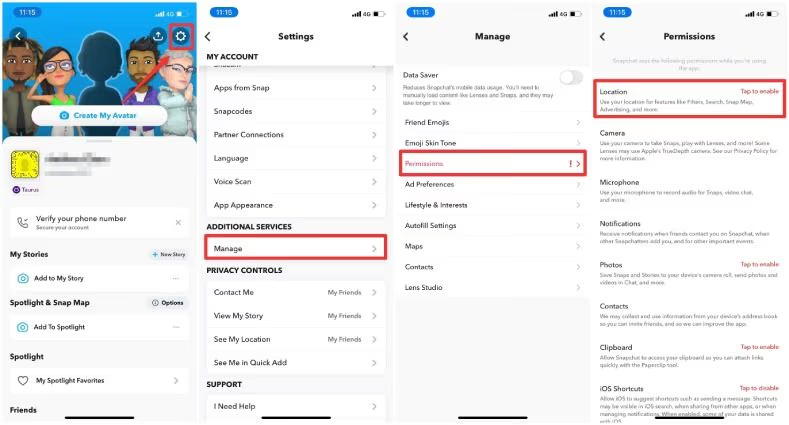
The most common reason for Snap Map issues is disabled location services. Here’s how to enable them:
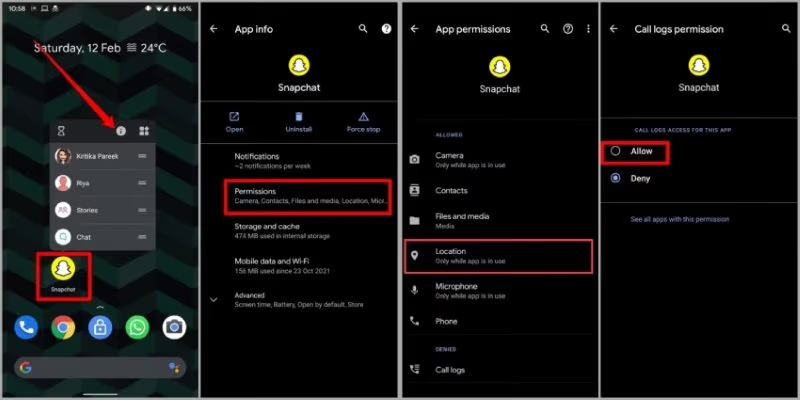
On Android:
- Go to Settings > Apps > Snapchat > Permissions
- Enable the Location permission
On iOS:
- Go to Settings > Privacy > Location Services
- Ensure Location Services is turned on
- Find Snapchat in the list and select “While Using the App” or “Always“
#2. Update Snapchat to the Latest Version
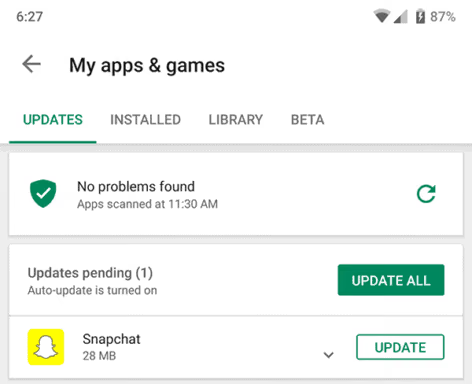
Outdated app versions can cause various issues, including Snap Map problems. To update Snapchat:
- Open your device’s app store (Google Play Store or Apple App Store)
- Search for Snapchat
- If an update is available, tap “Update”
#3. Check Your Internet Connection
A stable internet connection is crucial for Snap Map to function properly. Try these steps:
- Toggle your Wi-Fi or mobile data off and on
- Connect to a different Wi-Fi network if available
- If using Wi-Fi, try switching to mobile data (or vice versa)
- Restart your router if you’re having persistent Wi-Fi issues
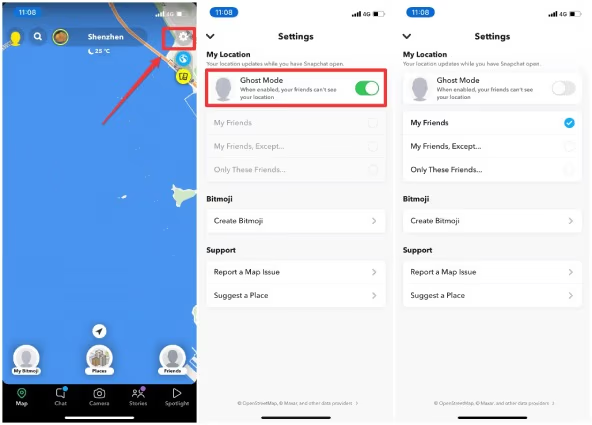
#4. Disable Ghost Mode
Ghost Mode hides your location on Snap Map. To disable it:
- Open Snapchat and go to the Snap Map screen
- Tap the Settings icon in the top-right corner
- Toggle off “Ghost Mode”
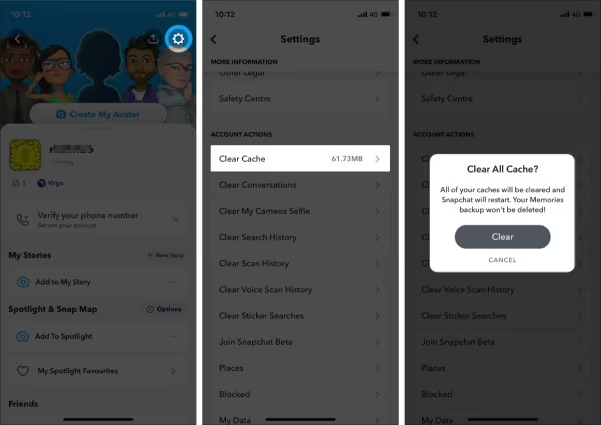
#5. Clear Snapchat Cache
Clearing the app’s cache can resolve many issues:
On Android and iOS:
- Open Snapchat and tap your profile icon
- Tap the Settings gear icon
- Scroll down and tap “Clear Cache“
- Confirm by tapping “Clear” or “Continue“
#6. Restart Your Device
A simple restart can often resolve temporary glitches:
- Power off your device completely
- Wait 30 seconds
- Turn your device back on
- Open Snapchat and check if Snap Map is working
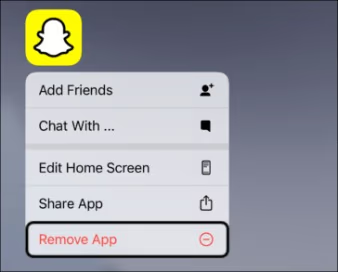
#7. Reinstall Snapchat
If the above steps don’t work, try uninstalling and reinstalling the app:
- Uninstall Snapchat from your device
- Restart your device
- Download and install Snapchat from your device’s app store
- Log in and check if Snap Map is now working
#8. Check for Snapchat Server Issues
Sometimes, the problem may be on Snapchat’s end. Check if there are any reported server issues:
- Visit a website like Downdetector (https://downdetector.com/status/snapchat/)
- Check if other users are reporting similar issues
- If there’s a widespread problem, you may need to wait for Snapchat to resolve it
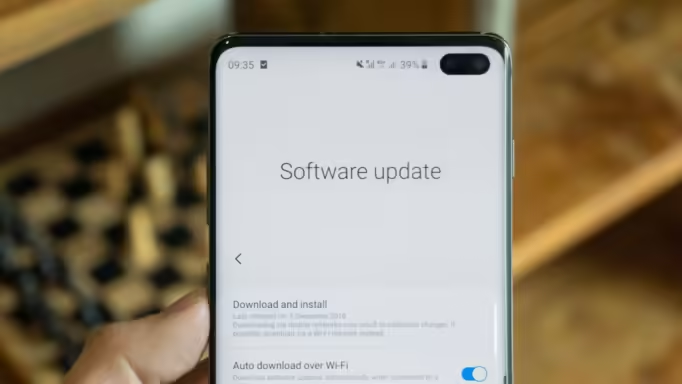
#9. Update Your Device’s Operating System
Ensure your device’s operating system is up to date:
On Android:
- Go to Settings > System > System update
- Check for and install any available updates
On iOS:
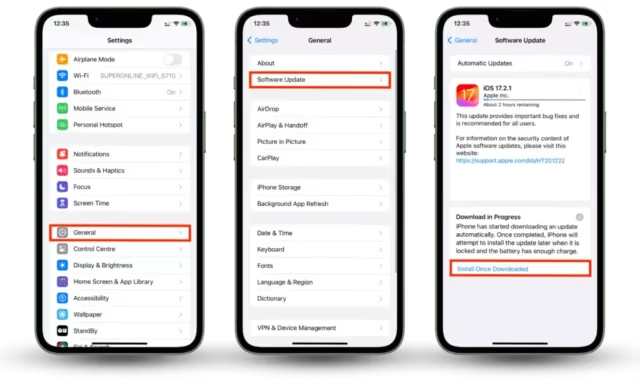
- Go to Settings > General > Software Update
- Install any available updates
#10. Contact Snapchat Support
If none of the above solutions work, it’s time to reach out to Snapchat support:
- Go to https://help.snapchat.com/hc/en-us
- Click on “Contact Us“
- Describe your Snap Map issue in detail
- Follow their instructions for further assistance
#Additional Tips for Location-Based App Issues
If you’re experiencing issues with other location-based apps, here are some additional tips:
- Google Maps not working? Check out our guide on how to fix Google Maps when it’s not working.
- Waze sound issues? If you’re having trouble with Waze audio, learn how to fix Waze sound not working.
- Snapchat notifications not working on iPhone? Discover solutions in our article about fixing Snapchat notifications on iPhone.
#How to Use Snap Map Effectively
Once you’ve resolved any issues, here are some tips for using Snap Map effectively:
- Customize your privacy settings: Choose who can see your location (My Friends, My Friends Except…, or Only These Friends)
- Use Snap Map to discover local events: Explore the map to find interesting happenings near you
- Check your friends’ status: See what your friends are up to and where they are (if they’ve chosen to share)
- Share your location temporarily: Use the “Share Location” feature to let friends know where you are for a limited time
#Frequently Asked Questions
Q: Can someone see my location on Snap Map if we’re not friends? A: No, only your Snapchat friends can see your location on Snap Map, and only if you’ve allowed them to do so in your privacy settings.
Q: Why does my location on Snap Map seem inaccurate? A: Snap Map’s accuracy depends on your device’s GPS signal and internet connection. Being indoors or in areas with poor reception can affect accuracy.
Q: How often does Snap Map update my location? A: Snap Map typically updates your location when you open the Snapchat app. It may also update periodically in the background if you’ve granted the app permission to do so.
Q: Can I use Snap Map without sharing my own location? A: Yes, you can enable Ghost Mode to view the map and your friends’ locations without sharing your own.
Q: Will using Snap Map drain my battery quickly? A: Snap Map can use more battery than usual due to GPS and data usage. To conserve battery, only open the map when necessary or enable Ghost Mode when you don’t want to share your location.
Q: Is it possible to change my location on Snap Map? A: Snapchat doesn’t officially support location spoofing. However, if you’re curious about changing locations in other apps, you might find our guide on how to change location on Bumble interesting.
Q: Are there any Snap Map hacks to see someone’s location without them knowing? A: We don’t recommend trying to hack or bypass Snapchat’s privacy features. However, if you’re interested in learning more about Snap Map’s capabilities, you can read about Snapchat Map features and privacy settings.
#Conclusion
Snap Map is a fun and useful feature when it’s working correctly. By following the troubleshooting steps outlined in this guide, you should be able to resolve most issues and get back to sharing your location with friends. Remember to always be mindful of your privacy settings and who you’re sharing your location with. If you continue to experience problems, don’t hesitate to reach out to Snapchat support for further assistance.
Happy snapping and mapping!