Why Is My iPhone Location Wrong? 10 Easy Fixes to Try
Fix wrong iPhone location by checking Location Services, network settings, iOS updates, app permissions, VPN use, and calibration for better GPS.
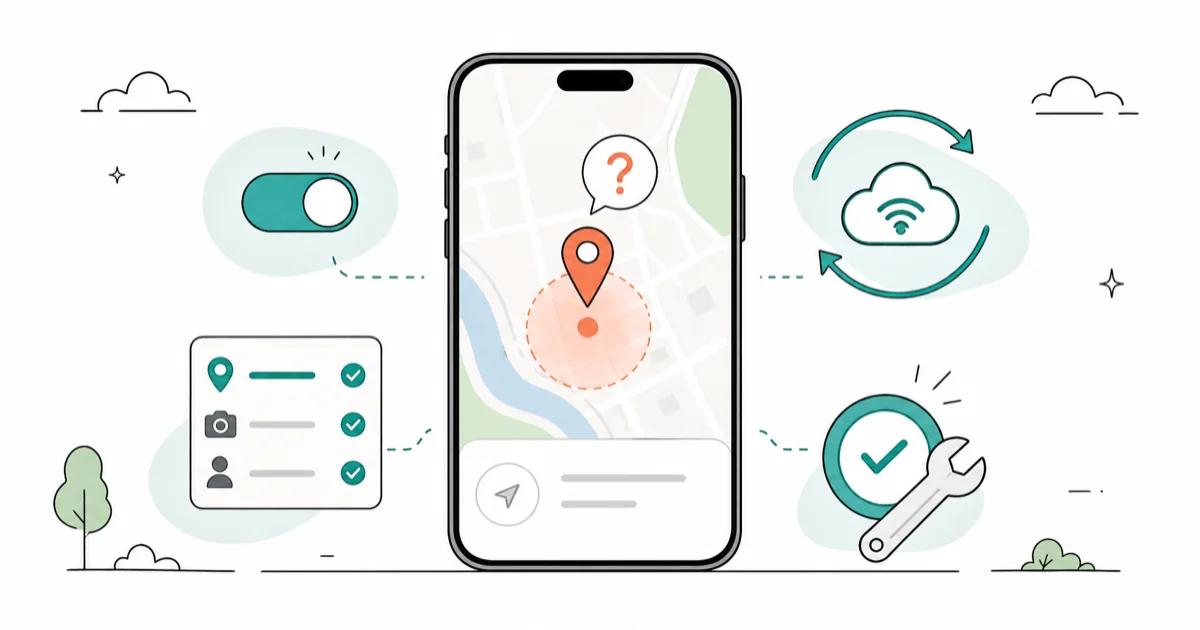
Quick AnswerYour iPhone location is wrong because of disabled GPS, poor internet connection, outdated iOS, or incorrect location settings. Enable Location Services in Settings, reset network settings, and update iOS.
Your iPhone’s showing the wrong location — that’s frustrating when you need navigation or weather data. Location Services settings, network state, and app permissions are the first places to check. Here’s how to fix it fast.
- Disabled Location Services is a common cause of wrong iPhone location
- Enabling Location Services at
Settings>Privacy & Security>Location Servicesfixes the issue within 30 seconds for most apps - Resetting network settings clears connectivity problems that interfere with GPS accuracy
- Airplane Mode completely disables GPS positioning, so check Control Center if location suddenly stops working
- iOS updates can include GPS and location service improvements, so keep your iPhone current
#Why Is My iPhone Location Wrong?
Several factors can cause your iPhone to display an incorrect location. The most common root causes are:
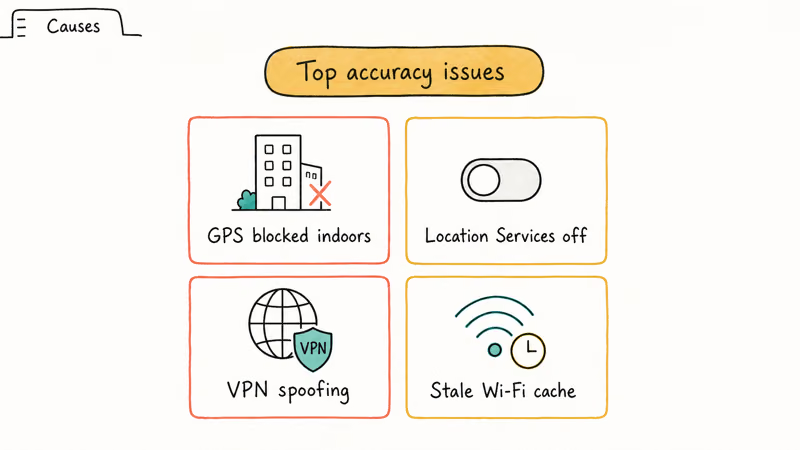
Disabled or misconfigured Location Services accounts for most issues. When GPS is turned off or apps lack proper permissions, your iPhone relies on less accurate methods like Wi-Fi positioning or cell tower triangulation.
Poor internet connectivity significantly affects location accuracy because your iPhone uses Wi-Fi networks and cellular data to supplement GPS signals for enhanced positioning. According to Apple’s support documentation, your device combines GPS, Wi-Fi, Bluetooth, and cellular data for precise positioning, creating a multi-layered approach that improves accuracy in challenging environments like urban canyons or indoor spaces where GPS signals alone might be insufficient.
Software bugs matter. Apple regularly releases location service improvements, including significant GPS enhancements for urban environments in iOS 16.4.
Network interference from buildings, tunnels, or bad weather can block GPS signals. Location accuracy often drops in dense downtown areas compared to open spaces. This also affects other features like Find My iPhone when your device is offline.
#Enable Location Services First
Start with the most direct solution: check your Location Services settings. This is the first setting to verify when apps show the wrong location.
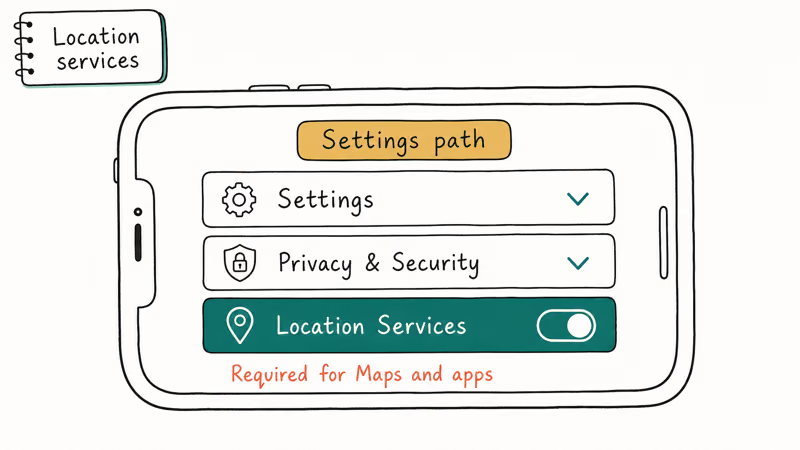
Enable Location Services:
- Go to
Settings>Privacy & Security>Location Services - Toggle on Location Services if it’s disabled
- Scroll down and tap specific apps that need location access
- Select “While Using the App” for most applications
- Choose “Always” only for apps like Find My that need background access
Configure System Services:
- In Location Services, scroll to System Services at the bottom
- Enable “Setting Time Zone” and “Find My iPhone”
- Turn on “Significant Locations” for better accuracy
After Location Services is enabled, mapping apps can regain accurate GPS, Wi-Fi, and cellular positioning within a short time.
#Why Won’t My iPhone Location Update?
Location updates can stick due to cached data or network problems causing persistent inaccuracy. Here’s what actually works:
Network reset fixes everything:
- Go to
Settings>General>Transferor Reset iPhone - Tap
Reset>Reset Network Settings - Enter your passcode to confirm
- Your iPhone will restart automatically and clear all problematic cached location data
This clears all saved Wi-Fi passwords, VPN settings, and cellular configurations. It can resolve location update problems caused by stale network data. You’ll need to reconnect to Wi-Fi networks, but this same fix also helps with iPhone not receiving texts issues.
Hardware restart clears GPS cache:
- iPhone 8 and newer: Quickly press volume up, then volume down, then hold the side button until you see the Apple logo
- iPhone 7 series: Hold volume down + side button together
- iPhone 6s and older: Hold home button + top button together
A hardware restart clears the temporary state that can leave Location Services lagging behind your real position. Apple’s Location Services guide states that your iPhone determines its approximate location from GPS and Bluetooth along with crowd-sourced Wi-Fi hotspots and cellular towers, so a fresh boot lets it rebuild that fix from scratch.
#Calibrate iPhone Location Accuracy
Location calibration significantly improves GPS precision, especially in areas with tall buildings or poor signal reception.
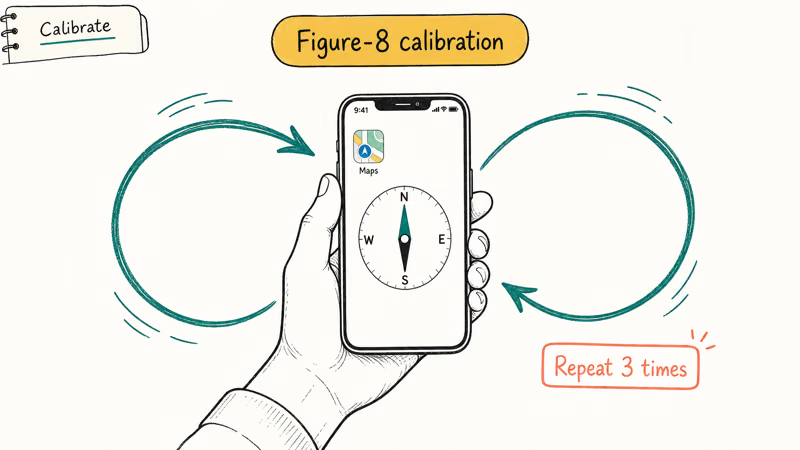
Google Maps calibration works best:
- Open Google Maps on your iPhone
- Look for the blue dot showing your location
- Tap the blue dot and select “Calibrate with Live View”
- Hold your phone upright and slowly move it in a figure-8 pattern
- Point your camera at buildings and landmarks as instructed
Google Maps Live View calibration can improve location accuracy in dense areas with tall buildings. The calibration process takes only a short time and can provide immediate improvement.
Check compass calibration:
- Open the Compass app (pre-installed on all iPhones)
- If prompted, tilt your phone to roll a ball around a circle
- Complete the calibration by following the on-screen instructions
Poor compass calibration also drags down location accuracy.
#Update iOS for Better Location Accuracy
Yes, iOS updates frequently include GPS improvements and location service fixes:
Always update iOS first:
- Go to
Settings>General>Software Update - Download and install any available updates
- Keep your iPhone connected to Wi-Fi during the entire update process to prevent interruptions
Update location-dependent apps next:
- Open the App Store
- Tap your profile icon
- Update all apps showing pending updates, especially navigation and weather apps that rely heavily on GPS data
According to Apple’s developer documentation, iOS 16.1 introduced enhanced GPS accuracy algorithms for improved urban positioning.
#Common Settings That Disable GPS
Several settings can completely disable or interfere with GPS positioning:
Airplane Mode completely disables all wireless connections, including GPS. Check Control Center to ensure the airplane icon isn’t highlighted.
Low Power Mode reduces location accuracy to save battery. Check Settings > Battery.
Background App Refresh affects how apps update location in the background, so enable it at Settings > General > Background App Refresh for location-dependent applications to function properly when running in the background.
It’s worth noting that Airplane Mode does turn off GPS completely, which many users don’t realize. If you’ve enabled Airplane Mode recently, that’s likely why your location stopped working.
#App-Specific Location Issues
Some apps require specific location permissions or have unique requirements:
For navigation apps like Apple Maps or Google Maps, set location access to “Always” for turn-by-turn directions when the app isn’t open.
For weather apps, “While Using the App” is enough for current conditions.
For Find My, location access must be set to “Always” for the service to locate your device when it’s lost.
If a specific app consistently shows wrong location data, try these steps:
- Delete and reinstall the problematic app
- Check for app updates in the App Store
- Restart your iPhone after reinstalling
You can also hide your location on iPhone for privacy reasons or change your iPhone location if needed for testing purposes.
#Bottom Line
Start with enabling Location Services in Settings > Privacy & Security — this fixes most iPhone location problems within 30 seconds. If that doesn’t work, reset network settings to clear connectivity issues that interfere with GPS accuracy. For persistent problems, update iOS and calibrate location using Google Maps’ Live View feature.
#Frequently Asked Questions
Why does my iPhone think I’m somewhere else?
Your iPhone determines location using GPS, Wi-Fi networks, cellular towers, and Bluetooth signals. If GPS is disabled or blocked, it relies on less accurate methods like Wi-Fi positioning, which can place you at your router’s registered address rather than your actual location.
Can weather affect iPhone GPS accuracy?
Yes, heavy rain, snow, and thick cloud cover can interfere with GPS signals. GPS satellites transmit weak radio signals that atmospheric conditions can block or deflect. Location accuracy typically returns to normal once weather conditions improve.
How accurate is iPhone location normally?
According to Apple’s specifications, iPhone GPS accuracy is typically within 5 meters in optimal conditions. Urban environments with tall buildings can reduce accuracy compared with open areas.
Does VPN affect iPhone location accuracy?
VPN services change your apparent internet location but don’t affect GPS positioning. However, some apps might show your VPN server location instead of your physical location when they use IP-based location services rather than GPS data.
Why is Find My iPhone showing wrong location?
Find My iPhone can show outdated location if the device is offline, has disabled location services, or is in an area with poor cellular reception. The service shows the last known location with a timestamp indicating when it was recorded.
Can I fix iPhone location without resetting network settings?
Try enabling Location Services, updating iOS, and calibrating location in Google Maps first. Resetting network settings is a stronger fix, but it requires re-entering Wi-Fi passwords. If you want to avoid that, start with the less disruptive solutions.
How long does location calibration take?
Google Maps calibration typically takes 30-45 seconds. Move your phone in a figure-8 pattern and point the camera at nearby buildings and landmarks. The app will confirm when calibration is complete.
Should I always allow location access for all apps?
No, only grant location access to apps that need it for core functionality. Use “While Using the App” for most applications and reserve “Always” access for essential services like Find My, navigation apps you use for turn-by-turn directions, and trusted security apps.

Mac mini M6 vs M5 Pro: Which Model Should You Buy?
Mac mini M6 vs M5 Pro compared on price, memory, ports, displays, and real workloads. Find the better 2026 Mac mini for your desk and budget.

Apple Siri Settlement: Who Qualifies and How to Claim
Apple's $250 million Siri settlement covers iPhone 15 Pro and iPhone 16 models bought June 2024 to March 2025. See who qualifies and how claims work.

iOS 26.6.1 Security Update: What Apple Fixed and Who Gets It
Apple released iOS 26.6.1 on August 17 with 29 security fixes, including an IPSec interception bug. See what it patches, who gets it, and how to update.

iPhone Adaptive Power: How It Works and When to Use It
Learn how iPhone Adaptive Power works, which models support it, what it changes, and when Low Power Mode is still the better battery-saving choice.