How to Transfer WhatsApp from Samsung to iPhone (2026)
Move WhatsApp from Samsung to iPhone with the official Move to iOS app, trusted third-party tools, or a no-reset Mutsapper method safely in 2026.
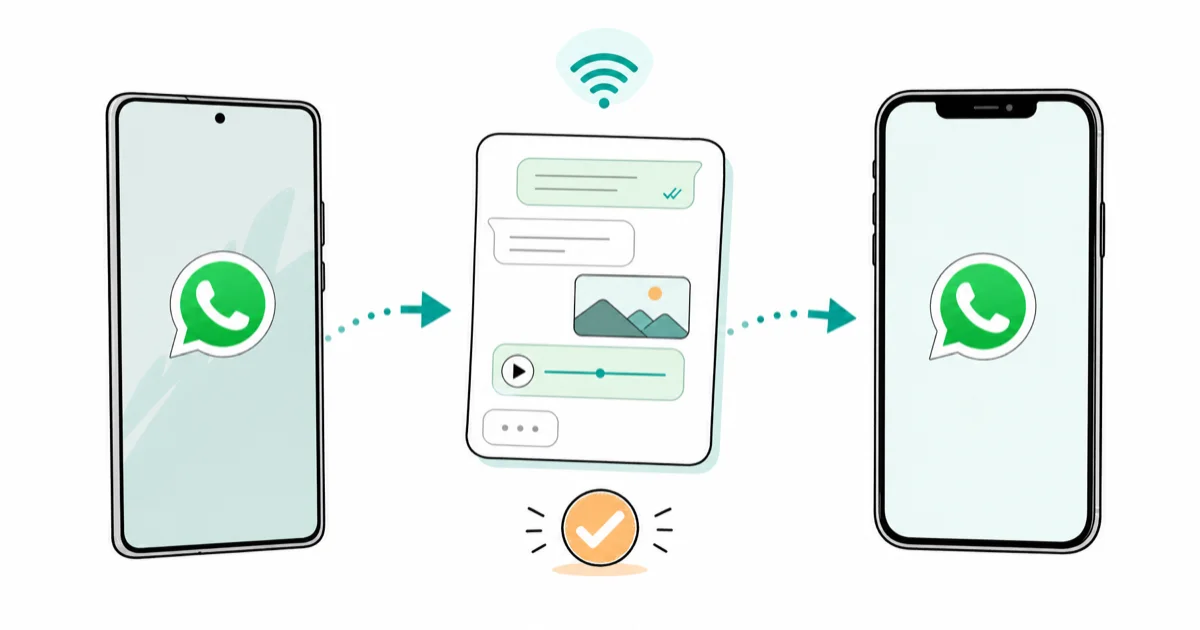
Quick AnswerUse Apple's Move to iOS app during iPhone setup to transfer WhatsApp chats, photos, and videos directly from your Samsung phone to your new iPhone. The iPhone must be running iOS 15.5 or newer and at the initial setup screen.
Switching from Samsung to iPhone and want your WhatsApp chats to come along? Apple’s official cross-platform path arrived with iOS 15.5, and several third-party tools still support no-reset transfers in 2026. This guide covers the practical options.
- Apple’s free Move to iOS app is the official method for transferring WhatsApp from Samsung to iPhone, but it requires iPhone iOS 15.5 or later and must be used during initial iPhone setup.
- Third-party tools like Wondershare MobileTrans and Tenorshare iCareFone transfer WhatsApp without requiring an iPhone factory reset.
- The Mutsapper app lets you transfer WhatsApp directly to an already-set-up iPhone using Wi-Fi, skipping the need for a computer.
- Back up your Samsung WhatsApp data before starting any transfer method to avoid losing messages if something goes wrong.
- Transfers can take 30 minutes to several hours depending on the amount of data and the method used.
#Why Does WhatsApp Data Matter When You Switch Phones?
According to Meta’s 2023 Q4 earnings call, WhatsApp serves more than 2 billion monthly users worldwide. For most people, that means years of conversations, voice notes, and photos that don’t live anywhere else. The cross-OS gap from Samsung’s Google Drive backups to iPhone’s iCloud is historically where the data loss happens.
- Continuity: Maintain ongoing conversations and group chats seamlessly.
- Memories: Keep access to shared photos, videos, and voice messages.
- Business Communication: Retain important work-related discussions and contacts.
- Time-Saving: Avoid manually backing up and restoring individual chats.
#Method 1: Use the Official Move to iOS App
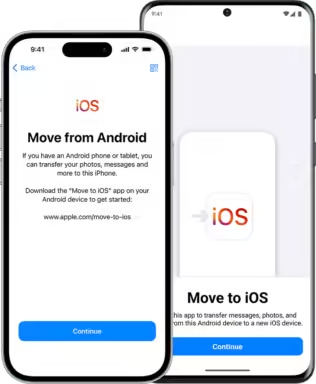
Apple’s Move to iOS app is the official path. It’s free and works for WhatsApp transfer as long as the iPhone is at the initial setup screen.
Apple states that Move to iOS requires iOS 15.5 or later on the iPhone and Android 5.0 or later on the source Samsung phone, with both devices on the same Wi-Fi network for the full transfer duration.
#How It Works
- Download the Move to iOS app on your Samsung device from the Google Play Store.
- During iPhone setup, select “Move Data from Android” on the Apps & Data screen.
- Follow the prompts to establish a connection between devices.
- Select WhatsApp when choosing which data to transfer.
#Pros:
- Official method supported by Apple
- Transfers multiple data types, not just WhatsApp
- Free to use
#Cons:
- Requires factory reset of iPhone if already set up
- Both devices must be on the same Wi-Fi network
- Can be time-consuming for large data transfers
#Compatibility:
- Requires iOS 15.5 or later on iPhone
- Android device must be able to run Move to iOS app
#Which Third-Party Tools Are Actually Worth Paying For?
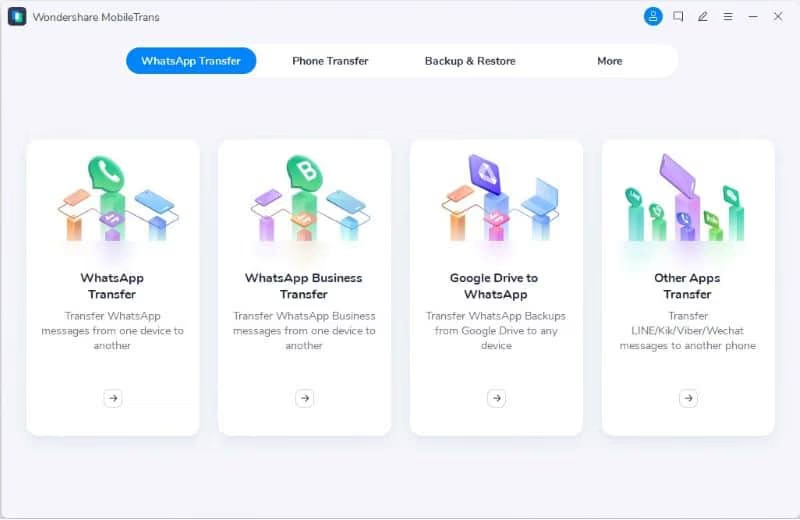
Several third-party tools offer flexibility Move to iOS lacks, like running on an already-set-up iPhone. Wondershare states that MobileTrans supports more than 6,000 device models. Decision comes down to price, OS coverage, and whether you also want non-WhatsApp data moved.
#Popular Options:
- Wondershare MobileTrans
- Supports over 6000 device models
- Transfers WhatsApp data directly between devices
- No need for factory reset on iPhone
- Tenorshare iCareFone
- User-friendly interface
- Transfers messages, contacts, and media files
- Offers backup and restore features
- iMobie AnyTrans
- Comprehensive data management solution
- Ensures no data loss during transfer
- Additional features like backup and restore
Some links on this page are affiliate links, which means fone.tips may earn a commission at no extra cost to you.
#How to Use Third-Party Tools
- Download and install the chosen software on your computer.
- Connect both Samsung and iPhone devices to the computer.
- Select WhatsApp transfer option in the software.
- Follow on-screen instructions to complete the transfer.
For a detailed guide on exporting WhatsApp chats, check out our article on how to export WhatsApp chat.
#Security Considerations
When using third-party tools, keep these security aspects in mind:
- Choose reputable software with positive user reviews.
- Ensure the tool uses data encryption during transfer.
- Read the privacy policy to understand how your data is handled.
#Method 3: Transferring Without Factory Reset
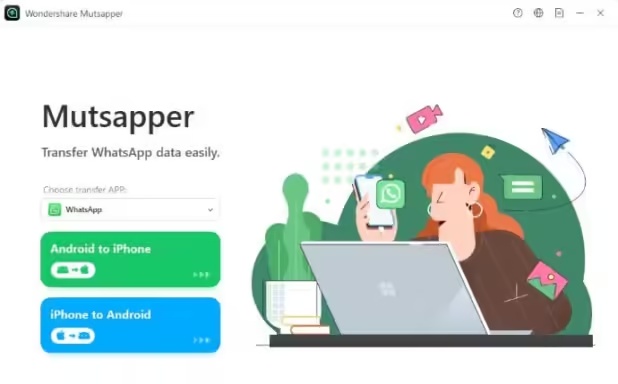
For those who want to transfer WhatsApp data to an already set-up iPhone, some tools offer solutions without requiring a factory reset.
#Options:
- Mutsapper App
- Allows direct transfer without resetting iPhone
- Preserves existing data on the iPhone
- iCareFone Mobile Version
- Uses OTG cable for direct transfer
- Eliminates need for a computer
#Steps:
- Install the chosen app on both devices.
- Connect devices using USB cable or Wi-Fi.
- Select WhatsApp data for transfer.
- Follow app-specific instructions to complete the process.
For WhatsApp Business migrations, see our WhatsApp Business iPhone-to-Android guide.
#Pros:
- Maintains existing iPhone data
- Quicker than full device migration
#Cons:
- May require paid versions for full functionality
- Limited to WhatsApp data transfer only
#Common Issues and Troubleshooting
Even with careful planning, you might encounter some issues during the transfer process. Here are common problems and their solutions:
#1. Missing WhatsApp Option in Move to iOS
Problem: WhatsApp transfer option doesn’t appear in Move to iOS app.
Solution:
- Ensure both devices have the latest WhatsApp version installed.
- Check that both devices meet the minimum OS requirements for the transfer.
#2. Incomplete Data Transfer
Problem: Some messages or media files are missing after transfer.
Solution:
- Verify stable Wi-Fi connection on both devices.
- Restart the transfer process if interrupted.
- Consider using a third-party tool for more reliable transfer.
#3. Network Connectivity Issues
Problem: Transfer fails due to network problems.
Solution:
- Ensure both devices are connected to the same Wi-Fi network.
- Move devices closer to the Wi-Fi router.
- Disable other network-intensive activities during transfer.
If you’re experiencing issues with WhatsApp Web, our troubleshooting guide on WhatsApp Web not working might be helpful.
#Best Practices for a Smooth Transfer
To ensure a successful WhatsApp data transfer from Samsung to iPhone, follow these best practices:
- Backup Your Data: Create a backup of your WhatsApp data on your Samsung device before starting the transfer. Learn how to backup WhatsApp contacts for added security.
- Update WhatsApp: Ensure both devices have the latest version of WhatsApp installed.
- Charge Your Devices: Make sure both Samsung and iPhone have sufficient battery life or are connected to power sources.
- Stable Internet Connection: Use a stable Wi-Fi connection for the transfer process.
- Avoid Interruptions: Don’t use either device during the transfer process to prevent interruptions.
- Verify Transfer: After completion, check that all chats and media have been successfully transferred to the iPhone.
- Create New Backup: Once transfer is complete, create a new WhatsApp backup on your iPhone.
If you’re using Samsung Smart Switch and experiencing delays, check out our articles on Samsung Smart Switch taking a long time and Samsung Smart Switch stuck for troubleshooting tips.
#Bottom Line
If your iPhone is still at the Apple setup screen, use Move to iOS — it’s free and Apple-supported. If your iPhone is already set up and you don’t want to reset it, Wondershare MobileTrans is a practical paid alternative. Use Tenorshare iCareFone only if you also need WhatsApp backup management on top of the one-time transfer.
Skip the email-export workaround. WhatsApp’s built-in chat export caps individual exports at 10,000 messages without media or 40,000 with media (per WhatsApp’s FAQ), so it’s useless for a real archive.
Samsung Galaxy Guide
#Frequently Asked Questions
Can I transfer WhatsApp from Samsung to iPhone without a computer?
Yes. The official Move to iOS app runs entirely on the two phones over Wi-Fi, and Mutsapper does the same. Tenorshare and Wondershare also publish mobile-version companion apps. The catch is that the mobile-only flows often have a smaller daily data cap than the desktop tools.
Will my WhatsApp data on Samsung be deleted after the transfer?
No. Every method copies the data , none of them wipe the Samsung. Your messages, media, and contacts stay on the original phone until you manually delete them or factory reset the device. Keep the source phone for a while after a switch, just in case the iPhone restore is missing something.
Can I transfer WhatsApp data from an old Samsung to a new iPhone?
Yes. Both Move to iOS and the third-party tools above can work with older Samsung hardware as long as the Samsung can run WhatsApp itself (currently Android 5.1 minimum per WhatsApp’s published system requirements).
Is it possible to transfer only specific WhatsApp chats?
The official Move to iOS path is all-or-nothing. Third-party tools like MobileTrans let you preview and select individual chats.
How long does the WhatsApp transfer typically take?
For most users, 30 minutes to 2 hours is a reasonable expectation. Smaller transfers usually finish faster, while large media-heavy archives can take longer. Third-party desktop tools may be faster or slower depending on the cable, Wi-Fi, and backup size.
Do I need to back up WhatsApp before transferring?
Yes, always back up first. A backup is your fallback if the transfer fails midway.
What if my iPhone is already set up , do I have to reset it?
For Move to iOS, yes, the iPhone has to be at the initial setup screen, which means a factory reset of an in-use iPhone. To avoid resetting, use Wondershare MobileTrans or iMobie AnyTrans, both of which transfer WhatsApp to an already-set-up iPhone without touching anything else on the device.
For more WhatsApp-related queries, such as finding contacts, check out our guide on how to find someone on WhatsApp. And if you need to restore WhatsApp back to a Samsung device down the road, our restore WhatsApp to Samsung guide covers it.
Samsung Secure Folder: Setup, Hide Apps, Clone Apps
Set up Samsung Secure Folder in under 5 minutes. Hide apps and photos, clone a banking app, and hide the Secure Folder icon on any Galaxy S8 or newer.
How to Use Google Find Hub: Setup + Find Lost
Set up and use Google Find Hub to locate, ring, lock, or erase your own Android phone, including offline finding and powered-off Pixel support.
Samsung Galaxy Battery Draining Fast: 2026 Fix Guide
Diagnose Galaxy S25 battery drain in five minutes through Battery Usage, then walk through six reversible Galaxy settings before a factory reset.
Samsung Parental Controls: Full Setup Guide for Parents
Set up Samsung parental controls in three layers: Samsung Kids, Google Family Link, and Digital Wellbeing. Free step-by-step guide for Galaxy parents.