Universal Control Not Working? 8 Solutions to Fix It Today
Fix Universal Control not working between your Mac and iPad with 8 proven solutions, from checking compatibility to resetting network settings.
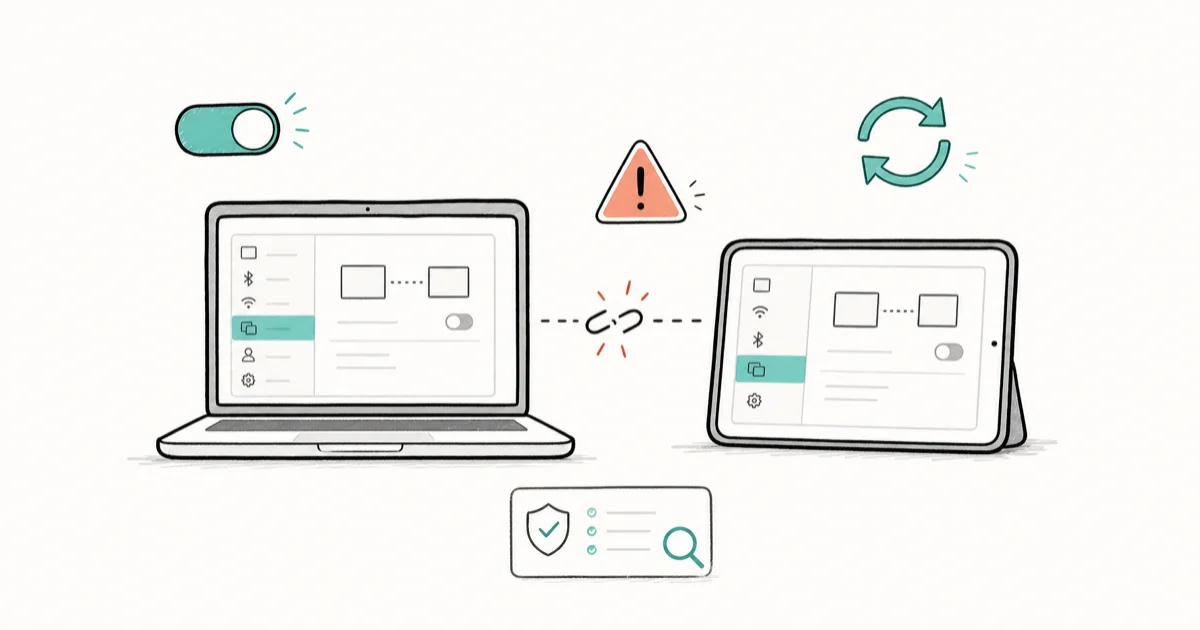
Quick AnswerBoth devices must use the same Apple ID, have Handoff enabled, and run compatible software versions. Restart both devices to restore Universal Control.
Universal Control lets you control your iPad using your Mac’s keyboard and mouse seamlessly across devices. When it stops working, the most common fix is to make sure both devices use the same Apple ID and have Handoff enabled.
- Universal Control requires macOS Monterey 12.3 or iPadOS 15.4 minimum to function
- Both devices must be within 30 feet and signed into the same Apple ID account
- Wi-Fi and Bluetooth must be enabled on both Mac and iPad simultaneously
- Force-quitting Universal Control through Activity Monitor clears problematic cache
- Compatible devices include 2016+ MacBooks and iPad 6th generation or newer
#What Is Universal Control?
Universal Control is Apple’s feature that lets you use a single keyboard and mouse to control both your Mac and iPad. You can drag files between devices, type on your iPad using your Mac keyboard, and seamlessly move between screens.
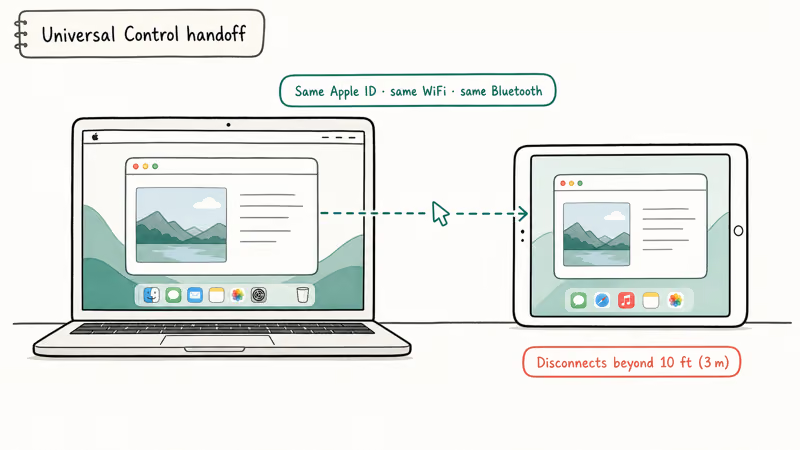
Universal Control works reliably once it’s set up correctly, but a handful of common issues break the connection.
#Troubleshooting Universal Control Issues
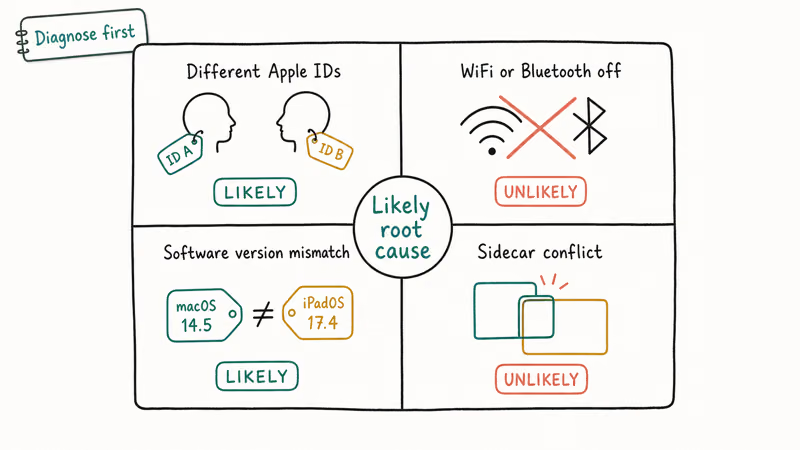
According to Apple’s Universal Control documentation, most failures trace back to version, Apple ID, or connectivity requirements not being met. Working through those three areas in order, software version first, then Apple ID, then Wi-Fi and Bluetooth proximity, resolves the large majority of cases without a full device reset.
#Incompatible Hardware or Software
Universal Control requires specific minimum versions. Your Mac needs macOS Monterey 12.3 or later, while your iPad needs iPadOS 15.4 or later.
According to Apple’s official Universal Control guide, compatible Mac models include MacBook (2016 or later), MacBook Air (2018 or later), MacBook Pro (2016 or later), iMac (2017 or later), iMac Pro, Mac mini (2018 or later), and Mac Studio. For iPads, you need iPad Pro (any generation), iPad (6th generation or later), iPad Air (3rd generation or later), or iPad mini (5th generation or later).
#Incorrect Apple ID Configuration
Both devices must be signed into the same Apple ID with two-factor authentication enabled. Mismatched Apple IDs stop Universal Control from discovering nearby devices. This is the same account synchronization requirement you’ll find with AirDrop file sharing.
#Distance and Connectivity Issues
Universal Control requires both devices to be within 30 feet (10 meters) of each other. Both Wi-Fi and Bluetooth must be active — this is similar to how screen mirroring works between Apple devices.
#Handoff Settings Disabled
Universal Control depends on Handoff to establish the initial connection. If Handoff is disabled on either device, Universal Control won’t function.
#Cache and Process Problems
Background processes can accumulate corrupted cache data, causing Universal Control to malfunction even when all settings appear correct.
#How Do You Fix Universal Control Not Working?
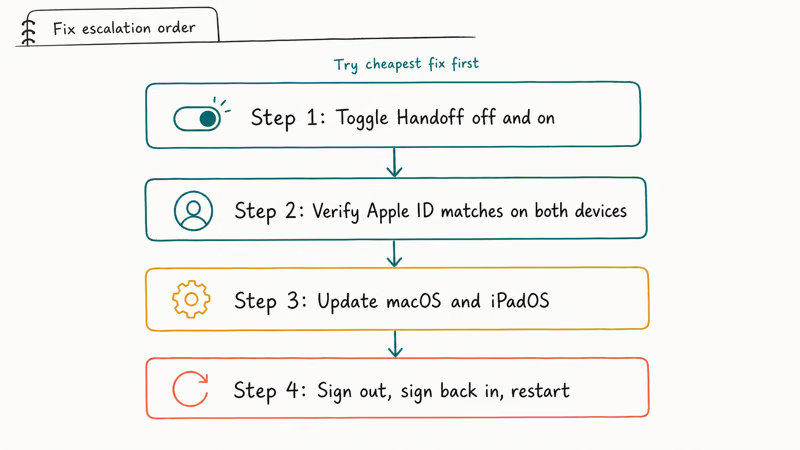
Try these solutions in order, testing Universal Control after each step:
#Solution 1: Restart Both Devices
A simple restart clears temporary software glitches that interfere with Universal Control.
Restart your Mac: Click the Apple menu > Restart. Wait for the Mac to fully boot up, then sign in to your account.
Restart your iPad: Press and hold the power button and either volume button. Drag the power off slider. Wait 30 seconds, then press the power button to restart.
#Solution 2: Verify Same Apple ID
Both devices must use identical Apple ID credentials.
Check Apple ID on Mac: Go to Apple menu > System Settings. Click your name at the top of the sidebar. Verify the Apple ID email address.
Check Apple ID on iPad: Open Settings. Tap your name at the top. Confirm the Apple ID matches your Mac.
If the accounts differ, sign out and sign back in with the correct Apple ID. For detailed steps on Apple ID management, check our guide on how to remove Apple ID from iPhone.
#Solution 3: Enable Handoff on Both Devices
Handoff must be active for Universal Control to work.
Enable Handoff on Mac: Open System Settings. Click General in the sidebar. Click AirDrop & Handoff. Turn on “Allow Handoff between this Mac and your iCloud devices.”
Enable Handoff on iPad: Open Settings > General. Tap AirDrop & Handoff. Turn on Handoff.
#Solution 4: Check Wi-Fi and Bluetooth
Both connection types must be enabled on both devices.
On Mac: Click the Control Center icon in the menu bar. Verify Wi-Fi and Bluetooth show as connected. If not, click each to enable them.
On iPad: Open Control Center by swiping down from the top-right corner. Make sure Wi-Fi and Bluetooth icons are highlighted. Tap to enable if needed.
#Solution 5: Force Quit Universal Control Process
Corrupted cache can prevent Universal Control from working properly.
- Open Activity Monitor (
Applications>Utilities) - In the search field, type “universal control”
- Select the Universal Control process
- Click the X button in the toolbar
- Choose “Force Quit” to terminate the process
The system will automatically restart Universal Control when you next attempt to use it.
#Solution 6: Enable Universal Control Settings
Universal Control might be disabled in system settings.
On Mac: Open System Settings. Click Displays in the sidebar. Click “Advanced” button. Check “Allow your cursor and keyboard to move between any nearby Mac or iPad.” Optionally enable “Push through the edge of a display to connect to a nearby Mac or iPad.”
On iPad: Open Settings > General > AirDrop & Handoff. Turn on “Cursor and Keyboard.”
#Solution 7: Check Device Distance
Move your devices closer together. Universal Control works best when devices are within about 3 feet (1 meter) of each other and can work up to roughly 30 feet (10 meters) away.
Performance tends to degrade beyond 10 feet, especially in environments with heavy Wi-Fi interference.
#Solution 8: Reset Network Settings
If other solutions fail, resetting network settings can resolve deeper connectivity issues.
On iPad: Open Settings > General > Transfer or Reset iPad. Tap Reset > Reset Network Settings. Enter your passcode when prompted. Confirm the reset.
Note: This will erase all saved Wi-Fi passwords and Bluetooth pairings. You’ll need to reconnect to Wi-Fi networks afterward. If you’ve forgotten your network password, learn how to see Wi-Fi password on iPhone or iPad.
#When Universal Control Still Won’t Work
If none of these solutions work, consider these factors:
- Corporate networks: Some enterprise Wi-Fi networks block device discovery protocols required for Universal Control
- VPN interference: Active VPN connections can prevent local device communication
- Firewall settings: Third-party security software may block Universal Control traffic
According to Apple’s troubleshooting documentation, you can also try signing out of iCloud on both devices and signing back in, though this is more disruptive.
If you’re having broader connectivity issues between Apple devices, check our guide on fixing Bluetooth not available on Mac for troubleshooting similar connectivity problems.
#Sidecar Conflicts and How to Avoid Them
Sidecar and Universal Control share the same wireless plumbing, so they can step on each other. An iPad already running as a Sidecar display may block Universal Control from claiming the same link.
Disconnect Sidecar first, then start Universal Control fresh. In the Mac menu bar, click the Screen Mirroring or Display control, stop mirroring to the iPad, and let the cursor handoff re-establish on its own.
A recent macOS or iPadOS update can also reshuffle these settings. If the feature broke right after one, our guide on a Mac running slow after a macOS update covers post-update cleanup, including cache resets and login-item pruning, that often clears these connection glitches as a side effect well after the install finishes.
#How to Keep Universal Control Working Reliably
A few habits keep the connection stable once you’ve fixed it. Keep both devices on the same major OS line, since a large version gap between macOS and iPadOS is a frequent cause of silent failures.
Leave Wi-Fi and Bluetooth on permanently rather than toggling them, because Universal Control re-negotiates its link every time those radios cycle. A flaky home network undermines all of this, so if your Mac keeps dropping off, our guide on fixing Mac Wi-Fi not working is worth a look.
Finally, keep the devices close during active use. Distance is the top reason a working setup suddenly lags or drops.
#Bottom Line
Start with Solution 1 (restart both devices) and Solution 3 (enable Handoff), since these fix most Universal Control issues. If those don’t work, the force quit method (Solution 5) typically resolves cache-related problems that cause the feature to malfunction even with correct settings.
#Frequently Asked Questions
What devices are compatible with Universal Control?
Universal Control works with Mac models from 2016 or later (2017 for iMac) running macOS Monterey 12.3+, and iPad models from 6th generation or later running iPadOS 15.4+. All iPad Pro models are compatible regardless of generation.
Can I use Universal Control over cellular data?
No, Universal Control requires both Wi-Fi and Bluetooth to be active on both devices. Cellular data alone won’t establish the necessary local connection between your Mac and iPad.
Why does Universal Control work sometimes but not others?
Intermittent issues usually stem from background processes, distance between devices, or network interference. Force quitting the Universal Control process through Activity Monitor typically resolves sporadic connection problems.
Do both devices need to be connected to the same Wi-Fi network?
While both devices need Wi-Fi enabled, they don’t necessarily need to connect to the same network. Universal Control can work across different networks as long as both devices can communicate locally via Bluetooth and Wi-Fi Direct.
How do I know if Universal Control is active?
When Universal Control is working, you’ll see a cursor appear on your iPad screen when you move your Mac’s mouse cursor past the edge of your Mac’s display. The cursor changes to match your Mac’s cursor design.
Can I transfer files using Universal Control?
Yes, you can drag and drop files between your Mac and iPad using Universal Control. This works for images, documents, and other compatible file types that both devices can open.
Does Universal Control work with multiple iPads simultaneously?
Universal Control supports connecting one Mac to multiple iPads or multiple Macs to one iPad, allowing you to control several devices from a single keyboard and mouse setup.
Why does Universal Control lag or feel slow?
Performance issues typically result from network congestion, too much distance between devices, or high CPU usage on either device. Closing unnecessary apps and moving devices closer together usually improves responsiveness.

Mac mini M6 vs M5 Pro: Which Model Should You Buy?
Mac mini M6 vs M5 Pro compared on price, memory, ports, displays, and real workloads. Find the better 2026 Mac mini for your desk and budget.

Apple Siri Settlement: Who Qualifies and How to Claim
Apple's $250 million Siri settlement covers iPhone 15 Pro and iPhone 16 models bought June 2024 to March 2025. See who qualifies and how claims work.

iOS 26.6.1 Security Update: What Apple Fixed and Who Gets It
Apple released iOS 26.6.1 on August 17 with 29 security fixes, including an IPSec interception bug. See what it patches, who gets it, and how to update.

iPhone Adaptive Power: How It Works and When to Use It
Learn how iPhone Adaptive Power works, which models support it, what it changes, and when Low Power Mode is still the better battery-saving choice.