Unlock Your iPhone Without iTunes: The Complete Guide
Unlock your own iPhone without iTunes using iCloud Find My, Recovery mode in Finder, or trusted third-party tools, plus tips to avoid future lockouts.
Quick AnswerUnlock your own iPhone without iTunes by using iCloud Find My to erase the device remotely, or by booting into Recovery mode through Finder on macOS Catalina or later. Third-party tools like Tenorshare 4uKey also remove the passcode without iTunes.
A forgotten passcode locks you out of your own iPhone. A used iPhone you just bought can also arrive with a passcode you never set. iTunes is the route most people reach for, but it’s not the only one, and a few alternatives even skip the full data wipe.
This guide covers the practical options and how to stop lockouts from happening again. Every method here applies only to a device or Apple ID you own.
#Overview of Locking and Unlocking an iPhone
When you set a passcode on your iPhone, you enable a security feature that protects your personal data in case your phone is lost or stolen. However, it also means getting locked out if you can’t recall the code.
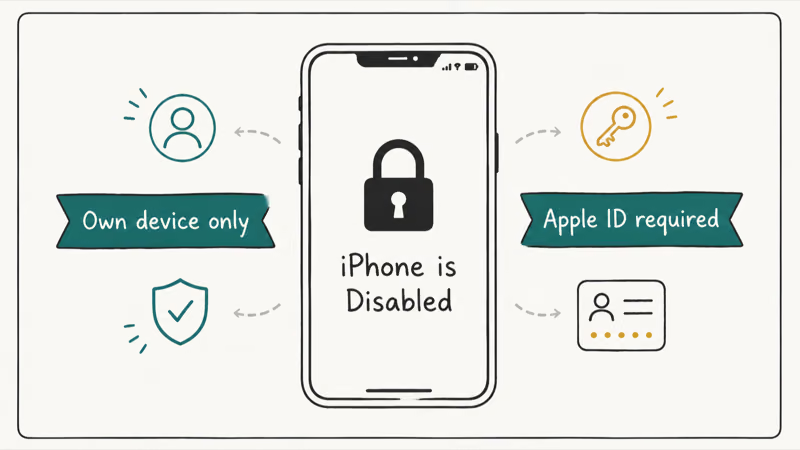
By default, iOS limits repeated passcode attempts before the iPhone temporarily locks or becomes unavailable. After multiple failures, you’ll see a message that the iPhone is disabled or unavailable and needs an official reset route. According to Apple’s passcode recovery page, regaining access after a forgotten passcode requires resetting the device, and that process erases the data currently on the iPhone.
iTunes can overwrite the passcode and restore your access. But this also erases your entire iPhone, wiping all data in the process. That’s why unlocking without iTunes is preferred when possible.
#What Happens When an iPhone is Disabled?
If you enter the wrong passcode too many times, here is what happens:
-
6 failed attempts: iPhone locks for 1 minute
-
7 failed attempts: iPhone locks for 5 minutes
-
8 failed attempts: iPhone locks for 15 minutes
-
9 failed attempts: iPhone locks for 1 hour
-
10 failed attempts: iPhone disables entirely
Once disabled, the official way to use the iPhone again is to erase and restore it with a trusted Apple route. That brings us to the options covered next.
#How Do You Unlock a Disabled iPhone Without iTunes?
You have choices when it comes to unlocking an iPhone without involving iTunes or erasing data. Let’s review several effective methods.
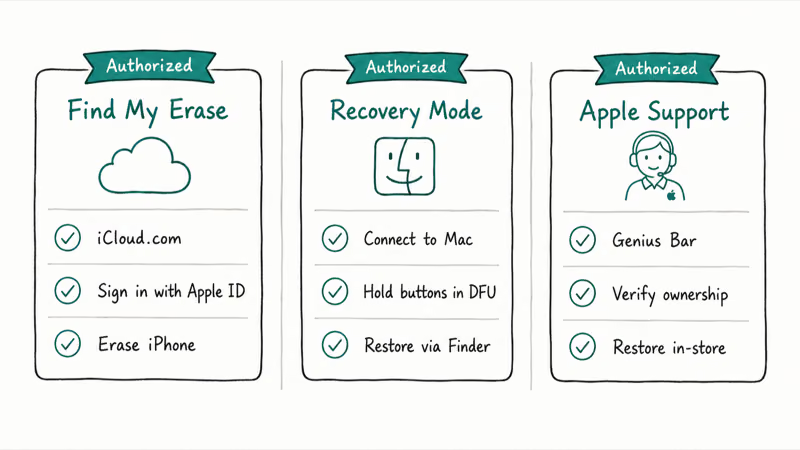
#Use iCloud to Unlock iPhone
If you have an iCloud account set up on your iPhone, you may be able to bypass the lock screen remotely.
Here are the steps:
-
On another device, open the iCloud website and log in to your account.
-
Tap
Find My>All Devicesand select your locked iPhone. -
Tap Erase iPhone and confirm your password when prompted.
After a few minutes, your iPhone will restart and bypass the old lock screen because it has been erased. According to Apple’s iCloud User Guide, Find Devices can remotely erase an iPhone, and if the device is offline, the erase starts the next time it comes online. If you want the full walkthrough for wiping a device this way, our guide on how to erase an iPhone completely covers every step.
#Use Find My iPhone App
You can also use the Find My app on another iOS device or Mac signed into the same iCloud account, which is handy when no spare computer is nearby and you only have a second phone or tablet within reach.
-
Open the Find My iPhone app and select your locked device.
-
Tap Erase Device and enter your Apple ID password to confirm.
The app then resets your iPhone so you can set a new passcode. It works without a computer, provided Find My was enabled before the lockout.
#Use a Lock Screen Removal Service
Third-party unlocking tools like dr.fone – Screen Unlock and Tenorshare 4uKey can bypass iPhone locks without data loss. These services claim to work on any iPhone model running any version of iOS.
Here’s how lock screen removal services work:
-
Download and install the unlocking app on a computer.
-
Connect your locked iPhone via USB and launch the app.
-
Confirm your device details when prompted.
-
Let the app download specialized firmware and initiate the unlock process.
Within 10-20 minutes, your iPhone passcode will be removed so you can set up a new one. This method doesn’t require iCloud access, though reliability varies between services. For a passcode-only workflow that skips the computer entirely, see our guide on how to reset an iPhone without a passcode or computer.
#Erase iPhone from Lock Screen (iOS 15.2+)
On iOS 15.2 and later, you can erase your iPhone directly from the lock screen when disabled, without a computer. According to Apple’s same forgotten-passcode guide, iOS 15.2 or later users can try an on-device reset path before the computer restore steps.
Follow these steps:
-
After too many failed attempts, tap Erase iPhone on the lock screen.
-
Confirm erasing and enter your Apple ID password.
-
Your iPhone will reset, allowing you to create a new passcode.
While quick, this method still erases your iPhone data. So only use it as a last resort if you have a recent backup.
#How Can You Avoid iPhone Lockouts?
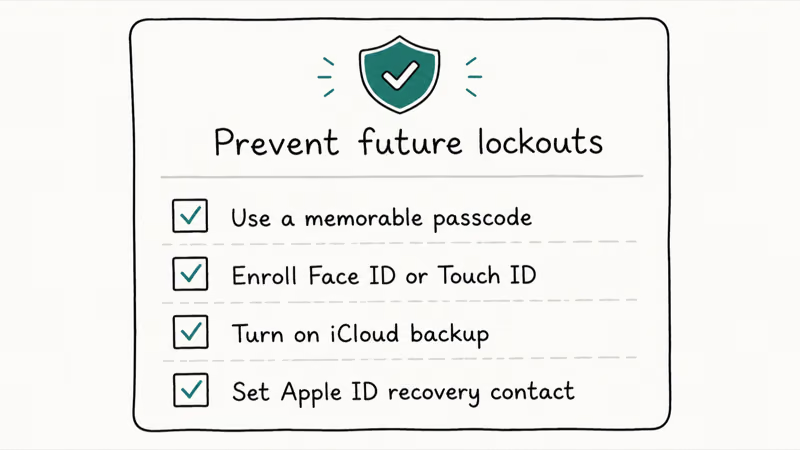
Use these steps to prevent another lockout:
-
Use longer and more complex passcodes – The default 6-digit code is easy to crack. Opt for an alphanumeric code of 10+ characters.
-
Don’t share your passcode – Keep your iPhone unlock code private to prevent misuse by others.
-
Set up Touch ID/Face ID – Using biometric authentication prevents forgotten passcode issues.
-
Write down passcodes – Keep codes in a secure physical place in case your memory fails.
-
Back up your iPhone regularly – That way you can erase the device without losing data if necessary.
-
Turn on Find My iPhone tracking – Allows remote lock/erase if your iPhone is lost or stolen.
-
Log out of iCloud before selling/trading in your device – Prevents lock out if the new owner doesn’t know your Apple ID password.
#Recovery Mode Through Finder Without iTunes
On macOS Catalina and later, iTunes is gone. Finder handles device restores now, so Recovery mode reinstalls iOS without it.
Connect the iPhone to your Mac with a cable, open a Finder window, and force-restart the phone using its model-specific button sequence until the Recovery screen appears. Finder then offers an Update or Restore choice.
Choose Update first, since it reinstalls iOS while trying to keep your data. If that fails, Restore wipes the device and rebuilds it. After the wipe you can reload your content from a saved copy, and our guide on how to download iCloud backup files shows where those backups live.
If Find My, lock-screen erase, and Finder reset fail on your own iPhone, AnyUnlock is a paid desktop fallback; it still erases the device and can’t remove Activation Lock.
Some links on this page are affiliate links, which means fone.tips may earn a commission at no extra cost to you.
#When Activation Lock Blocks a Used iPhone
An iPhone’s Activation Lock can only be cleared by its owner or Apple.
The correct fix is to reach the original owner and ask them to remove the device from their account, or to contact Apple Support with a proof of purchase. According to Apple’s Activation Lock documentation, only the account holder or Apple can clear the lock.
If you bought the phone secondhand, our walkthrough on removing Activation Lock without the previous owner explains the legitimate paths and what to check before you buy. You can also verify a phone’s lock status first with a Find My iPhone checker.
#Protecting Data Before You Unlock
Most no-iTunes unlock routes carry some risk, so back up first. A fresh copy turns a wipe into an inconvenience rather than a loss.
Keep iCloud Backup turned on so your photos, messages, and settings sync automatically overnight while the phone charges. If you run out of space, our guide on what to do when iCloud storage is full covers freeing room or upgrading the plan.
For finer control over what gets locked behind a passcode, review your Screen Time passcode settings so a forgotten restriction code never becomes its own lockout later.
#Bottom Line
If you still know your Apple ID password, iCloud Find My is the cleanest no-iTunes route to unlock your own iPhone, and Recovery mode through Finder is the reliable fallback on a Mac. Reach for a paid unlock tool only when iCloud access is gone and you accept the variable results. Above all, turn on iCloud Backup now so the next lockout costs you minutes instead of memories, and never run an unlock method on a device that isn’t yours.
#FAQs About Unlocking an iPhone Without iTunes
Below are answers to some frequently asked questions on how to unlock an iPhone without using iTunes:
#Is unlocking an iPhone without iTunes legal?
Yes, as long as you own the device or have authorization, it’s legal to unlock an iPhone without iTunes. Just avoid shady services that may use illegally obtained software or hardware tricks.
#Does unlocking without iTunes void my warranty?
No, as long as no hardware was modified. Read your warranty’s fine print first to be sure.
#How long does it take to unlock with iCloud?
The iCloud unlocking process usually takes 5-15 minutes to complete after entering your Apple ID credentials. The exact time will vary based on factors like your Internet connection speed.
#Can I unlock without wiping my data?
Yes, lock screen removal services can spare your data. The on-device “Erase iPhone” option, however, still deletes everything.
#What if I don’t have my Apple ID password?
Without your Apple ID password, you won’t be able to use iCloud, Find My iPhone, or the lock screen erase option. In that case, your only choices are an unlocking service or wiping the device via iTunes.
#Does Apple provide an unlocking service?
No. Apple has no unlocking service beyond iTunes and iCloud. For an unlock that avoids erasing your iPhone, you’ll need a reputable third-party app or service, and you should weigh its track record carefully before paying anything.
#What if none of these unlocking methods work?
Rarely, no method works. Then a full iTunes restore is the last resort.
#Can I backup my data before unlocking via iTunes?
Unfortunately, no – the iTunes unlock method requires fully wiping your iPhone first. You’ll only be able to recover any data that was previously backed up to iCloud or your computer. This guide applies only to a device or account you own.
-
Entering the wrong iPhone passcode too many times will disable your device requiring an unlock
-
You can avoid a full data wipe by using iCloud, Find My, or a lock screen removal service
-
Enabling stronger passcodes, Touch/Face ID, backups, and Find My iPhone helps prevent lockouts
-
If all else fails, connecting to iTunes will wipe and restore access, but erase your data
-
It’s possible to unlock an iPhone securely without losing your personal content
Unlocking a locked iPhone doesn’t have to be a nightmare, as long as you know the options available. With some careful planning and precautionary steps, you can avoid full data loss in most cases if you ever get locked out of your iPhone unexpectedly.

Mac mini M6 vs M5 Pro: Which Model Should You Buy?
Mac mini M6 vs M5 Pro compared on price, memory, ports, displays, and real workloads. Find the better 2026 Mac mini for your desk and budget.

Apple Siri Settlement: Who Qualifies and How to Claim
Apple's $250 million Siri settlement covers iPhone 15 Pro and iPhone 16 models bought June 2024 to March 2025. See who qualifies and how claims work.

iOS 26.6.1 Security Update: What Apple Fixed and Who Gets It
Apple released iOS 26.6.1 on August 17 with 29 security fixes, including an IPSec interception bug. See what it patches, who gets it, and how to update.

iPhone Adaptive Power: How It Works and When to Use It
Learn how iPhone Adaptive Power works, which models support it, what it changes, and when Low Power Mode is still the better battery-saving choice.