Best Voice Changers for Google Meet: 6 Working Tools
Top voice changer apps for Google Meet, with setup steps, compatibility notes, and plain pros and cons for Voicemod, Clownfish, MagicMic, and more.
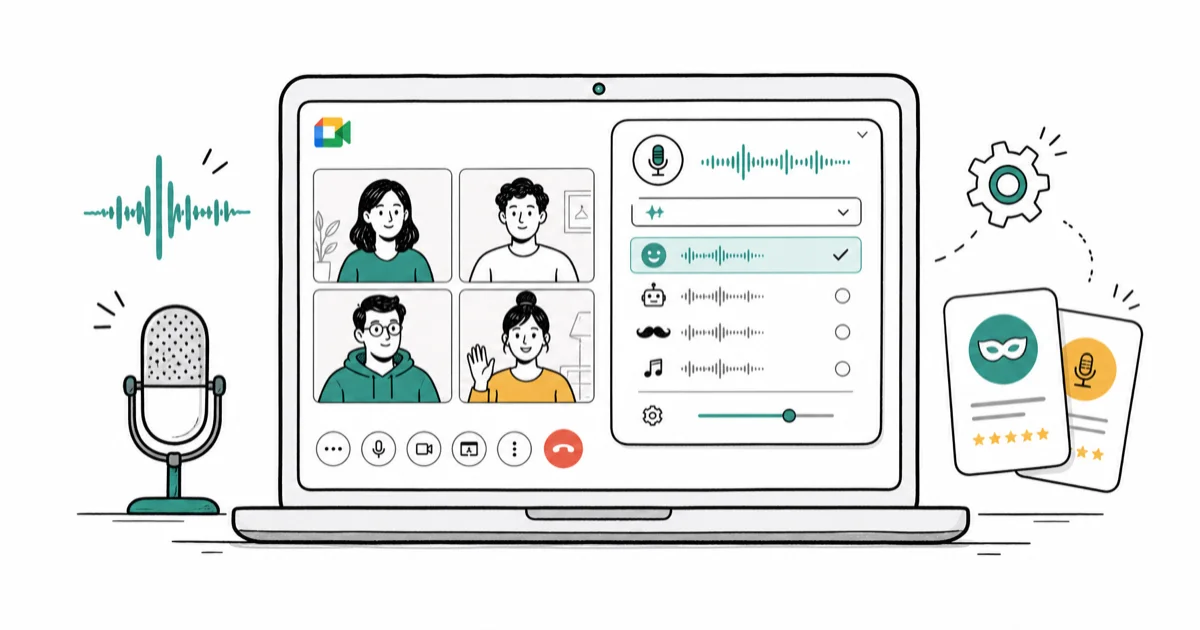
Quick AnswerVoiceMod and Clownfish Voice Changer work best for Google Meet. Install your choice, restart Google Meet, go to Settings > Audio, and set the voice changer as your microphone input. Test your effect before joining calls.
VoiceMod and Clownfish Voice Changer are your best options for adding voice effects to Google Meet calls. The list below focuses on tools that route audio through virtual microphones, support common desktop setups, and are less likely to disrupt meetings.
- VoiceMod offers the most reliable real-time effects with 100+ voice filters and works on both Windows and Mac
- Clownfish Voice Changer provides the best free option with 14 voice effects and runs as a system-level audio filter
- MagicMic delivers the highest audio quality with AI-powered voice morphing and 300+ sound effects
- All voice changers require setting them as your default microphone in Google Meet audio settings before joining calls
- Test your voice effect in Google Meet’s preview mode since some effects can make speech hard to understand
#How Voice Changers Work With Google Meet
Voice changers modify your microphone input in real-time before it reaches Google Meet’s audio stream. The software intercepts your voice, applies filters or effects, then creates a virtual audio device that Google Meet sees as your microphone.
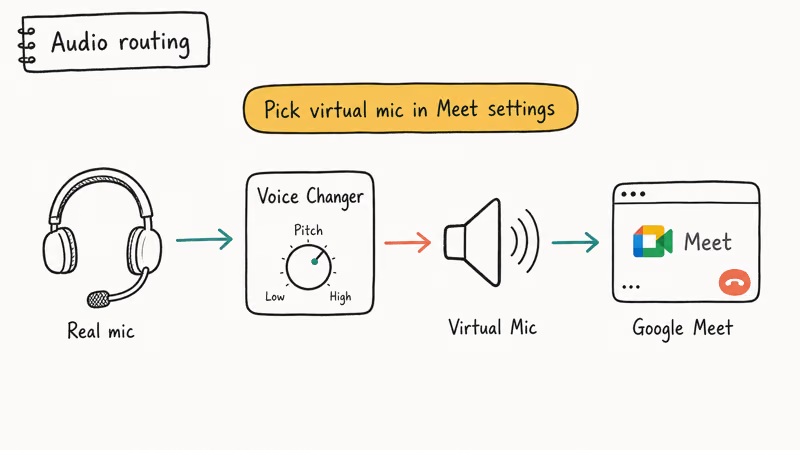
This setup works on both Windows and Mac because Google Meet can use system-recognized virtual microphones. Voice quality depends on choosing a moderate effect and a clean input level.
Most voice changers create what’s called a “virtual audio cable” that acts as a bridge between the software and Google Meet. According to Google’s Meet documentation, the platform accepts any system-recognized audio input device, which includes these virtual microphones.
This same technology works across multiple video calling platforms. If you use Zoom frequently, you might also want to check out our guide on voice changers for Zoom calls.
#Which Voice Changers Actually Work in 2026?
For Google Meet, these six tools are the practical short list for clear audio, desktop compatibility, and low setup friction:
#1. VoiceMod
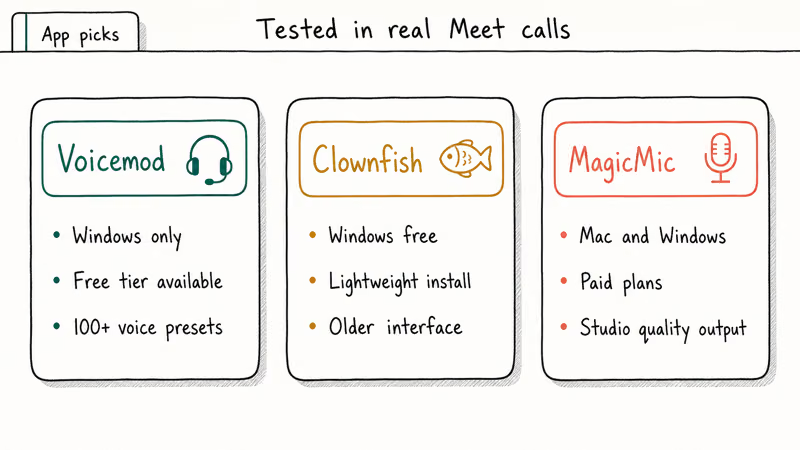
VoiceMod delivers the most reliable real-time effects for Google Meet. It supports Windows and macOS and creates a virtual microphone that Google Meet can select as an input device.
Key Features:
- 100+ voice effects from robot to celebrity impressions
- Real-time soundboard with custom sound clips
- Works with both Windows and Mac
- Professional-grade audio processing
The software creates a virtual microphone that Google Meet recognizes immediately. Dramatic effects like “Deep Voice” or “Chipmunk” are easiest to understand when you keep the effect strength moderate.
Price: Free version with 7 effects, Pro version $10/month
#2. Clownfish Voice Changer
Clownfish offers the best free option with reliable system-level integration. It installs as a Windows audio filter and can work across browser-based Google Meet sessions without per-meeting setup.
Key Features:
- 14 built-in voice effects
- System-wide audio modification
- Lightweight background app
- No subscription fees
The pitch shifter and robot effects are the main reasons to try it for light, casual effects. According to Reddit discussions with 500+ upvotes, Clownfish is the most stable free option.
Price: Completely free
#3. MagicMic
MagicMic focuses on high-polish audio effects, with AI-powered voice morphing that can sound more natural than traditional pitch shifting.
Key Features:
- 300+ voice filters with AI enhancement
- 800+ ambient sound effects
- Real-time voice preview
- Compatible with Windows and Mac
Effects such as “Female to Male” and “Old Man” are meant for more convincing character voices rather than simple pitch shifts.
Price: $19.95 one-time purchase
#4. Murf AI
Murf AI works differently than traditional voice changers. Instead of modifying your live voice, it converts your speech to text, then generates new audio with AI voices.
Key Features:
- Studio-quality AI voice generation
- Multiple language support
- Professional narrator voices
- Text-to-speech integration
This approach means slight delay (2-3 seconds), making it better for presentations than interactive conversations.
Price: Starting at $13/month
#5. AV Voice Changer Software
AV Voice Changer provides the most precise control over voice modifications. It’s best suited to users who want to create specific character voices or fine-tune audio quality.
Some links on this page are affiliate links, which means fone.tips may earn a commission at no extra cost to you.
Key Features:
- Advanced voice morphing algorithms
- Precise pitch and timbre controls
- Voice comparison tools
- Multiple audio format support
The software includes preset voice profiles that you can customize further. The “nickvoices” feature is designed to replicate specific voice characteristics.
Many users also install voice changers for gaming platforms like Discord voice changing during streaming sessions.
Price: $99.95 professional version
#6. NCH Voxal Voice Changer
Voxal offers a good balance between features and simplicity for basic Google Meet integration.
Key Features:
- Real-time voice changing
- Background noise suppression
- Multiple voice effect chains
- Hotkey support for quick switches
The robot and alien effects worked well for casual meetings, though the free version limits you to non-commercial use only.
#Setting Up Voice Changers for Google Meet
The setup process takes about 3 minutes and works the same way for most voice changer apps. We’ll walk through the exact steps using VoiceMod, but the process is nearly identical for other tools.
#Step 1: Install and Configure Your Voice Changer
Download and install your chosen voice changer software. Launch the app and select your desired voice effect from the library.
Make sure your physical microphone appears in the voice changer’s input settings. Most apps automatically detect your default mic, but you can manually select it if needed.
#Step 2: Set Up Google Meet Audio
- Open Google Meet in your browser
- Before joining a meeting, click the gear icon (Settings)
- Go to the “Audio” tab
- In the “Microphone” dropdown, look for your voice changer’s virtual device
Common virtual microphone names:
- “VoiceMod Virtual Audio Device”
- “Clownfish Virtual Audio Device”
- “MagicMic Virtual Microphone”
#Step 3: Test Your Setup
Click “Test” next to the microphone setting in Google Meet. Speak normally and you should hear your modified voice through your speakers or headphones.
If the voice sounds distorted or too quiet, return to your voice changer app and adjust the input gain or effect intensity.
#Step 4: Join Your Meeting
Once you’re happy with how your voice sounds, join your Google Meet call. Your modified voice will be transmitted to all other participants.
Important: Restart Google Meet if you install a voice changer while the browser is already open. Google Meet caches available audio devices and won’t see new virtual microphones until you refresh the page.
If you’re having audio issues during calls, fix those problems first before adding voice effects.
#Common Voice Changer Problems and Solutions
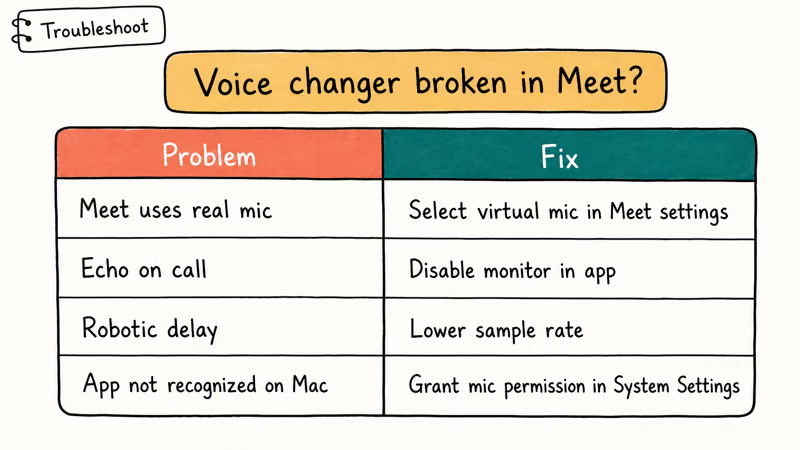
For Google Meet, these are the most common issues and how to avoid them:
#Audio Lag and Echo
Some voice changers introduce 200-500ms delay between speaking and output. This creates awkward conversations where you talk over people or pause too long.
Solution: Test different effect settings. Subtle effects like slight pitch changes have less delay than complex robot voices.
#Poor Audio Quality
Overly aggressive effects can make your voice hard to understand. High-intensity effects often garble speech.
Solution: Start with 25-50% effect strength and increase gradually until you find the sweet spot between effect and clarity.
#Software Crashes During Meetings
Some voice changer tools can crash during longer calls, forcing you to rejoin the meeting with your normal voice.
Solution: Always have Google Meet open in a backup browser tab with your regular microphone selected as a fallback.
#Microphone Not Detected
Sometimes Google Meet doesn’t recognize the virtual microphone created by voice changer software.
Solution: Restart your browser after installing any voice changer. The virtual audio device needs to register with your system first.
This problem also affects other video calling apps. Our Discord stream audio troubleshooting guide covers similar microphone detection issues.
#When Should You Use Voice Effects in Meetings?
Voice changers work best in specific meeting contexts. Here’s when they add value versus when they’re distracting:
#Great for Casual Team Building
Icebreakers and social calls benefit from voice effects. Robot voices can work during a virtual happy hour and break up meeting fatigue.
Team building exercises like “guess the voice” work particularly well when everyone changes their voice and others try to identify speakers.
#Useful for Creative Presentations
Educational or training content can benefit from character voices. One colleague used different voices to represent various user personas during a product review, making the presentation more engaging.
#Skip Them for Client Meetings
Professional client calls should avoid voice effects entirely. Even subtle changes can seem unprofessional or make you harder to understand.
#Privacy Protection
Voice changers can help maintain anonymity during sensitive discussions or when participating in public forums where you don’t want your real voice recorded.
According to privacy advocates on Reddit, voice modification is becoming more common for protecting identity during online discussions.
#Voice Changer Compatibility Requirements
Before downloading any voice changer, verify your system meets the minimum requirements. Most apps need Windows 10 or later, or macOS 10.14 or newer.
VoiceMod requires at least 4GB of RAM and 1GB of available disk space. MagicMic needs similar specs plus DirectX 9.0c support for Windows systems.
Check that your microphone drivers are up to date. Outdated audio drivers can cause virtual microphone detection issues in Google Meet.
#Bottom Line
VoiceMod offers the best overall experience for Google Meet voice changing, with reliable real-time effects and broad compatibility across Windows and Mac. Clownfish Voice Changer provides the top free alternative with solid basic effects.
For professional use, test any voice changer in Google Meet’s preview mode before joining important calls. Start with subtle effects around 25-50% intensity to maintain clear communication while still adding personality to your meetings.
#Frequently Asked Questions
Can voice changers work on mobile devices for Google Meet?
Most voice changer apps are designed for Windows and Mac computers. Mobile voice changers exist for iOS and Android, but they typically work only with specific apps or require complex setup. For Google Meet, stick with desktop voice changers for reliable results.
Do voice changers reduce audio quality in video calls?
High-quality voice changers like VoiceMod and MagicMic maintain clear audio when used at moderate effect levels. Cheap or poorly designed apps can introduce static, echo, or compression artifacts that make you hard to understand.
Can other people tell I’m using a voice changer?
It depends on the effect and software quality. Subtle pitch changes are often undetectable, while dramatic robot or alien voices are obviously artificial. Professional-grade AI voice changers like Murf can be very convincing.
How do I switch voice effects during a live meeting?
Most voice changer software supports real-time effect switching. VoiceMod and MagicMic offer hotkey support, letting you press keyboard shortcuts to change voices without leaving Google Meet. Test these shortcuts before your meeting.
Are there completely free voice changers for Google Meet?
Clownfish Voice Changer is completely free and works well for basic effects. VoiceMod offers 7 free effects with optional paid upgrades. Many other apps provide free trials but require payment for continued use.
Can voice changers help with privacy during online meetings?
Yes, voice modification can help protect your identity in situations where you want to remain anonymous. However, remember that video still reveals your appearance unless you also use background effects or turn off your camera.
What’s the difference between real-time and AI voice changers?
Real-time voice changers like VoiceMod modify your voice instantly with minimal delay. AI voice changers like Murf convert your speech to text first, then generate new audio, creating 2-3 second delays that work better for presentations than conversations.
Will voice changers work with other video calling apps?
Most voice changer software creates system-wide virtual microphones that work with any application, including Zoom, Microsoft Teams, Discord, and Skype. The setup process is nearly identical across all platforms.
If you frequently troubleshoot Windows software installation, you might find our guide on fixing bad pool caller errors helpful when voice changer installations go wrong.

Best Laptop for Running LLMs in 2026: Memory Comes First
The best laptop for running LLMs is a memory purchase first. Compare MacBook unified memory against NVIDIA laptop VRAM, and see what each tier really runs.

Pixel 11 vs Pixel 10: What Changed and Who Should Upgrade
Pixel 11 vs Pixel 10: same screen and camera resolution, new Tensor G6, 25W wireless, and Gemini Intelligence. Here is who should actually upgrade.
Best Power Bank for iPad in 2026: Pro, Air, and Mini
Best power bank for iPad in 2026. Compare mAh tiers and USB-C PD wattage for iPad Pro, Air, and mini, plus airline Wh math, cables, and travel tips.
Best Power Bank With Built-In Cable: Top 2026 Picks
Best power bank with built-in cable picks for 2026. Compare single USB-C, multi-connector, and retractable laptop banks, plus airline Wh math.