What to Dial to See if Your Phone Is Hacked (2026)
Check suspicious call forwarding without assuming one universal dial code. Compare current AT&T, T-Mobile, and Verizon instructions and verify the result.
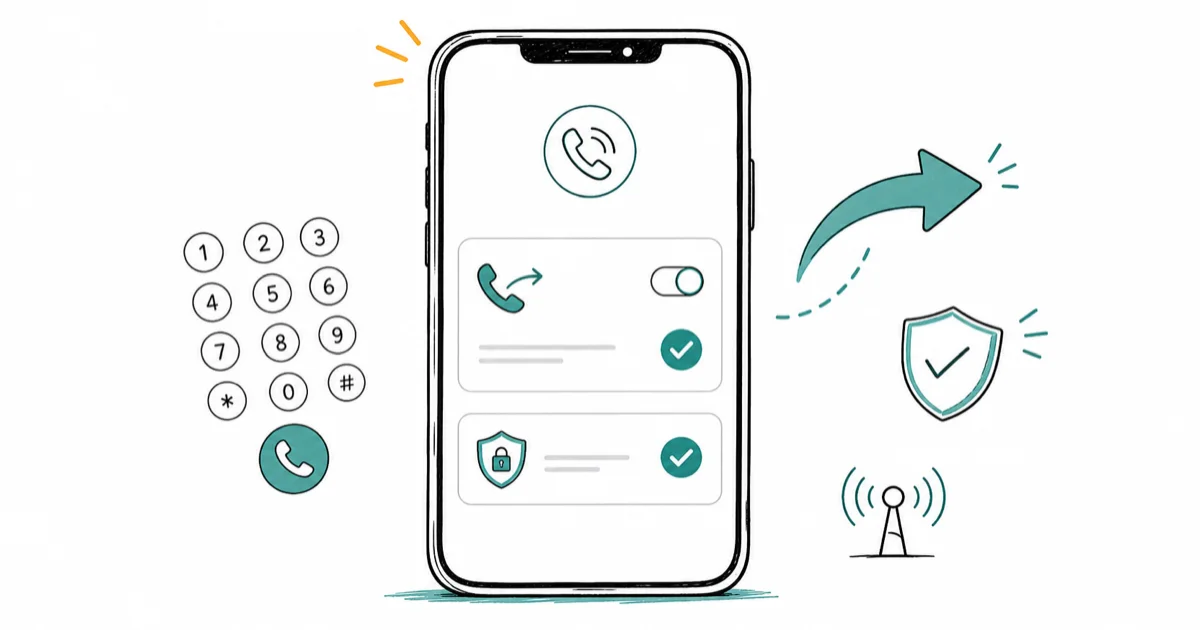
Quick AnswerThere is no universal carrier code to cancel call forwarding. T-Mobile, AT&T, and Verizon publish different codes, so use your carrier’s instructions and confirm the change with a test call.
Dial codes can reveal or change some call-forwarding settings, but they aren’t universal. Check your carrier’s instructions and place test calls; a dialer success message isn’t proof every route is off.
- No single call-forwarding code works on every U.S. carrier
- AT&T documents
#21#for turning off call forwarding - T-Mobile uses
##21#and##004#for different forwarding types - Verizon documents
*73to stop call forwarding - Test incoming calls after any change and contact the carrier if forwarding remains
#Which USSD Codes Check for Phone Hacking?
Important: Use these checks only on a device you own or are authorized to manage.
Changing someone else’s phone or carrier account can violate privacy and computer-access laws.
Some dial codes ask the carrier network about forwarding or send it a change request. Support depends on the carrier, plan, network, roaming state, and device, so a code can return an error or do nothing.
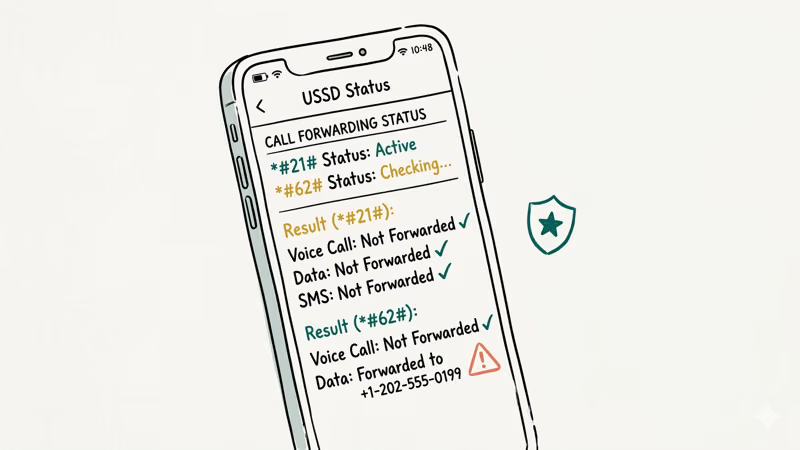
The three major U.S. carriers publish different cancellation codes.
| U.S. Carrier | Current Official Turn-Off or Reset Code | What to Confirm |
|---|---|---|
| AT&T | #21# turns off call forwarding | Wait for confirmation, then call your number from another phone |
| T-Mobile | ##21# turns off unconditional forwarding; ##004# resets busy, unreachable, and no-reply forwarding to defaults | Test while answered, busy, and unreachable; voicemail is a normal default |
| Verizon | *73 stops call forwarding | Wait for the confirmation tone or message, then place a test call |
According to Verizon’s code list, *73 stops forwarding.
Verizon doesn’t list ##002# as its cancellation method.
AT&T’s call-forwarding instructions state that #21# turns off forwarding. Wait for the confirmation tone before ending the call.
T-Mobile’s short-code table confirms that ##21# turns off unconditional forwarding while ##004# resets busy, unreachable, and no-reply forwarding to the carrier default.
Verify the outcome. Call your number from another phone after any carrier-specific change.
#*#21# - Active Call Diversions
On carriers and international GSM networks that support it, *#21# can request the status of unconditional call forwarding. It doesn’t prove whether SMS, mobile data, account access, or spyware is compromised.
If the response shows an unfamiliar voice-forwarding number, save a screenshot and contact the carrier. If the code returns an error, use the carrier’s app, phone settings, or support line instead. Verizon customers should not treat a failed *#21# query as confirmation that forwarding is off.
#*#62# - Forwarding When Unreachable
On networks that support the query, *#62# shows the destination used when the phone is unreachable. A carrier voicemail number is a normal result.
An unfamiliar number deserves a carrier check, but it isn’t proof of hacking by itself. Write it down, compare it with the carrier’s voicemail destination, and ask the carrier to remove any rule you didn’t authorize. Until that is confirmed, avoid SMS recovery for sensitive accounts and use an authenticator app where available.
###002# - Not a Universal Cancellation Code
Some GSM carriers accept ##002# as a broad forwarding-cancellation request. Don’t assume it works on a U.S. line just because the dialer closes or shows a generic success message.
Use the carrier table above instead. On Verizon, dial *73; on AT&T, dial #21#; on T-Mobile, use ##21# for unconditional forwarding and ##004# for the conditional categories. Then call your number from another phone under the relevant conditions or ask carrier support to confirm the network state.
#*#06# - Your IMEI Number
Dial *#06# on many phones to display the IMEI (International Mobile Equipment Identity). Store the number privately with your purchase records.
Carriers can use an IMEI to identify or block a lost or stolen device, but a consumer can’t locate a phone from the number alone. Dual-SIM phones normally show two IMEI numbers, so a second entry isn’t a red flag by itself. Report loss or suspected cloning to the carrier and use Apple or Google’s official lost-device service for location attempts.
#Platform-Specific Diagnostic Codes
The IMEI display code is widely supported, while forwarding and diagnostic codes vary. The next two diagnostic menus are platform-specific and aren’t hacking detectors.
#*#*#4636#*#* - Android Testing Menu
Some Android builds recognize this code and open a testing menu. The available panels vary, and the menu isn’t a reliable source for app-running history or per-app data use. Use the phone’s Battery, Network, and Apps settings for those checks instead.
This code doesn’t work on every Android phone. Samsung, Xiaomi, and some other manufacturers disable it.
#*3001#12345#* - iPhone Field Test Mode
On some iPhones, this code opens Field Test mode. The labels and available screens vary by iOS version and carrier, and the menu isn’t proof that a phone is safe or compromised.
According to the Canadian Centre for Cyber Security, active IMSI catchers (cell-site simulators) broadcast signals that appear stronger than legitimate cell towers, causing phones to disconnect from their carrier’s network and connect to the catcher instead. Field Test data alone can’t confirm one is nearby, so treat anything odd as a reason to contact your carrier. Press the Home button or swipe up to exit.
#What Are the Warning Signs Your Phone Is Hacked?
USSD codes can reveal some forwarding settings, but they don’t confirm an attack. Review account sessions, app permissions, and camera access settings separately because a dial code can’t diagnose them.
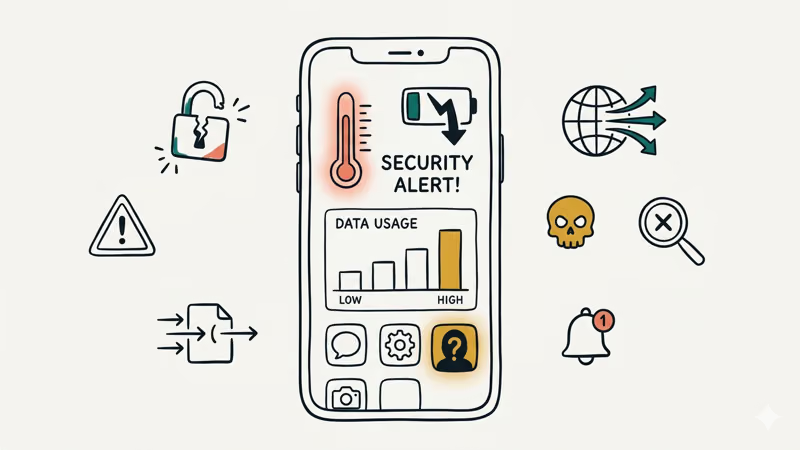
#Battery Draining Faster Than Usual
A sudden battery drain can have benign or malicious causes.
Check Settings > Battery on both iPhone and Android. An unfamiliar app using substantial background power deserves investigation, but high battery use alone doesn’t identify spyware.
#Unexplained Data Usage
Go to Settings > Cellular (iPhone) or Settings > Network & Internet > Data Usage (Android). Compare this month’s numbers to last month. A jump of several hundred megabytes with no change in your habits could mean your phone is uploading data you didn’t authorize.
Android and iPhone battery or cellular settings can break usage down by app. Compare the list with your own activity before treating a spike as malicious.
#Phone Overheats While Idle
Warmth during video calls, gaming, charging, updates, or poor reception can be normal. Repeated idle heating is a reason to check battery activity and installed apps, not proof of spyware.
#Apps You Didn’t Install
Scroll through your full app list. Spyware often disguises itself with generic names like “System Service,” “Phone Manager,” or “Wi-Fi Optimizer.” On Android, check Settings > Apps > App info for anything unfamiliar (some disguise themselves as system UI components). Pay attention to apps holding Device Administrator privileges, as these resist normal uninstall until you revoke that access first.
#Strange Account Activity
Investigate unfamiliar login locations, but remember that IP geolocation, mobile routing, travel, and VPNs can be inaccurate. Verify the device, time, and session details.
If you find unauthorized logins, change your password from a different device — not the compromised one. If you’re locked out of your Apple account, our guide on fixing iPhone verification failures can help. Enable two-factor authentication using an authenticator app rather than SMS, since SIM-based codes are vulnerable to interception.
#Removing a Hacker From Your Phone
Once you’ve confirmed suspicious activity on your own device, move fast. The longer a hacker has access, the more data they collect.
If you suspect monitoring by an abusive or controlling person, changing connectivity, removing an app, or resetting the phone may alert them. Use a separate trusted device and seek local domestic-abuse or technology-safety help before making changes if discovery could put you at risk.
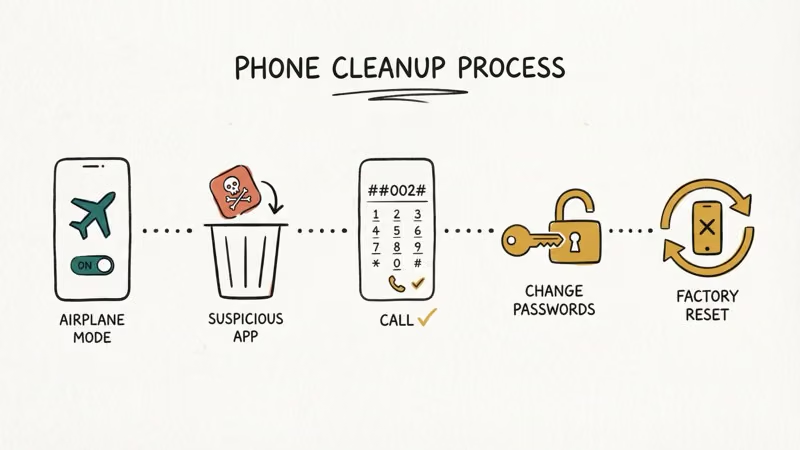
#Step 1: Disconnect From the Internet
Enable airplane mode to stop most network traffic while you inspect the phone.
#Step 2: Remove Suspicious Apps
Don’t delete an app only because its name is unfamiliar; system and carrier apps can be legitimate. Verify its publisher and purpose first. If an app is confirmed as unwanted, use the maker’s removal guidance or seek specialist help before changing administrator or management access.
On iPhone, press and hold the app icon, then tap Remove App.
#Step 3: Confirm Call Forwarding With Your Carrier
Use the AT&T, T-Mobile, or Verizon row above. After the carrier-specific code reports success, test calls from another phone and contact the carrier’s fraud team if an unfamiliar destination remains.
#Step 4: Change Your Passwords
Use a different device (a trusted computer or a friend’s phone) to change passwords for your email, banking, social media, and cloud storage accounts. Don’t change them on the compromised phone yet.
#Step 5: Factory Reset if Needed
If suspicious behavior continues after removing apps, a factory reset is your best option. Back up photos and files you need, then reset. On iPhone: Settings > General > Transfer or Reset iPhone > Erase All Content and Settings. On Android: Settings > System > Reset > Factory Data Reset.
Set up the phone as new afterward when the threat is unclear. Restoring the same apps, profiles, or unsafe settings can reintroduce the problem, and a reset doesn’t secure an account whose password or recovery methods were compromised.
#Preventing Your Phone From Being Hacked
Prevention takes less time than cleanup. A few settings changes make your phone a much harder target, and most of them take under five minutes to set up once.
Keep your operating system updated. Turn on automatic updates because security patches fix the exact vulnerabilities hackers exploit.
According to Google Play Protect Help, Play Protect checks apps from other sources, warns about harmful apps, and may disable or remove them. Still review app permissions and revoke camera, microphone, location, accessibility, or device-admin access that an app doesn’t need.
#Securing Your Accounts and Network
Use a password manager. Enable two-factor authentication with an authenticator app, not SMS — SIM swap attacks can intercept text-based codes. If you lose SIM data during a swap, check our SIM card data recovery guide.
Prefer trusted networks and HTTPS. A VPN protects transit on untrusted Wi-Fi, but not against phishing, unsafe apps, or compromised accounts.
#Bottom Line
Start with your carrier’s own call-forwarding instructions. *#21# and *#62# remain useful status queries on networks that support them, but they aren’t universal; AT&T, T-Mobile, and Verizon publish different cancellation codes. Confirm with test calls, then check account activity, app permissions, battery use, and data consumption for other signs.
#Frequently Asked Questions
Is it safe to dial USSD codes on my phone?
The codes in this guide don’t install apps, but support and effects vary by carrier. Cancellation codes change network settings, so use only the code your carrier publishes and verify the result.
Can *#21# tell me if someone is listening to my calls?
On a network that supports it, the code can report unconditional voice forwarding. It won’t detect spyware, account compromise, SMS interception, or carrier-level surveillance.
Do these codes work on both iPhone and Android?
*#06# is widely supported on both platforms. Forwarding codes depend on the carrier and network, while *#*#4636#*#* is Android-only and Field Test mode is iPhone-only.
Will a factory reset remove all spyware?
A factory reset can remove many ordinary malicious apps and settings, but it isn’t a guarantee against compromised accounts, unwanted device management, or advanced persistence. Set up the phone as new, review enrolled management profiles, and change important passwords from a trusted device.
What should I do if I find an unknown forwarding number?
Save the number and contact the carrier’s fraud department. Use the carrier-specific cancellation code only after confirming which forwarding type is active, then place test calls. Change passwords for sensitive accounts from a trusted device and replace SMS recovery with an authenticator where possible.
Can someone hack my phone just by calling me?
Most scam calls rely on social engineering: the caller tries to make you disclose information, install an app, or open a malicious link. Rare call-processing vulnerabilities have existed, so keep the phone updated and contact the maker or carrier if a call is followed by unexplained crashes, prompts, or account changes.
How often should I check my phone for hacking signs?
Check when calls stop reaching you, voicemail changes unexpectedly, or your carrier account shows an action you didn’t make. Routine carrier-app and account reviews are more reliable than running an unsupported code on a schedule.
Does my phone carrier offer any security tools?
U.S. carriers offer services such as AT&T ActiveArmor, T-Mobile Scam Shield, and Verizon Call Filter, but features, price, and eligibility change. Check the carrier’s current service page and enable account-change alerts separately where available.

Is This Bank App Real? Spot a Fake App on Your Home Screen
A bank app can land on your home screen from a web page with no install warning. Learn the checks that tell a real banking app from a phishing web app.
Passkeys Not Syncing Between iPhone and Windows? Read This
Passkeys not syncing between iPhone and Windows is by design, not a bug. Here is why iCloud passkeys skip Windows Hello and the three ways to fix it.
VPN Not Working on Snapdragon X? Why It Fails, How to Fix
Your VPN won't install or connect on a Snapdragon X Copilot Plus PC because Windows on ARM can't emulate the network driver. Here are the fixes that work.
How to Check If a Link Is Safe Before You Click It
Learn how to check if a link is safe with official-first steps: read the real domain, use the app instead, and treat scanners as a second opinion only.