If you’ve noticed a process called “wisptis.exe” running on your Windows computer, you might be wondering what it is and whether it’s safe. This comprehensive guide will explain everything you need to know about wisptis.exe, its purpose, potential impact on your system, and how to manage it effectively.
#What is Wisptis.exe?
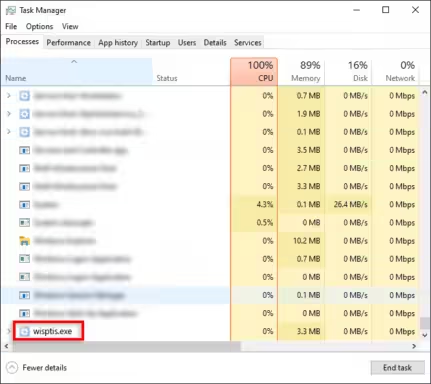
Wisptis.exe, which stands for Windows Ink Services Platform Tablet Input Subsystem, is a legitimate Windows system process. It plays a crucial role in enabling pen and touch input functionality on compatible devices.
#Origin and Installation
Wisptis.exe typically comes bundled with:
- Microsoft Office installations
- Windows updates
- Adobe products (e.g., Adobe Acrobat)
- Other software that utilizes pen or touch input features
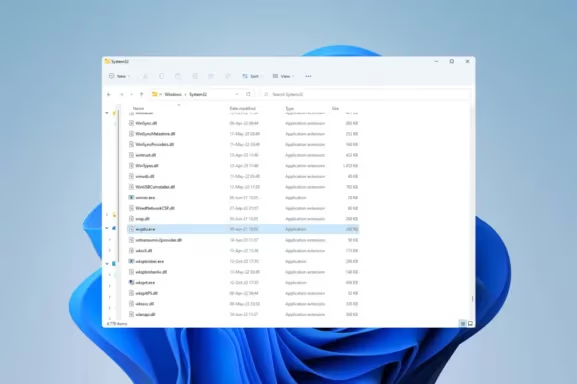
The file is usually located in the C:\Windows\System32 directory, which is a strong indicator of its legitimacy.
#Legitimacy vs. Security Risks
While wisptis.exe is a genuine Windows file, it’s important to note that malware can sometimes disguise itself using this name. Always verify the file’s location and properties to ensure it’s the legitimate version. If you’re concerned about potential security threats, consider learning about IDP.Generic and how it relates to system file detection.
#The Purpose and Functionality of Wisptis.exe
Wisptis.exe serves several important functions related to pen and touch input on Windows devices:
- Facilitates handwriting recognition: Enables users to input text using a stylus or touch screen.
- Supports digital ink features: Allows for smooth drawing and annotation in compatible applications.
- Enables touch gestures: Provides functionality for multi-touch gestures on touchscreen devices.
- Integrates with Windows Ink Workspace: Works in tandem with Windows’ built-in note-taking and sketching tools.
#Associated Applications
Wisptis.exe is particularly important for applications that rely heavily on pen or touch input, such as:
- Microsoft Office (especially OneNote)
- Adobe Acrobat and other PDF annotation tools
- Drawing and graphic design software
- Note-taking applications
#Background Process
One notable characteristic of wisptis.exe is that it often runs in the background, even when pen or touch input is not actively being used. This behavior ensures that the system is always ready to handle these types of inputs but can also lead to unnecessary resource consumption on devices that don’t require these features.
#Impact on System Performance
While wisptis.exe is essential for certain functionalities, it can have a noticeable impact on system performance, especially on older or less powerful devices.
#Resource Usage
Wisptis.exe is known for its relatively high memory and CPU usage. This can lead to:
- Increased power consumption
- Reduced battery life on laptops and tablets
- Potential system slowdowns, particularly when running resource-intensive applications
Similar to wisptis.exe, other processes like nvdisplay.container.exe can also impact system performance, especially on systems with NVIDIA graphics cards.
#User-Reported Issues
Some users have reported experiencing:
- Difficulty logging off or shutting down their computers
- Unexpected system freezes or crashes
- Reduced overall system responsiveness
It’s important to note that these issues are more likely to occur on systems with limited resources or when multiple instances of wisptis.exe are running simultaneously.
#Security Considerations for Wisptis.exe
While wisptis.exe itself is not a security threat, its name has been used by malware creators to disguise malicious software. Here are some key security considerations:
#Verifying File Authenticity
To ensure you’re dealing with the legitimate wisptis.exe:
- Check its location (should be in C:\Windows\System32)
- Verify file properties (right-click > Properties)
- Check the digital signature (should be from Microsoft)
#Best Practices for System Security
- Keep your operating system and antivirus software up to date
- Be cautious when downloading software from untrusted sources
- Regularly scan your system for malware
- Monitor your system for unusual behavior or performance issues
#How to Manage Wisptis.exe
Depending on your system’s needs and performance concerns, you may want to manage or disable wisptis.exe.
#Checking if Wisptis.exe is Necessary
Before taking any action, consider whether your device actually needs pen or touch input functionality. If you’re using a desktop computer without a touchscreen or pen input device, you may be able to safely disable wisptis.exe.
#Methods to Disable or Remove Wisptis.exe
Here are several approaches to managing wisptis.exe, ranging from temporary to more permanent solutions:
#1. Task Manager Method
- Open Task Manager (Ctrl + Shift + Esc)
- Find wisptis.exe in the Processes tab
- Right-click and select “End task“
Note: This method is temporary, and the process may restart upon system reboot.
#2. Group Policy Editor Approach
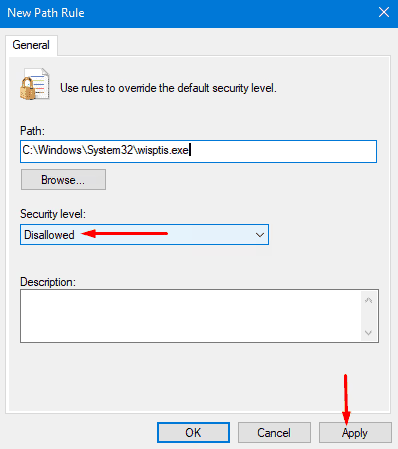
- Press Windows + R, type “gpedit.msc“, and press Enter
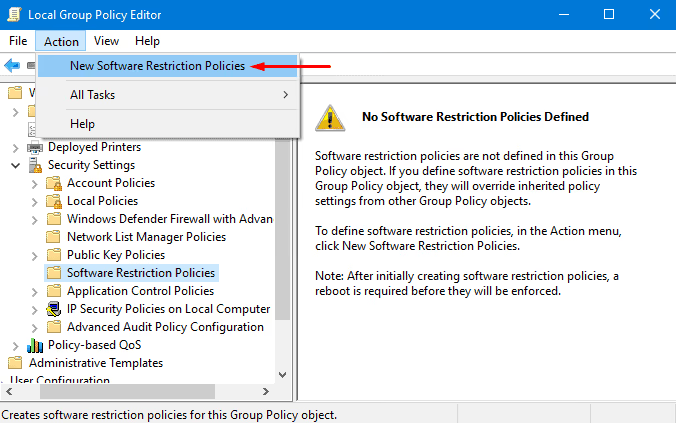
- Navigate to Computer Configuration > Windows Settings > Security Settings > Software Restriction Policies
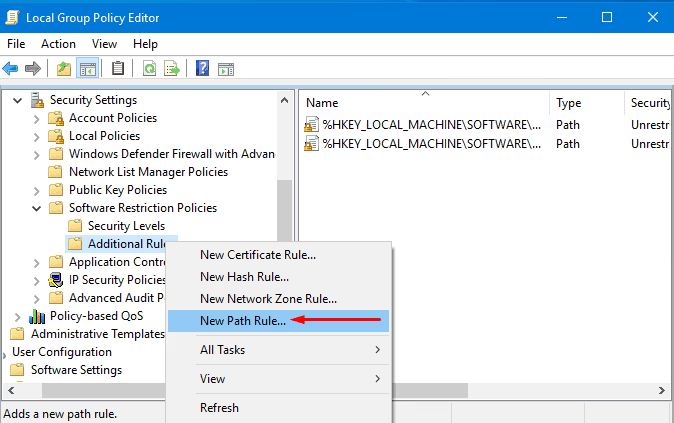
- Right-click on “Additional Rules” and select “New Path Rule“
- Browse to C:\Windows\System32\wisptis.exe
- Set the Security Level to “Disallowed“
#3. Modifying File Permissions
- Navigate to C:\Windows\System32
- Right-click on wisptis.exe and select Properties
- Go to the Security tab and click “Edit“
- Select the user account and deny execute permissions
#4. Disabling Associated Services
- Press Windows + R, type “services.msc“, and press Enter
- Find “Touch Keyboard and Handwriting Panel Service“
- Right-click and select “Properties“
- Set Startup type to “Disabled” and click “Stop“
#Potential Consequences of Disabling Wisptis.exe
Be aware that disabling wisptis.exe may affect:
- Touchscreen functionality
- Pen input features
- Certain Windows features like the Snipping Tool
Always create a system restore point before making significant changes to your system.
#Troubleshooting Common Wisptis.exe Errors
Users may encounter various errors related to wisptis.exe. Here are some common issues and potential solutions:
#Runtime Errors
Symptoms: Error messages mentioning wisptis.exe during program execution.
Potential solutions:
- Update or reinstall the associated software (e.g., Microsoft Office)
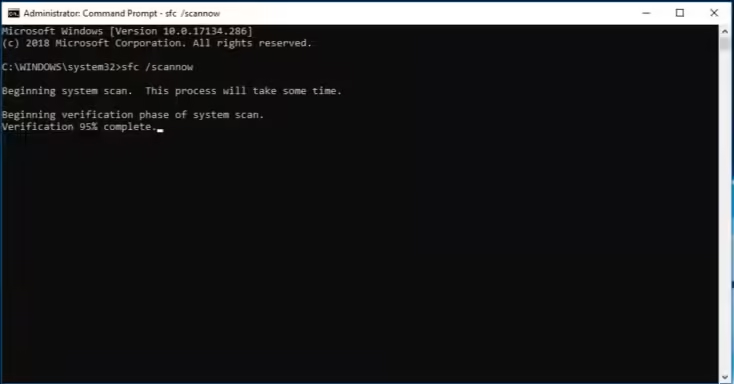
- Run a System File Checker (sfc /scannow in Command Prompt)
- Perform a clean boot to identify conflicts with other software
#High CPU Usage
Symptoms: Wisptis.exe consuming a large percentage of CPU resources.
Potential solutions:
- End the process and restart it
- Update your operating system and drivers
- Check for malware infections
#File Not Found Errors
Symptoms: System unable to locate wisptis.exe.
Potential solutions:
- Restore the file from a backup
- Reinstall associated software
- Run Windows Update to replace missing system files
If you encounter errors like 0x80070570 or 0x80070652, these may be related to Windows Update or file system issues, which could indirectly affect wisptis.exe functionality.
#Frequently Asked Questions About Wisptis.exe
- Q: Is wisptis.exe a virus? A: No, wisptis.exe is a legitimate Windows process. However, malware may disguise itself using this name, so always verify the file’s location and properties.
- Q: Can I delete wisptis.exe? A: It’s not recommended to delete wisptis.exe as it’s a system file. Disabling it is a safer option if you don’t need its functionality.
- Q: Why does wisptis.exe use so much memory? A: Wisptis.exe manages pen and touch input, which can be resource-intensive. Its high memory usage is often normal behavior.
- Q: Will disabling wisptis.exe improve my system performance? A: It may improve performance on systems that don’t use pen or touch input, but results can vary. Always monitor your system after making changes.
- Q: How can I tell if wisptis.exe on my system is legitimate? A: Check its location (should be in C:\Windows\System32) and verify its digital signature in file properties.
#Conclusion: Balancing Functionality and System Performance
Wisptis.exe plays a crucial role in enabling pen and touch input functionality on Windows systems. While it’s essential for many users, particularly those with touchscreen devices or digital pens, it can sometimes impact system performance.
Understanding the purpose of wisptis.exe and how to manage it effectively allows you to make informed decisions about your system configuration. Whether you choose to keep it running for its functionality or disable it to potentially improve performance, always prioritize system security and create backups before making significant changes.
By following the guidelines and troubleshooting tips outlined in this article, you can ensure that wisptis.exe serves its intended purpose without unnecessarily impacting your system’s performance or security. Remember, wisptis.exe is just one of many system processes, and understanding others like VulkanRT can help you better manage your overall system performance.