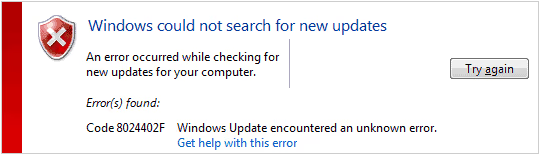
Windows Update Error 8024402F can be a frustrating obstacle when trying to keep your system up-to-date and secure. As an IT professional , I’ve encountered this error numerous times and developed a comprehensive approach to resolving it. In this guide, I’ll walk you through the causes of Error 8024402F and provide step-by-step solutions to get your Windows updates back on track.
#Understanding Windows Update Error 8024402F
Error 8024402F typically occurs when there’s a connection interruption between your computer and the Windows Update servers. This can happen due to various reasons, including:
- Incorrect date and time settings
- Disabled update-related services
- Proxy server interference
- Antivirus or firewall blocking
- Corrupted update files
- Unstable internet connection
The error prevents your system from downloading and installing critical updates, potentially leaving your computer vulnerable to security threats and missing out on new features.
#Troubleshooting Steps
Let’s dive into the step-by-step solutions to resolve Windows Update Error 8024402F:
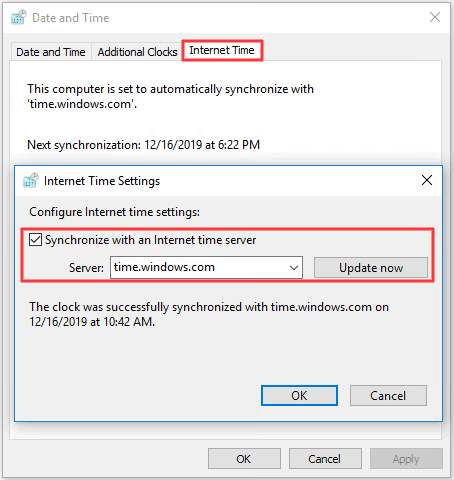
#1. Check Date and Time Settings
Incorrect system time can cause synchronization issues with update servers. To fix this:
- Open the Control Panel and navigate to “Clock and Region” > “Date and Time“
- Ensure your time zone is correct
- Click on “Internet Time” and select “Change settings“
- Check “Synchronize with an Internet time server” and choose “time.windows.com“
- Click “Update now” and “OK“
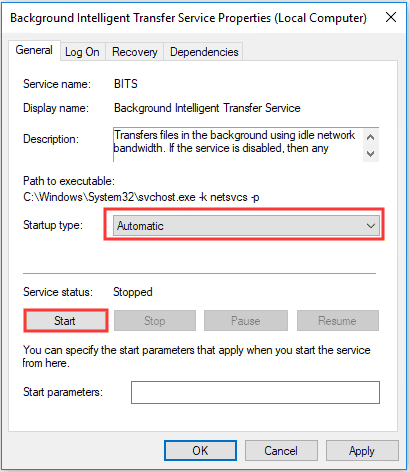
#2. Verify Related Services are Running
Essential Windows Update services must be active for updates to work properly. Here’s how to check:
- Press Windows + R, type “services.msc“, and hit Enter
- Locate the following services:
- Background Intelligent Transfer Service
- Windows Update
- DCOM Server Process Launcher
- COM+ Event System
- Remote Procedure Call (RPC)
- Ensure each service’s Startup type is set to “Automatic“
- If any service is stopped, right-click and select “Start“
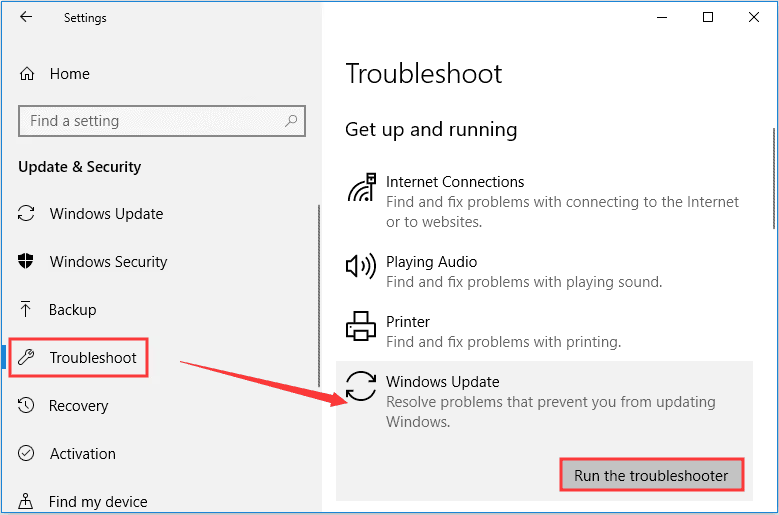
#3. Use Windows Update Troubleshooter
Windows has a built-in tool to automatically detect and fix update issues:
- Go to Settings > Update & Security > Troubleshoot
- Select “Windows Update” under “Get up and running“
- Click “Run the troubleshooter” and follow the on-screen instructions
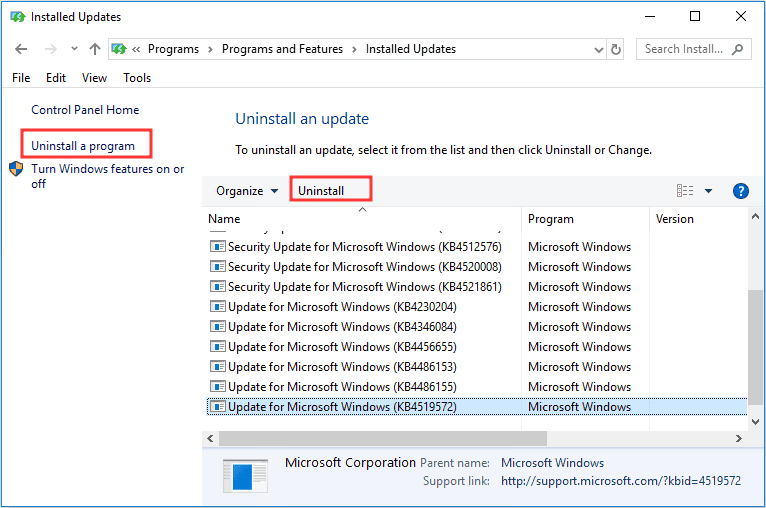
#4. Reinstall Recent Updates
Sometimes, corrupted update files can cause Error 8024402F. To address this:
- Open Control Panel > Programs > Programs and Features
- Click “View installed updates” in the left pane
- Select recently installed updates and click “Uninstall“
- Restart your computer
- Go to Settings > Update & Security > Windows Update and check for updates again
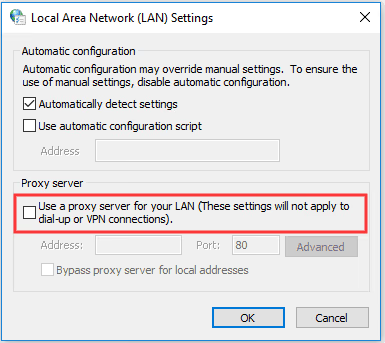
#5. Disable Proxy Settings
Proxy servers can interfere with the update process. To disable proxy:
- Press Windows + R, type “inetcpl.cpl“, and hit Enter
- Go to the “Connections” tab and click “LAN settings“
- Uncheck “Use a proxy server for your LAN“
- Click “OK” and restart your computer
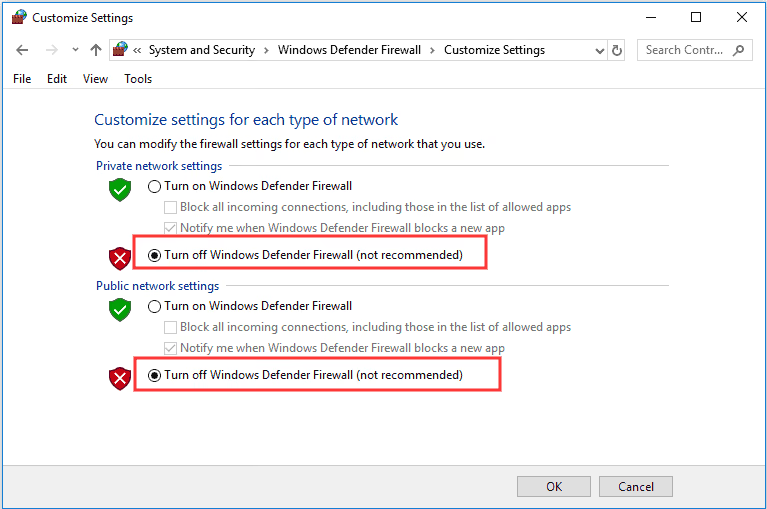
#6. Temporarily Disable Antivirus and Firewall
Security software can sometimes block Windows updates. Temporarily disable them:
- Open Control Panel > System and Security > Windows Defender Firewall
- Click “Turn Windows Defender Firewall on or off“
- Select “Turn off Windows Defender Firewall” for both private and public networks
- Click “OK” and try updating again
Remember to re-enable your security software after updating.
#7. Check Internet Connection
A stable internet connection is crucial for updates. Ensure your connection is working properly by:
- Checking network cables and router
- Running a speed test
- Connecting to a different network if possible
#8. Reset Windows Update Components
If all else fails, resetting update components can often resolve persistent issues:
Open Command Prompt as administrator
Run the following commands:
net stop wuauserv
net stop cryptSvc
net stop bits
net stop msiserver
ren C:\Windows\SoftwareDistribution SoftwareDistribution.old
ren C:\Windows\System32\catroot2 Catroot2.old
net start wuauserv
net start cryptSvc
net start bits
net start msiserver
Restart your computer and try updating again
#Advanced Solutions
If you’ve tried all the above steps and still encounter Error 8024402F, consider these advanced solutions:
#Repair Windows 10 Without CD
You can repair Windows 10 without a CD using the built-in tools. This process can fix many system issues, including update errors. Learn how to repair Windows 10 without a CD here.
#Address Other Common Windows Errors
Sometimes, Error 8024402F may be related to other Windows issues. Familiarize yourself with these common errors and their solutions:
- How to fix Windows 10 error code 0xc0000098
- Resolving the comdlg32.ocx error on Windows
- Addressing the 0xc000000d error
#Seek Professional Help
If you’re still experiencing issues:
- Contact Microsoft Support: Visit the official Microsoft Support website for live chat, phone support, or community forums.
- Professional IT Services: Consider hiring a local IT professional who can provide hands-on assistance and diagnose more complex issues.
#Preventing Future Update Errors
To minimize the risk of encountering Error 8024402F in the future:
- Keep your system regularly updated
- Maintain a stable internet connection
- Periodically check that essential services are running
- Use reputable antivirus software and keep it updated
- Avoid making system changes during the update process
#FAQs
- Q: Can I ignore Windows Update Error 8024402F? A: It’s not recommended to ignore update errors, as they can leave your system vulnerable to security threats and prevent access to new features.
- Q: How often should I check for Windows updates? A: It’s best to set your system to install updates automatically or check for updates at least once a week.
- Q: Are there alternative methods to update Windows if the automatic process fails? A: Yes, you can manually download updates from the Microsoft Update Catalog, but it’s generally better to troubleshoot and fix the automatic update process.
- Q: What should I do if none of these methods resolve Error 8024402F? A: If you’ve tried all the steps in this guide without success, contact Microsoft Support or a professional IT service for personalized assistance.
- Q: Can third-party software cause Windows Update Error 8024402F? A: Yes, certain third-party applications, especially security software, can interfere with the update process. Try temporarily disabling them during updates.
#Conclusion
Windows Update Error 8024402F can be resolved through a systematic approach of troubleshooting steps. By following this comprehensive guide, you should be able to overcome the error and successfully update your Windows system. Remember, keeping your system updated is crucial for maintaining security and optimal performance. If you continue to experience issues, don’t hesitate to seek professional assistance or explore the additional resources linked in this article.