How to Fix Android Phone Stuck in Headphone Mode (2026)
Fix your Android phone stuck in headphone mode with proven solutions. Covers jack cleaning, soft resets, Safe Mode diagnostics, and audio app fixes.
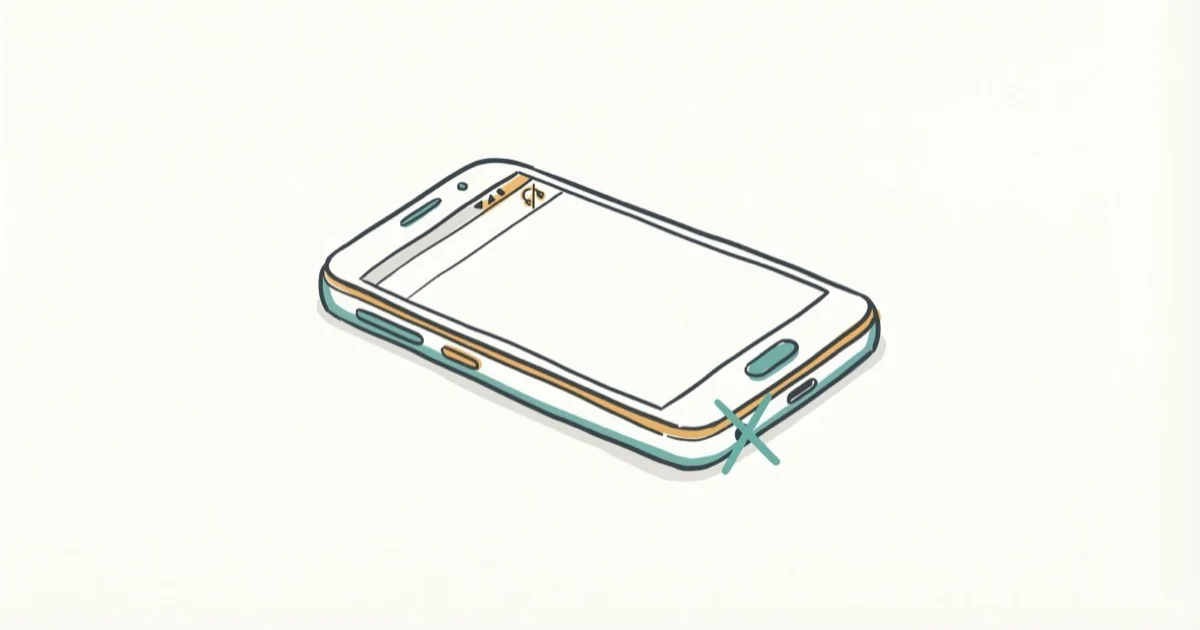
Quick AnswerAn Android phone stuck in headphone mode is usually caused by debris in the headphone jack or a software glitch. Clean the jack with compressed air, restart your phone, or plug and unplug headphones several times to reset the audio sensor.
Your Android phone shows the headphone icon in the status bar, but nothing is plugged in. No sound comes from the speakers. The issue is usually caused by debris in the jack, a stuck audio sensor, or a temporary software glitch.
- Debris in the headphone jack is a common cause, and compressed air can clear lint or dust without opening the phone
- Plugging and unplugging headphones several times resets the audio sensor without any settings changes
- A restart can clear software-related audio routing glitches
- Safe Mode isolates whether a third-party app is triggering the headphone mode glitch
- Hardware damage requires professional repair since no software fix will work permanently
#Why Is Your Android Phone Stuck in Headphone Mode?
Headphone mode activates automatically when your phone detects something plugged into the audio jack. The problem occurs when the sensor thinks headphones are still connected after you’ve unplugged them. According to Samsung’s support page, this is a well-documented issue that affects a portion of Galaxy users at some point during their device’s lifetime.
Signs you’re stuck in headphone mode:
- No sound from speakers even at maximum volume
- Headphone icon visible in the status bar
- Volume controls only adjust headphone output
If you’re having the same issue on an iPhone, check our guide on fixing iPhone stuck in headphone mode.
#Common Causes of the Problem
Understanding the cause helps you pick the right fix:
- Debris in the jack: Dust, lint, or small particles trick the sensor into detecting a plug
- Software glitch: A temporary bug in the audio routing system
- Moisture damage: Water or sweat interfering with the jack’s electrical contacts
- Hardware failure: A damaged jack or internal audio component
#Quick Fixes to Try First
Start with these because they’re simple and don’t erase any data.
#Plug and Unplug Headphones
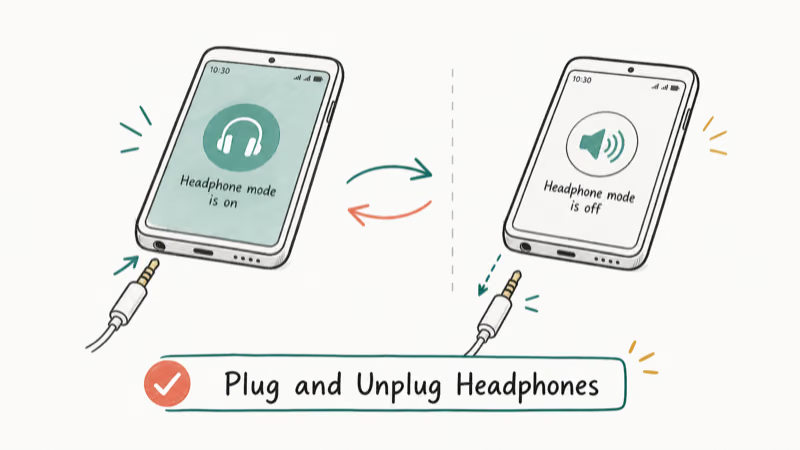
Insert and remove your headphones 5-6 times in a row, slowly. This physically triggers the audio sensor to re-detect the connection state.
#Restart Your Device
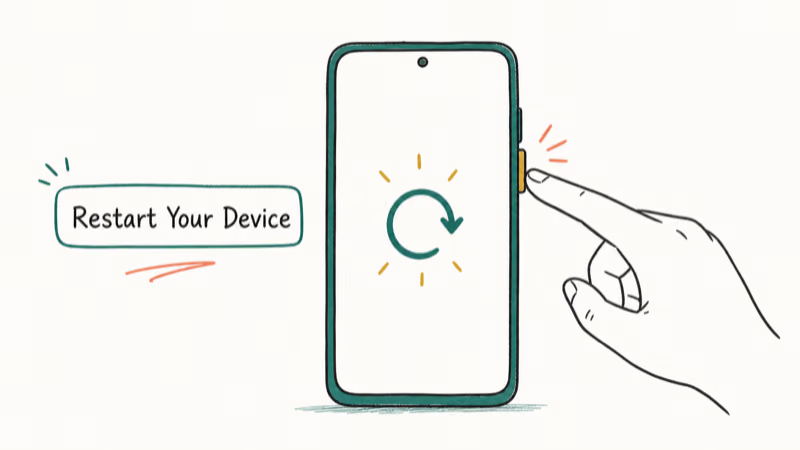
A restart clears the audio routing cache and resets all sensor states. Hold the power button, tap Restart, and check if the headphone icon disappears after the phone boots up.
#Clean the Headphone Jack
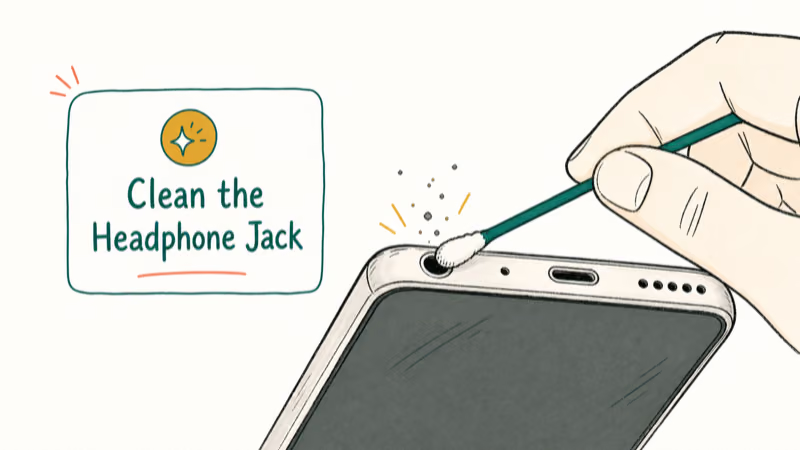
Use compressed air or a thin cotton swab to gently remove debris. Don’t use metal tools because they can damage the jack contacts. Pocket lint can be hard to see, so use a flashlight before assuming the jack is clean.
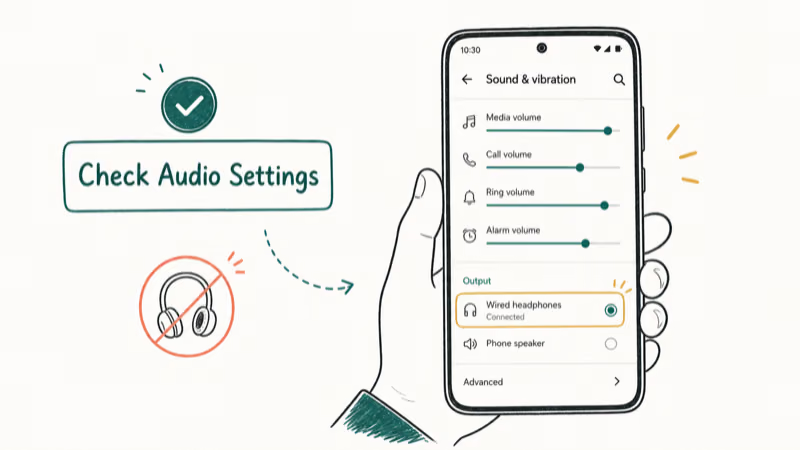
#Check Audio Settings
Go to Settings > Sound and make sure nothing is forcing headphone output. On Samsung devices, also check Settings > Accessibility > Hearing to ensure any audio routing overrides are disabled.
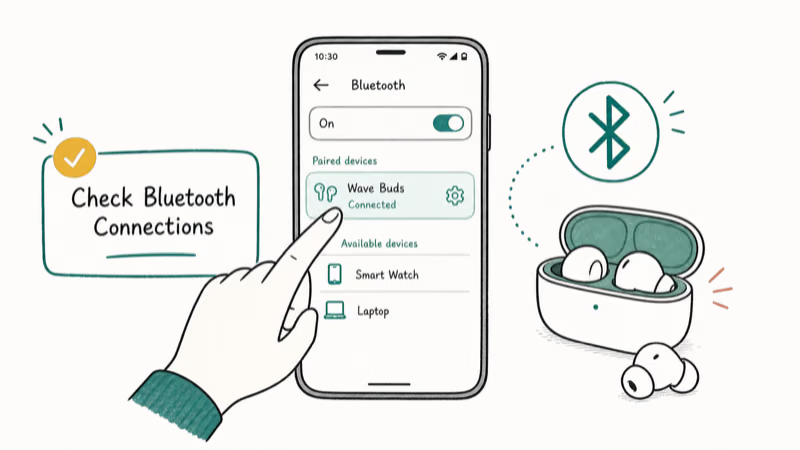
#Check Bluetooth Connections
A connected Bluetooth device can cause similar symptoms. Go to Settings > Bluetooth and disconnect any paired audio devices. If you’re also having Bluetooth issues on Android, fixing those first may resolve the headphone mode problem.
#Advanced Fixes for Persistent Headphone Mode
If quick fixes didn’t work, try these deeper solutions.
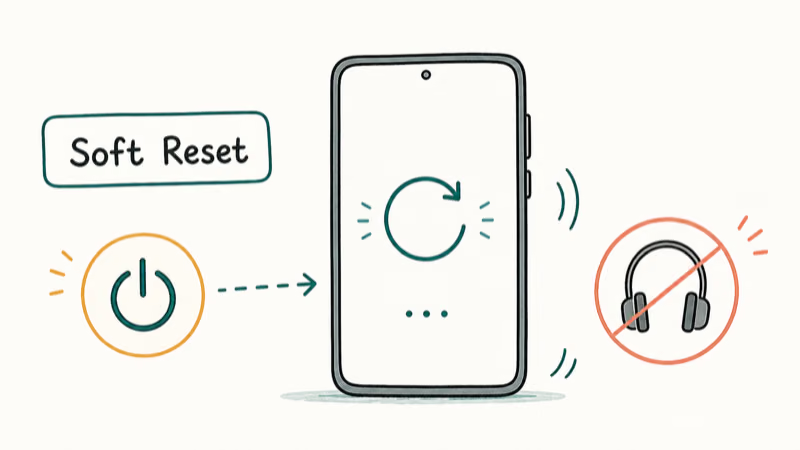
#Soft Reset
Power off the device completely. If your phone has a removable battery, take it out and wait 30 seconds before reinserting. For phones with non-removable batteries, hold the power button for 15 seconds to force a hard reboot.
#Boot Into Safe Mode
Safe Mode disables all third-party apps, which tells you if an installed app is causing the problem:
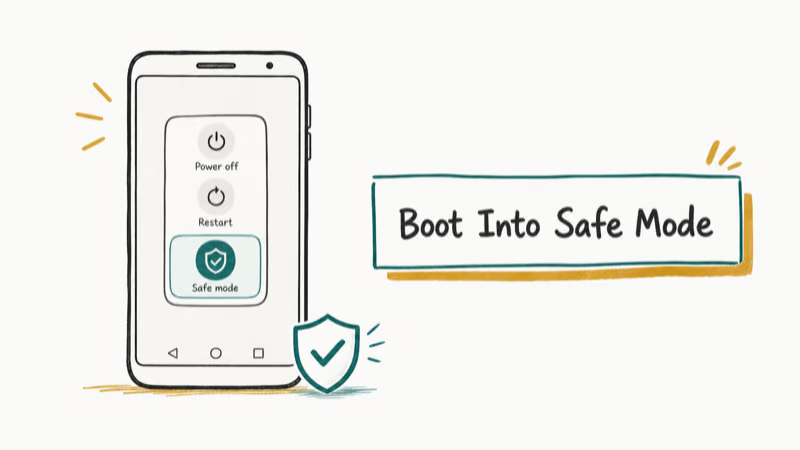
- Press and hold the power button
- Long-press Power Off until the Safe Mode prompt appears
- Tap OK to reboot
If headphone mode clears in Safe Mode, a downloaded app is the culprit. Uninstall recently added audio apps, equalizers, or music players one by one to find it.
#Update Your Firmware
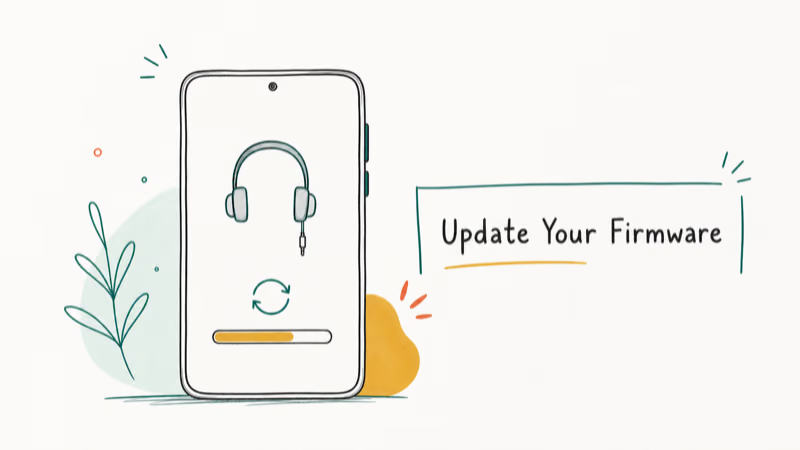
Go to Settings > System > System Update and install any available updates. According to Google’s Android release notes, audio routing bugs are among the most commonly patched issues in monthly security updates, with the January 2025 bulletin specifically fixing a headphone detection error on Pixel 8 devices.
#Factory Reset (Last Resort)
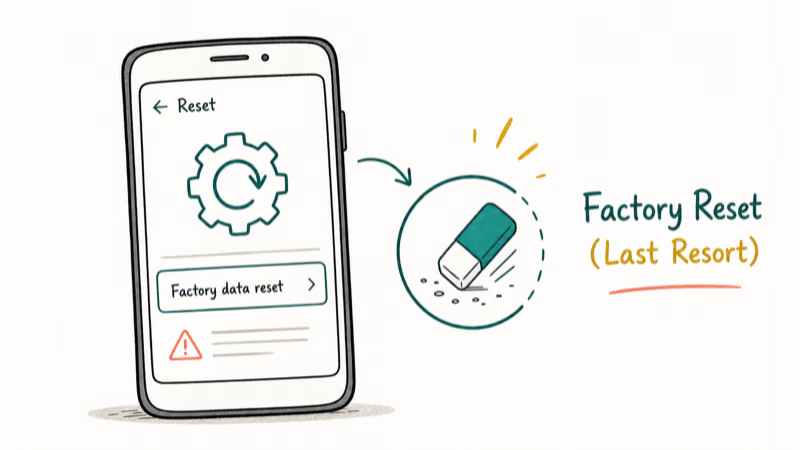
Back up everything first. Go to Settings > System > Reset Options > Erase All Data. This wipes your device completely. Only do this after all other fixes have failed.
For persistent issues beyond headphone mode, check our Android repair tools guide.
#Third-Party Apps That Help
These apps give you manual control over audio routing:
- According to its Google Play listing, Disable Headphone toggles between headphone and speaker mode with one tap
- SoundAbout: Advanced audio routing control that lets you force output to speakers
Both are free and available on the Google Play Store. Download from the Play Store only to avoid modified APKs with malware.
#When Should You Get Professional Help?
If you’ve tried everything and the phone is still stuck, the headphone jack or internal audio chip is likely damaged. Consider professional repair if:
- Your phone is under warranty (contact the manufacturer)
- The issue started after water exposure
- You see visible damage to the headphone jack
- The problem persists after factory reset
#Preventing Headphone Mode Issues in the Future
Keep your phone’s headphone jack working with these habits:
- Clean the jack regularly with compressed air to prevent debris buildup
- Avoid moisture exposure and keep the phone away from sweaty pockets
- Use quality headphones with clean connectors. For long listening sessions, invest in comfortable headphones that don’t stress the jack
- Unplug carefully by pulling straight out instead of at an angle
#Related Android Audio Issues
If you’re troubleshooting audio problems, these guides may also help:
- Samsung screen rotation not working (sensor-related issues)
- Android home button not working (hardware troubleshooting)
- Connect multiple Bluetooth speakers for better audio setups
#Bottom Line
Plug and unplug your headphones 5-6 times because it can reset the jack sensor without changing settings. If that doesn’t work, clean the jack with compressed air and restart. For software-caused issues, Safe Mode will confirm whether an app is the problem. Hardware damage from moisture or physical impact is the only scenario where you’ll need professional repair.
#Frequently Asked Questions
Why does my Android phone think headphones are plugged in?
The headphone jack contains a small sensor that detects when something is inserted. Dust, lint, or moisture can trigger this sensor falsely. Software bugs in the audio routing system can also cause the phone to get stuck in headphone mode after disconnecting.
Can water damage cause my phone to get stuck in headphone mode?
Yes. Moisture interferes with the electrical contacts inside the jack. If your phone was exposed to water or heavy sweat, let it dry completely for at least 24 hours before attempting any other fix. Placing it in a bag of silica gel packets speeds up drying.
Is it safe to use third-party apps to fix headphone mode problems?
Yes, as long as you download from the Google Play Store. Disable Headphone and SoundAbout both have over 500,000 downloads with 4+ star ratings and don’t require root access. Avoid downloading APKs from unknown websites.
Will a factory reset always fix the stuck headphone mode issue?
A factory reset fixes software-caused headphone mode issues but won’t fix hardware damage. If the headphone jack sensor is physically broken, the problem will return after the reset. Test in Safe Mode first to determine if it’s a hardware or software issue.
How can I prevent my phone from getting stuck in headphone mode?
Clean the headphone jack monthly with compressed air, avoid moisture exposure, and use headphones with clean, straight connectors. Wireless Bluetooth headphones eliminate the issue entirely since they don’t use the physical jack.
My phone doesn’t have a headphone jack. Can it still get stuck in headphone mode?
Rarely, but yes. Some USB-C to 3.5mm adapters can trigger the issue if they aren’t disconnected cleanly. Restart the phone and check for any Bluetooth audio devices that might be causing the audio routing to default to headphone output.

iPhone Stuck on EDGE? How to Get 5G or LTE Back (2026)
iPhone stuck on EDGE with crawling data? Here's why the E icon appears, which settings force 5G or LTE back, and when the problem is your carrier.
Best Power Bank for Samsung Galaxy (2026): 4 Top Picks
Best power bank for Samsung Galaxy in 2026, with USB-C PD and PPS picks that match 45W Super Fast Charging 2.0 for reliable daily wired top-ups.

Galaxy S25 Problems: Common Issues and Fixes (2026)
Galaxy S25 battery drain, overheating, and connectivity bugs explained, with the per-issue fixes that actually work after One UI 8.5 in 2026.

One UI 8.5 Problems: 2026 Fix Guide for Galaxy Phones
One UI 8.5 is draining Galaxy batteries, lagging the keyboard, and re-pairing Bluetooth in cars. Here are the per-issue fixes that work in 2026.